Why the message category matters
Meta uses the template category to determine how a message is treated during delivery. A message sent under the wrong category, for example, a promotional job campaign labelled as Utility, can be flagged as a policy violation, have reduced delivery rates, or contribute to your phone number receiving a lower quality rating.What are the template categories
Marketing
Use this for any message that promotes your organisation, a role, or any other content that isn’t directly tied to an action the candidate has already taken. Examples:- Outreach to passive candidates
- Job campaign announcements
- Recruitment newsletters
- Re-engagement messages
Utility
Use this for transactional messages that are triggered by something the candidate or your team has already done - confirming a next step, sending a reminder, or updating a status. Examples:- Interview confirmation messages
- Application status updates
- Reminder messages before an interview
- Survey follow-ups linked to a specific process step
Authentication
Use this for messages that send a one-time code or verify a candidate’s identity. This category is rarely needed in day-to-day recruitment workflows. Examples:- Verification codes
- One-time passwords
How to set the category in HireData
When creating a new message template in HireData
You’ll find the category selector in the template builder. Select the category before submitting the template for Meta’s approval.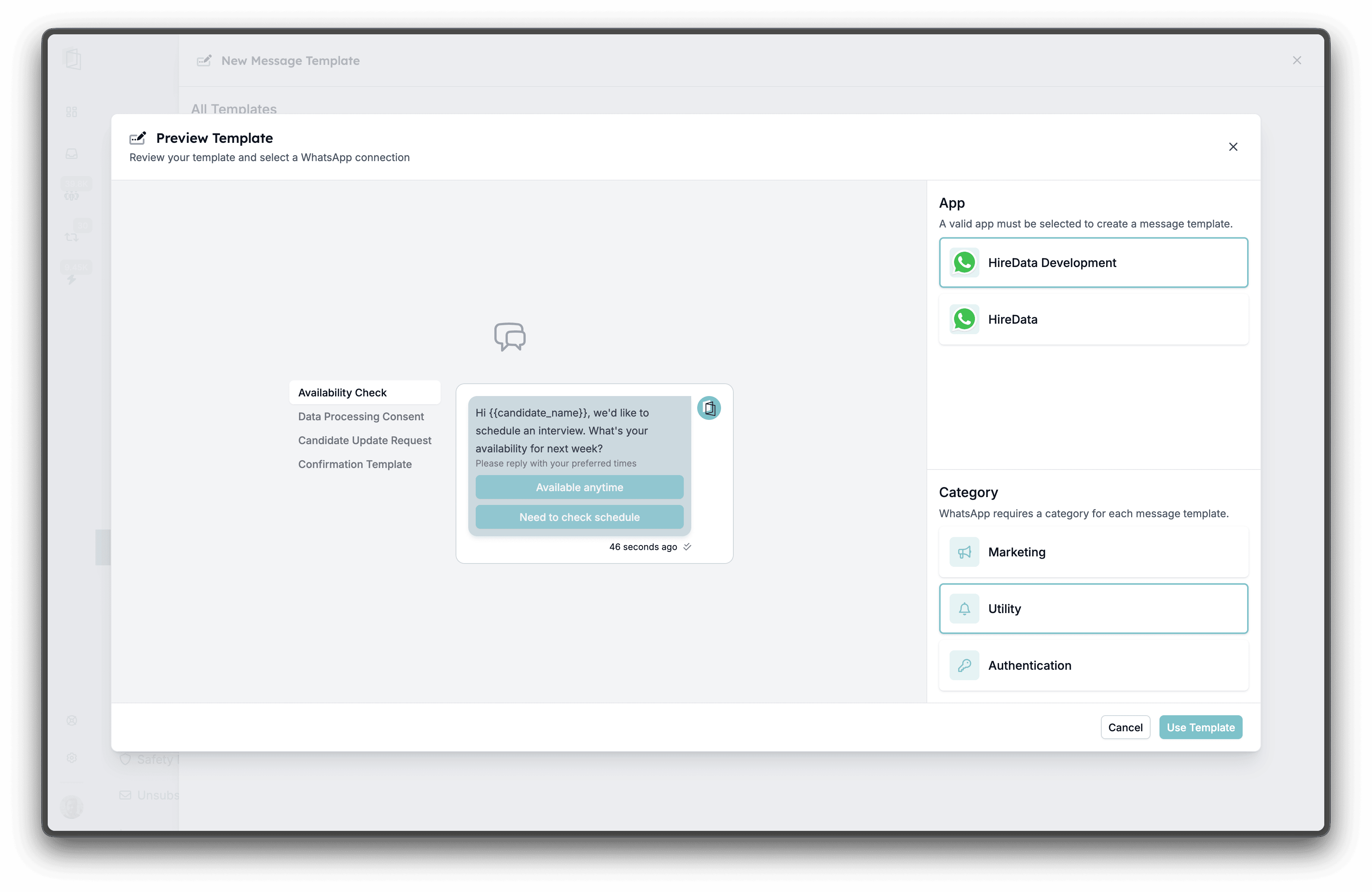
During the automation set-up
The category selector is also available when converting form fields into message templates inside the automation builder.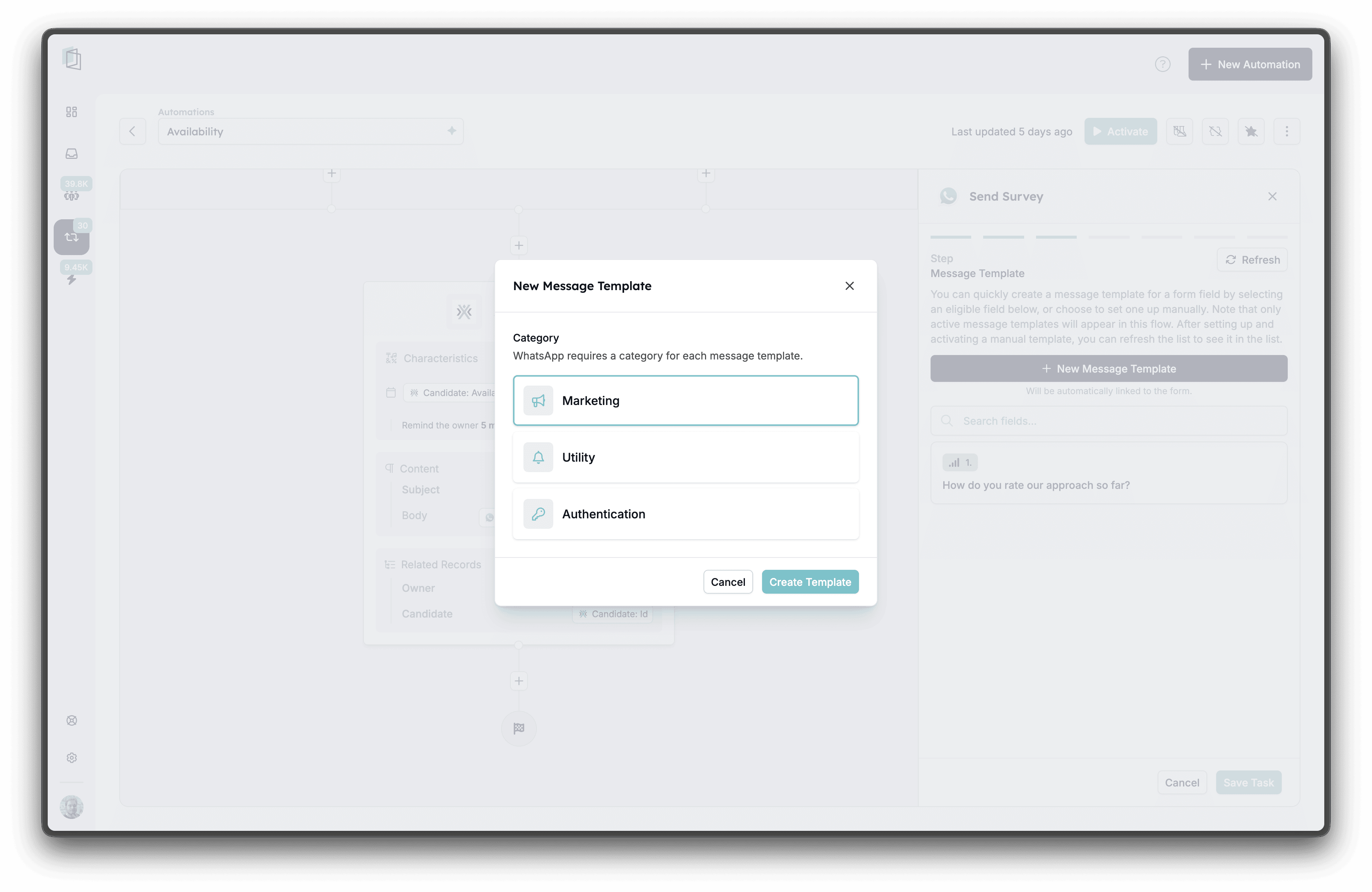
Edit and update categories on draft templates
If a template is still in draft, you can change its category from the settings drawer. Once a template has been submitted and approved by Meta, the category is fixed - you’ll need to create a new template if you want to change it.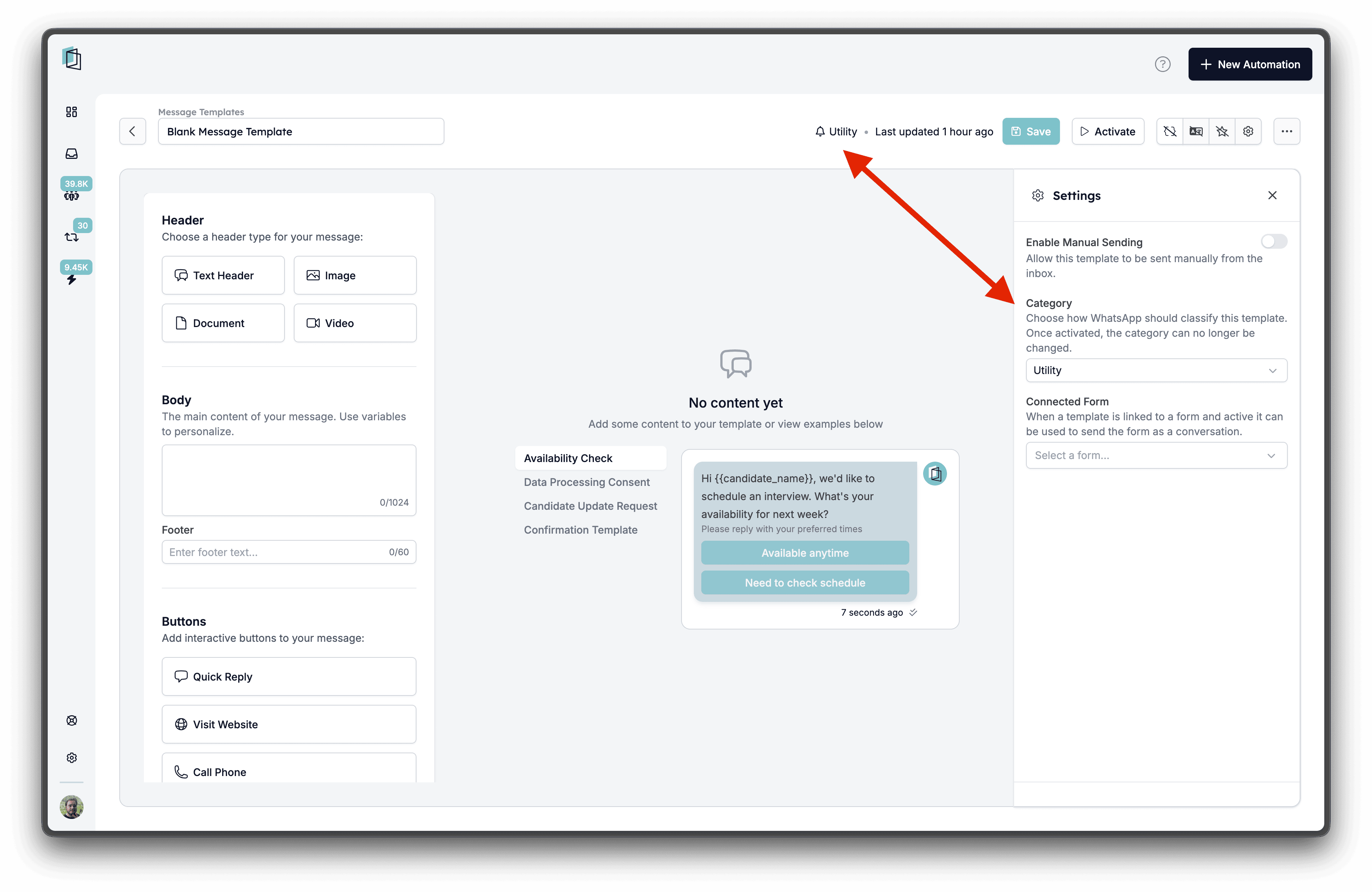
Reviewing the template category
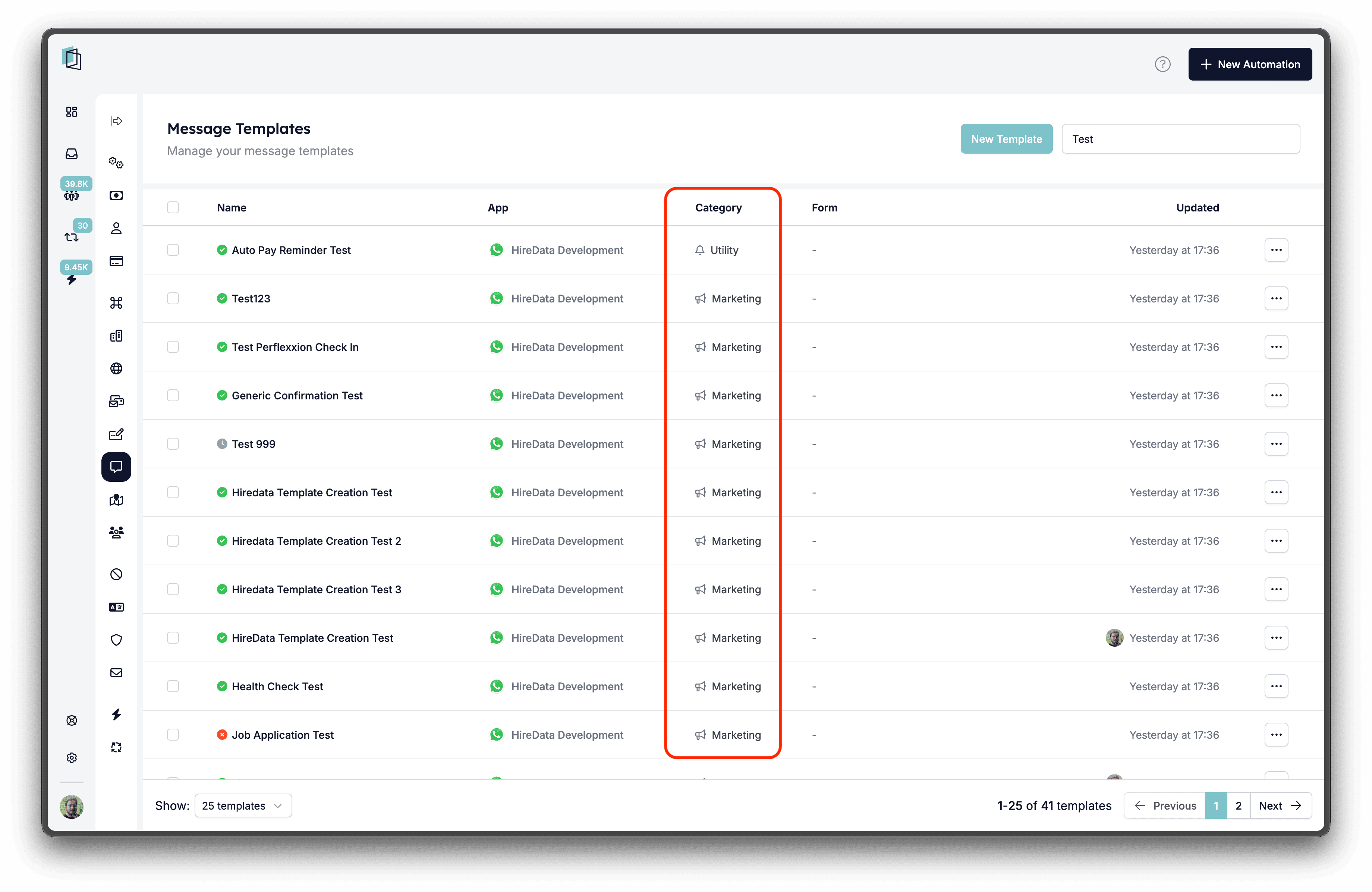
You can see the category of each template in the template list, where a Category column is shown next to the template name.