Landed here from a Send Limits Exceeded or Send Limits Per Automation Exceeded cancellation? See Run cancellation reasons for the fix.
Breakdown of the safety limits
Prevent message overload
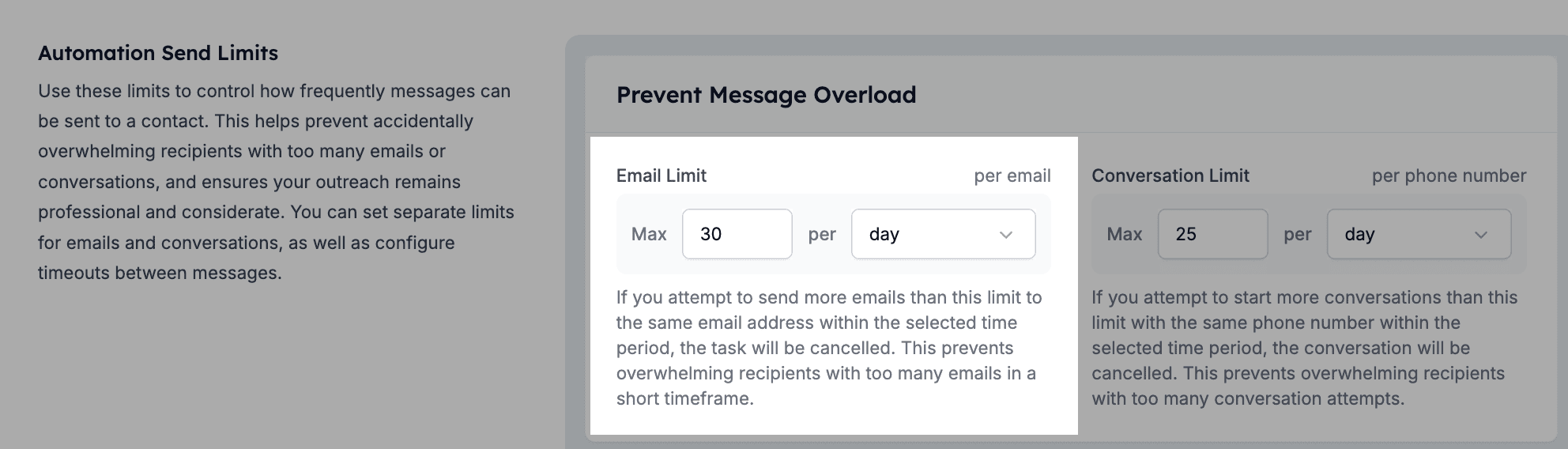
1.1. Email send limits
- Definition: Limits the number of emails that can be sent to a single email address.
- Purpose: Prevents overloading a contact’s inbox and avoids emails being flagged as spam.
- Fully customisable
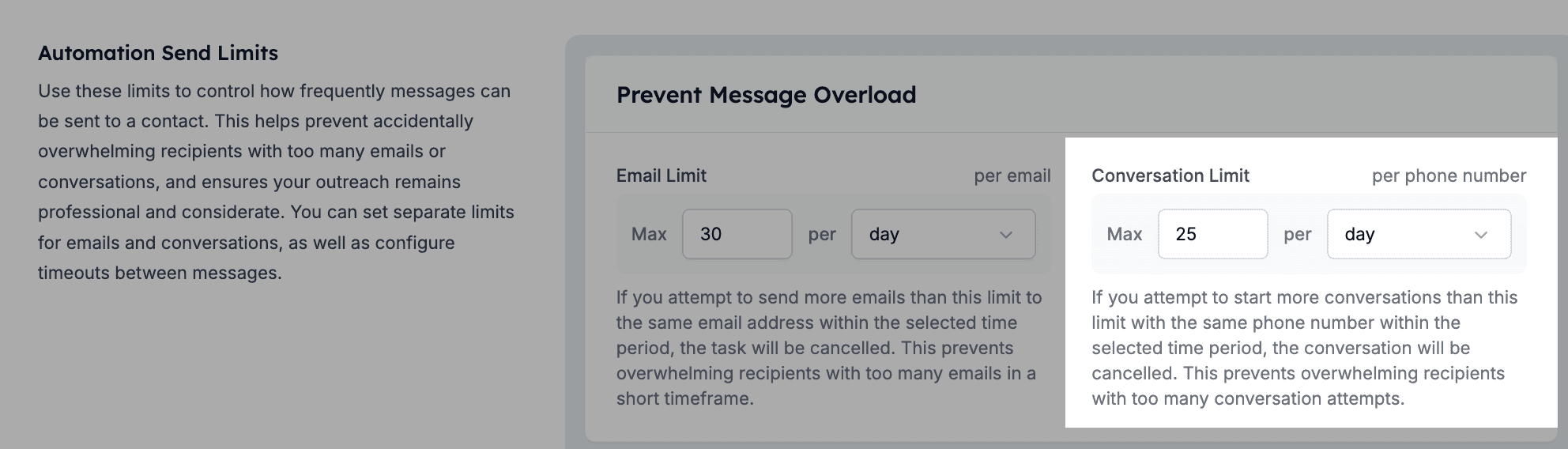
1.2. Conversation send limits
- Definition: Limits the number of conversations initiated per phone number.
- Purpose: Controls outreach frequency to avoid excessive messages and potential contact fatigue.
- Fully customisable
Automation message limits
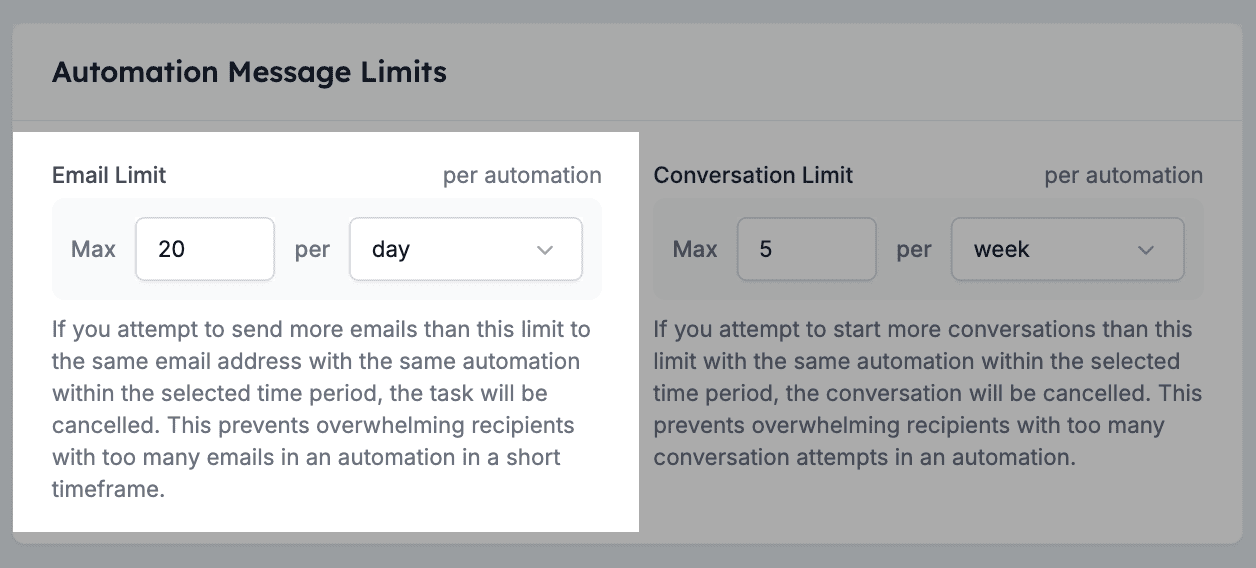
2.1. Email send limit
- Definition: Limits the number of emails you can send to the same email with the same automation.
- Purpose: Prevents overloading the recipient with the same email in a short period of time.
- Fully customisable
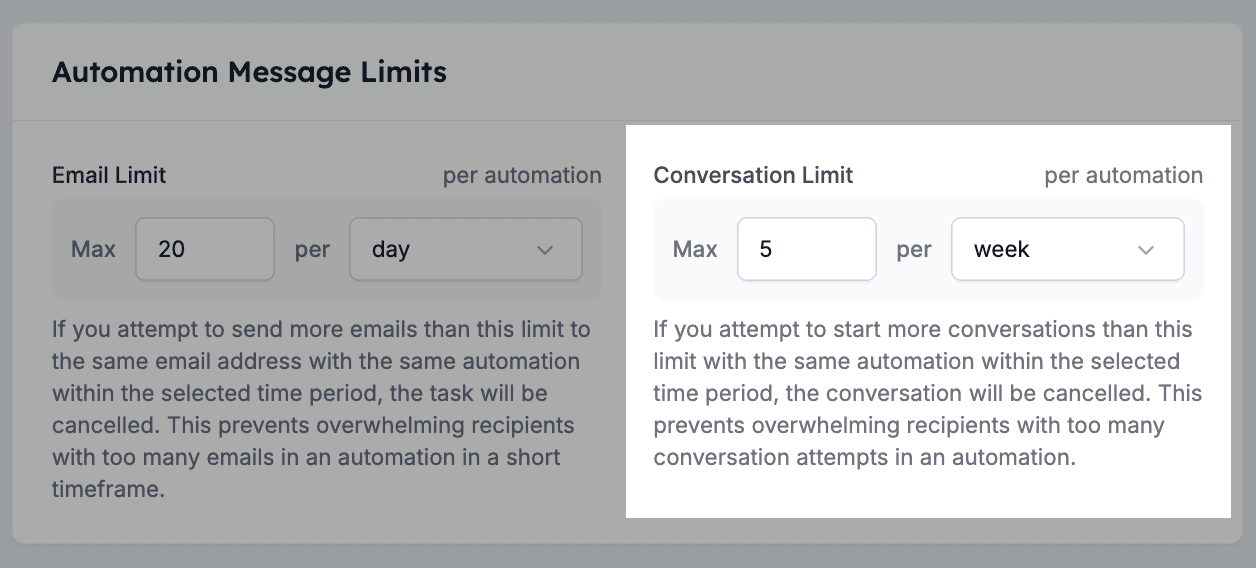
2.2. Conversation send limit
- Definition: Limits the number of conversations you can send to the same phone number with the same automation.
- Purpose: Prevents overloading the recipient with the same messages in a short period of time.
- Fully customisable
Close unresponsive conversations
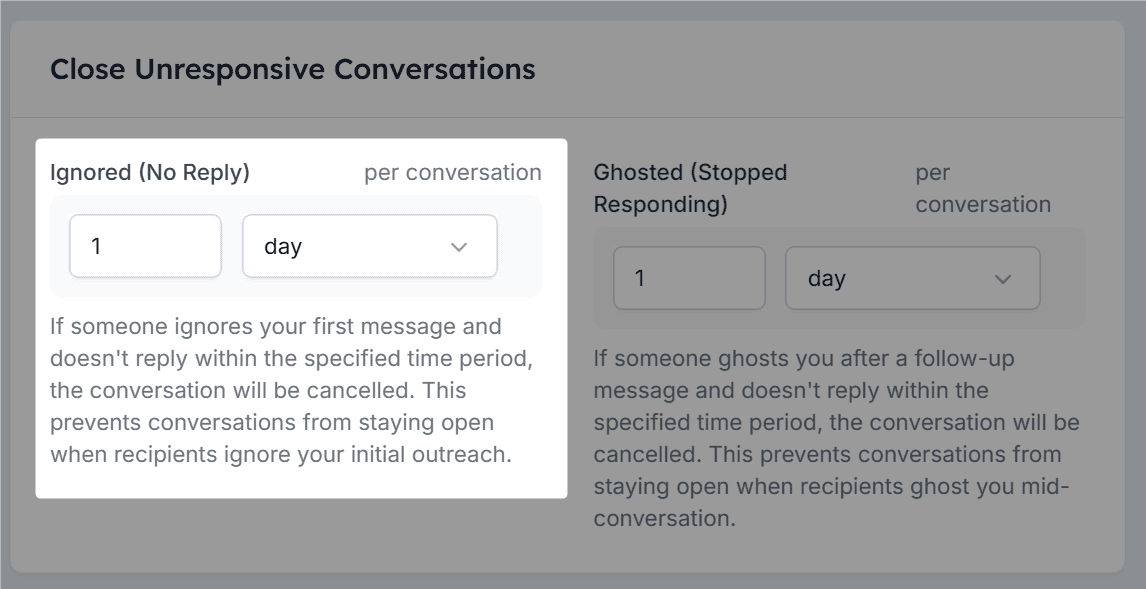
3.1. Ignored (no reply)
- Definition: Automatically cancels a conversation if there’s no reply within the set time period.
- Purpose: Prevents inactive conversations from remaining open when recipients don’t respond.
- Fully customisable
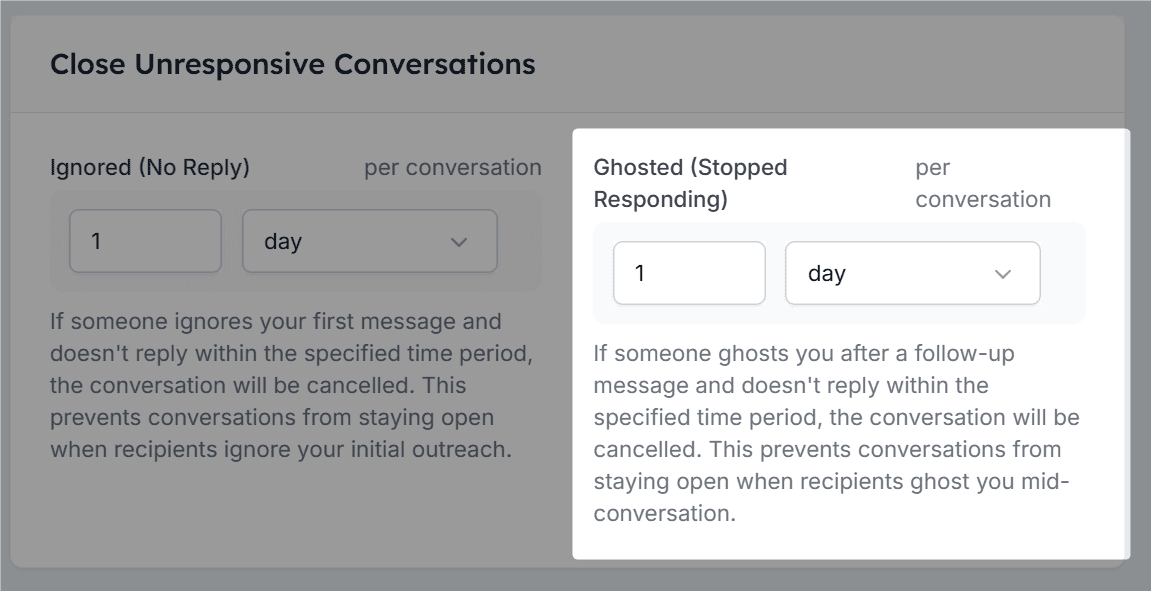
3.2. Ghosted (stopped responding)
- Definition: Cancels a conversation if there’s no reply after a follow-up within the set time period.
- Purpose: Prevents stalled conversations from staying open when recipients stop responding mid-conversation.
- Fully customisable
Avoid accidental restarts
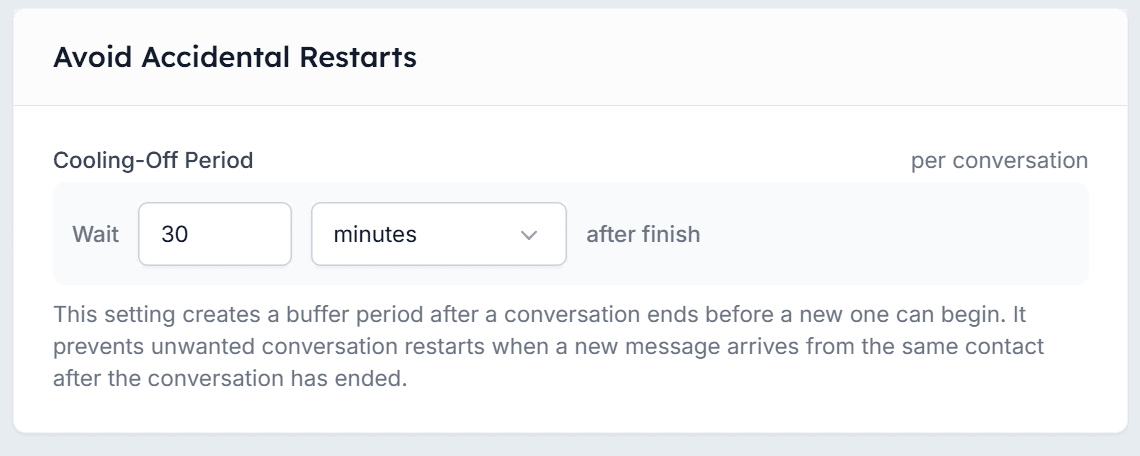
4.1. Cooling-off period
- Definition: Adds a buffer period after a conversation ends before a new one can start.
- Purpose: Prevents automatic restarts when a contact sends a new message too soon after a conversation has closed.
- Fully customisable
How to adjust your safety limits
1
Navigate to the Safety Limits section in HireData
Go to Settings > Safety Limits.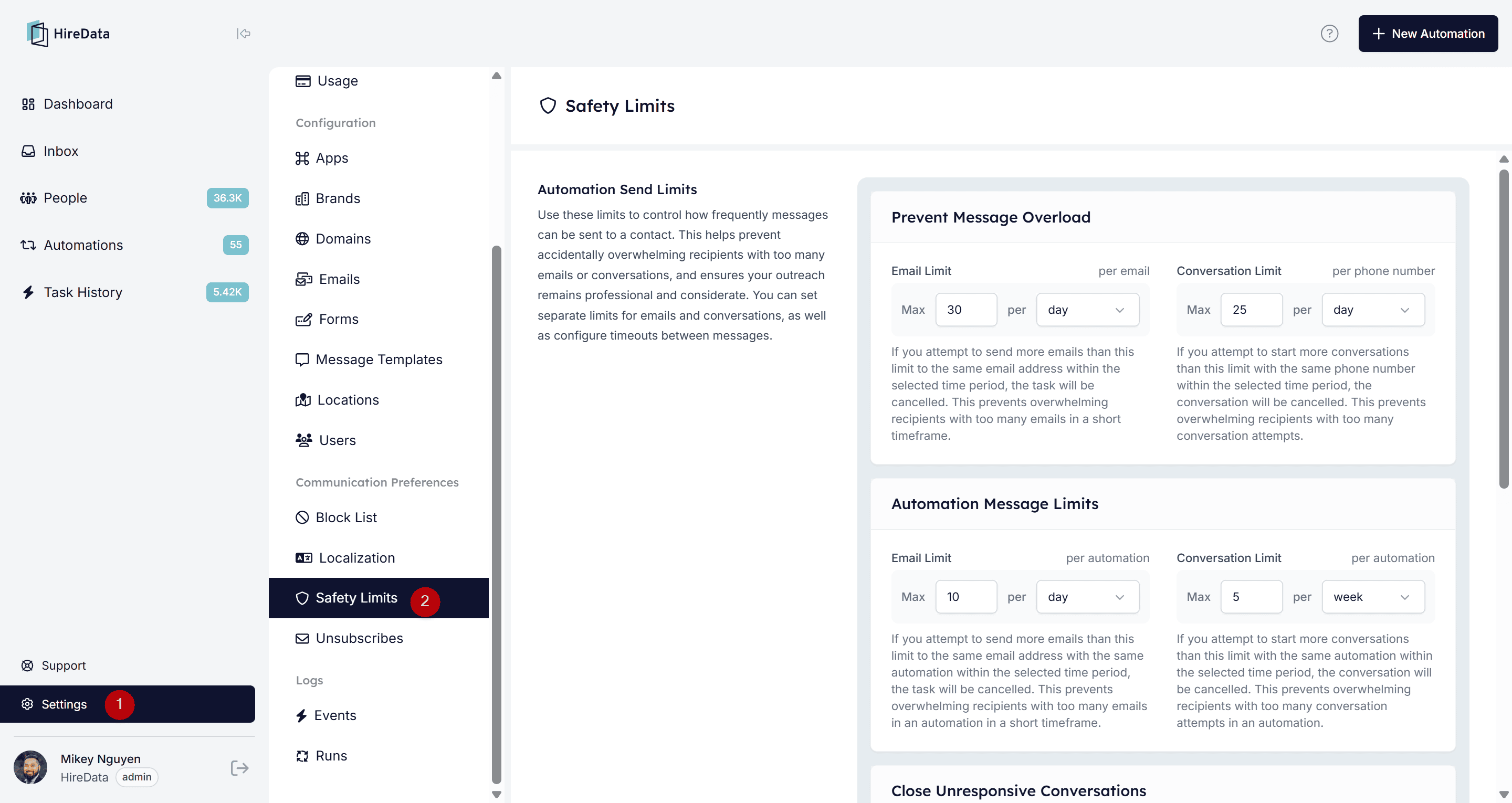
2
Adjust the limits according to your outreach strategy
Enter the maximum allowed messages or timeouts and use the dropdown menu to set the frequency (e.g., per day/week/month/quarter/half year/year) of each setting.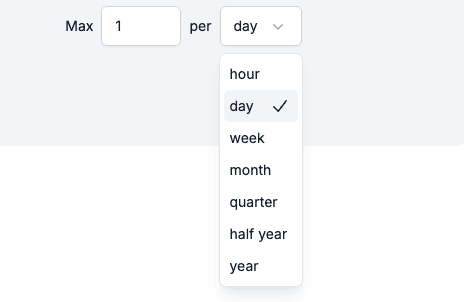
3
Save your changes
Click the Save Changes button to apply your changes immediately.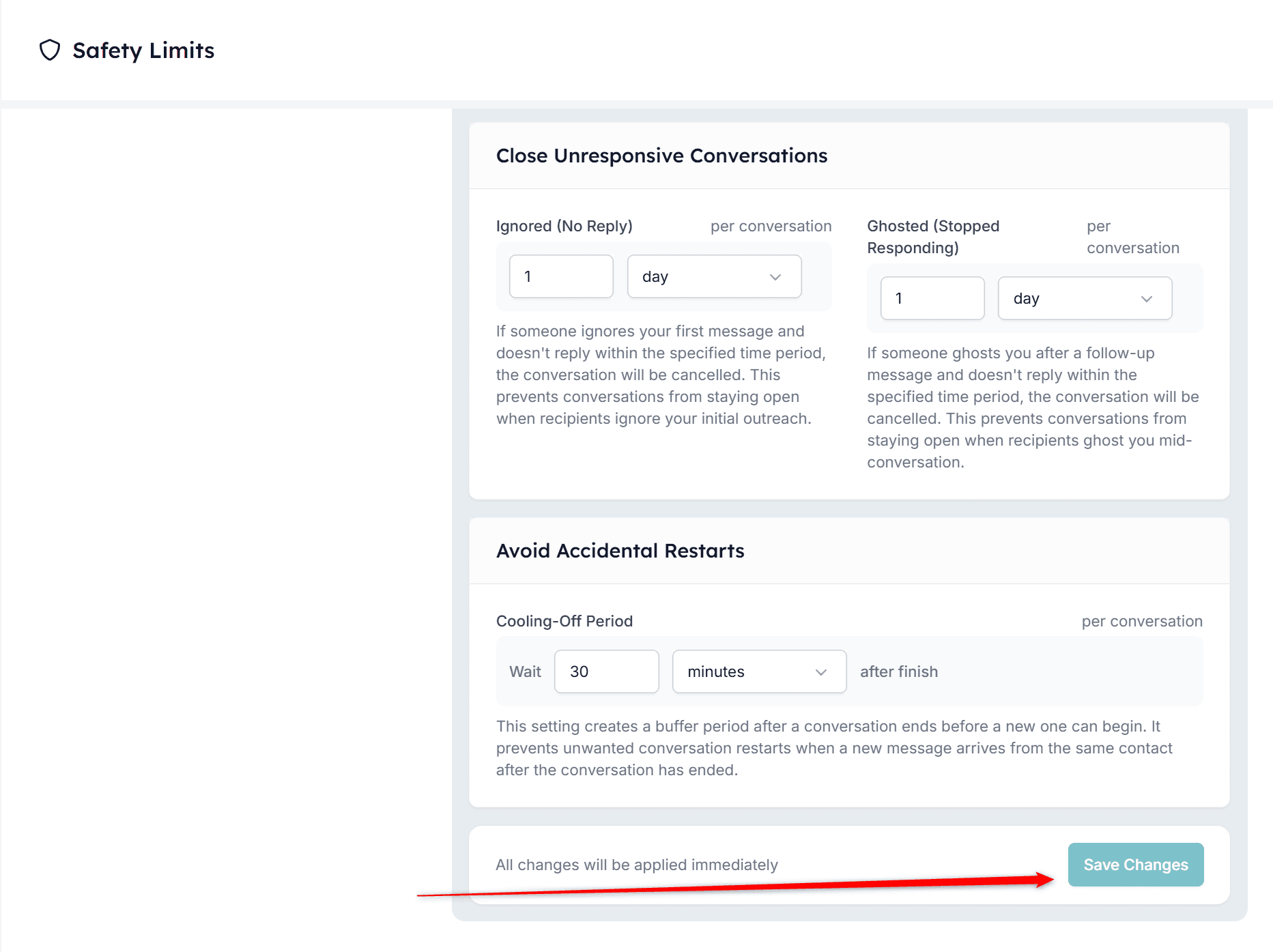
Adjusting safety limits for an individual automation
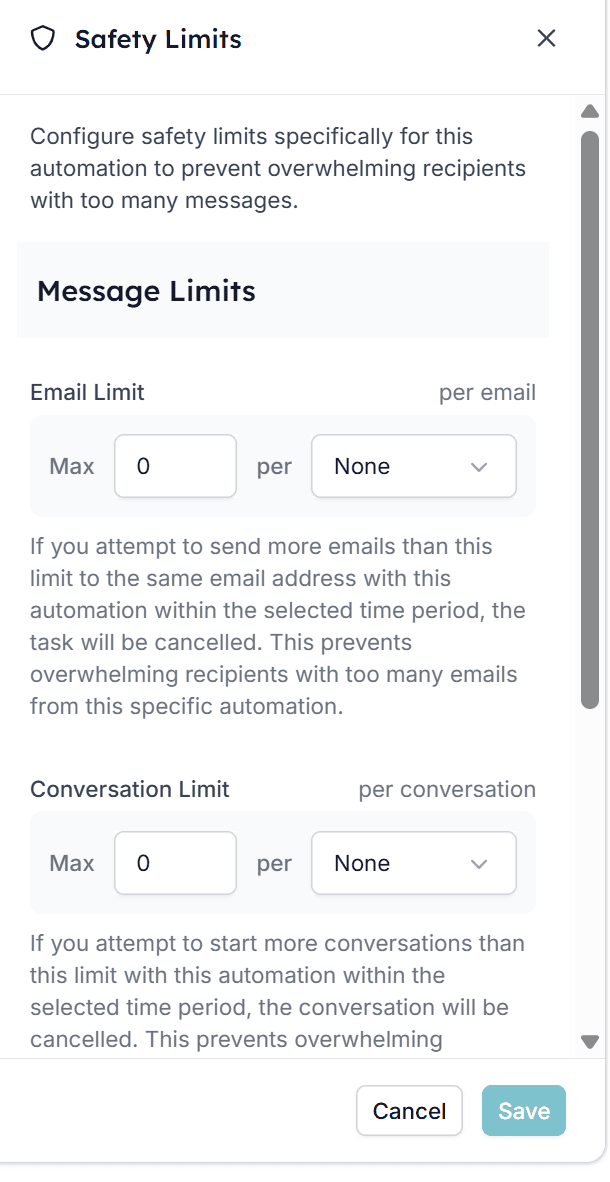
Every automation in HireData can have its own set of safety limits. These limits define how many messages a single recipient can receive from this specific automation within a certain time period. Inside each automation’s settings panel, you’ll find two types of limits:- Email Limit – This limit determines how many emails the automation is allowed to send to the same email address within the selected time frame.
- Conversation Limit – This limit applies to automations that initiate conversations via WhatsApp. It defines how many new conversation attempts can be started for the same recipient within a given time period.
How to set up the safety limits for individual automations
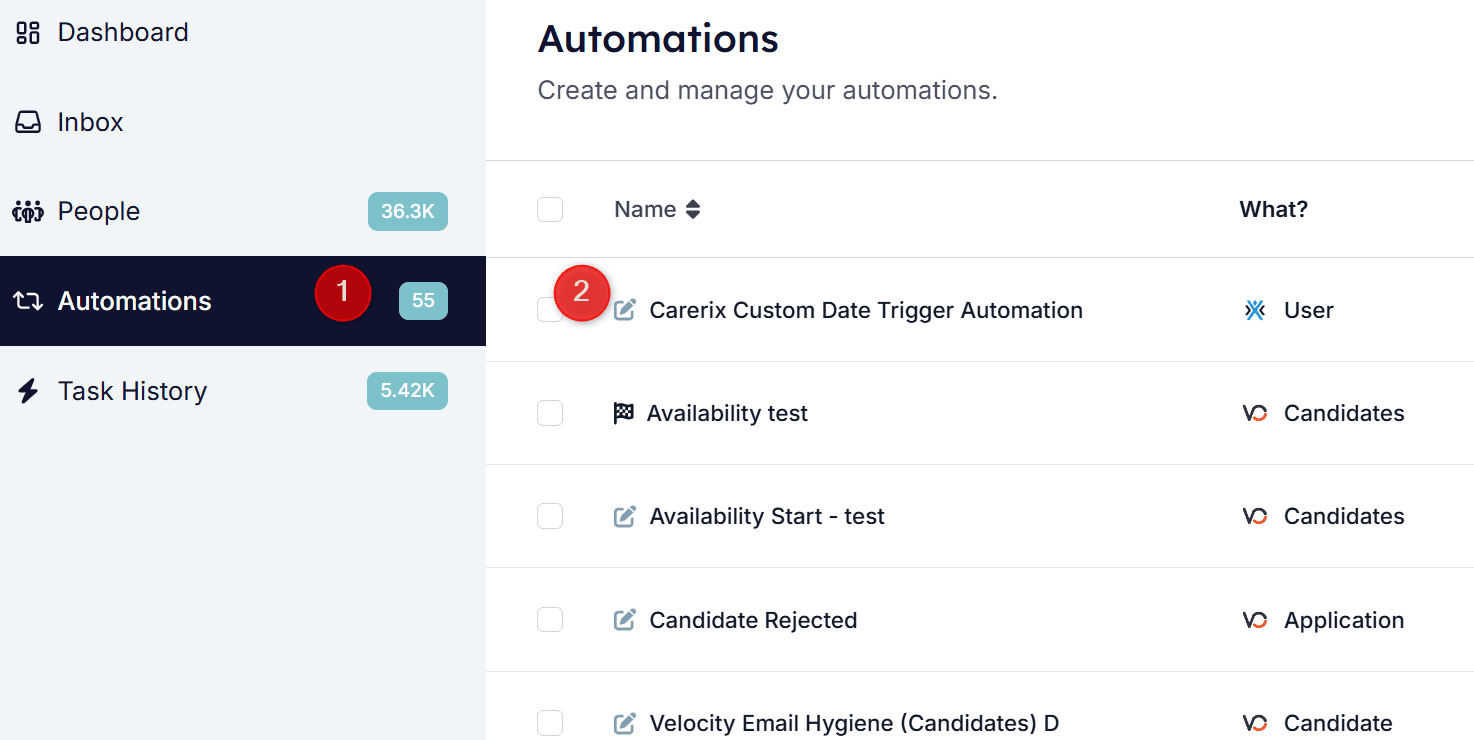
1
Navigate to the automation you want to set a safety limit on
2
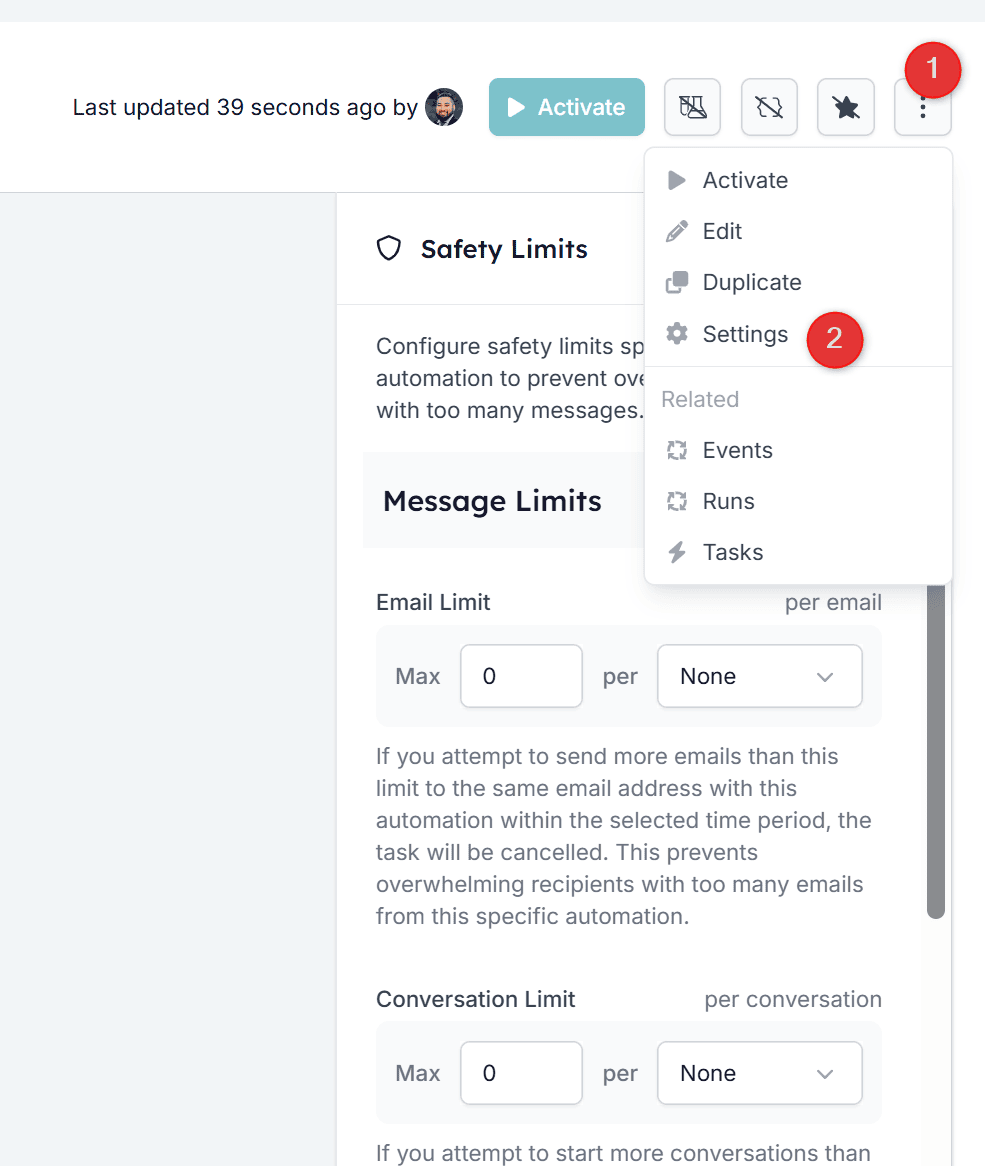
Click the three vertical dots in the upper right of the screen, then select Settings
3
Set the safety limit that best fits your automation and click Save
What if you want no limits?
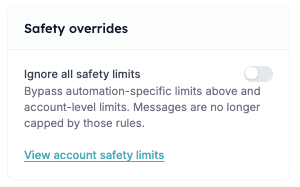
At the bottom of the Safety Limits panel, you’ll find an option called Ignore all safety limits. When enabled, the automation bypasses all safety limits, both automation-specific limits configured above and account-level safety limits.