

Before you start
You can configure a form per record once the form is linked to an object, and that object is first in the form’s list. Link it on the Objects panel in the form builder, described in Objects. Put Vacancy first and you configure the form per vacancy. Objects below it, such as Match or Candidate, still give you their variables and tie the response to their record. You cannot configure the form against them.Find the forms for a collection
Open Data in the main menu and pick a collection, for example Vacancy. A collection holds every record of one object type that a connected app syncs into HireData. Each collection has a Forms tab and a Responses tab.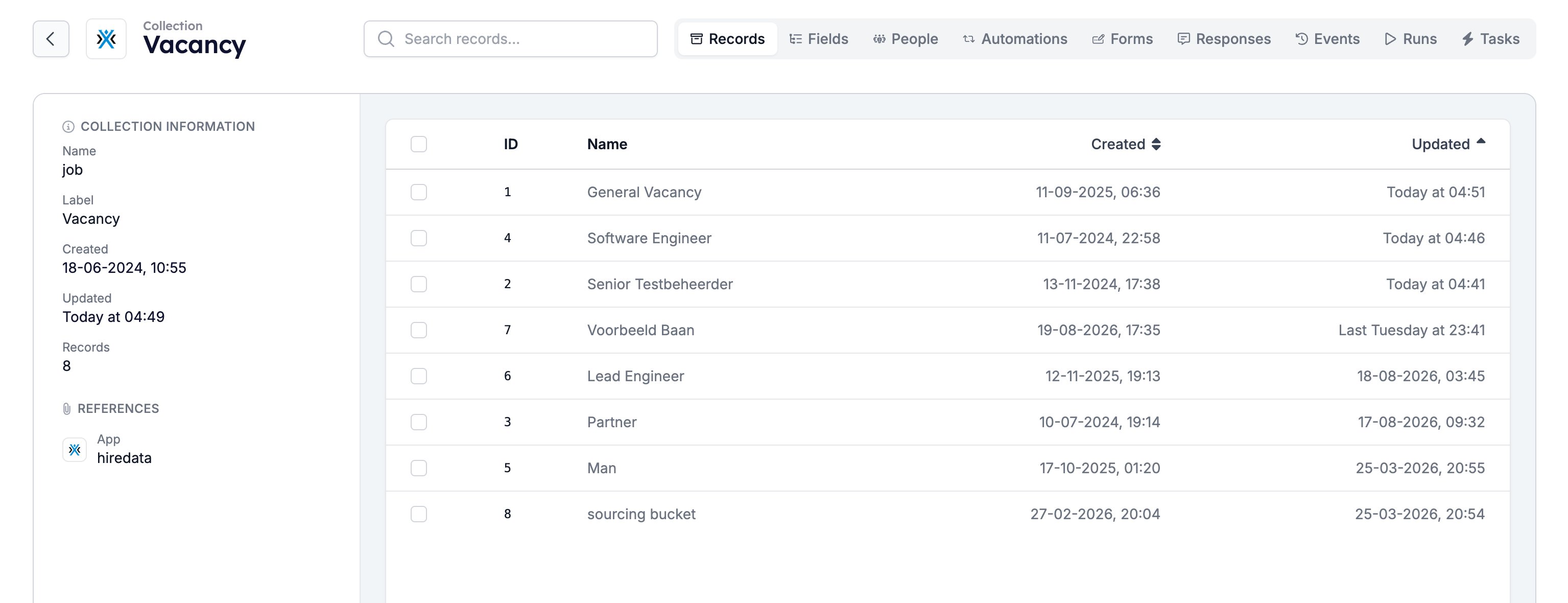
- Forms lists every form linked to this object type, with a chip per object the form uses and an icon that shows whether the form is a draft or published.
- Responses lists every response collected against a record of this type.
Configure a form for one record
Open the Records tab, click a record, then open its Forms tab. Each form linked to this record’s collection gets a tab of its own.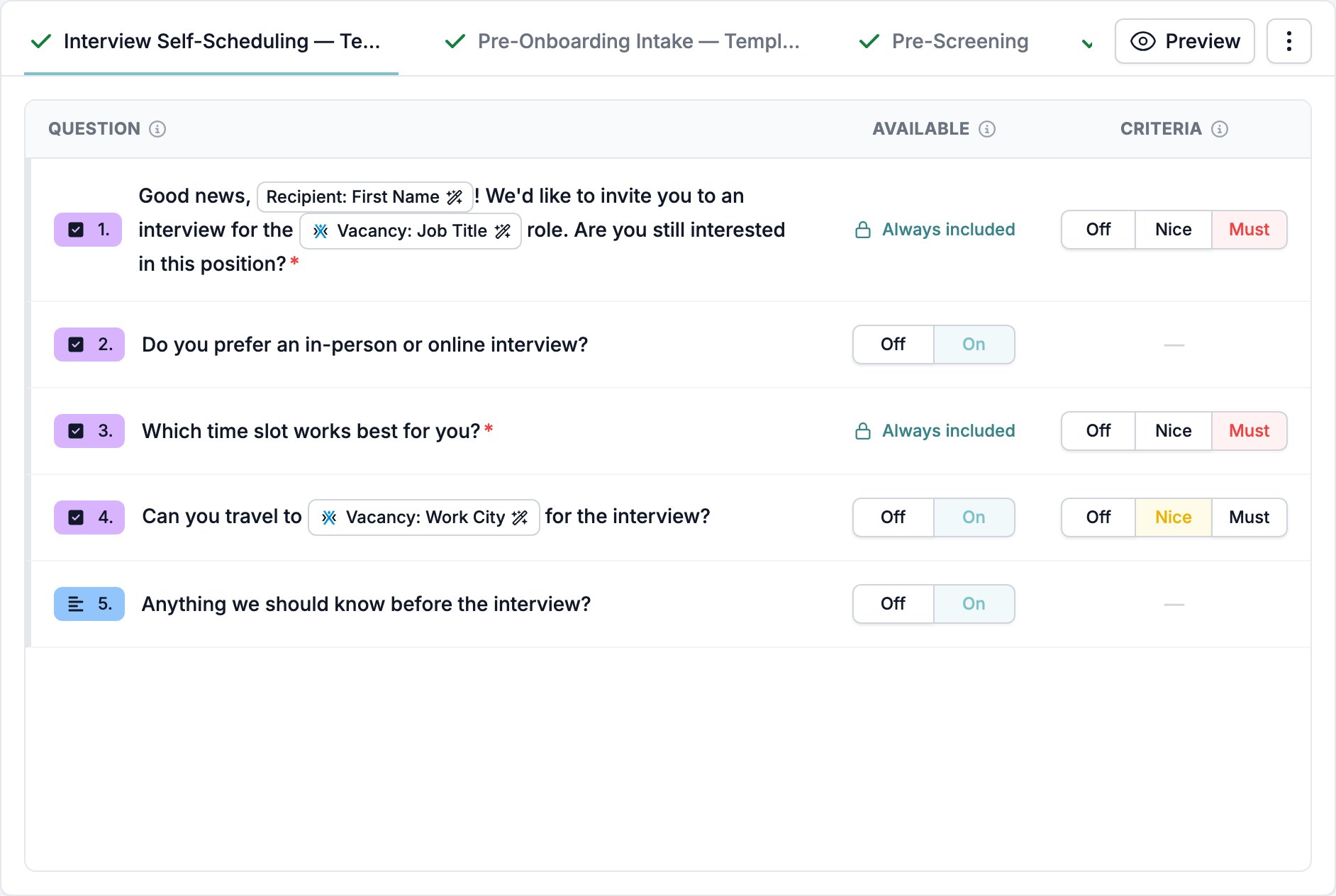
- Questions with Always include turned on in the form builder. The form serves them whatever the record says. See Display and requirements.
- Ending screens and redirects. They are not questions, so they never reach the list.
Variables in the question list
A question that uses a variable shows it as a badge such as Vacancy: Job Title. Hover the badge to see the value this record supplies and, for a variable with a fallback, what its respondents will read.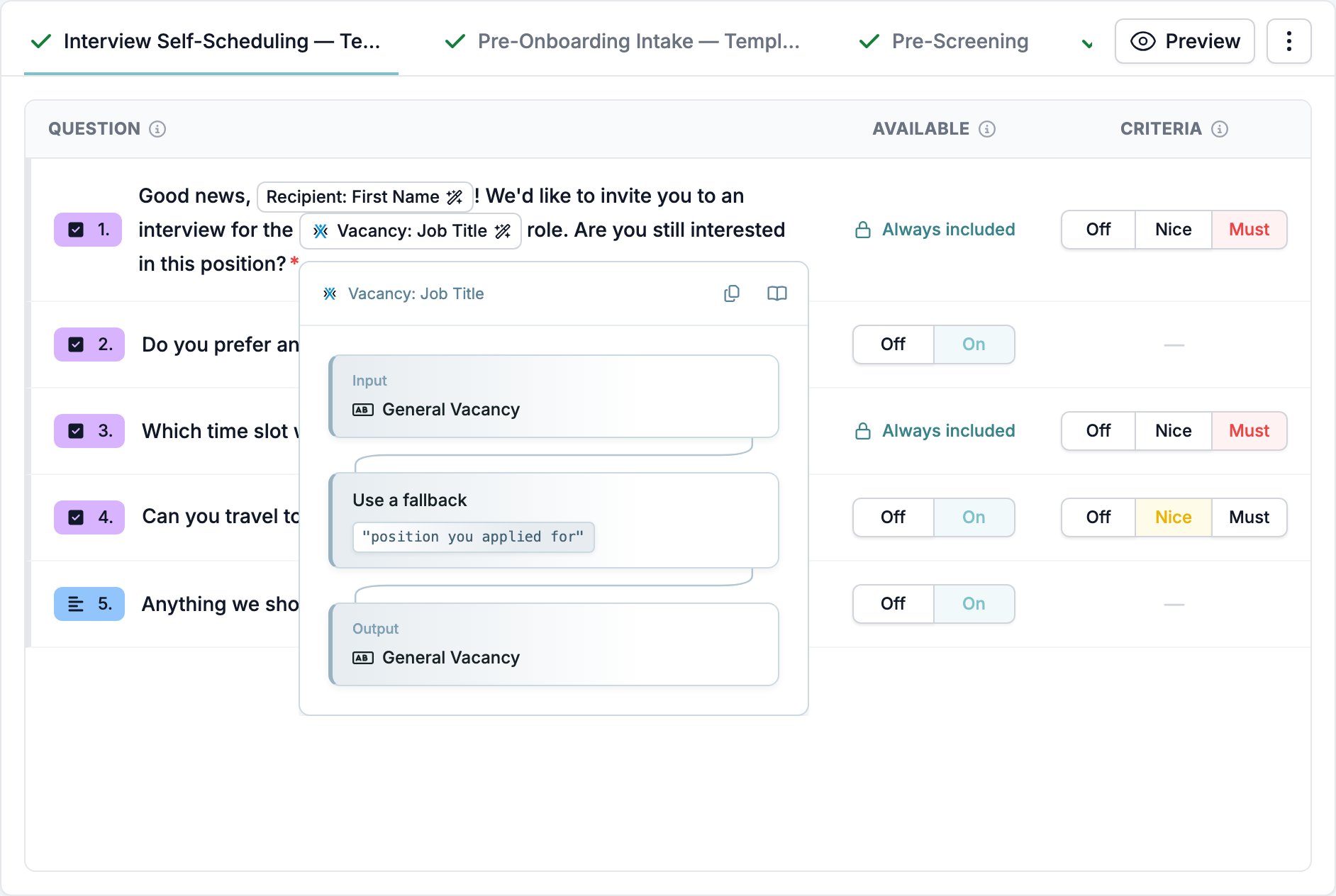
Shortcuts
Preview opens the form as this record would serve it, with the record’s own values filled into the questions. It offers the same Interactive, Conversational, and Test & Evaluate views as the builder, and a language picker. Use it to check that a question still reads correctly once its variables resolve. The menu next to Preview holds three actions:- View form opens the form in the builder.
- Enable all clears this record’s changes, so every question follows the form again. It appears once at least one question is off.
- Mandatory only switches off everything except the questions that have to stay. In a form with nothing set to Always include, that switches off every question.
Read the responses for a record
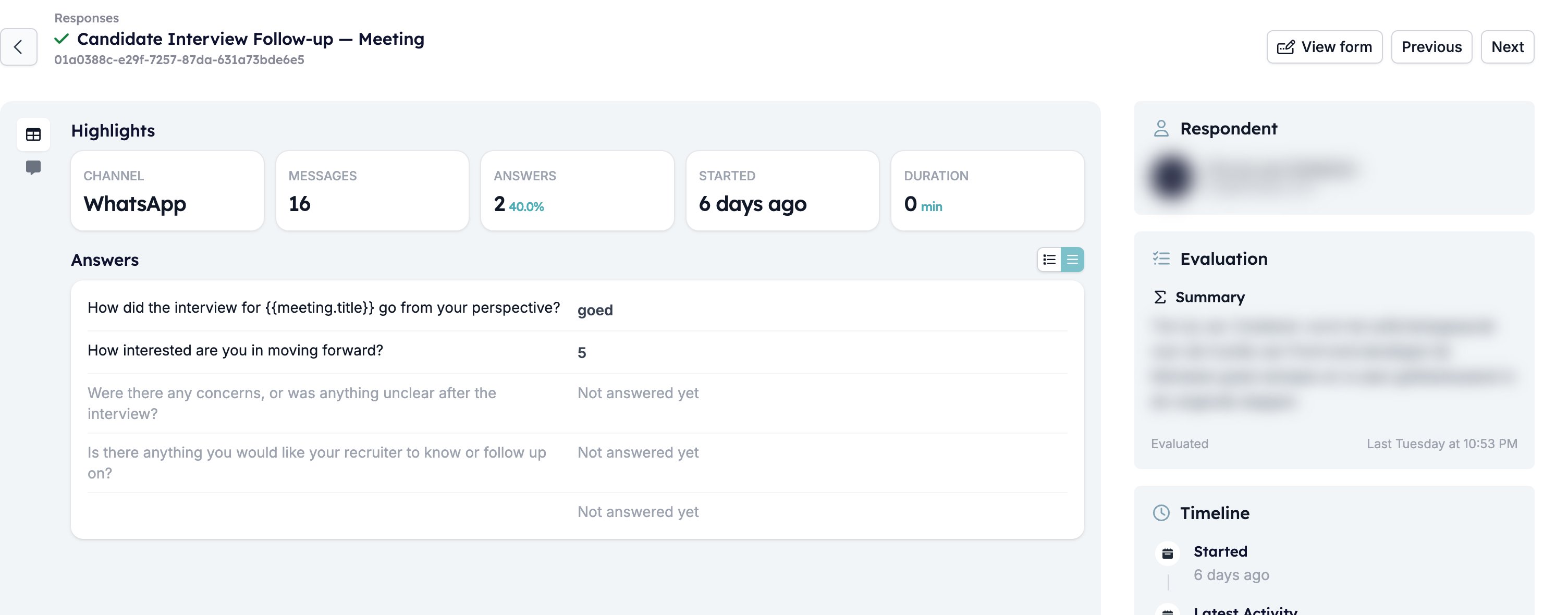
The Responses tab of a record lists what came back, whichever channel it arrived through.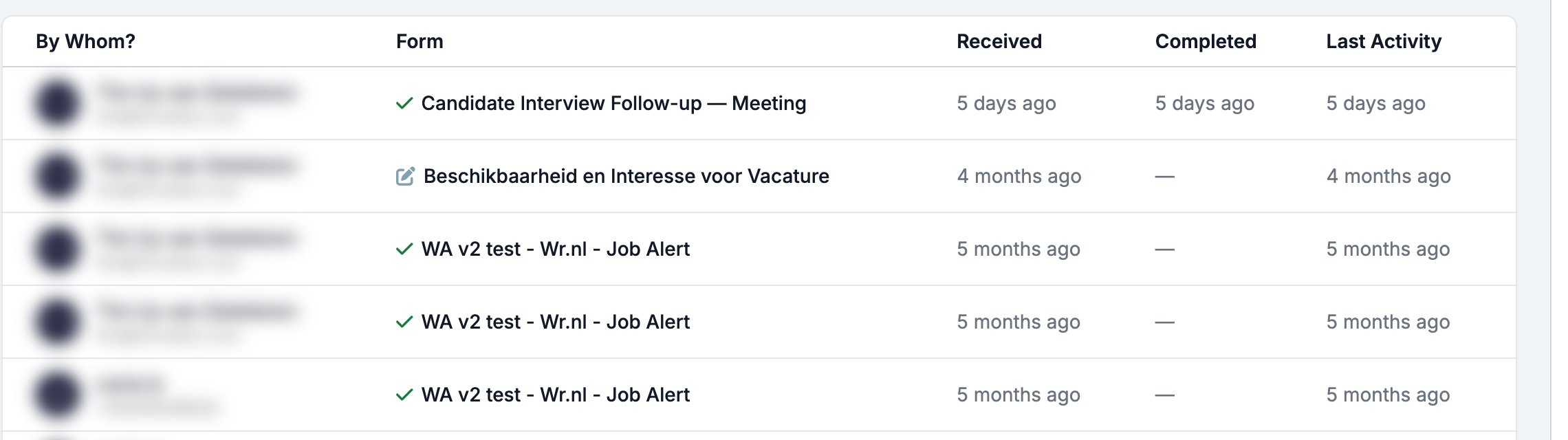
Why configure per record
A staffing agency runs one pre-screening form across hundreds of vacancies. Configuring per record is what keeps that workable.- A client with a hard requirement gets that question switched on for their vacancies only.
- A vacancy with no salary range switches the salary question off, so nobody is asked to react to a figure that is not there.
- A role where experience does not matter switches the experience question off, and it drops out of the evaluation with it.