

How an email nests
Three levels, and one exception.- Template holds sections and nothing else. The Blocks list on the Template panel adds a section without opening a menu, because a section is the only thing it takes.
- A section is a band across the email. It holds the blocks a recipient reads: paragraph, heading, Two Columns, form, image, socials, button, HTML, and signature.
- A Two Columns block is the exception. It sits inside a section, arrives with exactly two columns already in it, and each column holds its own blocks. A column takes fewer kinds of block than a section does: no Two Columns, no Form, no Signature.
The breadcrumb
The settings panel is headed by a breadcrumb naming everything that contains the block you selected. Select a line of a signature and you get all four levels.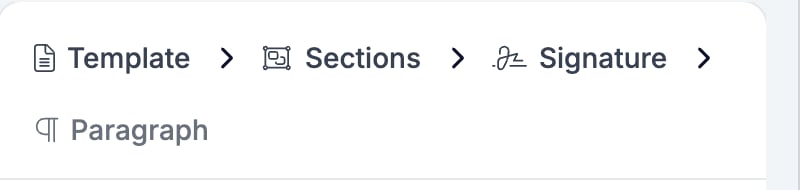
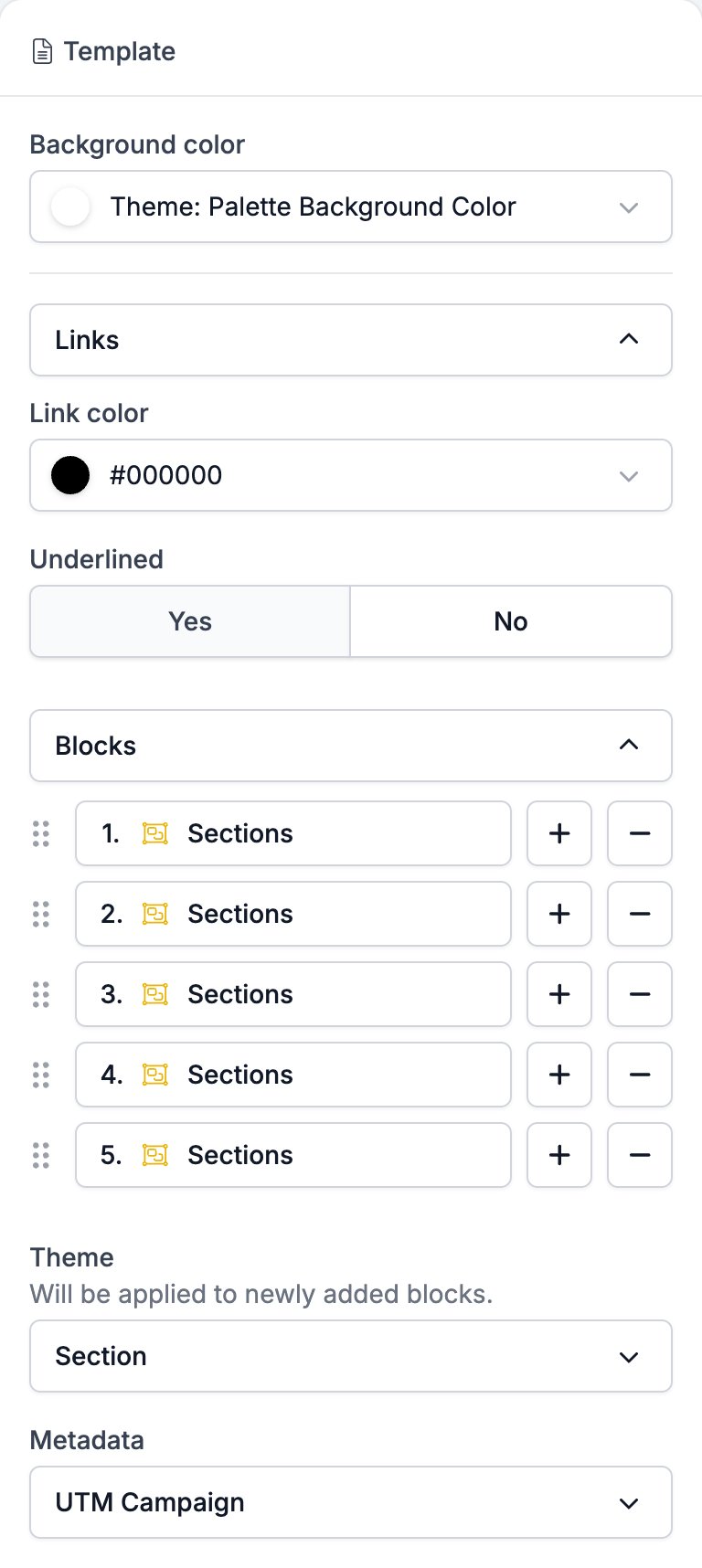
- A single section is labelled “Sections”, plural. It reads that way in the breadcrumb and on every row of the Template Blocks list, so a list of five sections is five rows all reading “Sections”. The plural is the label for the block type rather than a count, and it never tells you which section you are on. The email on the left does.
- There is no column level. Select a block inside a column and the breadcrumb runs
Template > Sections > Two Columnsand then straight to the block. A column has no settings panel of its own, so nothing is missing from the chain.
Settings
Click Template in the breadcrumb and the panel fills with the settings for the whole email. It is the one level you cannot reach by clicking the email itself, because clicking beside a block selects the section rather than the template.- Background color sits behind every section, so it is what a recipient sees around them and in the gaps between them. It starts on the brand’s background colour, which the control names rather than showing as a hex code.
- Links holds Link color and Underlined. Both apply to every link in the email. A paragraph can override either one, and its own Links group offers Inherit as a third choice so it can hand the decision back.
- Blocks lists the sections in the order they appear. Drag a row to move a section, + adds one below it, and − deletes it with everything inside.
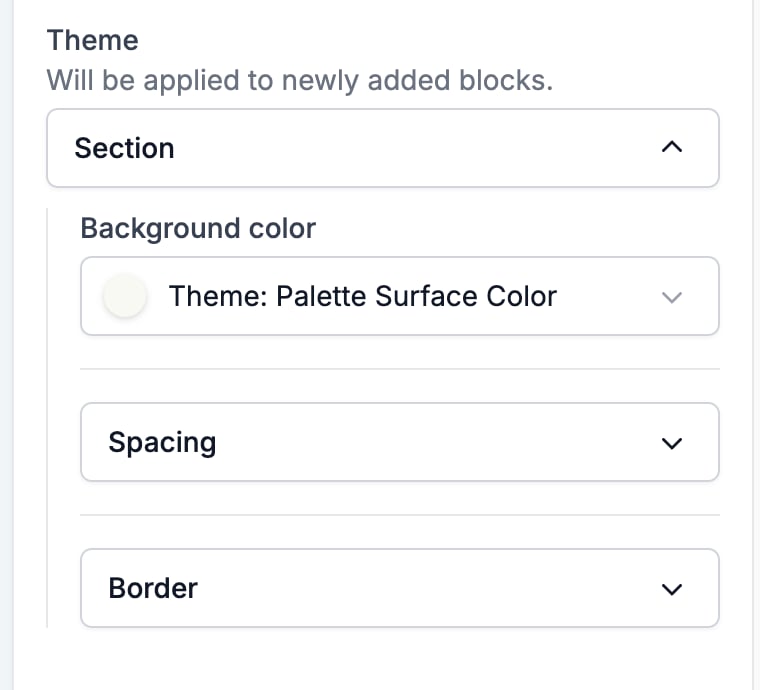
- Theme is the styling that blocks you add from now on will start with. See Brand, theme, and metadata.
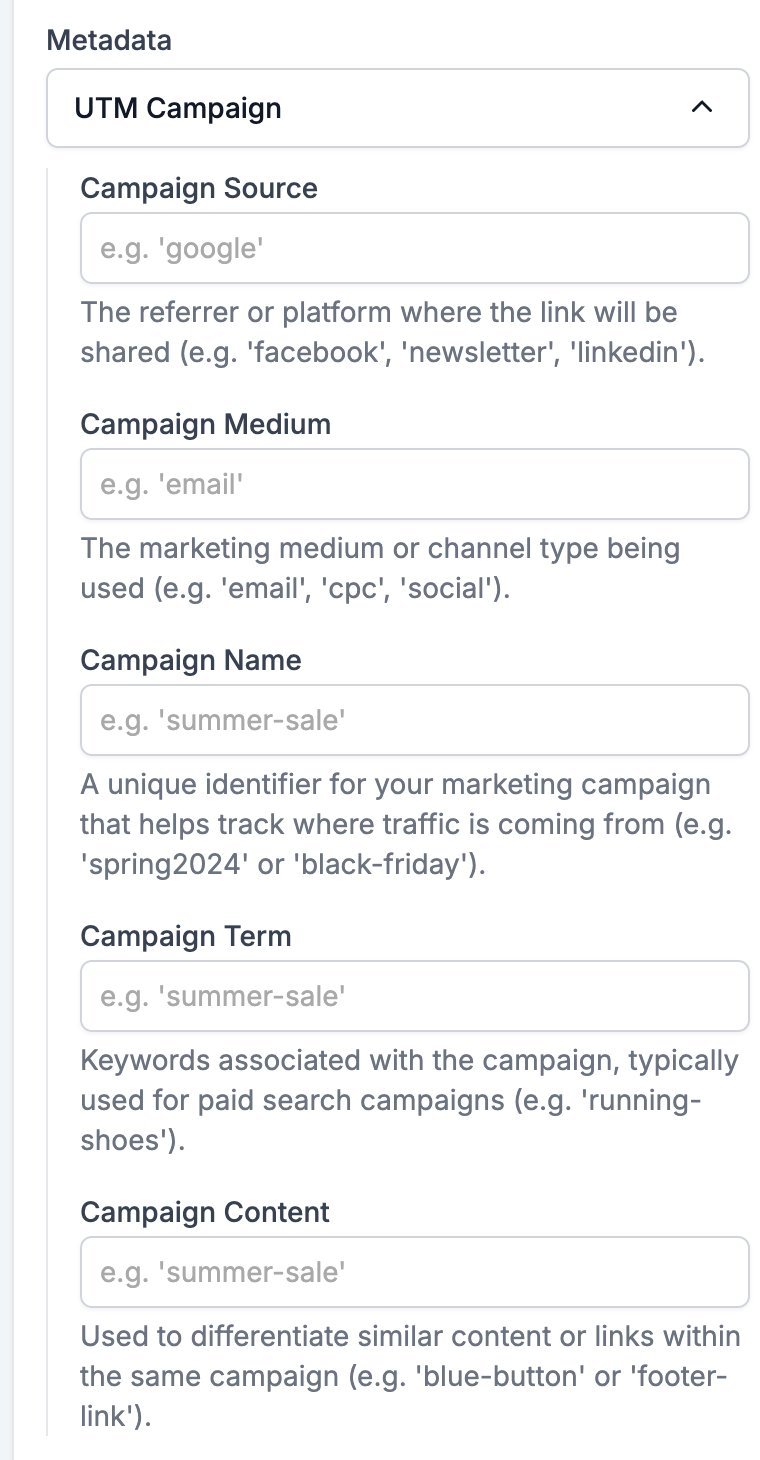
- Metadata holds UTM Campaign. See Brand, theme, and metadata.
Brand, theme, and metadata
Three settings decide how an email is styled, and they reach different blocks. Getting them the wrong way round is the usual reason a change lands somewhere you did not expect.- Brand, in the toolbar, restyles the whole email. Every colour and font still set to a theme value changes at once, in blocks you wrote weeks ago as much as in blocks you add next. Switching an email from one brand to another moves its section background, its button colour, and its heading colour together.
- Theme, in the Template settings, reaches only blocks you add afterwards. The panel says so itself: “Will be applied to newly added blocks.” Set the section background there and every section you add from then on starts with it. Sections already in the email keep what they have.
- A value you set on a block yourself reaches that block alone, and takes it out of the brand’s reach for good. The control stops naming a theme value and shows your colour instead, and a later brand switch leaves it where you put it.
#ff0000 is not.
Related
- Email Builder: Overview covers the canvas, the toolbar, the theme, and saving.
- Section is the band that holds everything a recipient reads.
- Two Columns explains the one block that nests further.
- Paragraph covers the per-block link colour that overrides the template.