Email builder tour: blocks, toolbar, theme, and saving
A tour of the HireData email builder: the canvas and the settings panel, how you add a block, every block type, the toolbar, the theme, and saving.
An email template is a message you write once and send many times, in an automation or a newsletter. Open Settings, then Emails under Templates, and click New Email. Select Blank Email or one of the ready-made templates, and the new template opens in the builder.This page maps the builder. For a walkthrough that takes one email from blank to ready, read Setting up an email template in HireData.
The Subject box across the top. It is the line the recipient sees in their inbox, and it takes variables.
The email itself on the left. Click any text in it and type. Click any block to select it.
The settings panel on the right, showing the settings of whatever you last selected.
Click a block’s text and you select that block, so the panel fills with the block’s own settings. To select the section that holds it, click beside the block instead, to the left or right of the text. Sections are not outlined in the canvas, so aim for the band of background colour a section fills.
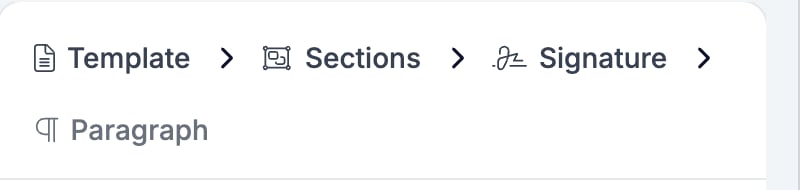
A template holds sections, and a section holds the blocks the recipient reads. Template explains how the three levels nest, how you move between them, and why you never add one and cannot delete it.A breadcrumb above the settings names everything that contains the selected block. Select a line of a signature and all four levels appear.
Every settings panel that can contain other blocks lists them under Blocks, numbered, in the order they appear in the email. Each row carries three controls.
The + adds a new block below that row. Where the container accepts more than one kind of block, it opens a menu of them.
The − deletes that block.
The handle on the left drags the block up and down the list.
Click a block’s own row to select it and open its settings. The breadcrumb walks back out. Click Sections for the settings of the section that holds the block, and Template for the settings of the email as a whole. The email on the left does not change. Only the panel does.
Two entries in the list cover more than one block. A Two Columns block arrives with its two columns already inside it, and a Socials block holds one child per network you link.
The toolbar runs along the top of the builder, from Save to the four drawer buttons on the right.Save stores your changes.Two buttons follow it:
The eye opens a preview of the finished email, at mobile, tablet, or desktop width, with a language picker and a Copy Preview URL button. Its tooltip warns that it saves the email first.
The paper plane opens Test Email. It sends the email to you with realistic values filled in.
Brand picks the brand the email’s colours, fonts, and logo come from.Two toggles follow the brand selector:
Show variable values is a display toggle for the canvas. To read an email with real values in it, use the preview.
Show code editor opens the generated markup. It appears only for accounts that may edit templates directly.
Four buttons at the end open drawers over the email:
Show variable list lists the variables this email can use, and adds ones of your own. See Variables.
Manage Template publishes the open email to the shared template library. It appears only for accounts that maintain that library.
Show objects links records such as a vacancy or a match to the email. Their fields then become variables you can write into it.
Manage Languages sets the email’s default language and its translations.
Every colour and font in a new email starts as a value from the brand you pick in Brand. The panel names the value rather than showing a hex code, such as “Theme: Palette Surface Color”.Switch Brand and the whole email restyles, blocks you already wrote included. Replace one of those values with a colour of your own and that one control stops following the brand. See Template for the settings that decide it, and for the difference between switching brand and setting a theme.
The email builder does not save as you type. Save saves. The preview button and Send test email each save before they run, so either of those commits whatever you have changed. See Testing.Try to leave the builder with unsaved changes and a warning appears. It offers to Save them, or to Discard them and carry on.Reload the page or close the tab instead and your browser asks you to confirm before you lose them.
{"docsConfig":{"theme":"mint","$schema":"https://mintlify.com/docs.json","name":"HireData Docs","description":"Guides, how to's, and answers to your questions about HireData","colors":{"primary":"#7DC2CA","light":"#B1DADF","dark":"#39838B"},"logo":{"light":"https://mintcdn.com/hiredata/Pii9WVdQv6Pc1yMR/logo/light.svg?fit=max\u0026auto=format\u0026n=Pii9WVdQv6Pc1yMR\u0026q=85\u0026s=db078cfb402d8486f2a0b75131261055","dark":"https://mintcdn.com/hiredata/Pii9WVdQv6Pc1yMR/logo/dark.svg?fit=max\u0026auto=format\u0026n=Pii9WVdQv6Pc1yMR\u0026q=85\u0026s=b96e04b3cab0350c812239aed8483a1d"},"favicon":"https://mintcdn.com/hiredata/Pii9WVdQv6Pc1yMR/favicon.svg?fit=max\u0026auto=format\u0026n=Pii9WVdQv6Pc1yMR\u0026q=85\u0026s=7443bc080236de4a0bb1b66812a1a1fc","background":{"color":{"light":"#FAFAF5","dark":"#0F132F"}},"navbar":{"links":[{"href":"mailto:support@hiredata.com","label":"Support"}],"primary":{"type":"button","label":"Dashboard","href":"https://dashboard.mintlify.com"}},"footer":{"socials":{"linkedin":"https://linkedin.com/company/hiredata"}},"fonts":{"heading":{"family":"Lexend"}},"icons":{"library":"fontawesome"},"styling":{"eyebrows":"section","latex":true},"integrations":{},"contextual":{"options":["copy","view","chatgpt","claude","perplexity","mcp","cursor","vscode"],"display":"header"},"thumbnails":{"appearance":"light"},"interaction":{"drilldown":true},"navigation":{"languages":[{"language":"en","href":""},{"language":"nl","href":"nl"},{"language":"pt","href":"pt"},{"language":"de","href":"de"},{"language":"fr","href":"fr"}]}},"deployment":{"deploymentMetadataValue":{"subdomain":"hiredata","hasAudioNarration":false,"actualSubdomain":"hiredata","customDomains":["help.hiredata.com"],"gitSource":{"type":"github","owner":"hiredata","repo":"documentation","deployBranch":"main","isPrivate":false,"contentDirectory":"","mountPath":"","label":""},"chroma":{"liveDeploymentHistoryId":"6aec7fb0fc016830a8587bc0","collectionId":"24ff179f-30cf-42bb-850c-24752a6c9e92","schemaVersion":"v3","latestBuiltDeploymentHistoryId":"6aec7fb0fc016830a8587bc0"},"feedback":{"thumbs":true,"agentFeedback":true},"entitlements":{"AI_CHAT":{"status":"DISABLED"},"WEB_MCP":{"status":"ENABLED"},"NARRATION":{"status":"DISABLED"}},"buildId":"6aecfdc4a89a4383462f8ca7","clientVersion":"0.0.4074","searchFilterCounts":[{"language":"en","tag":"Reference","count":59},{"language":"de","tag":"Referenz","count":59},{"language":"fr","tag":"Référence","count":59},{"language":"nl","tag":"Referentie","count":59},{"language":"pt","tag":"Referência","count":59},{"language":"en","tag":"Integrations","count":46},{"language":"de","tag":"Integrationen","count":46},{"language":"de","tag":"Carerix","count":46},{"language":"fr","tag":"Intégrations","count":46},{"language":"fr","tag":"Carerix","count":46},{"language":"nl","tag":"Integraties","count":46},{"language":"nl","tag":"Carerix","count":46},{"language":"pt","tag":"Integrações","count":46},{"language":"pt","tag":"Carerix","count":46},{"language":"en","tag":"Documentation","count":38},{"language":"de","tag":"Dokumentation","count":37},{"language":"fr","tag":"Documentation","count":37},{"language":"nl","tag":"Documentatie","count":37},{"language":"pt","tag":"Documentação","count":37},{"language":"de","tag":"Einrichtung","count":34},{"language":"fr","tag":"Configuration","count":34},{"language":"nl","tag":"Installatie","count":34},{"language":"pt","tag":"Configuração","count":34},{"language":"en","tag":"ATS","count":31},{"language":"en","tag":"Forms","count":26},{"language":"de","tag":"Formulare","count":26},{"language":"fr","tag":"Formulaires","count":26},{"language":"nl","tag":"Formulieren","count":26},{"language":"pt","tag":"Formulários","count":26},{"language":"en","tag":"Automations","count":19},{"language":"de","tag":"Automatisierungen","count":19},{"language":"fr","tag":"Automatisations","count":19},{"language":"nl","tag":"Automatiseringen","count":19},{"language":"en","tag":"Messaging","count":18},{"language":"en","tag":"Knowledge Base","count":17},{"language":"en","tag":"Carerix","count":15},{"language":"en","tag":"Emails","count":15},{"language":"de","tag":"Wissensdatenbank","count":15},{"language":"de","tag":"E-Mails","count":15},{"language":"de","tag":"Formularfelder","count":15},{"language":"fr","tag":"Base de connaissances","count":15},{"language":"fr","tag":"E-mails","count":15},{"language":"fr","tag":"Champs de formulaire","count":15},{"language":"nl","tag":"Kennisbank","count":15},{"language":"nl","tag":"E-mails","count":15},{"language":"nl","tag":"Formuliervelden","count":15},{"language":"pt","tag":"Base de conhecimento","count":15},{"language":"pt","tag":"Automatizações","count":15},{"language":"pt","tag":"Emails","count":15},{"language":"pt","tag":"Campos de formulário","count":15}]},"assistantConfig":{"enableAskAiButton":false,"enableStarterQuestions":true,"enableContextualStarterQuestions":true,"enableAskAiSearchBar":true,"deflection":{"enabled":true,"email":"support@hiredata.com"}},"basePath":"","hasChatPermissions":false,"hasWebMcpPermissions":true,"toggles":[{"name":"kill-isr","enabled":true,"variant":{"name":"disabled","enabled":false,"feature_enabled":true},"impressionData":false},{"name":"agent-mintlify-slack","enabled":true,"variant":{"name":"disabled","enabled":false,"feature_enabled":true},"impressionData":false},{"name":"agent-integrations-settings","enabled":true,"variant":{"name":"disabled","enabled":false,"feature_enabled":true},"impressionData":false},{"name":"rbac-expansion","enabled":true,"variant":{"name":"disabled","enabled":false,"feature_enabled":true},"impressionData":false},{"name":"automations-pr-grouping","enabled":true,"variant":{"name":"disabled","enabled":false,"feature_enabled":true},"impressionData":false},{"name":"custom-prefix","enabled":true,"variant":{"name":"disabled","enabled":false,"feature_enabled":true},"impressionData":false},{"name":"analytics-v7","enabled":true,"variant":{"name":"disabled","enabled":false,"feature_enabled":true},"impressionData":false},{"name":"user-flows-analytics","enabled":true,"variant":{"name":"disabled","enabled":false,"feature_enabled":true},"impressionData":false},{"name":"no-publish-flow","enabled":true,"variant":{"name":"disabled","enabled":false,"feature_enabled":true},"impressionData":false},{"name":"workos-onboarding","enabled":true,"variant":{"name":"disabled","enabled":false,"feature_enabled":true},"impressionData":false},{"name":"llms-txt-v2","enabled":true,"variant":{"name":"disabled","enabled":false,"feature_enabled":true},"impressionData":false},{"name":"snapshot-serving-live","enabled":true,"variant":{"name":"disabled","enabled":false,"feature_enabled":true},"impressionData":false},{"name":"stripTemperatureMiddleware","enabled":true,"variant":{"name":"disabled","enabled":false,"feature_enabled":true},"impressionData":false},{"name":"support-platform-pylon-zendesk","enabled":true,"variant":{"name":"disabled","enabled":false,"feature_enabled":true},"impressionData":false},{"name":"snapshot-serving","enabled":true,"variant":{"name":"disabled","enabled":false,"feature_enabled":true},"impressionData":false},{"name":"instant-rollback","enabled":true,"variant":{"name":"disabled","enabled":false,"feature_enabled":true},"impressionData":false},{"name":"granular-notifications-server","enabled":true,"variant":{"name":"disabled","enabled":false,"feature_enabled":true},"impressionData":false},{"name":"granular-notifications","enabled":true,"variant":{"name":"disabled","enabled":false,"feature_enabled":true},"impressionData":false},{"name":"automations-fable","enabled":true,"variant":{"name":"disabled","enabled":false,"feature_enabled":true},"impressionData":false},{"name":"fixed-ai-action-pricing","enabled":true,"variant":{"name":"disabled","enabled":false,"feature_enabled":true},"impressionData":false},{"name":"automation-resolve-merge-conflict","enabled":true,"variant":{"name":"disabled","enabled":false,"feature_enabled":true},"impressionData":false},{"name":"scoped-publishing","enabled":true,"variant":{"name":"disabled","enabled":false,"feature_enabled":true},"impressionData":false},{"name":"mintql","enabled":true,"variant":{"name":"disabled","enabled":false,"feature_enabled":true},"impressionData":false},{"name":"page-level-analytics","enabled":true,"variant":{"name":"disabled","enabled":false,"feature_enabled":true},"impressionData":false},{"name":"editor-version-history-v2","enabled":true,"variant":{"name":"disabled","enabled":false,"feature_enabled":true},"impressionData":false},{"name":"billing-page-v2","enabled":true,"variant":{"name":"disabled","enabled":false,"feature_enabled":true},"impressionData":false},{"name":"full-page-search","enabled":true,"variant":{"name":"disabled","enabled":false,"feature_enabled":true},"impressionData":false},{"name":"workspace-projects","enabled":true,"variant":{"name":"disabled","enabled":false,"feature_enabled":true},"impressionData":false},{"name":"assistant-v5","enabled":true,"variant":{"name":"disabled","enabled":false,"feature_enabled":true},"impressionData":false},{"name":"fork-pr-previews","enabled":true,"variant":{"name":"disabled","enabled":false,"feature_enabled":true},"impressionData":false},{"name":"revalidation-jwt","enabled":true,"variant":{"name":"disabled","enabled":false,"feature_enabled":true},"impressionData":false},{"name":"vite-origin","enabled":true,"variant":{"name":"disabled","enabled":false,"feature_enabled":true},"impressionData":false},{"name":"workos-sso-scim","enabled":true,"variant":{"name":"disabled","enabled":false,"feature_enabled":true},"impressionData":false},{"name":"hobby-abuse-scan","enabled":true,"variant":{"name":"disabled","enabled":false,"feature_enabled":true},"impressionData":false},{"name":"dashboard-inbox","enabled":true,"variant":{"name":"disabled","enabled":false,"feature_enabled":true},"impressionData":false},{"name":"workos-signup","enabled":true,"variant":{"name":"disabled","enabled":false,"feature_enabled":true},"impressionData":false},{"name":"turbopuffer-dual-write","enabled":true,"variant":{"name":"disabled","enabled":false,"feature_enabled":true},"impressionData":false},{"name":"workos-enabled","enabled":true,"variant":{"name":"disabled","enabled":false,"feature_enabled":true},"impressionData":false},{"name":"approve-review-flow","enabled":true,"variant":{"name":"disabled","enabled":false,"feature_enabled":true},"impressionData":false},{"name":"sso-setup-deadline-banner","enabled":true,"variant":{"name":"disabled","enabled":false,"feature_enabled":true},"impressionData":false},{"name":"turbopuffer-serve","enabled":true,"variant":{"name":"disabled","enabled":false,"feature_enabled":true},"impressionData":false},{"name":"live-agents","enabled":true,"variant":{"name":"disabled","enabled":false,"feature_enabled":true},"impressionData":false},{"name":"comment-mode","enabled":true,"variant":{"name":"disabled","enabled":false,"feature_enabled":true},"impressionData":false}],"googleFontsInlined":true},"customCss":[],"page":{"pagePath":"reference/email-builder/overview","slug":"/reference/email-builder/overview","pageMetadata":{"title":"Email builder tour: blocks, toolbar, theme, and saving","sidebarTitle":"Overview","description":"A tour of the HireData email builder: the canvas and the settings panel, how you add a block, every block type, the toolbar, the theme, and saving.","keywords":["email builder","email template","email blocks","email sections","email theme","email brand","send test mail","email preview","unsaved changes"],"href":"/reference/email-builder/overview"},"description":{"compiledSource":"\"use strict\";\nconst {jsx: _jsx} = arguments[0];\nconst {useMDXComponents: _provideComponents} = arguments[0];\nfunction _createMdxContent(props) {\n const _components = {\n p: \"p\",\n ..._provideComponents(),\n ...props.components\n };\n return _jsx(_components.p, {\n children: \"A tour of the HireData email builder: the canvas and the settings panel, how you add a block, every block type, the toolbar, the theme, and saving.\"\n });\n}\nfunction MDXContent(props = {}) {\n const {wrapper: MDXLayout} = {\n ..._provideComponents(),\n ...props.components\n };\n return MDXLayout ? _jsx(MDXLayout, {\n ...props,\n children: _jsx(_createMdxContent, {\n ...props\n })\n }) : _createMdxContent(props);\n}\nreturn {\n default: MDXContent\n};\n","frontmatter":{},"scope":{}},"pageType":"default","mdx":{"mdxSource":{"compiledSource":"\"use strict\";const{Fragment:_Fragment,jsx:_jsx,jsxs:_jsxs}=arguments[0];const{useMDXComponents:_provideComponents}=arguments[0];function _createMdxContent(props){const _components={a:`a`,li:`li`,p:`p`,strong:`strong`,tbody:`tbody`,td:`td`,th:`th`,thead:`thead`,tr:`tr`,ul:`ul`,..._provideComponents(),...props.components},{Heading,OptimizedImage,Table,Tip}=_components;if(!Heading)_missingMdxReference(`Heading`,true);if(!OptimizedImage)_missingMdxReference(`OptimizedImage`,true);if(!Table)_missingMdxReference(`Table`,true);if(!Tip)_missingMdxReference(`Tip`,true);return _jsxs(_Fragment,{children:[_jsxs(_components.p,{children:[`An email template is a message you write once and send many times, in an automation or a newsletter. Open `,_jsx(_components.strong,{children:`Settings`}),`, then `,_jsx(_components.strong,{children:`Emails`}),` under `,_jsx(_components.strong,{children:`Templates`}),`, and click `,_jsx(_components.strong,{children:`New Email`}),`. Select `,_jsx(_components.strong,{children:`Blank Email`}),` or one of the ready-made templates, and the new template opens in the builder.`]}),`\n`,_jsxs(_components.p,{children:[`This page maps the builder. For a walkthrough that takes one email from blank to ready, read `,_jsx(_components.a,{href:`/apps/messaging/emails/setting-up-an-email-template-in-hiredata`,children:`Setting up an email template in HireData`}),`.`]}),`\n`,_jsx(Heading,{level:`2`,id:`the-builder-at-a-glance`,children:`The builder at a glance`}),`\n`,_jsx(_components.p,{children:`The builder has three parts.`}),`\n`,_jsxs(_components.ul,{children:[`\n`,_jsxs(_components.li,{children:[`The `,_jsx(_components.strong,{children:`Subject`}),` box across the top. It is the line the recipient sees in their inbox, and it takes variables.`]}),`\n`,_jsx(_components.li,{children:`The email itself on the left. Click any text in it and type. Click any block to select it.`}),`\n`,_jsx(_components.li,{children:`The settings panel on the right, showing the settings of whatever you last selected.`}),`\n`]}),`\n`,_jsx(OptimizedImage,{src:`https://mintcdn.com/hiredata/DAvVk7fdDCYTK32L/images/email-builder/01-builder-at-a-glance.png?fit=max\u0026auto=format\u0026n=DAvVk7fdDCYTK32L\u0026q=85\u0026s=3e6864db1904233cc45726855a255afe`,alt:`The email builder: the Subject box across the top, the email on the left, and the Template settings panel on the right`,\"data-og-width\":`2944`,width:`2944`,\"data-og-height\":`1630`,height:`1630`,\"data-path\":`images/email-builder/01-builder-at-a-glance.png`,\"data-optimize\":`true`,\"data-opv\":`3`,srcset:`https://mintcdn.com/hiredata/DAvVk7fdDCYTK32L/images/email-builder/01-builder-at-a-glance.png?w=280\u0026fit=max\u0026auto=format\u0026n=DAvVk7fdDCYTK32L\u0026q=85\u0026s=6c6d9aaf4a65f7630b7be9a36804ceca 280w, https://mintcdn.com/hiredata/DAvVk7fdDCYTK32L/images/email-builder/01-builder-at-a-glance.png?w=560\u0026fit=max\u0026auto=format\u0026n=DAvVk7fdDCYTK32L\u0026q=85\u0026s=44cfcf4fe76ebbd23562181094353cf5 560w, https://mintcdn.com/hiredata/DAvVk7fdDCYTK32L/images/email-builder/01-builder-at-a-glance.png?w=840\u0026fit=max\u0026auto=format\u0026n=DAvVk7fdDCYTK32L\u0026q=85\u0026s=1176bd1da917af20483d306843c38573 840w, https://mintcdn.com/hiredata/DAvVk7fdDCYTK32L/images/email-builder/01-builder-at-a-glance.png?w=1100\u0026fit=max\u0026auto=format\u0026n=DAvVk7fdDCYTK32L\u0026q=85\u0026s=08b7a912d567c716ab09c5bbfc53ddef 1100w, https://mintcdn.com/hiredata/DAvVk7fdDCYTK32L/images/email-builder/01-builder-at-a-glance.png?w=1650\u0026fit=max\u0026auto=format\u0026n=DAvVk7fdDCYTK32L\u0026q=85\u0026s=cd81abf41b5e3937e4df1983a4c62138 1650w, https://mintcdn.com/hiredata/DAvVk7fdDCYTK32L/images/email-builder/01-builder-at-a-glance.png?w=2500\u0026fit=max\u0026auto=format\u0026n=DAvVk7fdDCYTK32L\u0026q=85\u0026s=73336d2c2fb4ad82ece9ebfdee94a756 2500w`}),`\n`,_jsx(Tip,{children:_jsxs(_components.p,{children:[`Click a block’s text and you select that block, so the panel fills with the block’s own settings. To select the `,_jsx(_components.strong,{children:`section`}),` that holds it, click beside the block instead, to the left or right of the text. Sections are not outlined in the canvas, so aim for the band of background colour a section fills.`]})}),`\n`,_jsxs(_components.p,{children:[`A template holds sections, and a section holds the blocks the recipient reads. `,_jsx(_components.a,{href:`/reference/email-builder/template`,children:`Template`}),` explains how the three levels nest, how you move between them, and why you never add one and cannot delete it.`]}),`\n`,_jsx(_components.p,{children:`A breadcrumb above the settings names everything that contains the selected block. Select a line of a signature and all four levels appear.`}),`\n`,_jsx(OptimizedImage,{src:`https://mintcdn.com/hiredata/DAvVk7fdDCYTK32L/images/email-builder/02-breadcrumb.png?fit=max\u0026auto=format\u0026n=DAvVk7fdDCYTK32L\u0026q=85\u0026s=4872d0fa6d653445f18c5fc1da93eb83`,alt:`The settings panel breadcrumb reading Template, then Sections, then Signature, then Paragraph, with Paragraph greyed out as the current level`,width:`402`,\"data-og-width\":`804`,\"data-og-height\":`190`,\"data-path\":`images/email-builder/02-breadcrumb.png`,\"data-optimize\":`true`,\"data-opv\":`3`,srcset:`https://mintcdn.com/hiredata/DAvVk7fdDCYTK32L/images/email-builder/02-breadcrumb.png?w=280\u0026fit=max\u0026auto=format\u0026n=DAvVk7fdDCYTK32L\u0026q=85\u0026s=3d7d41860b029ff3140e2498bf62c244 280w, https://mintcdn.com/hiredata/DAvVk7fdDCYTK32L/images/email-builder/02-breadcrumb.png?w=560\u0026fit=max\u0026auto=format\u0026n=DAvVk7fdDCYTK32L\u0026q=85\u0026s=451fe5d497427edc1ecd1bb99ed8dded 560w, https://mintcdn.com/hiredata/DAvVk7fdDCYTK32L/images/email-builder/02-breadcrumb.png?w=840\u0026fit=max\u0026auto=format\u0026n=DAvVk7fdDCYTK32L\u0026q=85\u0026s=deb2822c7caed9beb6a63f7559572248 840w, https://mintcdn.com/hiredata/DAvVk7fdDCYTK32L/images/email-builder/02-breadcrumb.png?w=1100\u0026fit=max\u0026auto=format\u0026n=DAvVk7fdDCYTK32L\u0026q=85\u0026s=464ad2da3813e3042f0e8a20351af209 1100w, https://mintcdn.com/hiredata/DAvVk7fdDCYTK32L/images/email-builder/02-breadcrumb.png?w=1650\u0026fit=max\u0026auto=format\u0026n=DAvVk7fdDCYTK32L\u0026q=85\u0026s=3933f28be8bc864bef870276090fea6e 1650w, https://mintcdn.com/hiredata/DAvVk7fdDCYTK32L/images/email-builder/02-breadcrumb.png?w=2500\u0026fit=max\u0026auto=format\u0026n=DAvVk7fdDCYTK32L\u0026q=85\u0026s=0afd4cae475e222b36ed1e54191fcc42 2500w`}),`\n`,_jsx(Heading,{level:`2`,id:`adding-a-block`,children:`Adding a block`}),`\n`,_jsxs(_components.p,{children:[`Every settings panel that can contain other blocks lists them under `,_jsx(_components.strong,{children:`Blocks`}),`, numbered, in the order they appear in the email. Each row carries three controls.`]}),`\n`,_jsxs(_components.ul,{children:[`\n`,_jsxs(_components.li,{children:[`The `,_jsx(_components.strong,{children:`+`}),` adds a new block below that row. Where the container accepts more than one kind of block, it opens a menu of them.`]}),`\n`,_jsxs(_components.li,{children:[`The `,_jsx(_components.strong,{children:`−`}),` deletes that block.`]}),`\n`,_jsx(_components.li,{children:`The handle on the left drags the block up and down the list.`}),`\n`]}),`\n`,_jsx(OptimizedImage,{src:`https://mintcdn.com/hiredata/DAvVk7fdDCYTK32L/images/email-builder/03-section-blocks-list.png?fit=max\u0026auto=format\u0026n=DAvVk7fdDCYTK32L\u0026q=85\u0026s=5dfd4768330a1f988b2d4473ba63a6e7`,alt:`The settings panel for a section, showing its Blocks list with a numbered row per block and the add, delete, and drag controls`,width:`400`,\"data-og-width\":`800`,\"data-og-height\":`1360`,\"data-path\":`images/email-builder/03-section-blocks-list.png`,\"data-optimize\":`true`,\"data-opv\":`3`,srcset:`https://mintcdn.com/hiredata/DAvVk7fdDCYTK32L/images/email-builder/03-section-blocks-list.png?w=280\u0026fit=max\u0026auto=format\u0026n=DAvVk7fdDCYTK32L\u0026q=85\u0026s=0382b73ae149d5e3b643edd98c35eddb 280w, https://mintcdn.com/hiredata/DAvVk7fdDCYTK32L/images/email-builder/03-section-blocks-list.png?w=560\u0026fit=max\u0026auto=format\u0026n=DAvVk7fdDCYTK32L\u0026q=85\u0026s=7026d647b5b3752e206238ea5ce97e21 560w, https://mintcdn.com/hiredata/DAvVk7fdDCYTK32L/images/email-builder/03-section-blocks-list.png?w=840\u0026fit=max\u0026auto=format\u0026n=DAvVk7fdDCYTK32L\u0026q=85\u0026s=7e304a3993869063ba91cdbfc933764d 840w, https://mintcdn.com/hiredata/DAvVk7fdDCYTK32L/images/email-builder/03-section-blocks-list.png?w=1100\u0026fit=max\u0026auto=format\u0026n=DAvVk7fdDCYTK32L\u0026q=85\u0026s=a369a3afd11181dcdca90843fc5ad7b9 1100w, https://mintcdn.com/hiredata/DAvVk7fdDCYTK32L/images/email-builder/03-section-blocks-list.png?w=1650\u0026fit=max\u0026auto=format\u0026n=DAvVk7fdDCYTK32L\u0026q=85\u0026s=54948bbb4792de9189518403878c45b5 1650w, https://mintcdn.com/hiredata/DAvVk7fdDCYTK32L/images/email-builder/03-section-blocks-list.png?w=2500\u0026fit=max\u0026auto=format\u0026n=DAvVk7fdDCYTK32L\u0026q=85\u0026s=c7efecd4750507575e25d691adccf0f9 2500w`}),`\n`,_jsxs(_components.p,{children:[`Click a block’s own row to select it and open its settings. `,_jsx(_components.a,{href:`/reference/email-builder/template#the-breadcrumb`,children:`The breadcrumb`}),` walks back out. Click `,_jsx(_components.strong,{children:`Sections`}),` for the settings of the section that holds the block, and `,_jsx(_components.strong,{children:`Template`}),` for the settings of the email as a whole. The email on the left does not change. Only the panel does.`]}),`\n`,_jsx(Heading,{level:`2`,id:`choosing-a-block`,children:`Choosing a block`}),`\n`,_jsxs(_components.p,{children:[`Two entries in the list cover more than one block. A `,_jsx(_components.strong,{children:`Two Columns`}),` block arrives with its two columns already inside it, and a `,_jsx(_components.strong,{children:`Socials`}),` block holds one child per network you link.`]}),`\n`,_jsxs(Table,{children:[_jsx(_components.thead,{children:_jsxs(_components.tr,{children:[_jsx(_components.th,{children:`Block`}),_jsx(_components.th,{children:`Where you can add it`}),_jsx(_components.th,{children:`What it puts in the email`})]})}),_jsxs(_components.tbody,{children:[_jsxs(_components.tr,{children:[_jsx(_components.td,{children:_jsx(_components.a,{href:`/reference/email-builder/sections`,children:`Section`})}),_jsx(_components.td,{children:`Template`}),_jsx(_components.td,{children:`a band across the email, with its own background, padding, and border`})]}),_jsxs(_components.tr,{children:[_jsx(_components.td,{children:_jsx(_components.a,{href:`/reference/email-builder/blocks/paragraph`,children:`Paragraph`})}),_jsx(_components.td,{children:`Section or column`}),_jsx(_components.td,{children:`body text`})]}),_jsxs(_components.tr,{children:[_jsx(_components.td,{children:_jsx(_components.a,{href:`/reference/email-builder/blocks/heading`,children:`Heading`})}),_jsx(_components.td,{children:`Section or column`}),_jsx(_components.td,{children:`a heading, at the level you pick`})]}),_jsxs(_components.tr,{children:[_jsx(_components.td,{children:_jsx(_components.a,{href:`/reference/email-builder/blocks/columns`,children:`Two Columns`})}),_jsx(_components.td,{children:`Section`}),_jsx(_components.td,{children:`two columns side by side, each holding its own blocks`})]}),_jsxs(_components.tr,{children:[_jsx(_components.td,{children:_jsx(_components.a,{href:`/reference/email-builder/blocks/form`,children:`Form`})}),_jsx(_components.td,{children:`Section`}),_jsx(_components.td,{children:`buttons that answer a question from one of your forms`})]}),_jsxs(_components.tr,{children:[_jsx(_components.td,{children:_jsx(_components.a,{href:`/reference/email-builder/blocks/image`,children:`Image`})}),_jsx(_components.td,{children:`Section or column`}),_jsx(_components.td,{children:`a picture from your media library, or one held in a variable`})]}),_jsxs(_components.tr,{children:[_jsx(_components.td,{children:_jsx(_components.a,{href:`/reference/email-builder/blocks/socials`,children:`Socials`})}),_jsx(_components.td,{children:`Section`}),_jsx(_components.td,{children:`a row of social icons, one per link`})]}),_jsxs(_components.tr,{children:[_jsx(_components.td,{children:_jsx(_components.a,{href:`/reference/email-builder/blocks/button`,children:`Button`})}),_jsx(_components.td,{children:`Section or column`}),_jsx(_components.td,{children:`a call to action that opens a URL`})]}),_jsxs(_components.tr,{children:[_jsx(_components.td,{children:_jsx(_components.a,{href:`/reference/email-builder/blocks/html`,children:`HTML`})}),_jsx(_components.td,{children:`Section or column`}),_jsx(_components.td,{children:`markup you write yourself`})]}),_jsxs(_components.tr,{children:[_jsx(_components.td,{children:_jsx(_components.a,{href:`/reference/email-builder/blocks/signature`,children:`Signature`})}),_jsx(_components.td,{children:`Section`}),_jsx(_components.td,{children:`a picture beside a block of sign-off text`})]})]})]}),`\n`,_jsx(OptimizedImage,{src:`https://mintcdn.com/hiredata/DAvVk7fdDCYTK32L/images/email-builder/04-block-menu.png?fit=max\u0026auto=format\u0026n=DAvVk7fdDCYTK32L\u0026q=85\u0026s=0f4e3c935f191585a1516afee2e86e58`,alt:`The add menu on a section's Blocks list, listing Paragraph, the heading levels, Two Columns, Form, Image, Socials, Button, HTML, and Signature`,width:`193`,\"data-og-width\":`386`,\"data-og-height\":`790`,\"data-path\":`images/email-builder/04-block-menu.png`,\"data-optimize\":`true`,\"data-opv\":`3`,srcset:`https://mintcdn.com/hiredata/DAvVk7fdDCYTK32L/images/email-builder/04-block-menu.png?w=280\u0026fit=max\u0026auto=format\u0026n=DAvVk7fdDCYTK32L\u0026q=85\u0026s=6dc3c9c68deea4e70cbff00ab402b5c2 280w, https://mintcdn.com/hiredata/DAvVk7fdDCYTK32L/images/email-builder/04-block-menu.png?w=560\u0026fit=max\u0026auto=format\u0026n=DAvVk7fdDCYTK32L\u0026q=85\u0026s=f8c6f8cd74fc5dd5a05e2f8e01cd73e4 560w, https://mintcdn.com/hiredata/DAvVk7fdDCYTK32L/images/email-builder/04-block-menu.png?w=840\u0026fit=max\u0026auto=format\u0026n=DAvVk7fdDCYTK32L\u0026q=85\u0026s=53442a3e0fdec3d7a3ea5d8b99afc8a1 840w, https://mintcdn.com/hiredata/DAvVk7fdDCYTK32L/images/email-builder/04-block-menu.png?w=1100\u0026fit=max\u0026auto=format\u0026n=DAvVk7fdDCYTK32L\u0026q=85\u0026s=fa2ea919633a367100e706421a15a16d 1100w, https://mintcdn.com/hiredata/DAvVk7fdDCYTK32L/images/email-builder/04-block-menu.png?w=1650\u0026fit=max\u0026auto=format\u0026n=DAvVk7fdDCYTK32L\u0026q=85\u0026s=6b873043f694d16a73d6b2450420ba0a 1650w, https://mintcdn.com/hiredata/DAvVk7fdDCYTK32L/images/email-builder/04-block-menu.png?w=2500\u0026fit=max\u0026auto=format\u0026n=DAvVk7fdDCYTK32L\u0026q=85\u0026s=b3005098b1a568e140bb28ff24b34a3e 2500w`}),`\n`,_jsx(_components.p,{children:`A column takes fewer kinds of block than a section. It cannot hold a Two Columns, a Form, or a Signature.`}),`\n`,_jsx(Heading,{level:`2`,id:`the-toolbar`,children:`The toolbar`}),`\n`,_jsxs(_components.p,{children:[`The toolbar runs along the top of the builder, from `,_jsx(_components.strong,{children:`Save`}),` to the four drawer buttons on the right.`]}),`\n`,_jsx(OptimizedImage,{src:`https://mintcdn.com/hiredata/DAvVk7fdDCYTK32L/images/email-builder/05-builder-toolbar.png?fit=max\u0026auto=format\u0026n=DAvVk7fdDCYTK32L\u0026q=85\u0026s=1829399781a2adaf62a6cbdf57be5a3f`,alt:`The email builder toolbar, showing Save, the preview and test buttons, the brand selector, the variable and code toggles, and the four drawer buttons`,\"data-og-width\":`1340`,width:`1340`,\"data-og-height\":`128`,height:`128`,\"data-path\":`images/email-builder/05-builder-toolbar.png`,\"data-optimize\":`true`,\"data-opv\":`3`,srcset:`https://mintcdn.com/hiredata/DAvVk7fdDCYTK32L/images/email-builder/05-builder-toolbar.png?w=280\u0026fit=max\u0026auto=format\u0026n=DAvVk7fdDCYTK32L\u0026q=85\u0026s=2ddff9c1d2187ad9357ce685629c5d31 280w, https://mintcdn.com/hiredata/DAvVk7fdDCYTK32L/images/email-builder/05-builder-toolbar.png?w=560\u0026fit=max\u0026auto=format\u0026n=DAvVk7fdDCYTK32L\u0026q=85\u0026s=0f84cadab6087a94bfbed13b092e4e66 560w, https://mintcdn.com/hiredata/DAvVk7fdDCYTK32L/images/email-builder/05-builder-toolbar.png?w=840\u0026fit=max\u0026auto=format\u0026n=DAvVk7fdDCYTK32L\u0026q=85\u0026s=472af0ed30113b409eb224ad54c1ce7a 840w, https://mintcdn.com/hiredata/DAvVk7fdDCYTK32L/images/email-builder/05-builder-toolbar.png?w=1100\u0026fit=max\u0026auto=format\u0026n=DAvVk7fdDCYTK32L\u0026q=85\u0026s=5fde38da1314e4d7c46a957d769eda4f 1100w, https://mintcdn.com/hiredata/DAvVk7fdDCYTK32L/images/email-builder/05-builder-toolbar.png?w=1650\u0026fit=max\u0026auto=format\u0026n=DAvVk7fdDCYTK32L\u0026q=85\u0026s=ce2dae382721a8f131438144bcf944fd 1650w, https://mintcdn.com/hiredata/DAvVk7fdDCYTK32L/images/email-builder/05-builder-toolbar.png?w=2500\u0026fit=max\u0026auto=format\u0026n=DAvVk7fdDCYTK32L\u0026q=85\u0026s=611186016f73e7e52036457fcc5a3ffe 2500w`}),`\n`,_jsxs(_components.p,{children:[_jsx(_components.strong,{children:`Save`}),` stores your changes.`]}),`\n`,_jsx(_components.p,{children:`Two buttons follow it:`}),`\n`,_jsxs(_components.ul,{children:[`\n`,_jsxs(_components.li,{children:[`The eye opens a `,_jsx(_components.a,{href:`/reference/email-builder/testing#the-preview`,children:`preview`}),` of the finished email, at mobile, tablet, or desktop width, with a language picker and a `,_jsx(_components.strong,{children:`Copy Preview URL`}),` button. Its tooltip warns that it saves the email first.`]}),`\n`,_jsxs(_components.li,{children:[`The paper plane opens `,_jsx(_components.a,{href:`/reference/email-builder/testing#sending-a-test-email`,children:`Test Email`}),`. It sends the email to you with realistic values filled in.`]}),`\n`]}),`\n`,_jsxs(_components.p,{children:[_jsx(_components.strong,{children:`Brand`}),` picks the brand the email’s colours, fonts, and logo come from.`]}),`\n`,_jsx(_components.p,{children:`Two toggles follow the brand selector:`}),`\n`,_jsxs(_components.ul,{children:[`\n`,_jsxs(_components.li,{children:[_jsx(_components.strong,{children:`Show variable values`}),` is a display toggle for the canvas. To read an email with real values in it, use the `,_jsx(_components.a,{href:`/reference/email-builder/testing#the-preview`,children:`preview`}),`.`]}),`\n`,_jsxs(_components.li,{children:[_jsx(_components.strong,{children:`Show code editor`}),` opens the generated markup. It appears only for accounts that may edit templates directly.`]}),`\n`]}),`\n`,_jsx(_components.p,{children:`Four buttons at the end open drawers over the email:`}),`\n`,_jsxs(_components.ul,{children:[`\n`,_jsxs(_components.li,{children:[_jsx(_components.strong,{children:`Show variable list`}),` lists the variables this email can use, and adds ones of your own. See `,_jsx(_components.a,{href:`/reference/email-builder/variables`,children:`Variables`}),`.`]}),`\n`,_jsxs(_components.li,{children:[_jsx(_components.strong,{children:`Manage Template`}),` publishes the open email to the shared template library. It appears only for accounts that maintain that library.`]}),`\n`,_jsxs(_components.li,{children:[_jsx(_components.strong,{children:`Show objects`}),` links records such as a vacancy or a match to the email. Their fields then become `,_jsx(_components.a,{href:`/reference/email-builder/variables#bringing-in-a-records-fields`,children:`variables`}),` you can write into it.`]}),`\n`,_jsxs(_components.li,{children:[_jsx(_components.strong,{children:`Manage Languages`}),` sets the email’s default language and its `,_jsx(_components.a,{href:`/reference/email-builder/translations`,children:`translations`}),`.`]}),`\n`]}),`\n`,_jsx(Heading,{level:`2`,id:`brand-and-theme`,children:`Brand and theme`}),`\n`,_jsxs(_components.p,{children:[`Every colour and font in a new email starts as a value from the brand you pick in `,_jsx(_components.strong,{children:`Brand`}),`. The panel names the value rather than showing a hex code, such as “Theme: Palette Surface Color”.`]}),`\n`,_jsxs(_components.p,{children:[`Switch `,_jsx(_components.strong,{children:`Brand`}),` and the whole email restyles, blocks you already wrote included. Replace one of those values with a colour of your own and that one control stops following the brand. See `,_jsx(_components.a,{href:`/reference/email-builder/template#brand-theme-and-metadata`,children:`Template`}),` for the settings that decide it, and for the difference between switching brand and setting a theme.`]}),`\n`,_jsx(Heading,{level:`2`,id:`saving`,children:`Saving`}),`\n`,_jsxs(_components.p,{children:[`The email builder does not save as you type. `,_jsx(_components.strong,{children:`Save`}),` saves. The preview button and `,_jsx(_components.strong,{children:`Send test email`}),` each save before they run, so either of those commits whatever you have changed. See `,_jsx(_components.a,{href:`/reference/email-builder/testing`,children:`Testing`}),`.`]}),`\n`,_jsxs(_components.p,{children:[`Try to leave the builder with unsaved changes and a warning appears. It offers to `,_jsx(_components.strong,{children:`Save`}),` them, or to `,_jsx(_components.strong,{children:`Discard`}),` them and carry on.`]}),`\n`,_jsx(OptimizedImage,{src:`https://mintcdn.com/hiredata/DAvVk7fdDCYTK32L/images/email-builder/08-unsaved-changes.png?fit=max\u0026auto=format\u0026n=DAvVk7fdDCYTK32L\u0026q=85\u0026s=94db623d923711396ccbee34e81e6031`,alt:`The Unsaved Changes warning, reading You have unsaved changes, Save before leaving, with Save and Discard buttons`,width:`338`,\"data-og-width\":`676`,\"data-og-height\":`272`,\"data-path\":`images/email-builder/08-unsaved-changes.png`,\"data-optimize\":`true`,\"data-opv\":`3`,srcset:`https://mintcdn.com/hiredata/DAvVk7fdDCYTK32L/images/email-builder/08-unsaved-changes.png?w=280\u0026fit=max\u0026auto=format\u0026n=DAvVk7fdDCYTK32L\u0026q=85\u0026s=cef8ffc086570f312ea3507b02c9b6fc 280w, https://mintcdn.com/hiredata/DAvVk7fdDCYTK32L/images/email-builder/08-unsaved-changes.png?w=560\u0026fit=max\u0026auto=format\u0026n=DAvVk7fdDCYTK32L\u0026q=85\u0026s=7e769fa3241978e4aad0e2004a76abf7 560w, https://mintcdn.com/hiredata/DAvVk7fdDCYTK32L/images/email-builder/08-unsaved-changes.png?w=840\u0026fit=max\u0026auto=format\u0026n=DAvVk7fdDCYTK32L\u0026q=85\u0026s=63111ed4d59310ad030d77b5949ac705 840w, https://mintcdn.com/hiredata/DAvVk7fdDCYTK32L/images/email-builder/08-unsaved-changes.png?w=1100\u0026fit=max\u0026auto=format\u0026n=DAvVk7fdDCYTK32L\u0026q=85\u0026s=30577b4b33b15c5341e0417be2524b98 1100w, https://mintcdn.com/hiredata/DAvVk7fdDCYTK32L/images/email-builder/08-unsaved-changes.png?w=1650\u0026fit=max\u0026auto=format\u0026n=DAvVk7fdDCYTK32L\u0026q=85\u0026s=322d5e44ea75288de7d780afc0a9d55c 1650w, https://mintcdn.com/hiredata/DAvVk7fdDCYTK32L/images/email-builder/08-unsaved-changes.png?w=2500\u0026fit=max\u0026auto=format\u0026n=DAvVk7fdDCYTK32L\u0026q=85\u0026s=c510bf6135bce8438e109f588c1d0a8f 2500w`}),`\n`,_jsx(_components.p,{children:`Reload the page or close the tab instead and your browser asks you to confirm before you lose them.`}),`\n`,_jsx(Heading,{level:`2`,id:`related`,children:`Related`}),`\n`,_jsxs(_components.ul,{children:[`\n`,_jsxs(_components.li,{children:[_jsx(_components.a,{href:`/apps/messaging/emails/setting-up-an-email-template-in-hiredata`,children:`Setting up an email template in HireData`}),` walks one email from blank to ready.`]}),`\n`,_jsxs(_components.li,{children:[_jsx(_components.a,{href:`/apps/messaging/emails/adding-images-to-your-emails`,children:`Adding images to your emails`}),` covers the media library.`]}),`\n`,_jsxs(_components.li,{children:[_jsx(_components.a,{href:`/reference/email-builder/variables`,children:`Variables`}),` covers the picker, the fallbacks, and what a missing value looks like.`]}),`\n`,_jsxs(_components.li,{children:[_jsx(_components.a,{href:`/reference/email-builder/translations`,children:`Translations`}),` covers sending one email in several languages.`]}),`\n`,_jsxs(_components.li,{children:[_jsx(_components.a,{href:`/reference/email-builder/testing`,children:`Testing`}),` covers the preview, the test send, and what neither of them proves.`]}),`\n`,_jsxs(_components.li,{children:[_jsx(_components.a,{href:`/reference/forms/overview`,children:`Form Builder: Overview`}),` covers the forms a Form block can point at.`]}),`\n`]})]})}function MDXContent(props={}){const{wrapper:MDXLayout}={..._provideComponents(),...props.components};return MDXLayout?_jsx(MDXLayout,{...props,children:_jsx(_createMdxContent,{...props})}):_createMdxContent(props)}return{default:MDXContent};function _missingMdxReference(id,component){throw new Error(`Expected `+(component?`component`:`object`)+\" `\"+id+\"` to be defined: you likely forgot to import, pass, or provide it.\")}","frontmatter":{},"scope":{"config":{},"pageMetadata":{"title":"Email builder tour: blocks, toolbar, theme, and saving","sidebarTitle":"Overview","description":"A tour of the HireData email builder: the canvas and the settings panel, how you add a block, every block type, the toolbar, the theme, and saving.","keywords":["email builder","email template","email blocks","email sections","email theme","email brand","send test mail","email preview","unsaved changes"],"href":"/reference/email-builder/overview"}}},"mdxSourceWithNoJs":null},"mdxExtracts":{"tableOfContents":[{"title":"The builder at a glance","slug":"the-builder-at-a-glance","depth":2,"children":[]},{"title":"Adding a block","slug":"adding-a-block","depth":2,"children":[]},{"title":"Choosing a block","slug":"choosing-a-block","depth":2,"children":[]},{"title":"The toolbar","slug":"the-toolbar","depth":2,"children":[]},{"title":"Brand and theme","slug":"brand-and-theme","depth":2,"children":[]},{"title":"Saving","slug":"saving","depth":2,"children":[]},{"title":"Related","slug":"related","depth":2,"children":[]}],"codeExamples":{}},"jsLinks":[],"subdomain":"hiredata","siteName":"HireData Docs","title":"Email builder tour: blocks, toolbar, theme, and saving - HireData Docs","relatedPagesConfig":{"enabled":true,"limit":5,"mode":"automatic"},"contextualStarterQuestions":[{"_id":"6ad81f91ad6d8d4e6d7c90b8","deploymentId":"69e79f0ba743ec9e6eba74e4","questionText":"How do I add blocks to emails?","status":"active","generatedBy":"contextual","path":"reference/email-builder/overview","createdAt":"2026-10-21T02:12:33.285Z","updatedAt":"2026-10-21T02:12:33.285Z","__v":0},{"_id":"6ad81f91ad6d8d4e6d7c90b6","deploymentId":"69e79f0ba743ec9e6eba74e4","questionText":"How do I create a new email?","status":"active","generatedBy":"contextual","path":"reference/email-builder/overview","createdAt":"2026-10-21T02:12:33.284Z","updatedAt":"2026-10-21T02:12:33.284Z","__v":0},{"_id":"6ad81f91ad6d8d4e6d7c90b7","deploymentId":"69e79f0ba743ec9e6eba74e4","questionText":"What are the builder's main parts?","status":"active","generatedBy":"contextual","path":"reference/email-builder/overview","createdAt":"2026-10-21T02:12:33.284Z","updatedAt":"2026-10-21T02:12:33.284Z","__v":0}],"navMaps":{"firstHrefInVersion":{},"firstHrefInLanguage":{"en":{"href":"/reference/email-builder/overview","matchLevel":0},"nl":{"href":"/nl/reference/email-builder/overview","matchLevel":1},"pt":{"href":"/pt/reference/email-builder/overview","matchLevel":1},"de":{"href":"/de/reference/email-builder/overview","matchLevel":1},"fr":{"href":"/fr/reference/email-builder/overview","matchLevel":1}}},"lastModified":"2026-10-21T02:12:25.665Z","originalFileLocation":"reference/email-builder/overview.mdx","locale":"en"},"headHtml":"\u003cscript data-mint-head>(function(){var d=document.documentElement,p=null;if(!p){try{p=localStorage.getItem(\"isDarkMode\")}catch(e){}if(p==='true')p='dark';else if(p==='false')p='light';if(p!=='light'\u0026\u0026p!=='dark'\u0026\u0026p!=='system')p=\"system\"}var r=p==='system'?(matchMedia(\"(prefers-color-scheme: dark)\").matches?'dark':'light'):p;d.classList.remove(r==='dark'?'light':'dark');d.classList.add(r);d.setAttribute(\"data-theme-preference\",p)})();\u003c/script>\u003cmeta data-mint-head name=\"description\" content=\"A tour of the HireData email builder: the canvas and the settings panel, how you add a block, every block type, the toolbar, the theme, and saving.\">\u003cmeta data-mint-head name=\"application-name\" content=\"HireData Docs\">\u003cmeta data-mint-head name=\"generator\" content=\"Mintlify\">\u003clink data-mint-head rel=\"icon\" type=\"image/png\" sizes=\"192x192\" href=\"/mintlify-assets/_mintlify/favicons/hiredata/0KgFb-8OXGQrkYG4/_generated/favicon/android-chrome-192x192.png\" media=\"(prefers-color-scheme: light)\">\u003clink data-mint-head rel=\"apple-touch-icon\" type=\"image/png\" sizes=\"180x180\" href=\"/mintlify-assets/_mintlify/favicons/hiredata/0KgFb-8OXGQrkYG4/_generated/favicon/apple-touch-icon.png\">\u003clink data-mint-head rel=\"icon\" type=\"image/png\" sizes=\"16x16\" href=\"/mintlify-assets/_mintlify/favicons/hiredata/0KgFb-8OXGQrkYG4/_generated/favicon/favicon-16x16.png\" media=\"(prefers-color-scheme: light)\">\u003clink data-mint-head rel=\"icon\" type=\"image/png\" sizes=\"32x32\" href=\"/mintlify-assets/_mintlify/favicons/hiredata/0KgFb-8OXGQrkYG4/_generated/favicon/favicon-32x32.png\" media=\"(prefers-color-scheme: light)\">\u003clink data-mint-head rel=\"shortcut icon\" type=\"image/x-icon\" href=\"/mintlify-assets/_mintlify/favicons/hiredata/0KgFb-8OXGQrkYG4/_generated/favicon/favicon.ico\" media=\"(prefers-color-scheme: light)\">\u003clink data-mint-head rel=\"icon\" type=\"image/png\" sizes=\"192x192\" href=\"/mintlify-assets/_mintlify/favicons/hiredata/0KgFb-8OXGQrkYG4/_generated/favicon-dark/android-chrome-192x192.png\" media=\"(prefers-color-scheme: dark)\">\u003clink data-mint-head rel=\"icon\" type=\"image/png\" sizes=\"16x16\" href=\"/mintlify-assets/_mintlify/favicons/hiredata/0KgFb-8OXGQrkYG4/_generated/favicon-dark/favicon-16x16.png\" media=\"(prefers-color-scheme: dark)\">\u003clink data-mint-head rel=\"icon\" type=\"image/png\" sizes=\"32x32\" href=\"/mintlify-assets/_mintlify/favicons/hiredata/0KgFb-8OXGQrkYG4/_generated/favicon-dark/favicon-32x32.png\" media=\"(prefers-color-scheme: dark)\">\u003clink data-mint-head rel=\"shortcut icon\" type=\"image/x-icon\" href=\"/mintlify-assets/_mintlify/favicons/hiredata/0KgFb-8OXGQrkYG4/_generated/favicon-dark/favicon.ico\" media=\"(prefers-color-scheme: dark)\">\u003cmeta data-mint-head property=\"og:title\" content=\"Email builder tour: blocks, toolbar, theme, and saving - HireData Docs\">\u003cmeta data-mint-head property=\"og:description\" content=\"A tour of the HireData email builder: the canvas and the settings panel, how you add a block, every block type, the toolbar, the theme, and saving.\">\u003cmeta data-mint-head property=\"og:site_name\" content=\"HireData Docs\">\u003cmeta data-mint-head property=\"og:url\" content=\"https://help.hiredata.com/reference/email-builder/overview\">\u003cmeta data-mint-head property=\"og:type\" content=\"website\">\u003cmeta data-mint-head property=\"og:image\" content=\"https://hiredata.mintlify.site/_mintlify/api/og/v2?division=Emails\u0026amp;title=Email+builder+tour%3A+blocks%2C+toolbar%2C+theme%2C+and+saving\u0026amp;description=A+tour+of+the+HireData+email+builder%3A+the+canvas+and+the+settings+panel%2C+how+you+add+a+block%2C+every+block+type%2C+the+toolbar%2C+the+theme%2C+and+saving.\u0026amp;theme=172544de576f8a6f72f29744\u0026amp;signature=d55284e13a1e95ee6ee63fb2d6d3a6d98be3dbf9b81e0f2e82ce12724d6786a5\">\u003cmeta data-mint-head property=\"og:image:width\" content=\"1200\">\u003cmeta data-mint-head property=\"og:image:height\" content=\"630\">\u003cmeta data-mint-head name=\"twitter:card\" content=\"summary_large_image\">\u003cmeta data-mint-head name=\"twitter:title\" content=\"Email builder tour: blocks, toolbar, theme, and saving - HireData Docs\">\u003cmeta data-mint-head name=\"twitter:description\" content=\"A tour of the HireData email builder: the canvas and the settings panel, how you add a block, every block type, the toolbar, the theme, and saving.\">\u003cmeta data-mint-head name=\"twitter:image\" content=\"https://hiredata.mintlify.site/_mintlify/api/og/v2?division=Emails\u0026amp;title=Email+builder+tour%3A+blocks%2C+toolbar%2C+theme%2C+and+saving\u0026amp;description=A+tour+of+the+HireData+email+builder%3A+the+canvas+and+the+settings+panel%2C+how+you+add+a+block%2C+every+block+type%2C+the+toolbar%2C+the+theme%2C+and+saving.\u0026amp;theme=172544de576f8a6f72f29744\u0026amp;signature=d55284e13a1e95ee6ee63fb2d6d3a6d98be3dbf9b81e0f2e82ce12724d6786a5\">\u003cmeta data-mint-head name=\"twitter:image:width\" content=\"1200\">\u003cmeta data-mint-head name=\"twitter:image:height\" content=\"630\">\u003cmeta data-mint-head name=\"msapplication-config\" content=\"/mintlify-assets/_mintlify/favicons/hiredata/0KgFb-8OXGQrkYG4/_generated/favicon/browserconfig.xml\">\u003cmeta data-mint-head name=\"apple-mobile-web-app-title\" content=\"HireData Docs\">\u003cmeta data-mint-head name=\"msapplication-TileColor\" content=\"#7DC2CA\">\u003clink data-mint-head rel=\"canonical\" href=\"https://help.hiredata.com/reference/email-builder/overview\">\u003clink data-mint-head rel=\"alternate\" type=\"application/xml\" href=\"/sitemap.xml\">\u003clink data-mint-head rel=\"alternate\" type=\"text/markdown\" href=\"/reference/email-builder/overview.md\">\u003clink data-mint-head rel=\"alternate\" hreflang=\"en\" href=\"https://help.hiredata.com/reference/email-builder/overview\">\u003clink data-mint-head rel=\"alternate\" hreflang=\"nl\" href=\"https://help.hiredata.com/nl/reference/email-builder/overview\">\u003clink data-mint-head rel=\"alternate\" hreflang=\"pt\" href=\"https://help.hiredata.com/pt/reference/email-builder/overview\">\u003clink data-mint-head rel=\"alternate\" hreflang=\"de\" href=\"https://help.hiredata.com/de/reference/email-builder/overview\">\u003clink data-mint-head rel=\"alternate\" hreflang=\"fr\" href=\"https://help.hiredata.com/fr/reference/email-builder/overview\">\u003clink data-mint-head rel=\"alternate\" hreflang=\"x-default\" href=\"https://help.hiredata.com/reference/email-builder/overview\">\u003cscript data-mint-head type=\"application/ld+json\">{\"@context\":\"https://schema.org\",\"@graph\":[{\"@type\":\"Organization\",\"@id\":\"https://help.hiredata.com/#organization\",\"name\":\"HireData Docs\",\"url\":\"https://help.hiredata.com\",\"logo\":{\"@type\":\"ImageObject\",\"url\":\"https://mintcdn.com/hiredata/Pii9WVdQv6Pc1yMR/logo/light.svg?fit=max\u0026auto=format\u0026n=Pii9WVdQv6Pc1yMR\u0026q=85\u0026s=db078cfb402d8486f2a0b75131261055\"}},{\"@type\":\"WebSite\",\"@id\":\"https://help.hiredata.com#website\",\"name\":\"HireData Docs\",\"url\":\"https://help.hiredata.com\",\"publisher\":{\"@id\":\"https://help.hiredata.com/#organization\"}},{\"@type\":\"WebPage\",\"@id\":\"https://help.hiredata.com/reference/email-builder/overview#webpage\",\"url\":\"https://help.hiredata.com/reference/email-builder/overview\",\"name\":\"Email builder tour: blocks, toolbar, theme, and saving\",\"description\":\"A tour of the HireData email builder: the canvas and the settings panel, how you add a block, every block type, the toolbar, the theme, and saving.\",\"dateModified\":\"2026-10-21T02:12:25.665Z\",\"isPartOf\":{\"@id\":\"https://help.hiredata.com#website\"},\"breadcrumb\":{\"@id\":\"https://help.hiredata.com/reference/email-builder/overview#breadcrumb\"}},{\"@type\":\"BreadcrumbList\",\"@id\":\"https://help.hiredata.com/reference/email-builder/overview#breadcrumb\",\"itemListElement\":[{\"@type\":\"ListItem\",\"position\":1,\"name\":\"HireData Docs\",\"item\":\"https://help.hiredata.com\"},{\"@type\":\"ListItem\",\"position\":2,\"name\":\"Email builder tour: blocks, toolbar, theme, and saving\",\"item\":\"https://help.hiredata.com/reference/email-builder/overview\"}]},{\"@type\":[\"Article\",\"TechArticle\"],\"@id\":\"https://help.hiredata.com/reference/email-builder/overview#article\",\"headline\":\"Email builder tour: blocks, toolbar, theme, and saving\",\"name\":\"Email builder tour: blocks, toolbar, theme, and saving\",\"description\":\"A tour of the HireData email builder: the canvas and the settings panel, how you add a block, every block type, the toolbar, the theme, and saving.\",\"url\":\"https://help.hiredata.com/reference/email-builder/overview\",\"mainEntityOfPage\":{\"@id\":\"https://help.hiredata.com/reference/email-builder/overview#webpage\"},\"dateModified\":\"2026-10-21T02:12:25.665Z\",\"keywords\":\"email builder, email template, email blocks, email sections, email theme, email brand, send test mail, email preview, unsaved changes\",\"publisher\":{\"@id\":\"https://help.hiredata.com/#organization\"},\"isPartOf\":{\"@id\":\"https://help.hiredata.com#website\"}}]}\u003c/script>\u003cscript data-mint-head type=\"application/ld+json\">{\"@context\":\"https://schema.org\",\"@type\":\"WebSite\",\"name\":\"HireData Docs\",\"creator\":{\"@type\":\"Organization\",\"name\":\"Mintlify\",\"url\":\"https://mintlify.com\"}}\u003c/script>","siteName":"HireData Docs","nav":{"global":null,"languages":[{"language":"en","tabs":[{"tab":"Documentation","pages":[{"title":"Documentation","href":""}]},{"tab":"Integrations","pages":[{"title":"Integrations","href":"/apps/introduction"}]},{"tab":"Knowledge Base","pages":[{"title":"Knowledge Base","href":"/knowledge-base/run-cancellation-reasons"}]},{"tab":"Reference","groups":[{"group":"Automations","icon":"bolt","pages":[{"title":"Automation steps and what each does in a run","sidebarTitle":"Overview","href":"/reference/automations/overview"},{"group":"Steps","pages":[{"title":"Setup","sidebarTitle":"Setup","href":"/reference/automations/steps/setup"},{"title":"Add","sidebarTitle":"Add","href":"/reference/automations/steps/add"},{"title":"Delay","sidebarTitle":"Delay","href":"/reference/automations/steps/delay"},{"title":"Filter","sidebarTitle":"Filter","href":"/reference/automations/steps/filter"},{"title":"Find","sidebarTitle":"Find","href":"/reference/automations/steps/find"},{"title":"Loop","sidebarTitle":"Loop","href":"/reference/automations/steps/loop"},{"title":"Message","sidebarTitle":"Message","href":"/reference/automations/steps/message"},{"title":"Prompt","sidebarTitle":"Prompt","href":"/reference/automations/steps/prompt"},{"title":"Split","sidebarTitle":"Split","href":"/reference/automations/steps/split"},{"title":"Update","sidebarTitle":"Update","href":"/reference/automations/steps/update"}]},{"title":"Task catalogue","sidebarTitle":"Task catalogue","href":"/reference/automations/task-catalogue"},{"group":"Tasks","pages":[{"title":"HTTP Request task","sidebarTitle":"HTTP Request","href":"/reference/automation-tasks/http-request-task"},{"title":"Send Email task","sidebarTitle":"Send Email","href":"/reference/automations/tasks/send-email"}]},{"title":"Follow a run","sidebarTitle":"Follow a run","href":"/reference/automations/follow-a-run"}]},{"group":"Forms","icon":"list-check","pages":[{"title":"Form builder tour: tabs, field types, and shared settings","sidebarTitle":"Overview","href":"/reference/forms/overview"},{"title":"Logic","sidebarTitle":"Logic","href":"/reference/forms/logic"},{"title":"Objects","sidebarTitle":"Objects","href":"/reference/forms/objects"},{"title":"Data sources","sidebarTitle":"Data sources","href":"/reference/forms/data-sources"},{"group":"Form fields","pages":[{"title":"Short Text and Long Text","sidebarTitle":"Short and Long Text","href":"/reference/forms/fields/short-and-long-text"},{"title":"Email","sidebarTitle":"Email","href":"/reference/forms/fields/email"},{"title":"Phone Number","sidebarTitle":"Phone Number","href":"/reference/forms/fields/phone-number"},{"title":"Website","sidebarTitle":"Website","href":"/reference/forms/fields/website"},{"title":"Date","sidebarTitle":"Date","href":"/reference/forms/fields/date"},{"title":"Time","sidebarTitle":"Time","href":"/reference/forms/fields/time"},{"title":"Datetime","sidebarTitle":"Datetime","href":"/reference/forms/fields/datetime"},{"title":"Yes/No","sidebarTitle":"Yes/No","href":"/reference/forms/fields/yes-no"},{"title":"Multiple Choice and Dropdown","sidebarTitle":"Multiple Choice and Dropdown","href":"/reference/forms/fields/multiple-choice-and-dropdown"},{"title":"Number","sidebarTitle":"Number","href":"/reference/forms/fields/number"},{"title":"Currency","sidebarTitle":"Currency","href":"/reference/forms/fields/currency"},{"title":"Net Promoter Score and Opinion Scale","sidebarTitle":"NPS and Opinion Scale","href":"/reference/forms/fields/net-promoter-score-and-opinion-scale"},{"title":"File Upload","sidebarTitle":"File Upload","href":"/reference/forms/fields/file-upload"},{"title":"Ending Screen","sidebarTitle":"Ending Screen","href":"/reference/forms/fields/ending-screen"},{"title":"Redirect URL","sidebarTitle":"Redirect URL","href":"/reference/forms/fields/redirect-url"}]},{"group":"Evaluation","pages":[{"title":"Form evaluation overview","sidebarTitle":"Overview","href":"/reference/forms/evaluation/overview"},{"title":"Criteria","sidebarTitle":"Criteria","href":"/reference/forms/evaluation/criteria"},{"title":"Scoring","sidebarTitle":"Scoring","href":"/reference/forms/evaluation/scoring"},{"title":"Skills","sidebarTitle":"Skills","href":"/reference/forms/evaluation/skills"},{"title":"Generated fields","sidebarTitle":"Generated fields","href":"/reference/forms/evaluation/generated-fields"}]},{"group":"Testing","pages":[{"title":"Previews","sidebarTitle":"Previews","href":"/reference/forms/testing/previews"},{"title":"Test \u0026 Evaluate","sidebarTitle":"Test \u0026 Evaluate","description":"Fill a whole HireData form response, let AI invent one for you, and read the verdict, score, skills, summary, and generated fields it produces.","href":"/reference/forms/testing/test-and-evaluate"}]}]},{"group":"Emails","icon":"envelope","pages":[{"title":"Email builder tour: blocks, toolbar, theme, and saving","sidebarTitle":"Overview","href":"/reference/email-builder/overview"},{"title":"Template","sidebarTitle":"Template","description":"The root of a HireData email. How Template, sections, and blocks nest, how the breadcrumb moves between them, and the settings that apply to the whole email.","href":"/reference/email-builder/template"},{"title":"Sections","sidebarTitle":"Sections","href":"/reference/email-builder/sections"},{"group":"Blocks","pages":[{"title":"Paragraph","sidebarTitle":"Paragraph","href":"/reference/email-builder/blocks/paragraph"},{"title":"Heading","sidebarTitle":"Heading","href":"/reference/email-builder/blocks/heading"},{"title":"Two Columns","sidebarTitle":"Two Columns","href":"/reference/email-builder/blocks/columns"},{"title":"Form","sidebarTitle":"Form","href":"/reference/email-builder/blocks/form"},{"title":"Image","sidebarTitle":"Image","href":"/reference/email-builder/blocks/image"},{"title":"Socials","sidebarTitle":"Socials","href":"/reference/email-builder/blocks/socials"},{"title":"Button","sidebarTitle":"Button","href":"/reference/email-builder/blocks/button"},{"title":"HTML","sidebarTitle":"HTML","href":"/reference/email-builder/blocks/html"},{"title":"Signature","sidebarTitle":"Signature","href":"/reference/email-builder/blocks/signature"}]},{"title":"Variables","sidebarTitle":"Variables","href":"/reference/email-builder/variables"},{"title":"Translations","sidebarTitle":"Translations","href":"/reference/email-builder/translations"},{"title":"Testing","sidebarTitle":"Testing","href":"/reference/email-builder/testing"}]},{"group":"Variables","icon":"brackets-curly","pages":[{"title":"Personalise messages and forms with variables","sidebarTitle":"Introduction","href":"/variables/introduction"},{"title":"Modifiers","sidebarTitle":"Modifiers","href":"/variables/modifiers"},{"title":"AI variables","sidebarTitle":"AI variables","href":"/variables/ai-variables"}]}]},{"tab":"What's new","pages":[{"title":"What's new","href":"/whats-new"}]}]},{"language":"nl","pages":[{"title":"nl","href":"/nl/reference/email-builder/overview"}]},{"language":"pt","pages":[{"title":"pt","href":"/pt/reference/email-builder/overview"}]},{"language":"de","pages":[{"title":"de","href":"/de/reference/email-builder/overview"}]},{"language":"fr","pages":[{"title":"fr","href":"/fr/reference/email-builder/overview"}]}]},"basePath":"","title":"Email builder tour: blocks, toolbar, theme, and saving - HireData Docs","buildId":"dpl_BLQvU86QFwq3AhPofSTw6q8dGWKm","deploymentId":"dpl_BLQvU86QFwq3AhPofSTw6q8dGWKm","dynamics":["a74be98ba7"],"chunks":["zoom-image-lightbox-CLQdF-Ar.js","lightbox-handle-r17bVUz3.js"]}