

Where the rules live
The Logic tab sits above the field list, between Content and Evaluation. Every question gets an Add Rule button and a footer target, and the rules you write belong to that question. Endings sit below the Endings divider and get neither. Nothing follows an ending, so a rule on one would have nowhere to point.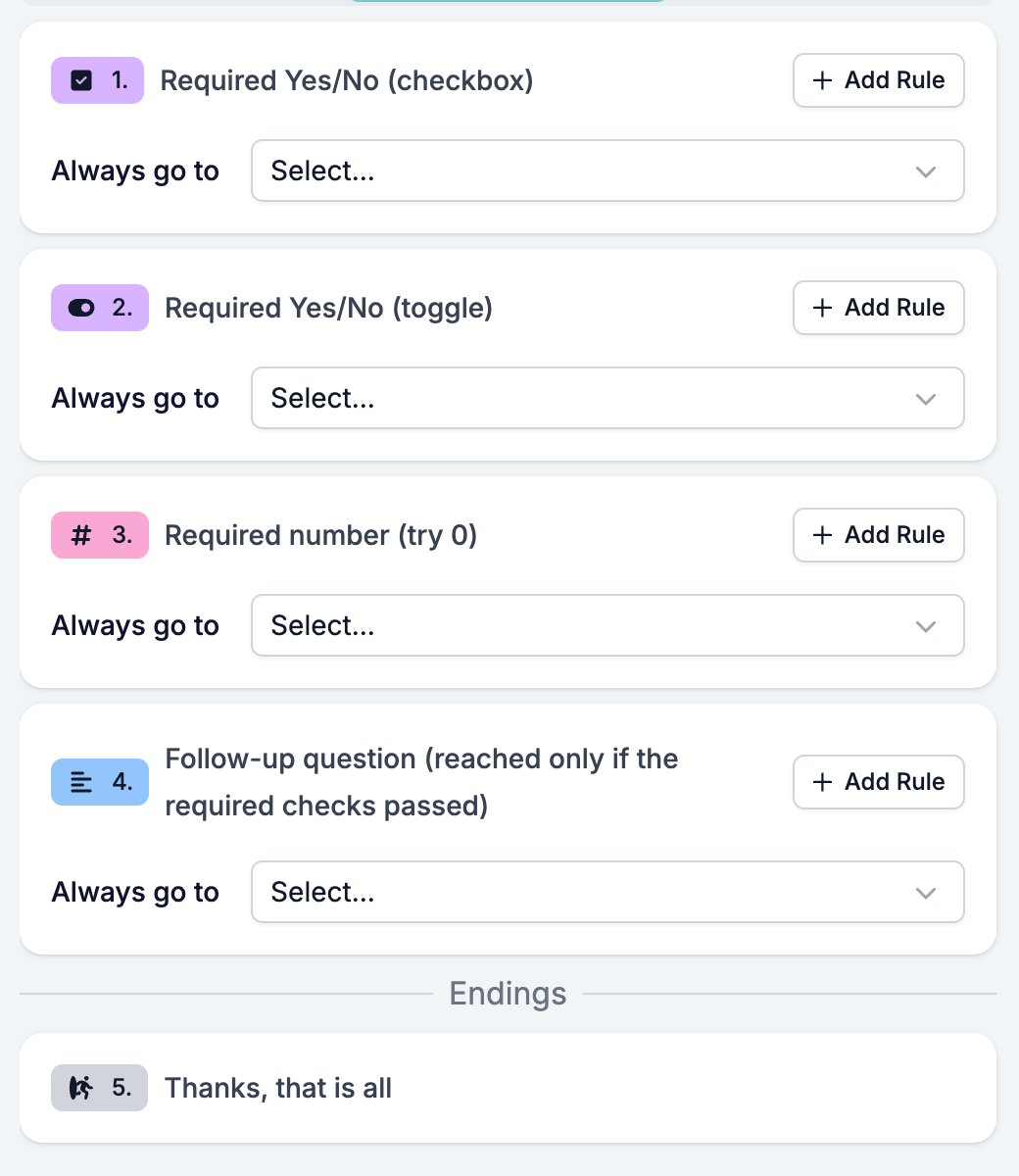
Anatomy of a rule
A rule readsif <question> <operator> <value> then go to <field>.
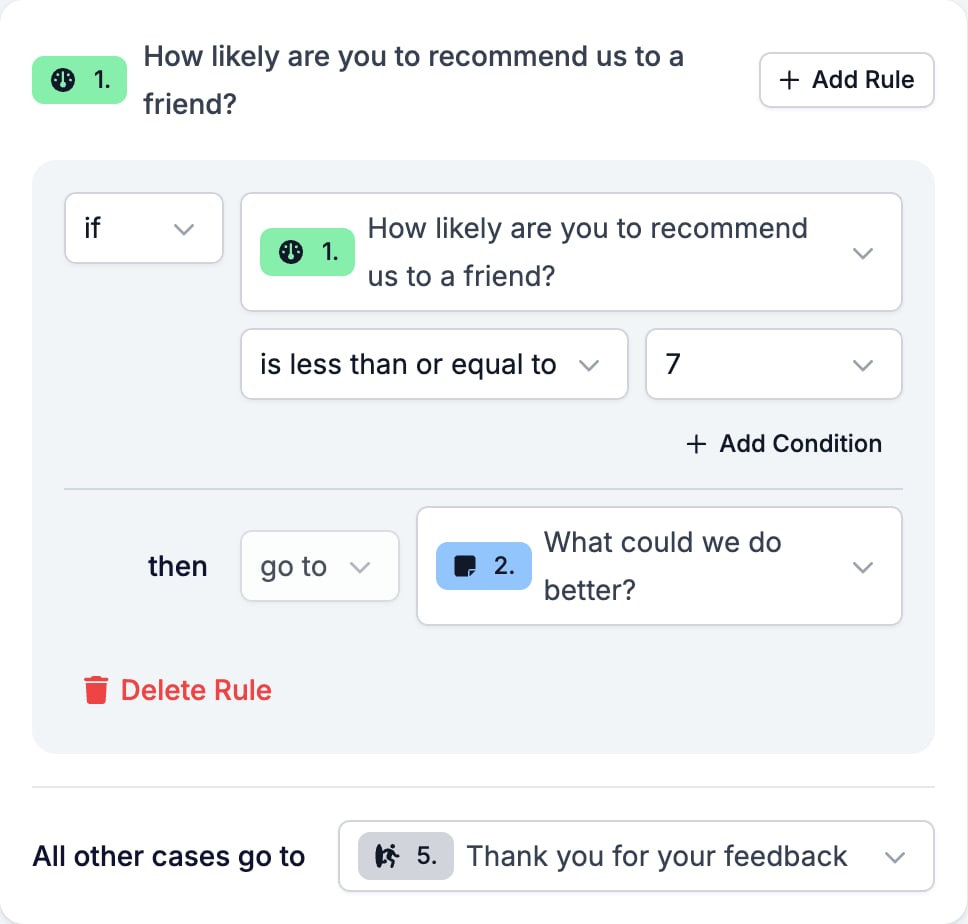
- if starts the condition. The question picker offers this question and the ones above it, never a later one and never an ending, so a rule cannot read an answer nobody has given yet.
- The operator list comes from the question’s type. See Operators by field type.
- The value box holds whatever the operator compares against. has response compares nothing, so no box appears beside it.
- Add Condition puts a second condition in the same rule. The rule fires only when every condition matches. For alternatives, write a second rule instead.
- then go to picks the destination. Every field is offered except this one and anything set to Hidden, so a rule can send someone backwards as well as forwards.
- Delete Rule removes the rule and its conditions.
How HireData picks the next field
Once a respondent answers a question, HireData reads that question’s rules from top to bottom and follows the first one whose conditions all match. If none match, it follows the footer target. If there is no footer target, the respondent goes on to the next field in the list. Order is what people get wrong. A broad rule above a narrow one always wins, so put the narrow rule first.Operators by field type
The type of the question in the condition decides the operators. Each field page explains what its operators match.
The fifth row is the one that catches people out. Date, Time, Datetime, and File Upload questions can only ask whether an answer arrived. Their operator picker is greyed out, because there is nothing else to choose, so you cannot branch on one date falling before another.
Patterns
Branch on a choice
The everyday case. One option leads somewhere the others do not.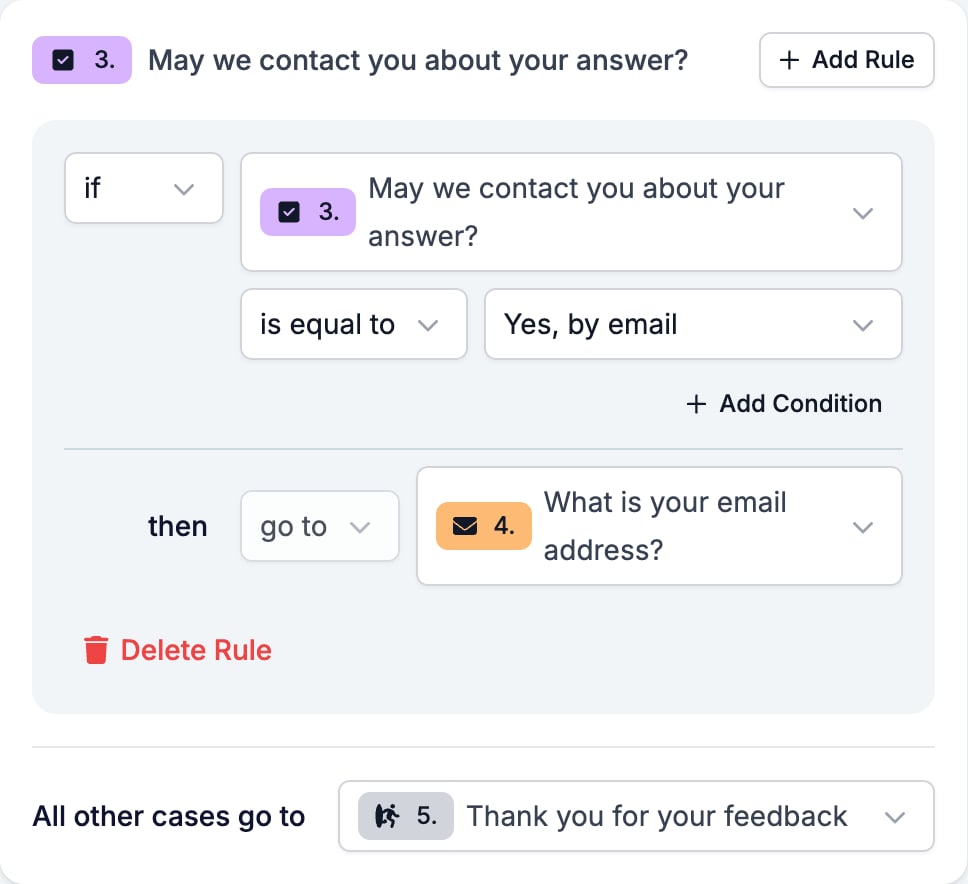
Branch on a Yes/No
Same shape, two answers. The value box offers Yes and No.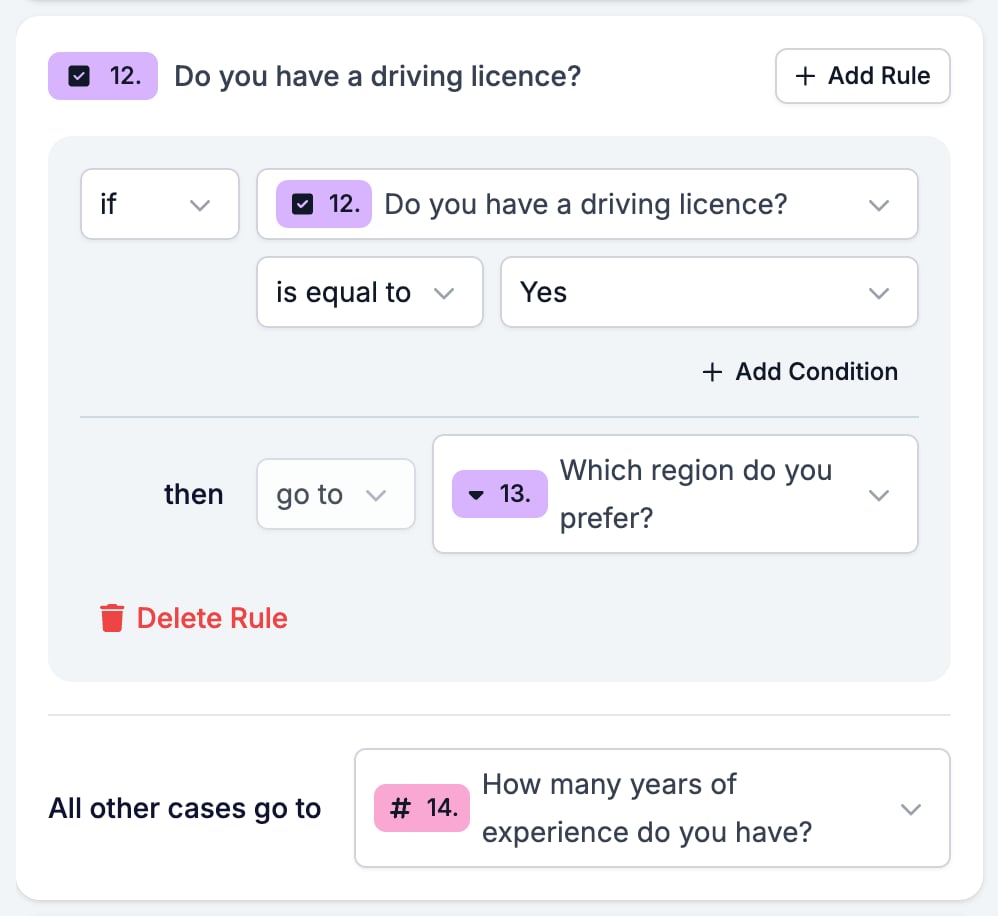
Ask a follow-up only when the last question was answered
has response is the operator for optional questions. It matches whatever the answer was, so long as there is one.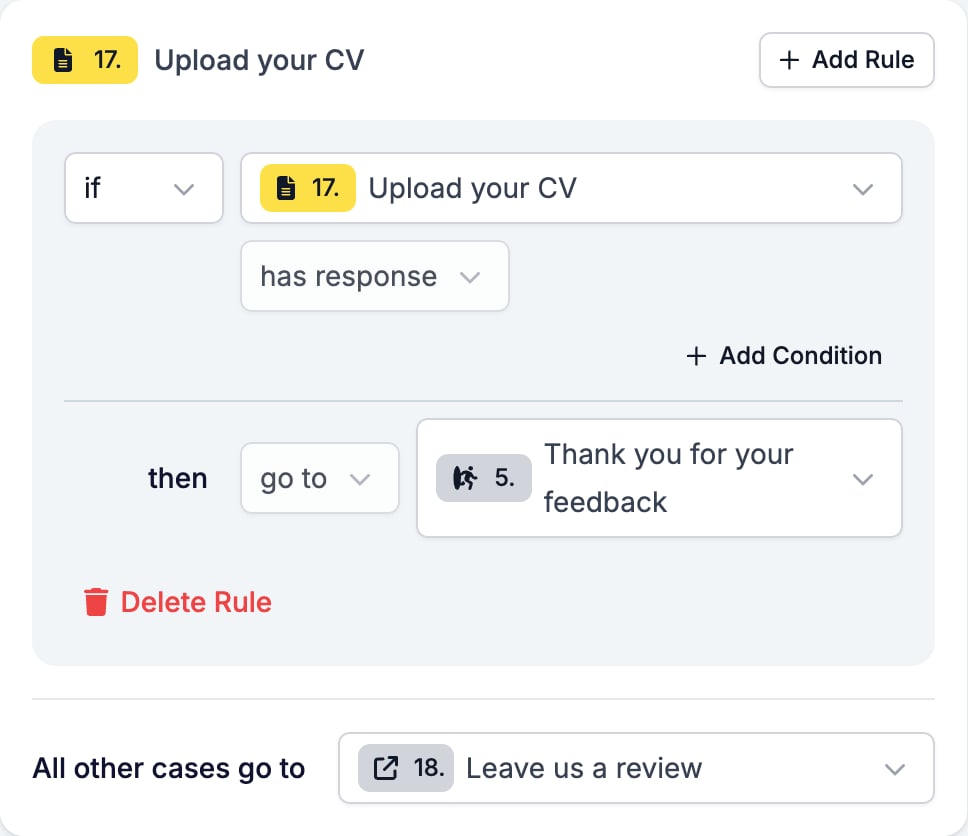
Require two answers at once
Add Condition puts both conditions in one rule, and both have to match.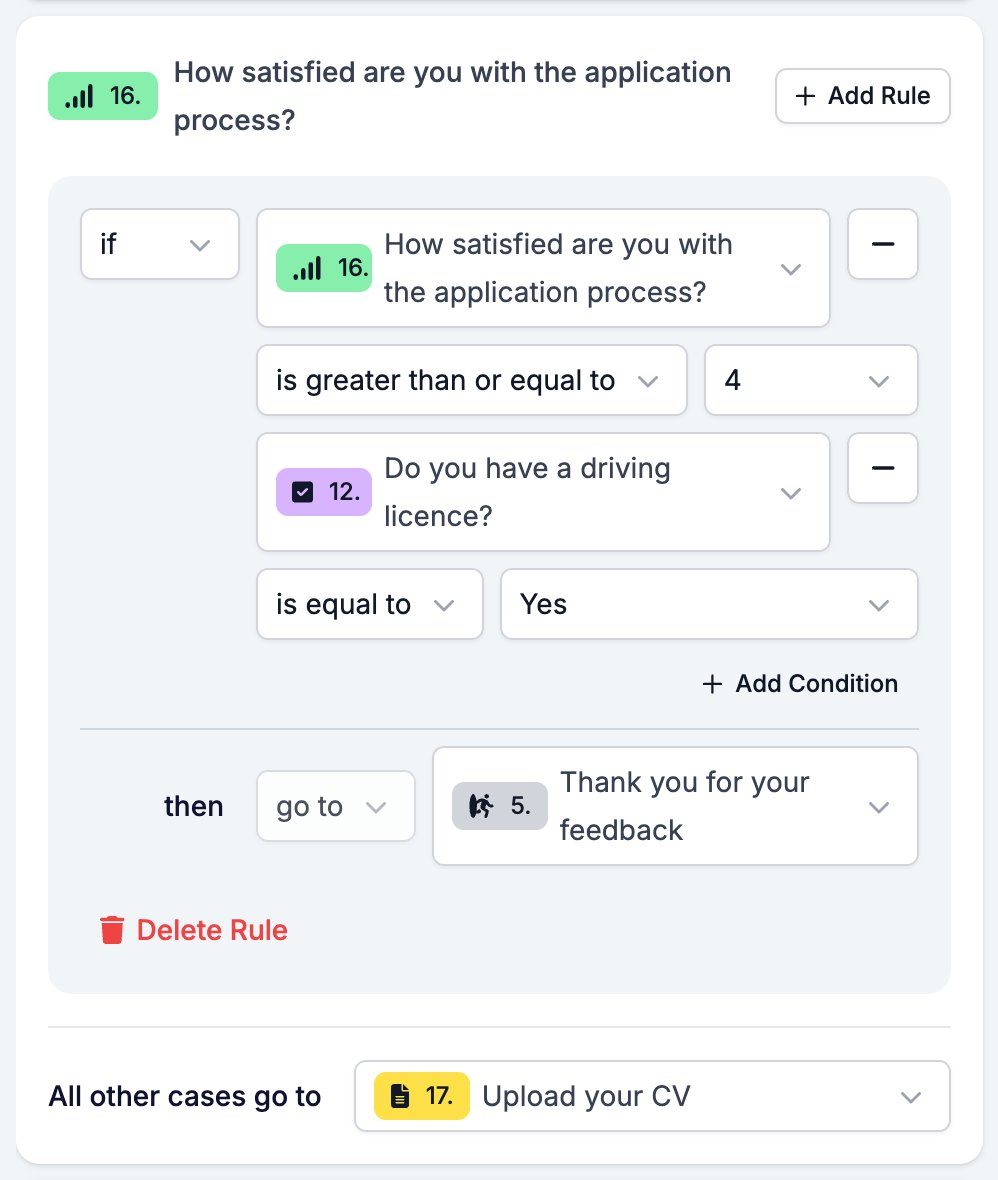
Send different respondents to different endings
Point the rule at one ending and the footer target at another.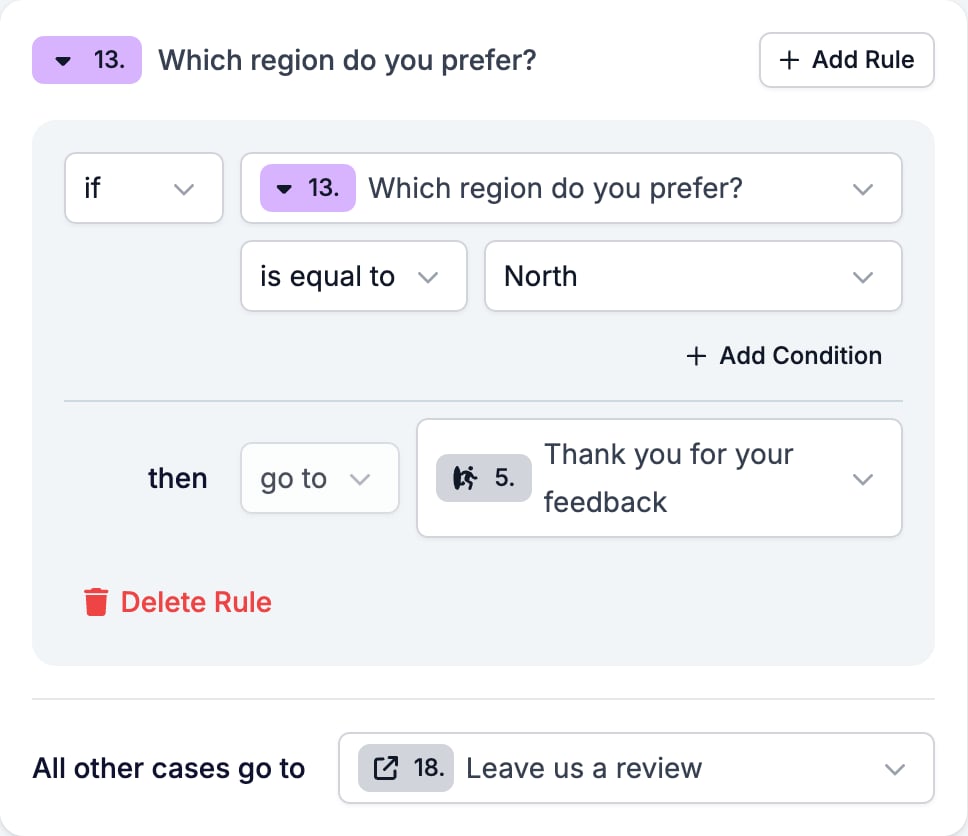
Skip a block of questions
A question with no rules can still jump. Set Always go to and everyone who answers it lands on the same later question, whatever they said.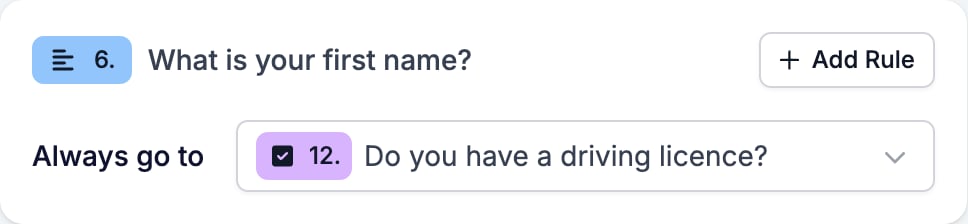
Required questions and logic
A required question has to be answered before the respondent can move on, which means its rules only run once there is an answer to test.When a rule does not fire
Work down this list when a rule does nothing, or sends people somewhere you did not intend.- A rule above it matched first. HireData stops at the first match. Move the narrow rule above the broad one.
- The rule needed every condition. All the conditions in one rule have to match. Split them into two rules to get either-or.
- The condition reads a question the respondent skipped. A jump that steps over a question leaves it unanswered, so any later condition on it fails and the footer target applies.
- The question is required and the answer was No, off, or 0. See the warning above.
- The rule fired and sent them backwards. A target can be a question the respondent has already passed, and nothing stops them going round the same questions twice. Try any backwards jump in Interactive Preview before you publish.
- You wrote the rule on the wrong question. Rules live on the question being answered, not on the destination.
Related
- Form Builder: Overview covers the builder, the shared settings, and every field type.
- Objects and Data sources cover the records and lists a form can draw on.
- Creating a form in HireData walks one form from blank to published.