

The preview
The eye button in the toolbar opens the preview. Its tooltip warns you that it saves the email first, so opening a preview commits whatever you have changed. The preview loads the email’s own public address rather than rendering it inside the builder, so what you see is the finished email rather than the canvas.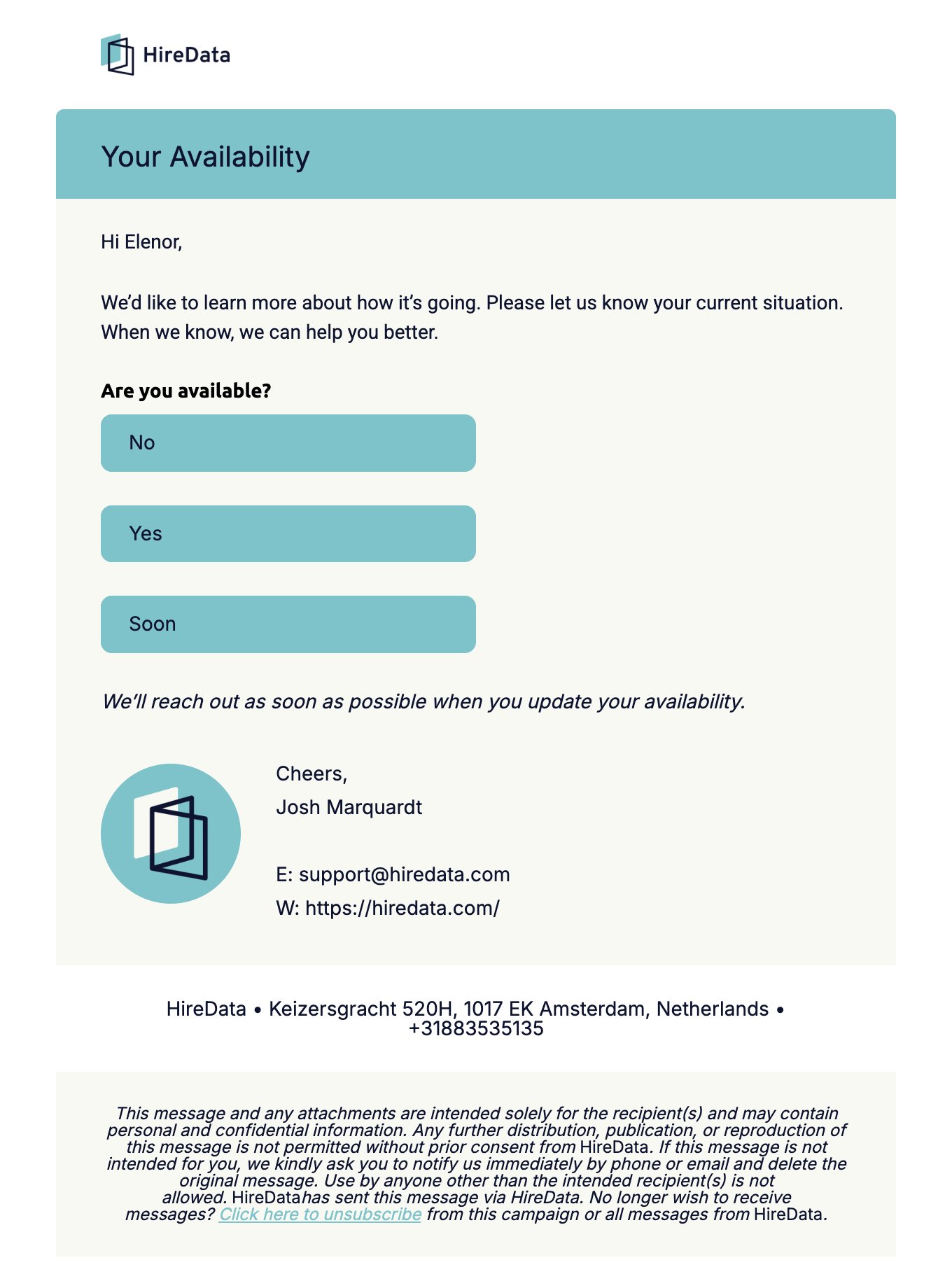

- Copy Preview URL, the first button, copies a link you can send to a colleague.
- The three buttons after it switch between mobile, tablet, and desktop.
- The refresh button reloads the email.
- The language picker appears once the template has a translation, and switches the preview between them.
Links
A Links panel down the side lists every link in the email, in order, and a UTM Campaign card under it repeats the campaign parameters HireData adds to all of them. Hover a row and that link is outlined in the preview, with a popover showing the full address and the parameters on it.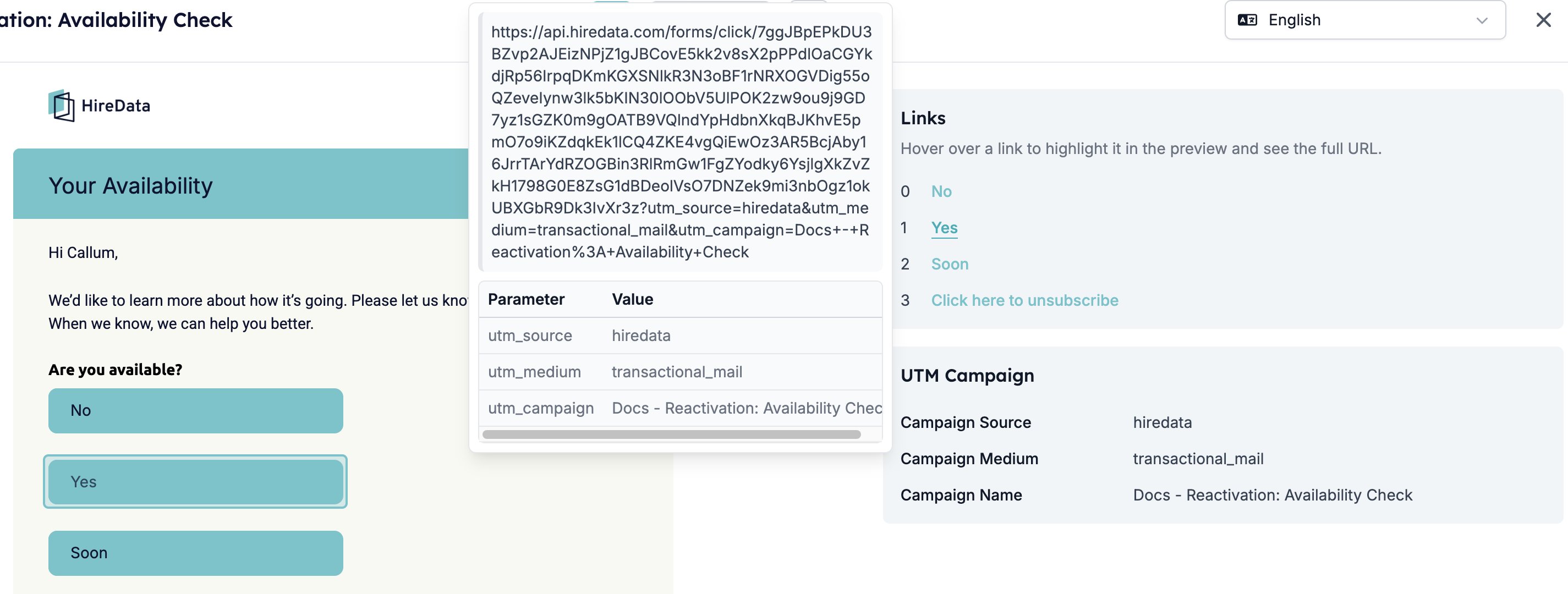
What the preview fills in
The preview resolves your variables against your own account, because you are the only person HireData knows is reading it. So a value that is blank for you appears blank here, and a token that is not a variable at all appears exactly as you typed it. See Missing values. Open the Copy Preview URL link somewhere you are not signed in and the same email fills those fields with invented sample data instead. Use that link to show a colleague the layout, not to check the wording of a personalised line.Sending a test email
The paper-plane button opens Test Email. It saves the email first, then sends it to you with plausible values in place of a real recipient’s.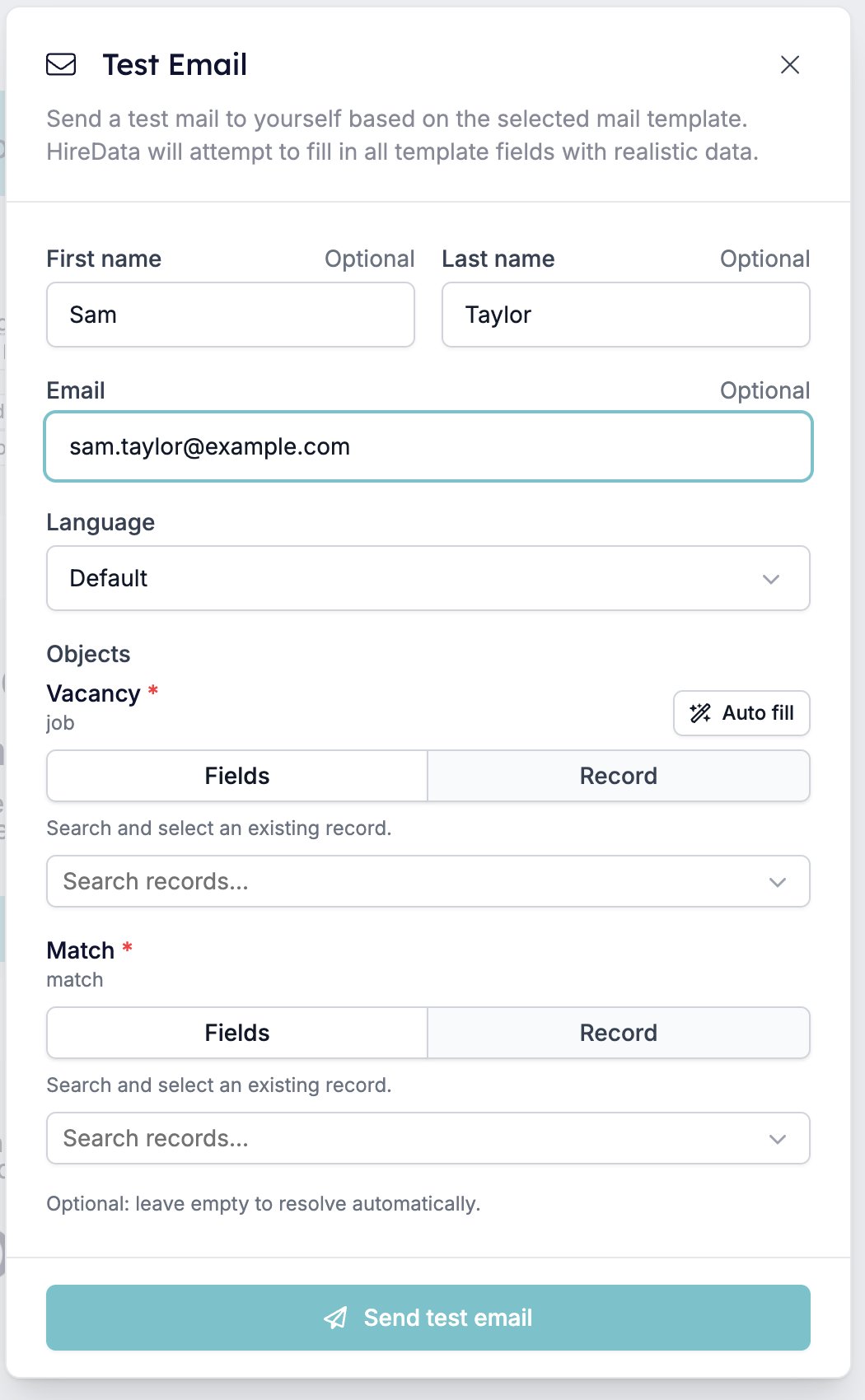
- First name, Last name, and Email are all optional. Leave them and HireData uses your own. Fill them in to send the test somewhere else, or to see how a longer name sits in the layout.
- Language appears once the template has a translation, and picks which one to send.
- Objects appears when the email links records, or when it is bound to a form that does. Each card takes either made-up Fields or a real Record, and Auto fill picks a record for you.
An object marked with a red asterisk needs a record, whatever the line under the group says about leaving it empty. Leave one out and the send fails with a Failed to send test email notification naming the first object it is missing, by key rather than by label: “Required data reference [job] is missing.”
Before you send
Six things worth doing in this order.- Read the subject line. It is the first thing a recipient sees, it takes variables like everything else, and it is the easiest line to leave half-written.
- Check the canvas for orange badges. An orange badge is a key HireData does not recognise, and it reaches the inbox with its braces showing. Fix or remove each one. See Variables.
- Walk the Links panel. Every link, including the ones inside a Form block and the unsubscribe link in the footer.
- Look at the email at mobile width. Columns stack and buttons reflow, and a line that fits on a desktop can break badly.
- Check each language. Switch the preview’s language picker through every translation you have written.
- Send yourself a test email and read it in your mail client. It is the only step that shows you an actual inbox.
What testing does not tell you
The builder has no Gmail preview, no Outlook preview, and no dark-mode preview. HireData does not model any email client, so nothing here predicts how one will render your email. A test send to your own address, opened in the client your recipients use, is the only check that does. The three preview sizes resize the preview window to roughly a phone, a tablet, and the width of your screen. They change the width and nothing else, so what they show you is how your email reflows, not how a given device renders it. The narrow view is narrower than most phones, which makes it a strict test: a layout that holds together there will hold together on a real one. Stacking at narrow widths is standard behaviour from MJML, the framework HireData builds the email with. HireData does not set the width at which it happens and offers no control over it. What you can control is what stacks: see Two Columns.Related
- Variables explains what the preview is showing you where a value is missing.
- Translations covers the language picker in the preview and the test modal.
- Email Builder: Overview covers the toolbar and saving.
- Two Columns is the block whose behaviour changes most between the preview widths.