

{{recipient.first_name}} once and every recipient reads their own name.
The email builder shows a variable as a badge carrying its label, not its value. {{recipient.first_name}} reads Recipient: First Name on the canvas, and the badge behaves as one object rather than as the characters it stands for. Hover it to see the value it holds. See Variables for the badge, its popover, and how to edit it.
Inserting a variable
Type{{ and a picker opens under the cursor. Each row gives the variable’s label, its {{key}}, and the kind of value it holds.
Keep typing to narrow the list. The search is forgiving. Type frist and Recipient: First Name still comes up.
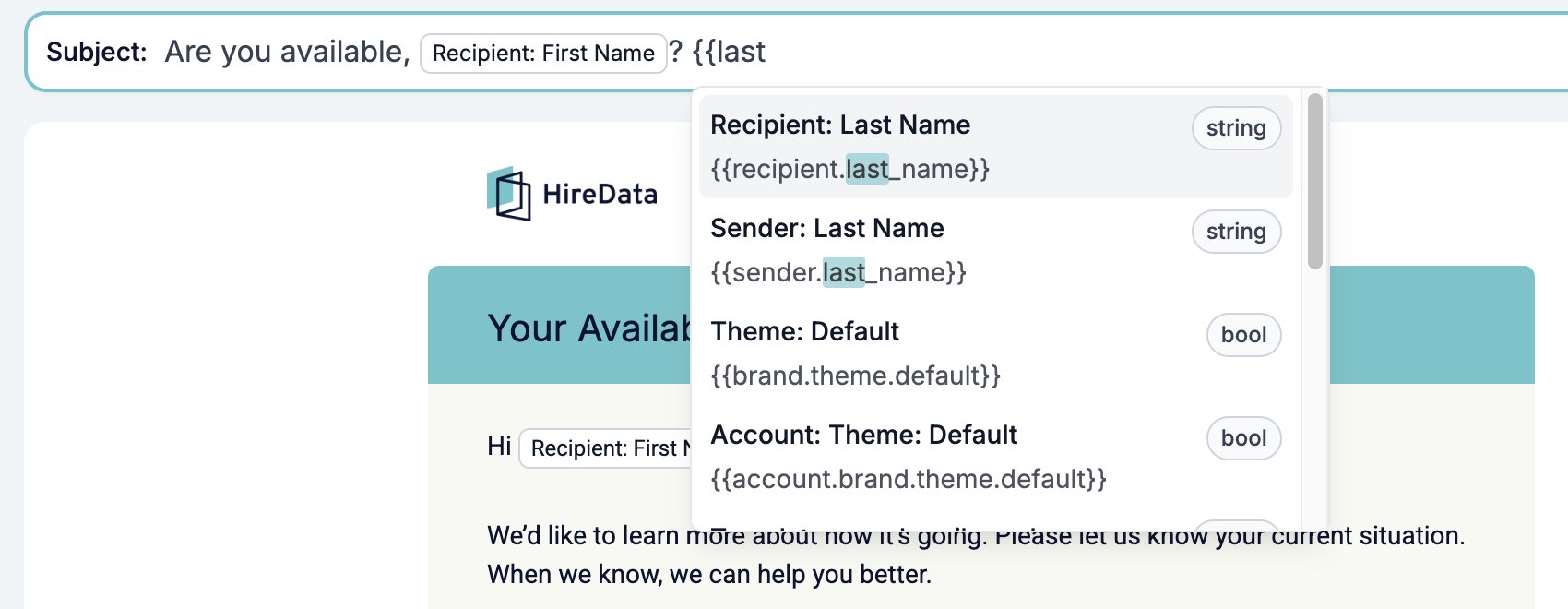
}}.
Where variables work
Anywhere you can type into an email, and in several places you cannot.- The Subject box, which is the line a recipient reads in their inbox.
- Paragraph and heading text.
- A link’s address. Select some text, click the link button in the bubble menu, and the popover offers a dropdown of every variable that holds a URL, including
{{template::unsubscribe_url}}. - The URL box on a Button and on each Social row.
- A picture. The media library’s Fields tab lists the variables that carry an image, for both the Image block and the Signature.
- A colour. Colour controls pick from the brand’s colour variables by name, which is what “Theme: Palette Primary Color” means. See Brand, theme, and metadata.
The variable list
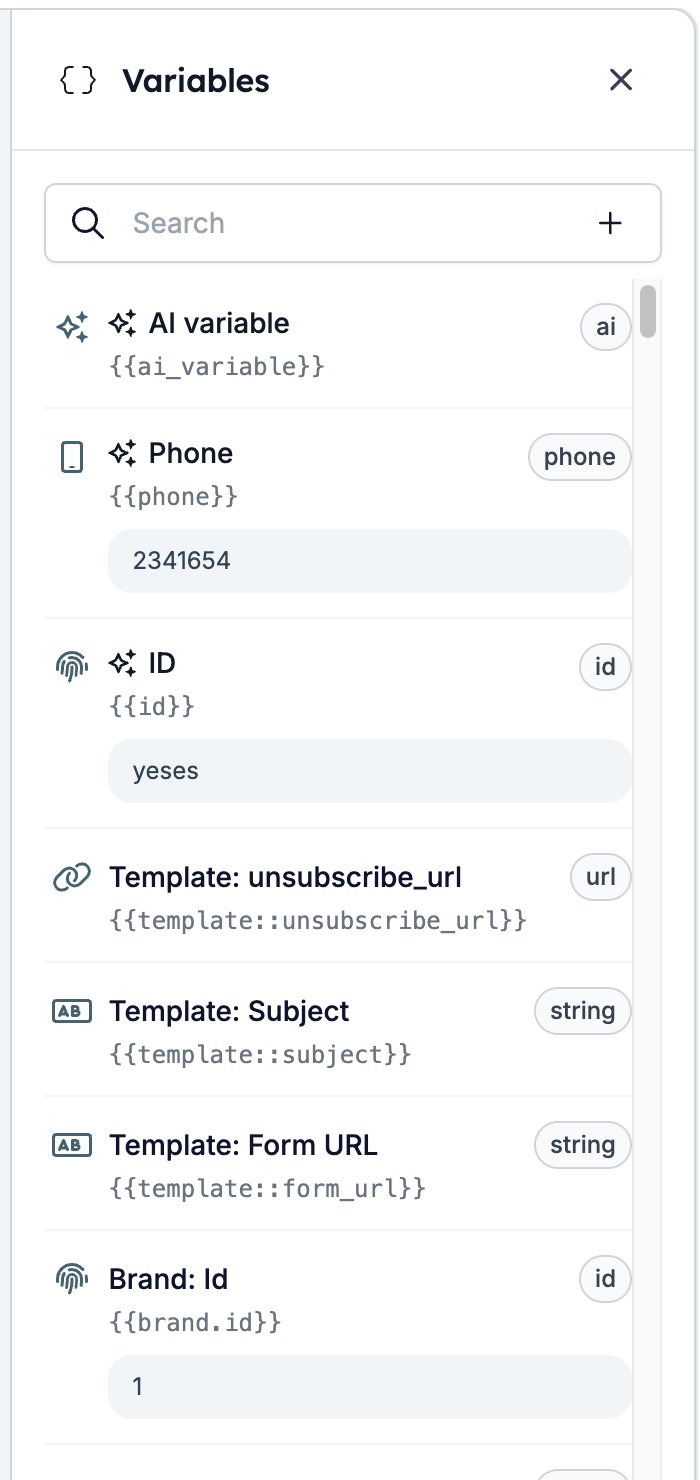
The curly-brackets button in the toolbar opens Variables, a drawer listing everything this email can use. Search by label or key. Where HireData already knows a value, the card shows it, so you can tell{{brand.name}} from {{account.name}} without guessing.
Variables you added yourself sit at the top, each marked with a sparkle, and the {{ picker puts the same ones first. Click one to reopen its settings.
Adding your own variable
The + beside the search box opens a Variables dialog: your Fields down the left, and on the right the types you can select from, in six groups. They run from Text, Number, and Yes / No through Email, Phone, and Address to Color, Font, and JSON. Search types narrows the list.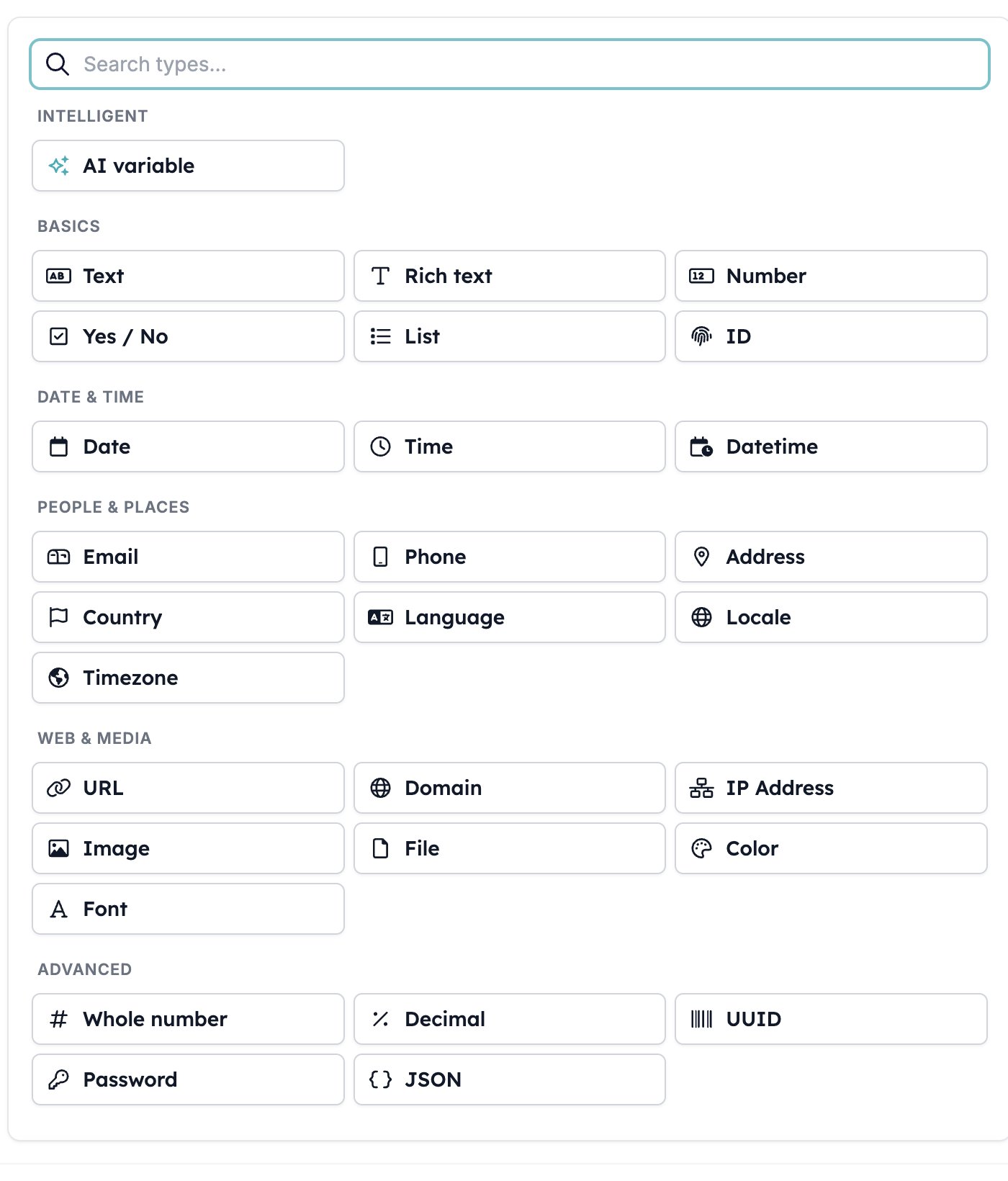
- Name is what the badge reads on the canvas.
- Default value is what HireData writes in when nothing else supplies one. The control matches the type you picked.
- Reference as is the key you type between the braces. It fills itself in from the name.
- What is it for? is an optional note for whoever opens the template next.
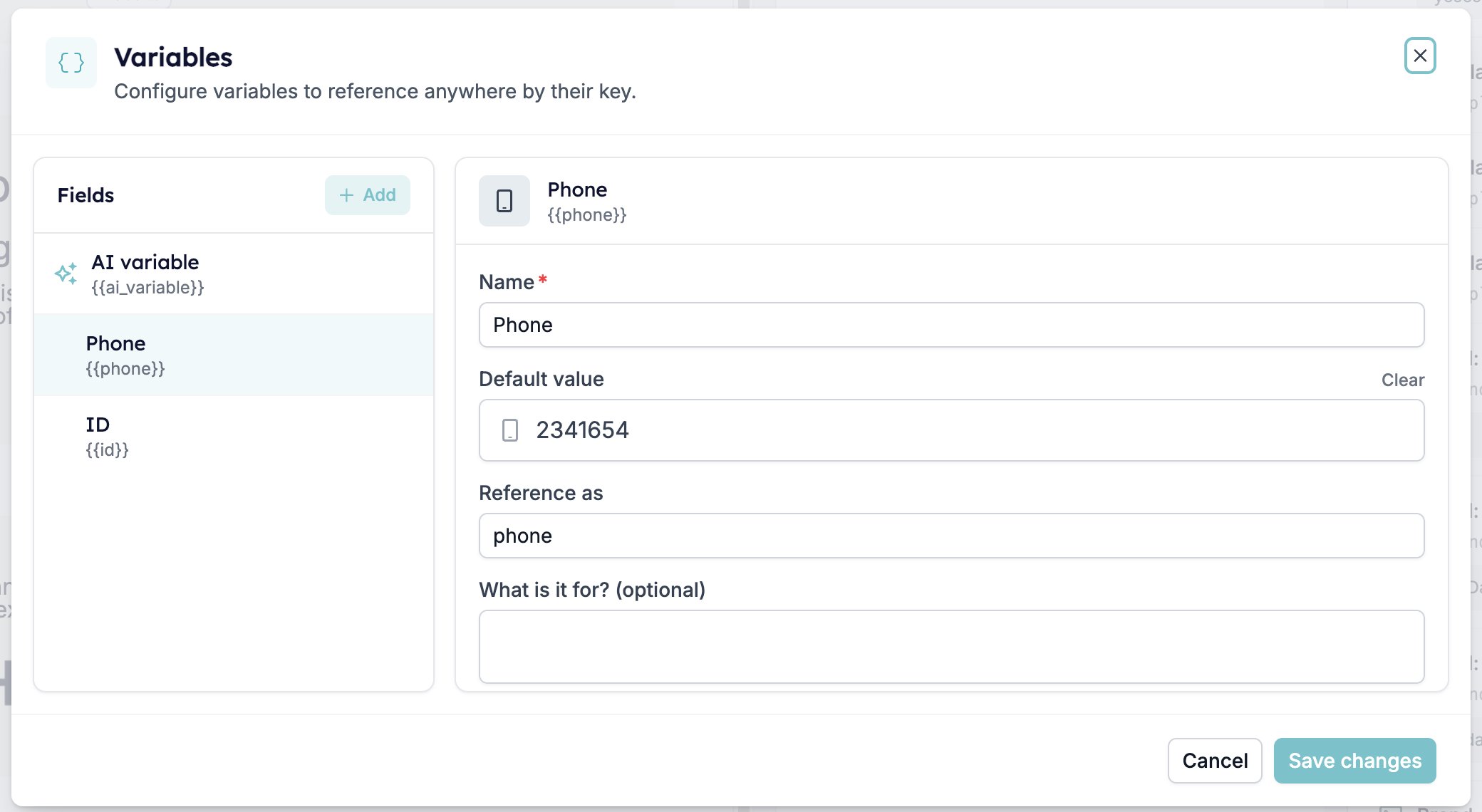
{{phone}} variable and write that into the signature, the footer, and the body, and changing the number afterwards is one edit rather than three.
AI variable is the first type in the dialog. Rather than look a value up, it works one out for each recipient from an instruction you write. See AI variables.
Bringing in a record’s fields
The database button in the toolbar opens Objects, which links a record type to the email: a candidate, a vacancy, a match. Link one and every field on that record joins the variable list, addressed by the object’s key, as in{{candidate.first_name}}.
Objects explains what an object is and what linking one does. It is written for the form builder, which offers more settings per object, but the records and their keys are the same.
Missing values
Three things can happen to a variable when the email goes out, and only one of them is what you meant.- The variable resolves. HireData has a value and writes it in.
- The variable resolves to nothing. The recipient has no phone number on file, so
{{recipient.phone_number}}comes out as an empty space. “Call us on .” is the classic way this shows up. - There is no such variable. HireData leaves a key it does not recognise exactly as you typed it. The recipient reads
{{recipient.favourite_biscuit}}, braces and all.
default modifier to cover the second and third cases with words of your own. Variables explains the badge and its popover, and Modifiers explains the fallback.
Related
- Testing is where you find out what your variables resolve to.
- Variables covers the
{{ }}syntax, the badge, and its popover across forms, messages, and automations as well as email. - Modifiers lists everything you can do to a value on its way into the email.
- AI variables work out a value per recipient instead of looking one up.
- Objects covers the records whose fields become variables.
- Translations keeps your variables intact in every language.