

Manage languages
The language button at the end of the toolbar opens Localization.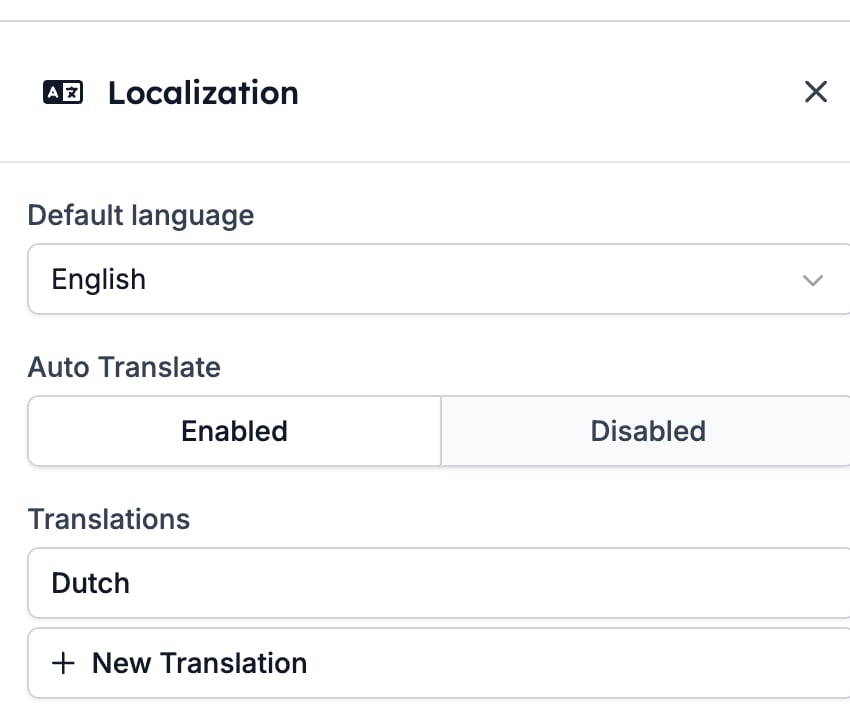
- Default language is the language the email is written in. It is what a recipient gets when nothing better is available.
- Auto Translate decides what happens when a recipient’s language has no translation. See Which language a recipient gets.
- Translations lists what you have written so far, with New Translation below it.
What the builder offers for translation
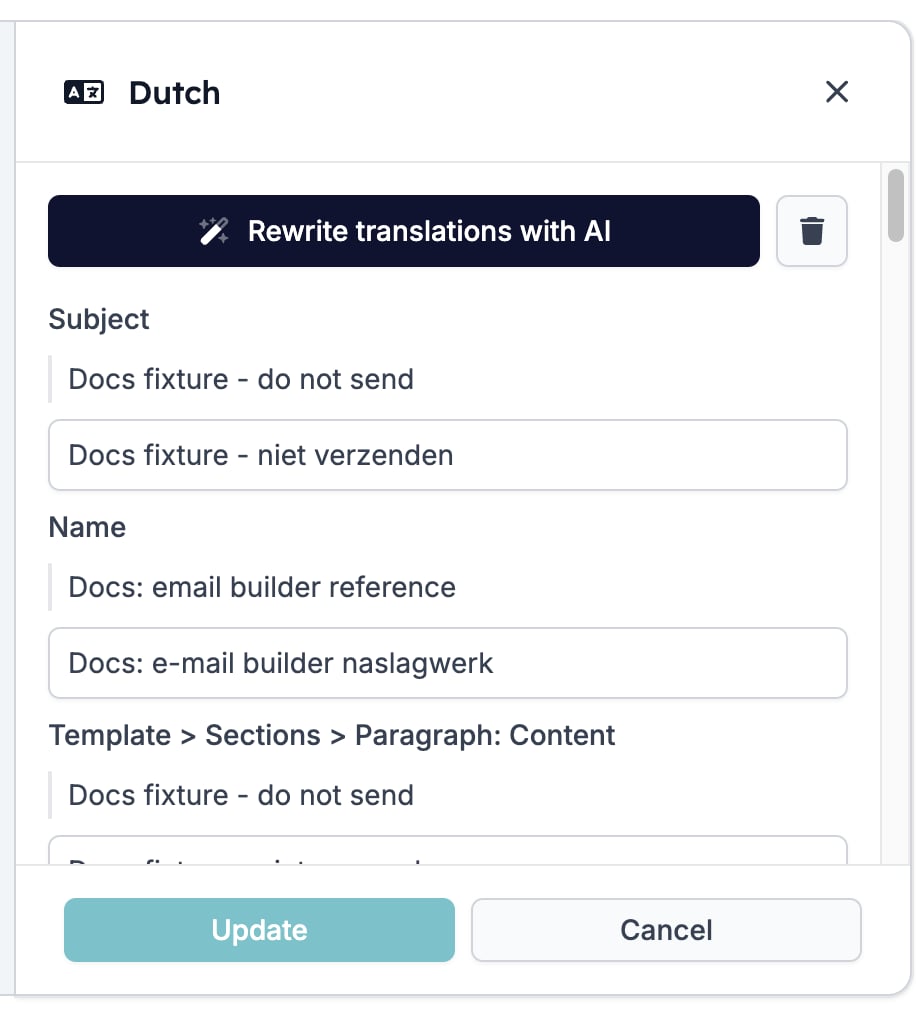
Open a translation and you get one box per piece of translatable content, labelled with the path to the block it belongs to, such asTemplate > Sections > Signature > Paragraph: Content. Above each box sits the original, so you can see what you are translating.
The builder offers:
- The Subject.
- The template’s Name, which is internal.
- Paragraph and heading text.
- The words on a Button.
- The paragraphs inside a Signature.
- A Form block’s call to action and its three rating labels.
- An Image and its alt text.
- An HTML block. What you write in it goes out unchanged in every language.
- A Socials row.
- Anything inside a Two Columns block. A paragraph in a section is offered; the same paragraph moved into a column is not. If a passage has to be translated, keep it out of the columns.
Writing a translation
Click New Translation, select the Language, and fill the boxes in. Create AI translation fills every box at once. It keeps your variable badges where they are and translates the words around them, soHi {{recipient.first_name}}, comes back as Hoi {{recipient.first_name}}, rather than losing the name. Read what it wrote before you keep it, and edit any box you disagree with.
Which language a recipient gets
HireData looks for a translation in the recipient’s language.- It finds one. The recipient reads that translation.
- It finds none and Auto Translate is Disabled. The recipient reads the default language. Nothing breaks, and nothing warns you.
- It finds none and Auto Translate is Enabled. HireData writes the translation with AI at send time and keeps it, so the next recipient in that language gets the same wording.
Changing or deleting a translation
Click a language in the Translations list to reopen it. You cannot change the language, and the AI button now reads Rewrite translations with AI, which rewrites what is already there rather than filling in the gaps. The bin button beside it deletes the translation. HireData asks first.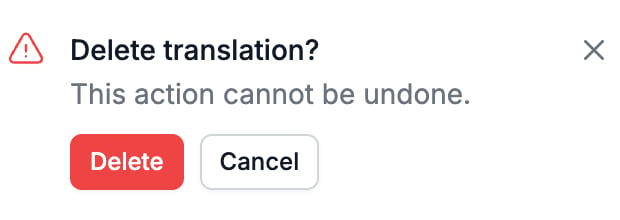
Related
- Testing covers the preview’s language picker and the test send.
- Variables explains the badges that survive translation.
- Template covers the settings that apply to the email in every language.
- Two Columns is the block whose contents are not offered for translation.