

Interactive Preview
Interactive Preview is the web form, with your theme, your logo, and the questions in the order the logic decides. Answer a question and click Next and you land where a respondent would land, which makes it the fastest way to check a route.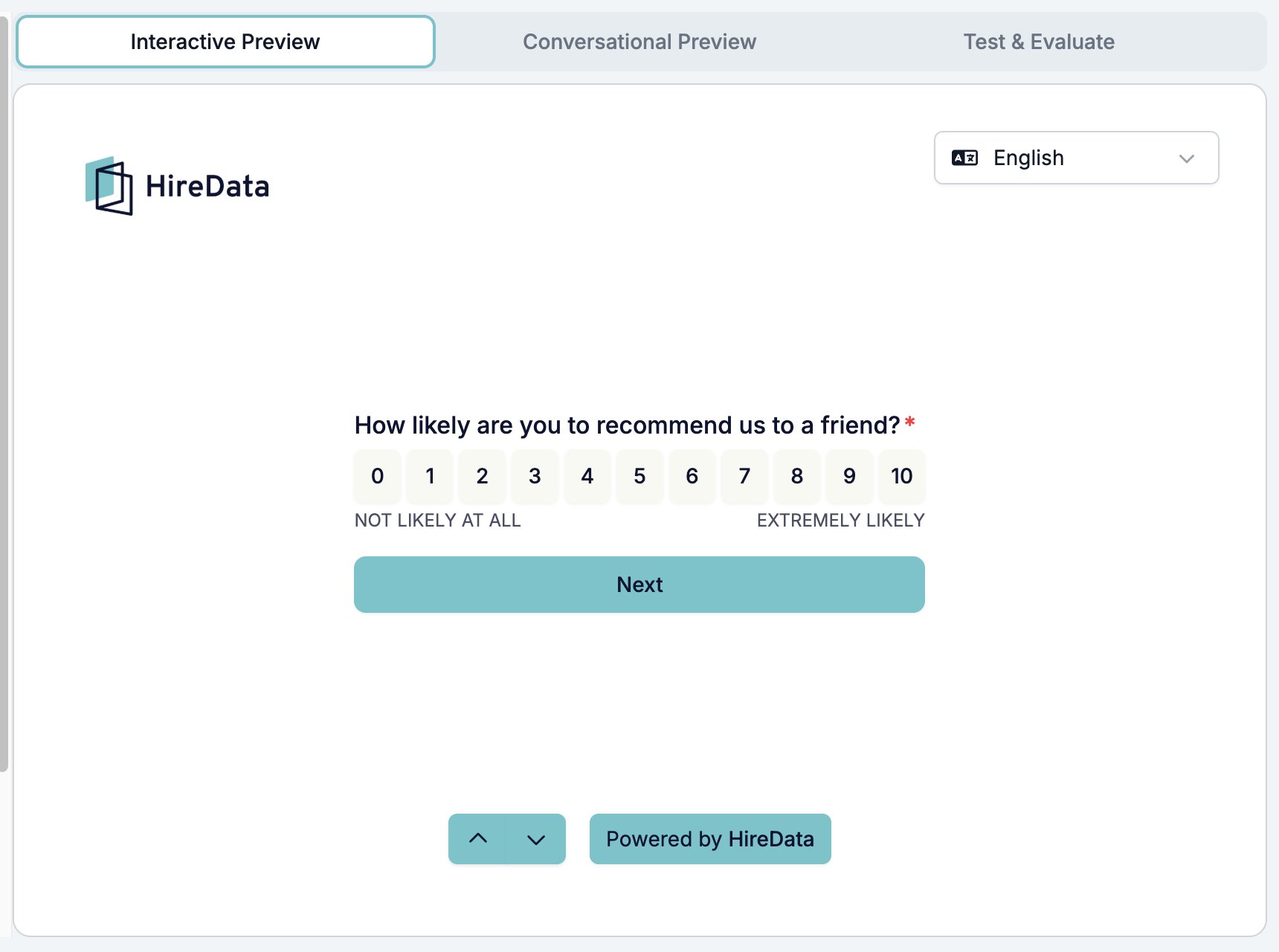
- The language picker at the top right starts on the form’s default language and lists its translations.
- The arrows at the bottom move between questions without answering them, along the route the logic would take rather than down the field list.
- Clicking a question in the Content tab jumps the preview to that question, so the card you are editing is the one you are looking at.
Conversational Preview
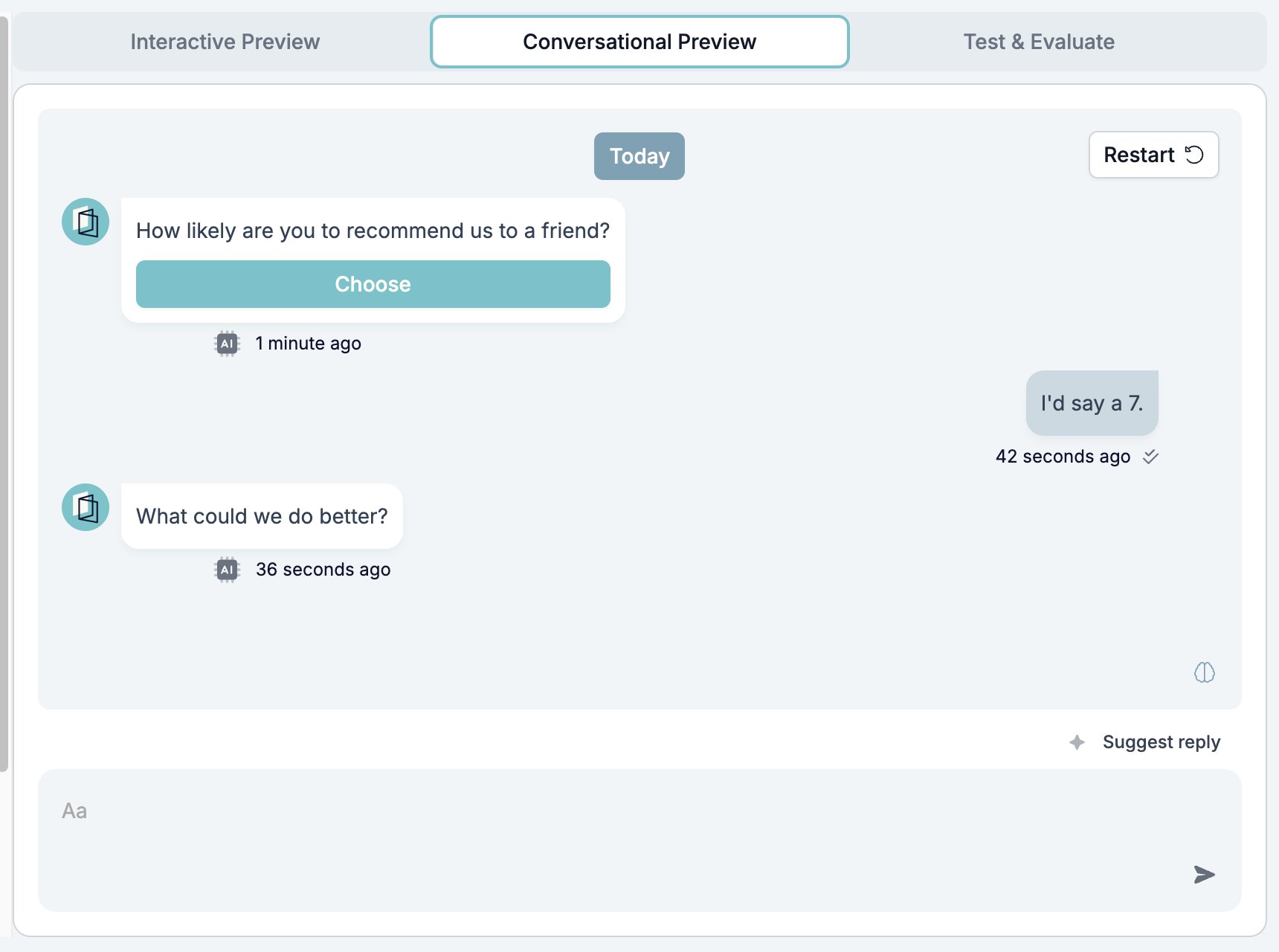
Conversational Preview is the same form as a WhatsApp conversation. It starts on a short setup screen.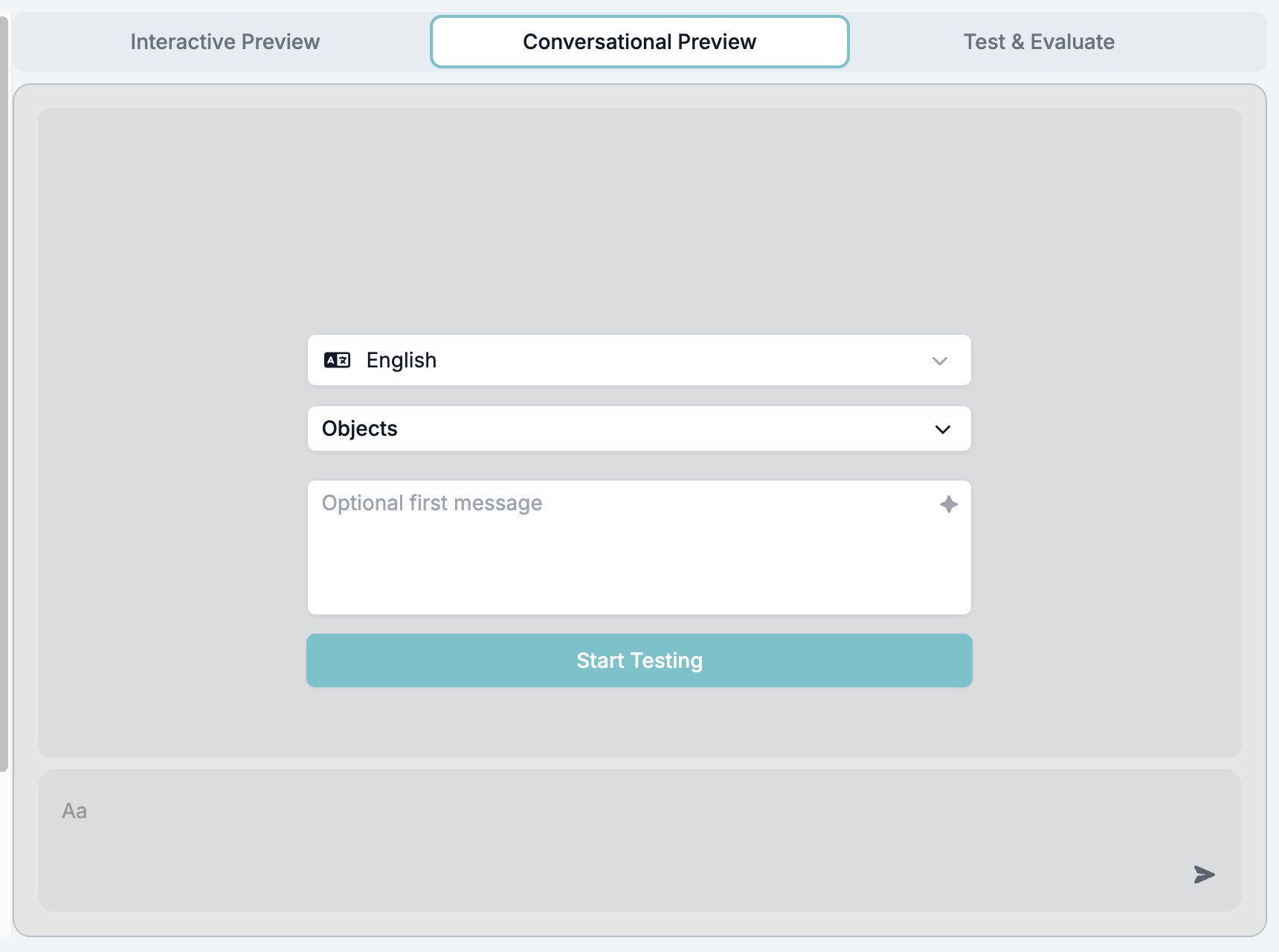
- The language picker sets the language the conversation runs in.
- Objects holds test values for the records the form links, so a question that greets someone by name has a name to use. It only appears on a form with linked objects.
- Optional first message is what the tester says before the form starts. The sparkle button writes one for you.
- Start Testing opens the conversation.
The preview window
The eye button next to Save in the toolbar is the other way to open the form. It saves the form first, then opens the preview in a window over the builder.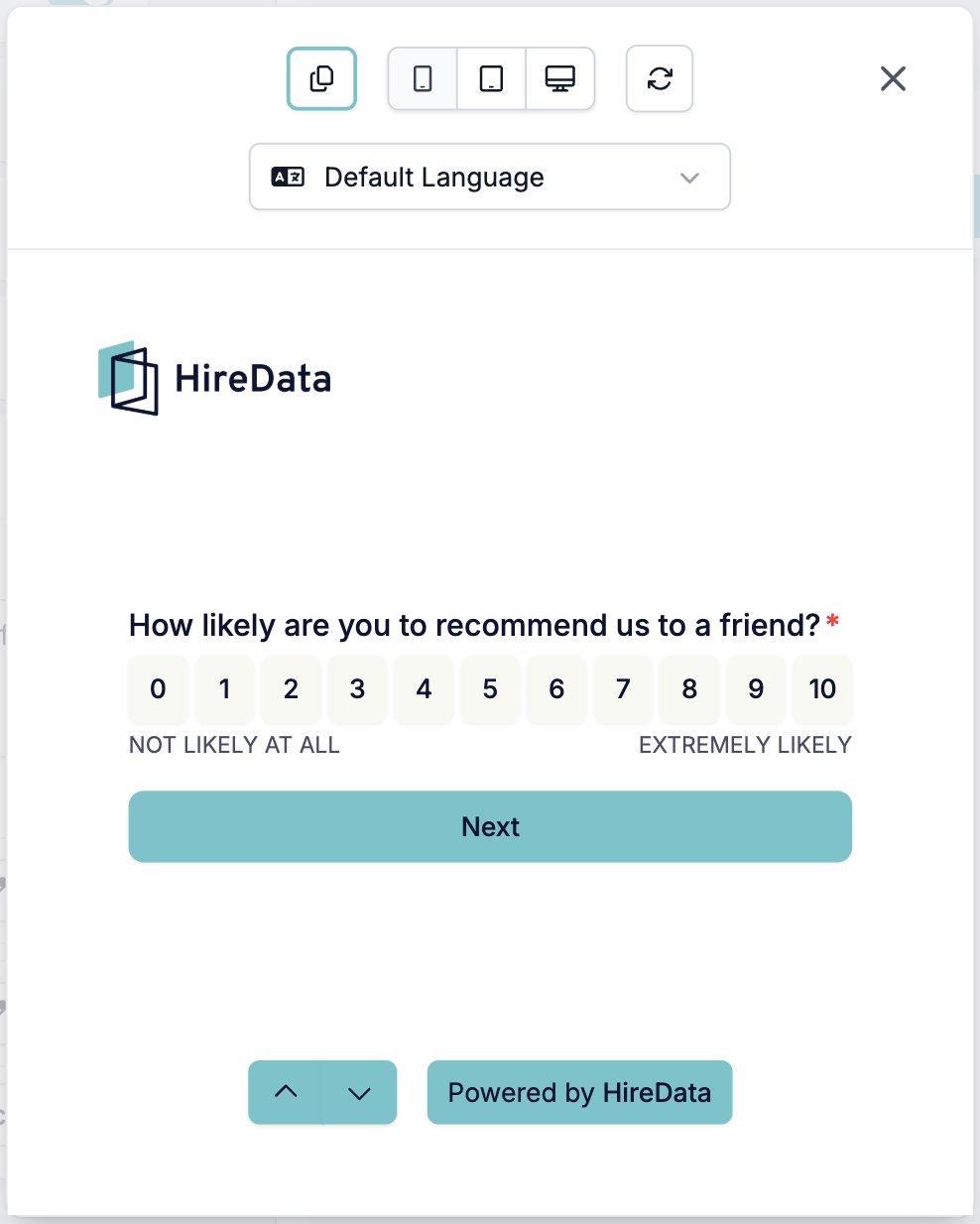
A form configured for a record has a third preview. Open the record, click Preview, and the form renders with that record’s values filled in. See Configuring a form per record.
Related
- Test & Evaluate fills a whole response and runs the evaluators over it.
- Logic covers the rules the previews run, and what to check when one does not fire.
- Form Builder: Overview covers the builder, the toolbar, and the theme.