

What it is not
The outputs are new. They are not the form’s questions, and they do not touch them.- Defining an output does not add a question, change a question, or write into an answer.
- An output is not tied to one question. Every output is filled from the whole response.
- Switching Generated fields on does not put a switch on any question card, because there is nothing to switch on per question.
Switch it on
Generated fields is the last block on the Evaluation tab. Switch it on, then click it to open the settings. There is nothing to enable per question.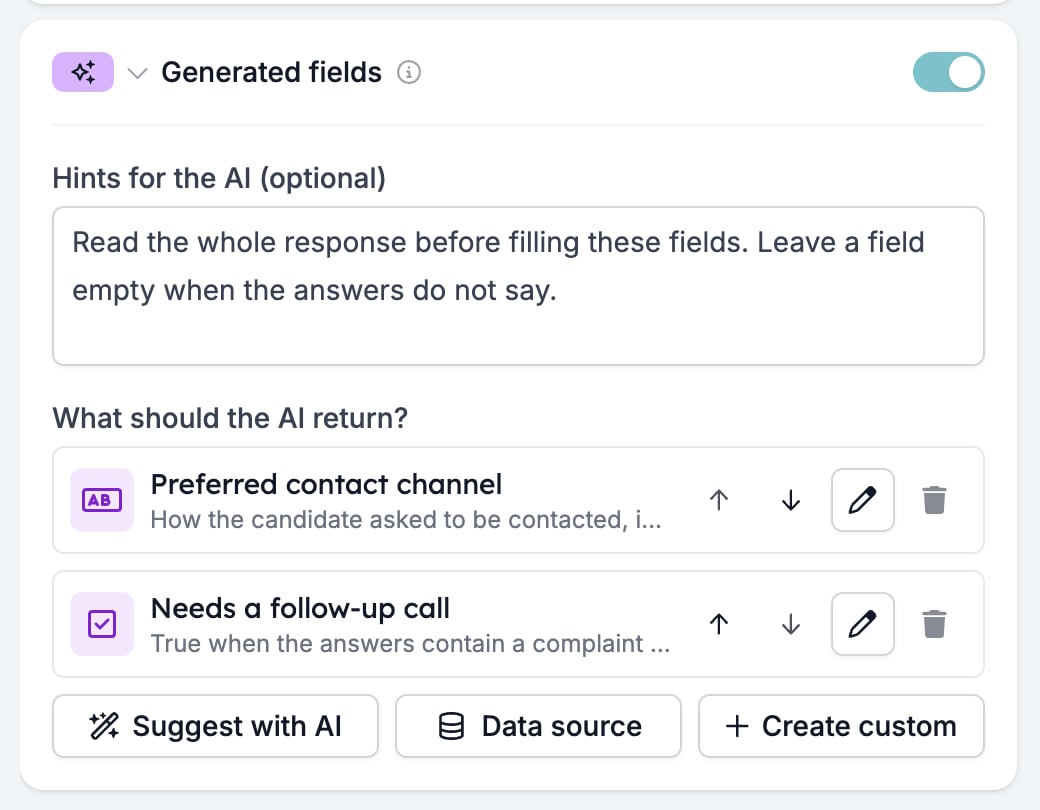
- Hints for the AI (optional) is one instruction for the whole set. It is the place to say what to do when the answers do not cover an output, which otherwise gets guessed at.
- What should the AI return? lists the outputs, in the order the AI is asked for them. The arrows on a row move it, the pencil edits it, and the bin removes it.
Adding an output
Three buttons sit under the list. Create custom opens New output field, a two-step panel. Step 1 chooses the type, with a search box and groups for the basics, dates and times, contact details, and web and media types. Step 2 is the configuration.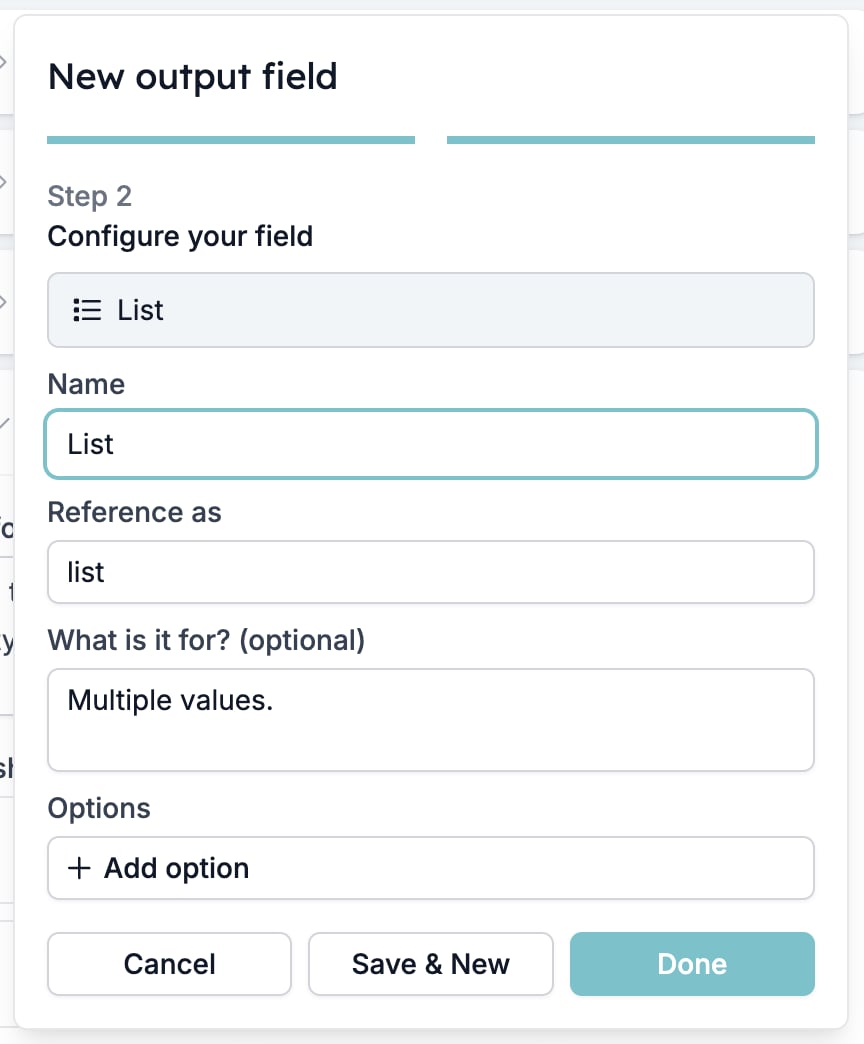
- Name is the label you see in results and in the variable picker.
- Reference as is the key an automation uses. It fills in from the name and has to be unique in the form, with no spaces or curly braces.
- What is it for? (optional) tells the AI what the value means. Write it. It does more for the result than the name does.
- Options appears for a List output. Add at least one, and the AI has to pick from them instead of writing free text. It is the way to get a value your automation can branch on.
When it runs and what it sees
Generated fields runs after Criteria, Scoring, and Skills, over every answer in the response plus their results. That order is the point of it. An output can be filled from the score or the verdict as well as from the answers. That is how you get a one-line reason for a rejection or a next step that depends on the rating.Reading the values
Every output appears under Generated fields in Test & Evaluate, and again in the Automation variables list with the key to copy. In an automation, an output is{{form_response.evaluation.ai_output.<key>}}, so the preferred_contact output is {{form_response.evaluation.ai_output.preferred_contact}}. See Variables.
Related
- Form evaluation overview covers the five evaluators and the order you switch them on in.
- Test & Evaluate shows the generated values from a run you control.
- Data sources explains the lists a data source output draws on.