

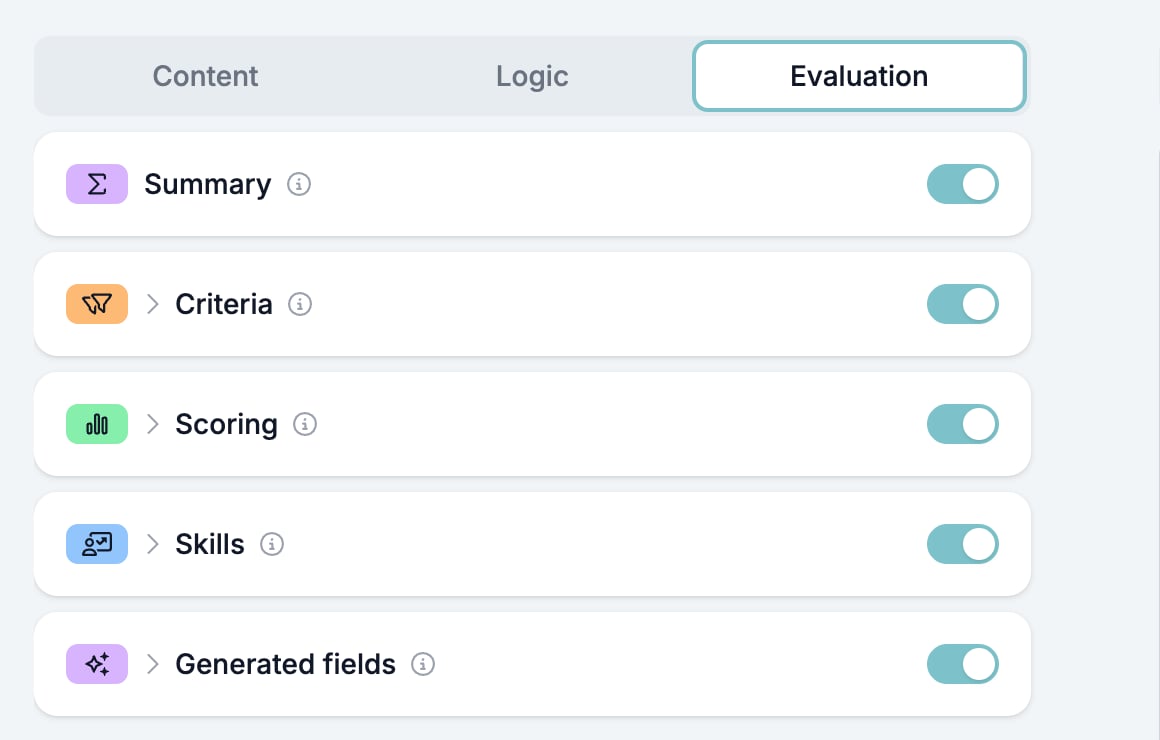
The five evaluators
Summary and Generated fields work on the response as a whole. Criteria, Scoring, and Skills work question by question, so each one needs a second switch on every question you want it to look at.
Switch it on for the form first
The order catches people out. A question’s evaluator switch does nothing on its own.- Open the Evaluation tab and switch the evaluator on for the form.
- Click the evaluator’s name to open it. Every question in the form appears underneath with a switch of its own.
- Switch on the questions you want it to look at, and configure each one.
Which questions can be evaluated
Every field type except Ending Screen and Redirect URL. The two endings collect nothing, so there is nothing to evaluate. What differs by type is how precisely a rule can read the answer. A Yes/No answer is one of two known values. A File Upload answer can only be tested on its file name, type, and size. Each evaluator page carries the operator table for its rules.Rules or AI
Criteria, Scoring, and Skills each ask How to evaluate? per question, with two answers.- Use answer rules compares the answer against conditions you write. The same answer always gives the same result, and no AI call is made.
- Evaluate with AI hands the question, the answer, and your note to the model, which decides. Use it for free text, where a rule cannot tell a good answer from a poor one.
One note per question
The box at the bottom of a question’s evaluator settings takes an instruction for the AI. Its label changes with the evaluator you opened it from: What should AI look for?, How should AI award points?, What skill signals should AI look for? The box is one note per question, shared by all three. Write it under Criteria and the same text appears under Scoring and Skills. Keep it about the answer rather than about one evaluator.When each evaluator runs
A response is evaluated when it is completed, and again in Test & Evaluate while you are building. The steps run in this order.- Every rule-based question is evaluated. No AI is involved.
- The questions set to Evaluate with AI go to the model in one call.
- The per-question results become the verdict, the score, and the skill percentages.
- Generated fields runs last, over the whole response plus the results from step 3.
Where the results go
- In the builder, Test & Evaluate shows every result against the answers that produced it.
- On a submitted response, the results are stored with it. Export CSV and Export Excel in the builder’s three-dot menu add a column per result, including one per skill and one per generated field.
- In an automation, each result is a variable, such as
{{form_response.evaluation.scoring.band.label}}. Test & Evaluate lists them all under Automation variables, with the value from the run in front of you. See Variables.
Related
- Criteria, Scoring, Skills, and Generated fields cover the four evaluators you configure.
- Test & Evaluate runs the evaluators against a response you make up.
- Screen and score applicants with a pre-screening form builds one form that uses Criteria, Scoring, and Summary together.
- Form Builder: Overview covers the builder, the shared settings, and every field type.