

How it renders
The image goes into the email as a plain picture, sized by Width and Height and aligned by Alignment.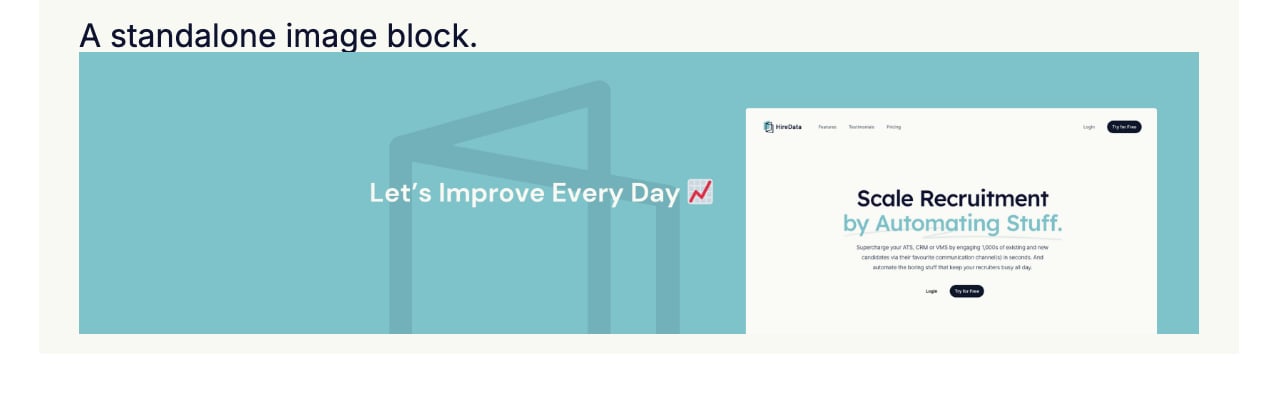
Settings
- Image opens the media library, with Upload media for a new file and two tabs for what is already there. Fields lists the variables that carry an image, such as a brand logo or a sender avatar. Select one of those and the picture changes with whoever the email is about.
- Width is Auto, which keeps the picture at its own size, or Full, which stretches it to fill whatever holds it.
- Alignment is left, centre, or right, and does nothing at Full width.
- Height is Auto, Full, or Custom, which opens a slider from 10 to 300 pixels.
- Border radius rounds the corners: None, Normal, Large, or Custom for a value per corner.
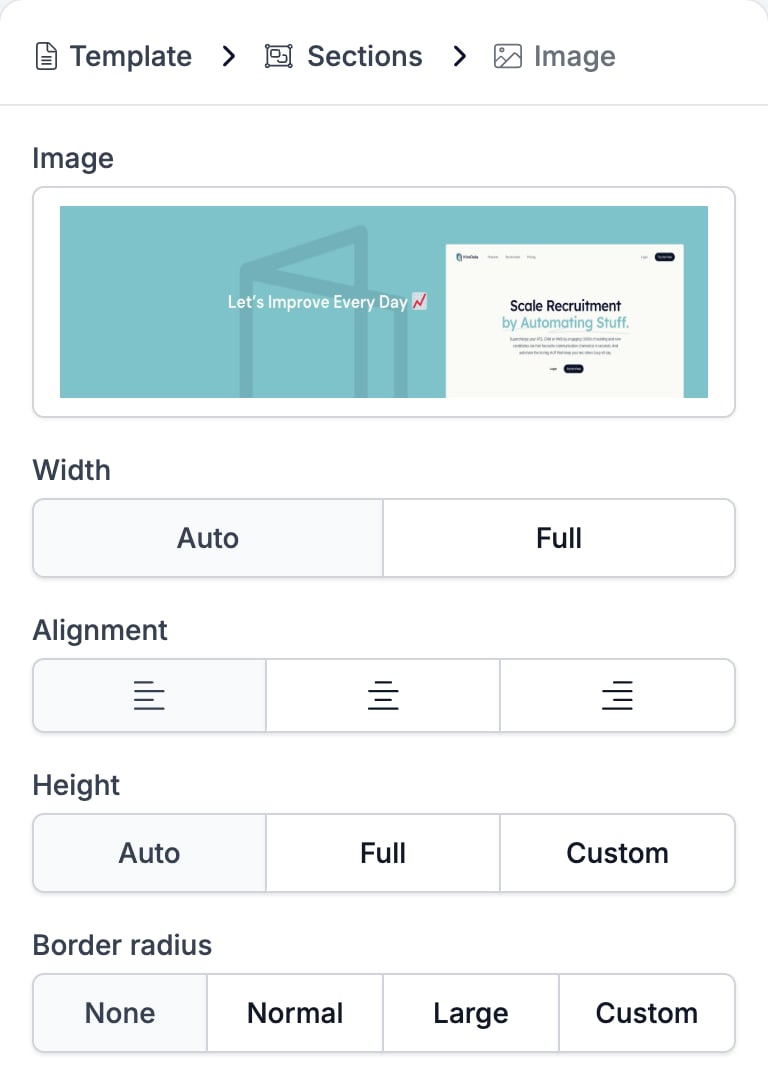
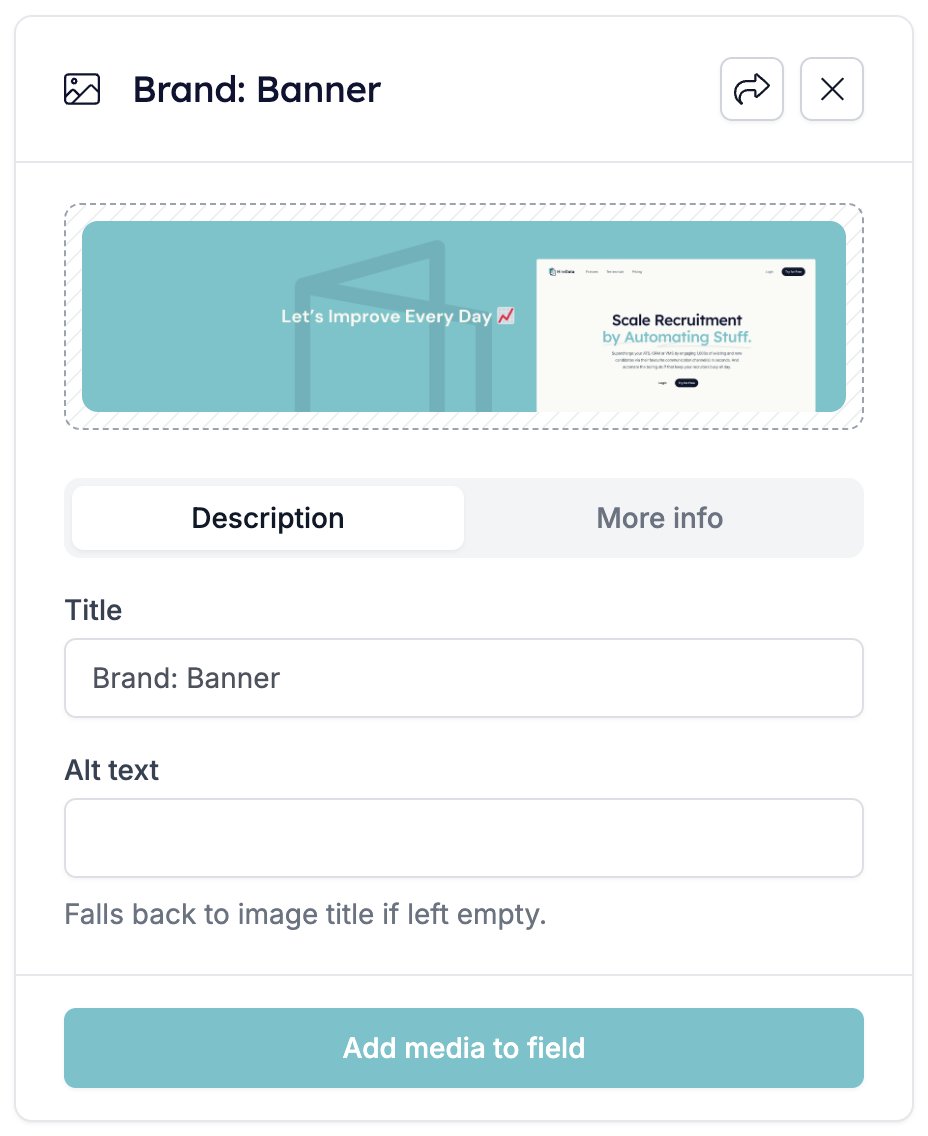
image.png is worth renaming.
A picture from the Fields tab is the exception. Both boxes are read-only there, so a brand logo or a sender photo carries the variable’s title as its alt text and cannot be given anything else.
Related
- Email Builder: Overview covers the builder, the toolbar, the theme, and every block type.
- Adding images to your emails walks through the media library.
- Two Columns is where an image takes its width from the column.
- Variables covers the tokens behind the Fields tab.
- Signature has its own picture, sized and cropped for you.