

How it renders
HireData reads the address and picks the icon from it, so alinkedin.com link gets the LinkedIn mark without you choosing one. An address it does not recognise gets a plain web icon.

mailto: link and a bare phone number becomes a tel: link, so an icon can dial or open a mail client.
The label beside an icon is text in the email rather than a setting. Click it in the canvas and type, and use Text on the parent block to size it. Leave it empty and the row is icons alone.
Settings
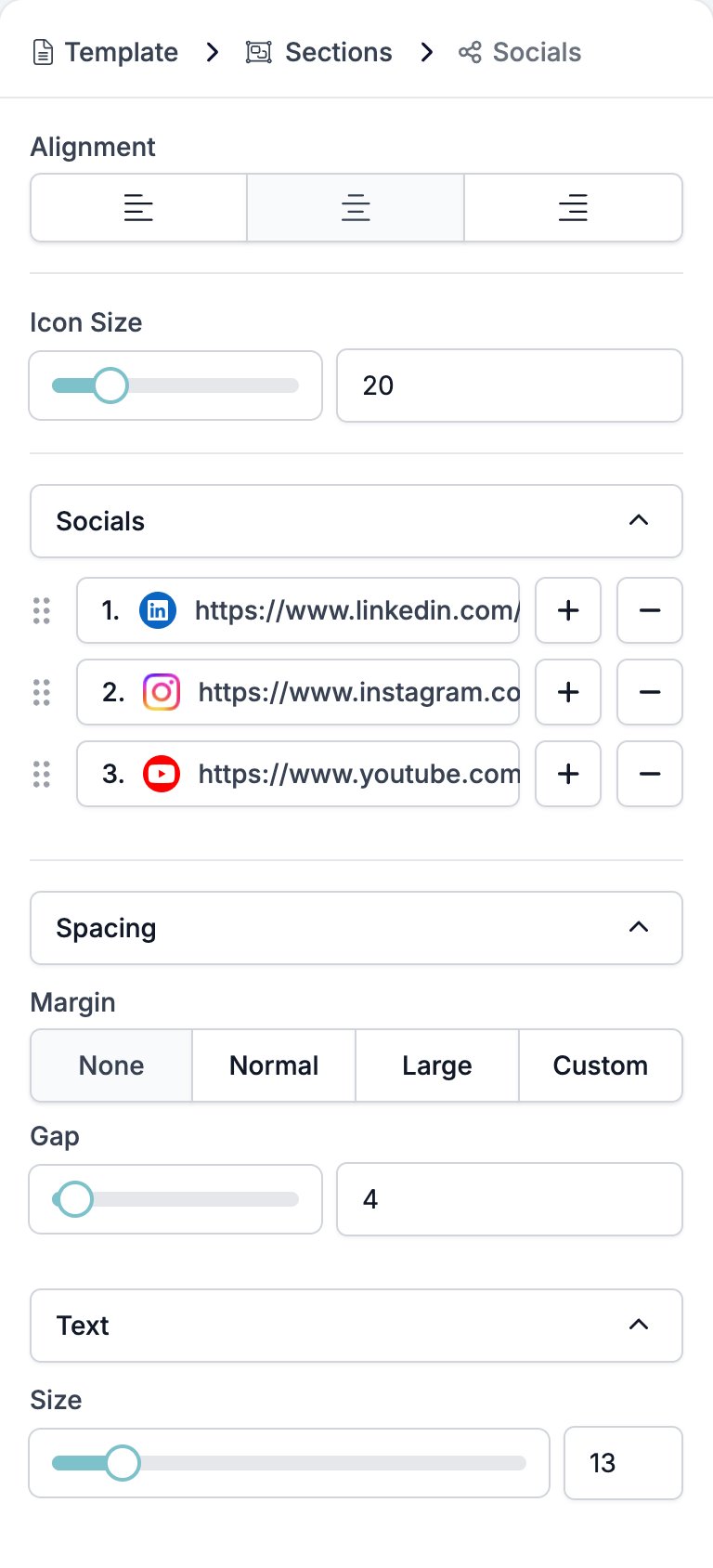
The Socials block carries the settings for the row.- Alignment puts the row left, centre, or right.
- Icon Size is a slider and a box, in pixels.
- Socials is the list of links, each row labelled with its address. + adds another Social straight away, with no menu, because Social is the only thing the block takes. − removes one and the handle reorders them.
- Spacing holds two controls.
- Margin, the space above and below the row.
- Gap, the space between the icons.
- Text holds Size, which sets the size of the label beside an icon. There is no colour control here.
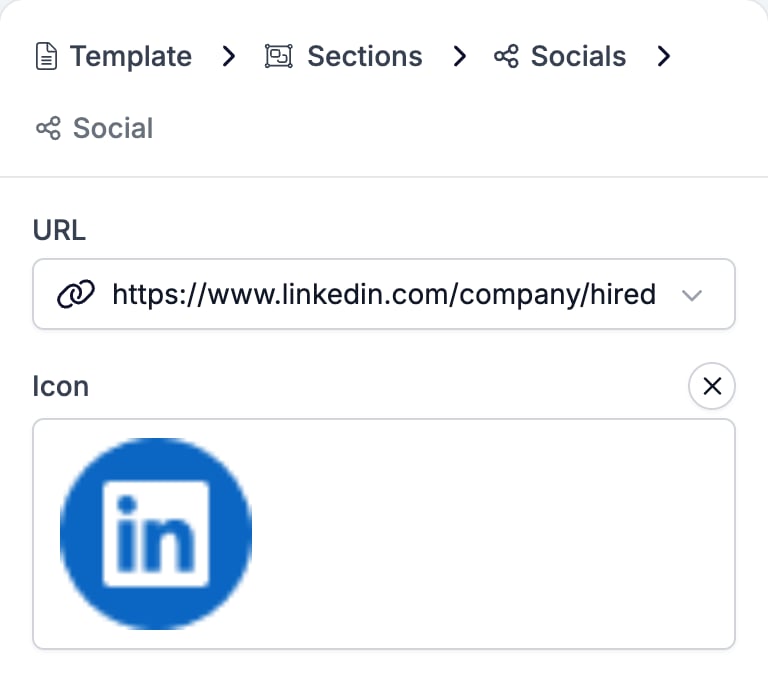
- URL takes the address. The box also offers every variable in the workspace that carries a URL, a phone number, or an email address, so a link can follow the brand rather than being typed in.
- Icon replaces the picture with one of your own. The cross beside the label clears it and hands the choice back to HireData.
Related
- Email Builder: Overview covers the builder, the toolbar, the theme, and every block type.
- Section is the band a Socials row usually closes.
- Button is the block for a link you want people to click, rather than a row of footers.
- Variables covers the tokens the URL box offers.