

Settings
The card carries the settings every field shares, with one difference. Instead of the single Auto reply (on answer) most types have, Yes/No gives each answer its own WhatsApp message.- Auto reply (Yes), sent when the answer is Yes.
- Auto reply (No), sent when the answer is No.
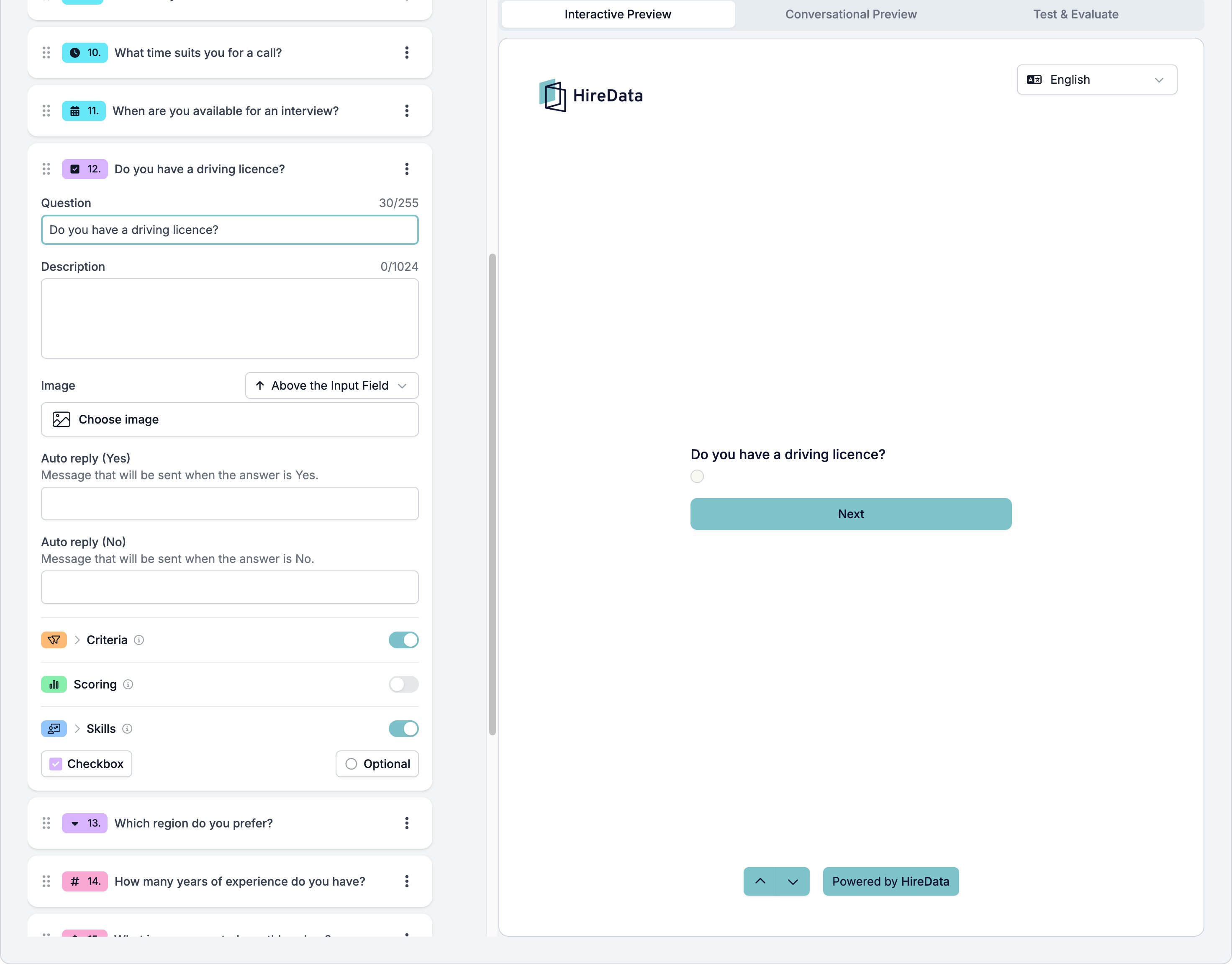
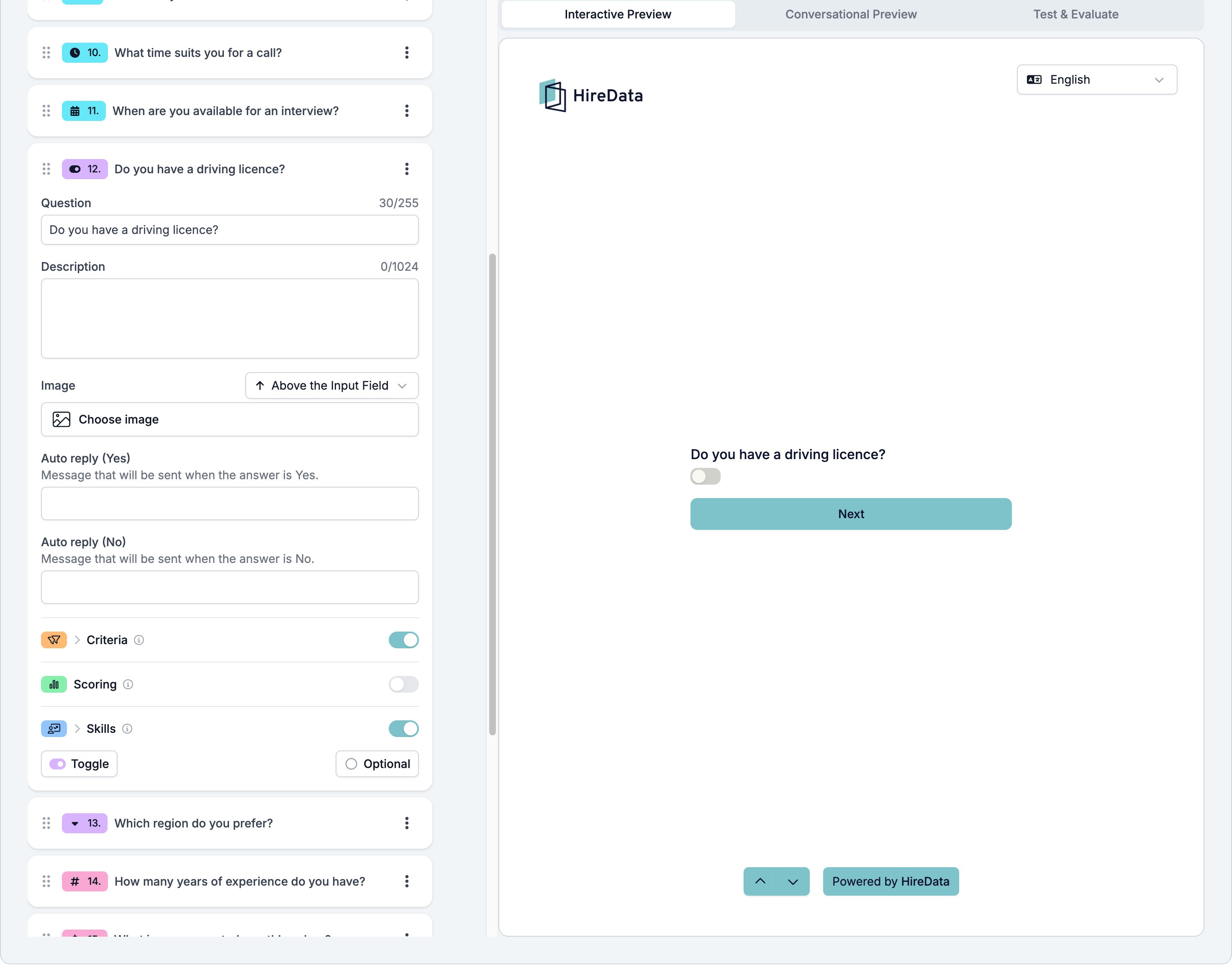
What it stores
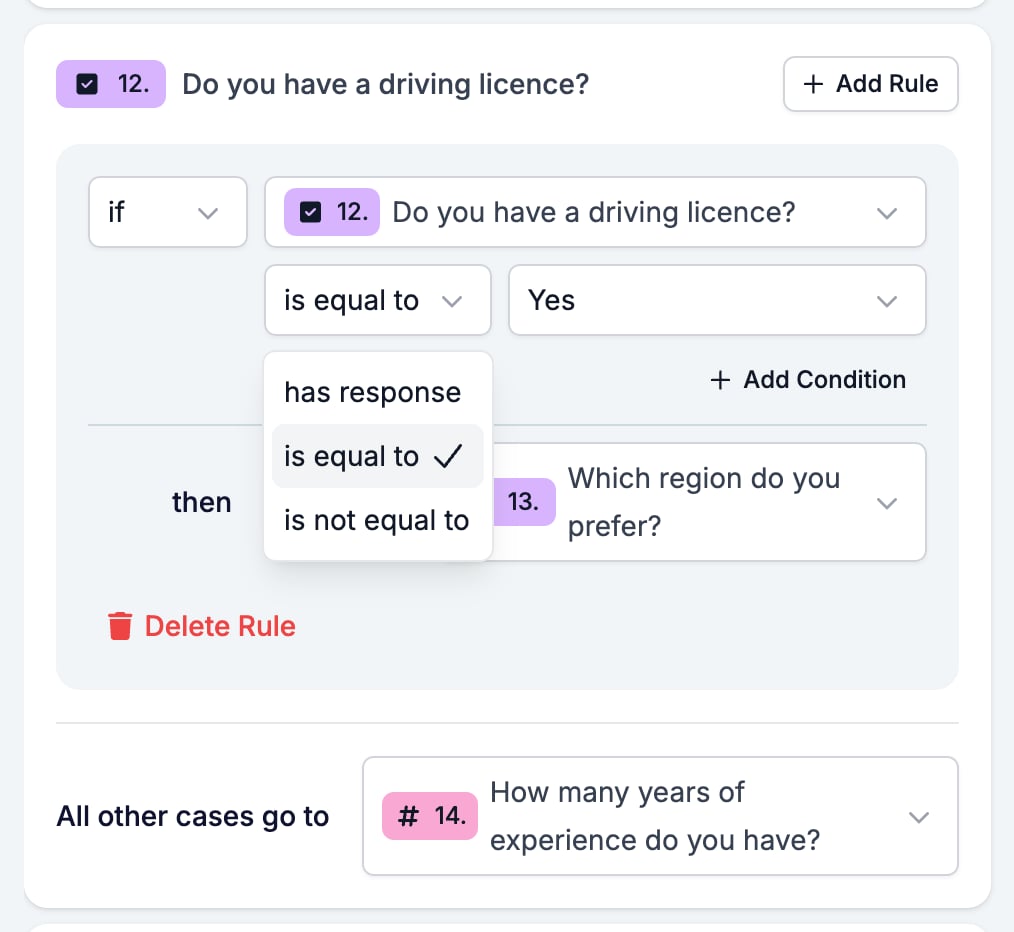
Yes or No.Logic operators
Evaluation
Switch Criteria, Scoring, or Skills on for the form in the Evaluation tab and each one gets a switch on this card. Yes/No is the cleanest field to hang a Criteria must-have on, because the answer is one of two known values and needs no interpretation. “Do you have a driving licence?” is either met or not.Related
- Form Builder: Overview covers the builder, the shared settings, and every field type.
- Logic covers the operators, the branching patterns, and what to check when a rule does not fire.
- Multiple Choice and Dropdown handles two answers in your own words, or more than two.
- Display and requirements explains what counts as an answer.