

This is part of the HireData beta and works in the new automation builder. See How the Beta Works to join.
Keep Carerix up to date from your automations
In a new automation, click +. You find Add and Update under Records, and Archive, Restore and Delete under Lifecycle. Then pick the Carerix record you want to change.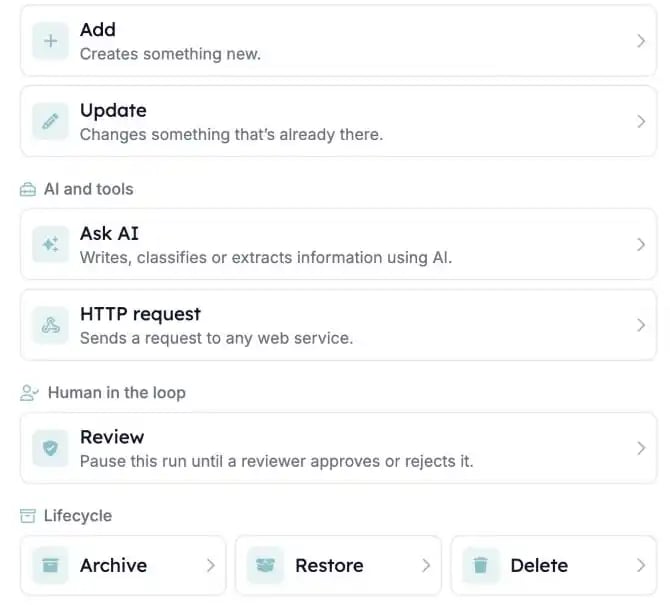
Add and Update sit under Records. Archive, Restore and Delete sit under Lifecycle.
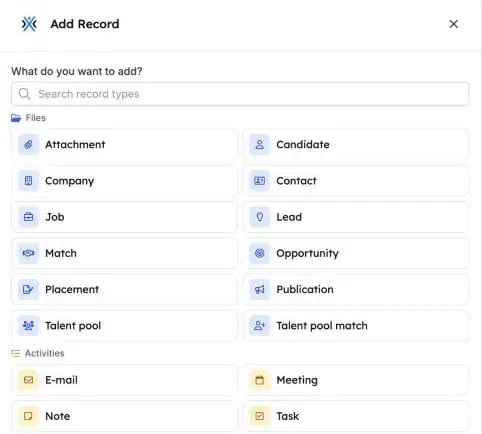
Pick the Carerix record you want to add or update.
1. Add new records
Create candidates, contacts linked to their company, companies, jobs linked to a contact, publications and meetings with their attendees. The required fields match the Carerix forms you already know, such as the company on a new job. Publications keep their own text, so Carerix doesn’t copy the job text over it.2. Update what’s already there
Change any field, or clear it completely, including owners. Keep a candidate’s job title, education, work history, skills and languages up to date, or add them to a talent pool without losing the pools they’re already in.3. Archive and restore
Archive a record when it’s no longer active and Restore it when you need it again. Only matches can be deleted for good, because they’re the only records Carerix truly deletes.4. Change several records at once
One step can change several records, such as every open match of a candidate. Add conditions so the step only makes the change when the record’s current values allow it.What else to know
- Every change is checked after it’s saved. A step can’t report success when nothing changed. When Carerix refuses a change, the run shows Carerix’s own reason.
- Fields and labels follow your own Carerix screens, such as Job instead of Vacancy.
- Files can be added to a record from a link, and removed by file name.
- Not included yet: meeting visibility, and some talent pool filters and status options.
- Existing automations keep their old Carerix steps, such as update field and add note.