

This page describes Find on engine 1.3, available for beta accounts.
Look up a record mid-automation
In the step drawer, Find sits under Search: it looks for something that already exists.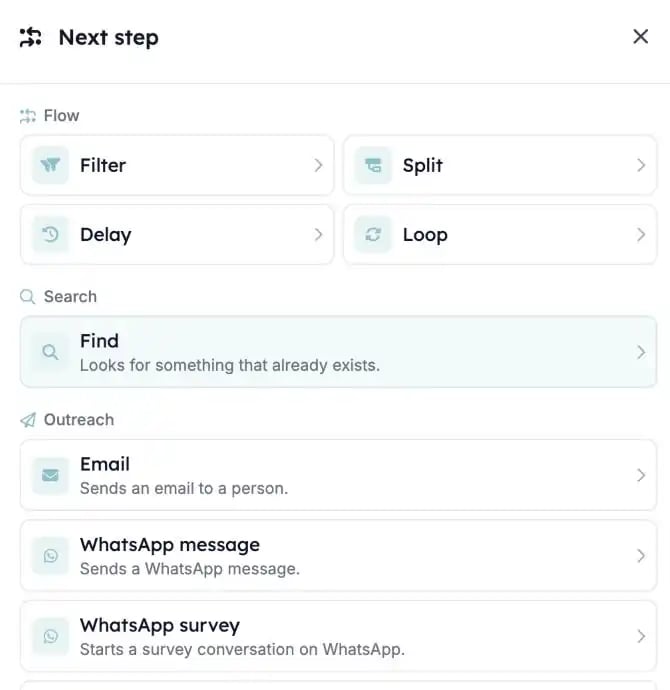
1. Pick what to find
Find uses the same object picker as the new record steps, with the same categories, icons and colours. Look up a Carerix record, or a HireData person.2. Match on fields that identify the record
Set the field values that identify the record, such as an id or an email address. Find keeps matching on fields that are turned off in Carerix, so running automations keep finding the same records.3. Use the result in later steps
The record Find returns is available to later steps under the step’s name. A common pattern: Find the record, then Update it.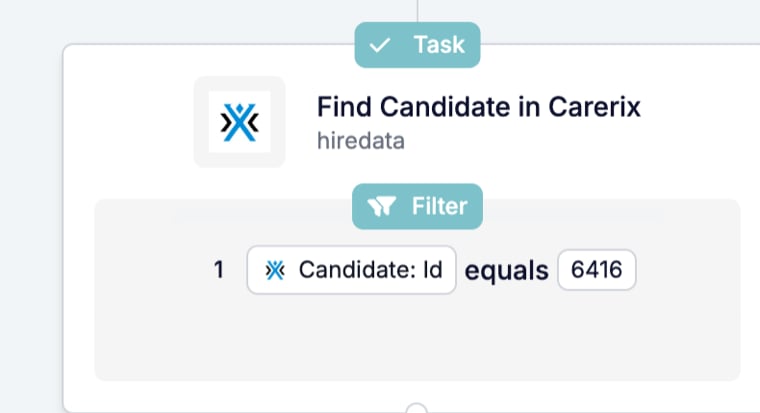
What else changed?
- Run history shows the names of the records Find returned, including HireData people.
- Find Email and Search Domain are no longer offered in new automations on engine 1.3.