

Before you start
Decide two things first:- The one question you want answered. For example: “Is this candidate a good match for this vacancy?” A step that answers one clear question is easier to test and to trust than one that does five jobs.
- What happens with the answer. Write it to the match, route the candidate, or send a message. If nothing uses the answer, the step only adds time and cost to every run.
Set up the step
1. Add Ask AI to the automation
Open the automation, click + where the step should go, and choose Prompt. The drawer that opens is headed Ask AI. Place the step after the trigger or task that loads the data it needs. Ask AI can only read what the run already has.2. Choose what the AI should do
Under What should the AI do?, pick the job that fits: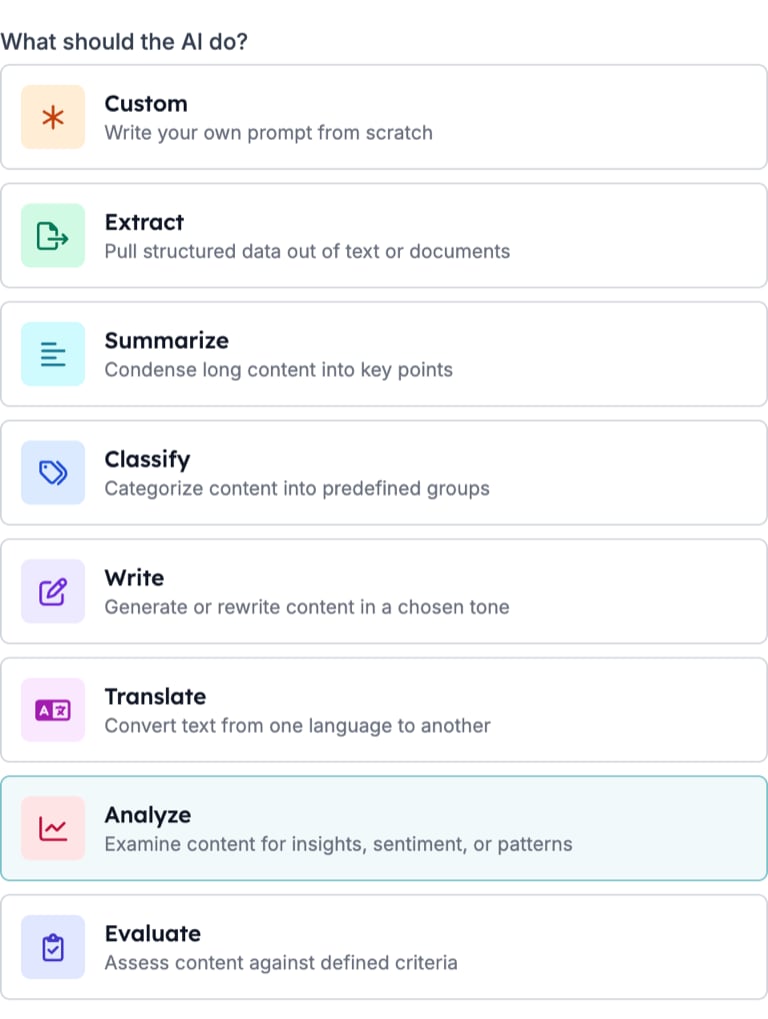
3. Give it the data and the instruction
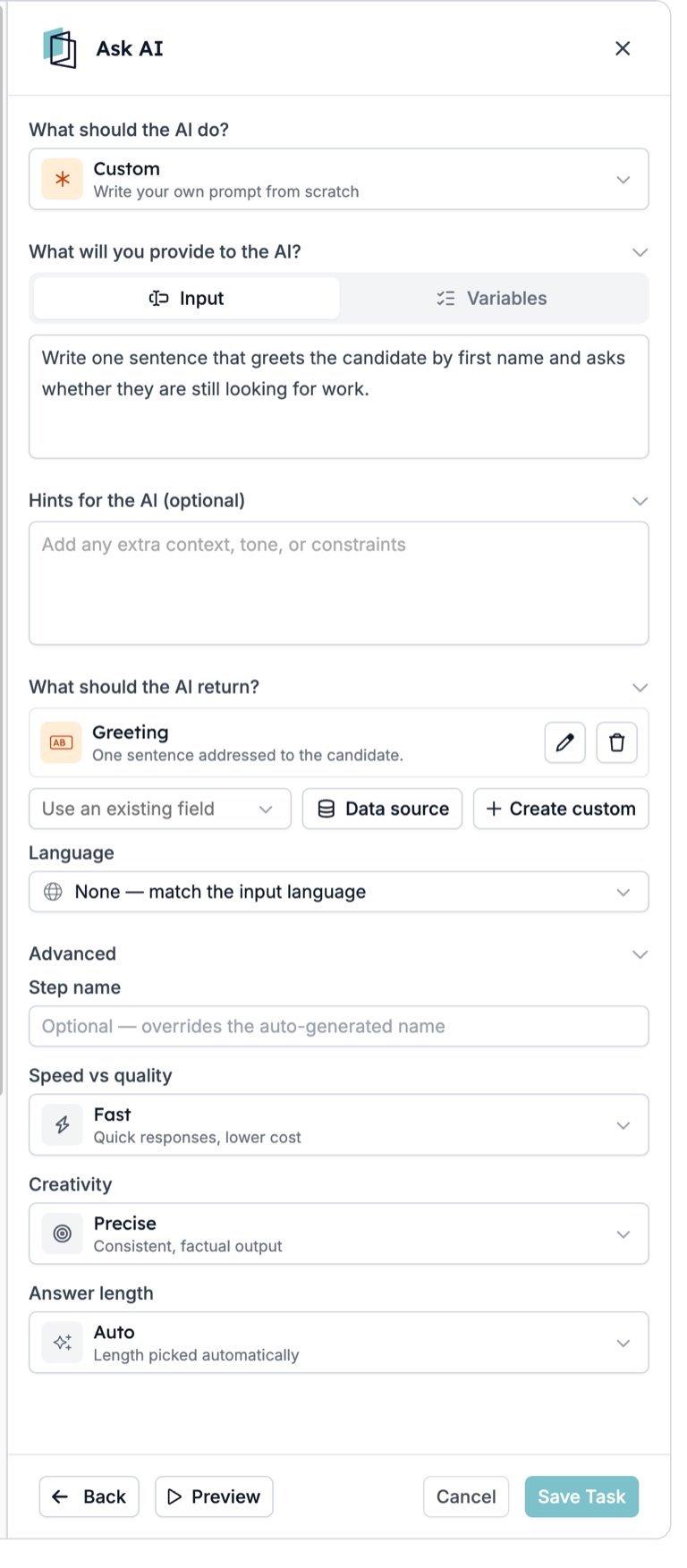
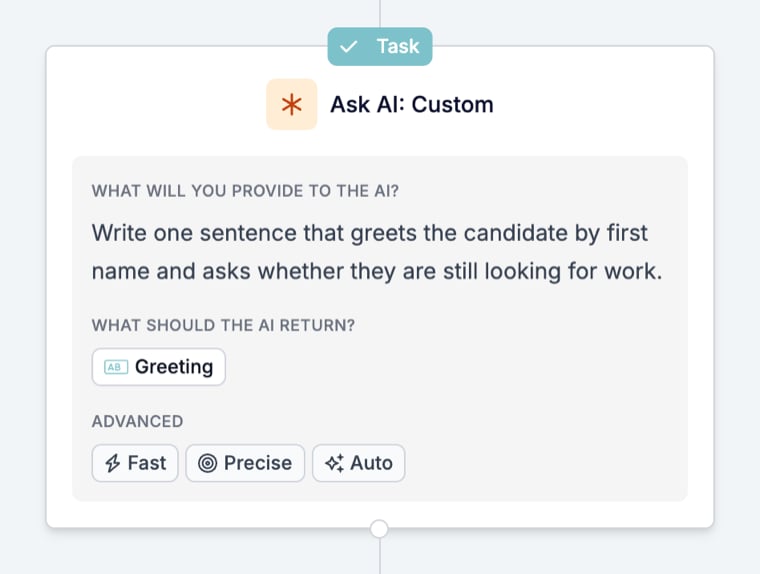
Under What will you provide to the AI?:- In Input, write the instruction and insert the variables it needs, such as the vacancy’s job title and the candidate’s experience.
- In Variables, add fields to pass alongside the instruction without writing them into the text.
4. Decide what comes back
Under What should the AI return?, add one output field per answer:- Use an existing field to map the answer onto a field the automation already knows.
- Create custom to define a new field. Pick the type that matches the answer: Number for a score, Yes / No for a check, List for one of your own options, Text for a summary. For a List, add the allowed values under Options.
- Fill in What is it for? (optional). It tells the model what belongs in the field.
5. Set the language and model options
- Language: leave it on None to answer in the input’s language, or set a fixed language when the record or message expects one.
- Advanced: choose Speed vs quality, Creativity and Answer length. For scores and checks, Precise gives the most consistent answers.
Test it with Preview
Click Preview in the drawer footer, then Generate an example to fill in realistic sample data, and run the step before you save. You can edit the example values to test a specific case. Check every output field, not only the first one. Test more than one case: a strong candidate, a weak one, and a record with missing information. If the answer for the missing case is a guess, add a hint that says what to do when the information is not there.Use the answer in later steps
In later steps, find each answer under the step’s automatic name, with a key based on its Reference as value, such asoutput.fit_score. If Ask AI is inside a Loop, use the answer or write it to a record inside that Loop; steps after the Loop cannot read it. The step also records:
Common next steps:
- Write it to the record. An Update task writes the summary or score to the match or candidate.
- Continue only when it fits. A Filter lets the run continue only when a score or list value meets a condition. Runs that don’t meet it stop there.
- Send different outcomes down different paths. A Split with a Filter in each branch, for example one branch to match, one to decline and one to invite to a pre-screening.
Things to be aware of
- The answer is used as soon as it is returned. Test with Preview and a few real records before the automation acts on the answer, especially before it declines a candidate or sends a message.
- A step that gets no answer stops its run. When the model cannot answer, the step shows as Cancelled with the reason in the timeline, and the steps after it do not run. Inside a Split or Loop, only that branch or iteration stops; other branches and the steps after the Split or Loop can still run. See Run cancellation reasons.
- An unexpected answer does not stop the run. If a later step depends on the answer, check it first with a Filter.
- For one line inside an email, an AI variable in the template is simpler than a step. Use Ask AI when the answer has to be stored or has to steer the run.
Troubleshoot Ask AI
If the step still does not behave as expected, contact support@hiredata.com with the automation name, the Ask AI step, an example record, and the answer you expected.