Choose what you need
You can enable one evaluator or combine several.
For example, use Criteria to check a required qualification and Scoring to award points for relevant experience. A score does not replace the criteria verdict: review both when deciding what happens next.
Set up an evaluation
1. Enable the evaluator for the form
Open your form and select Evaluation, beside Content and Logic. Switch on the evaluators you need, then click an evaluator’s name to open its settings.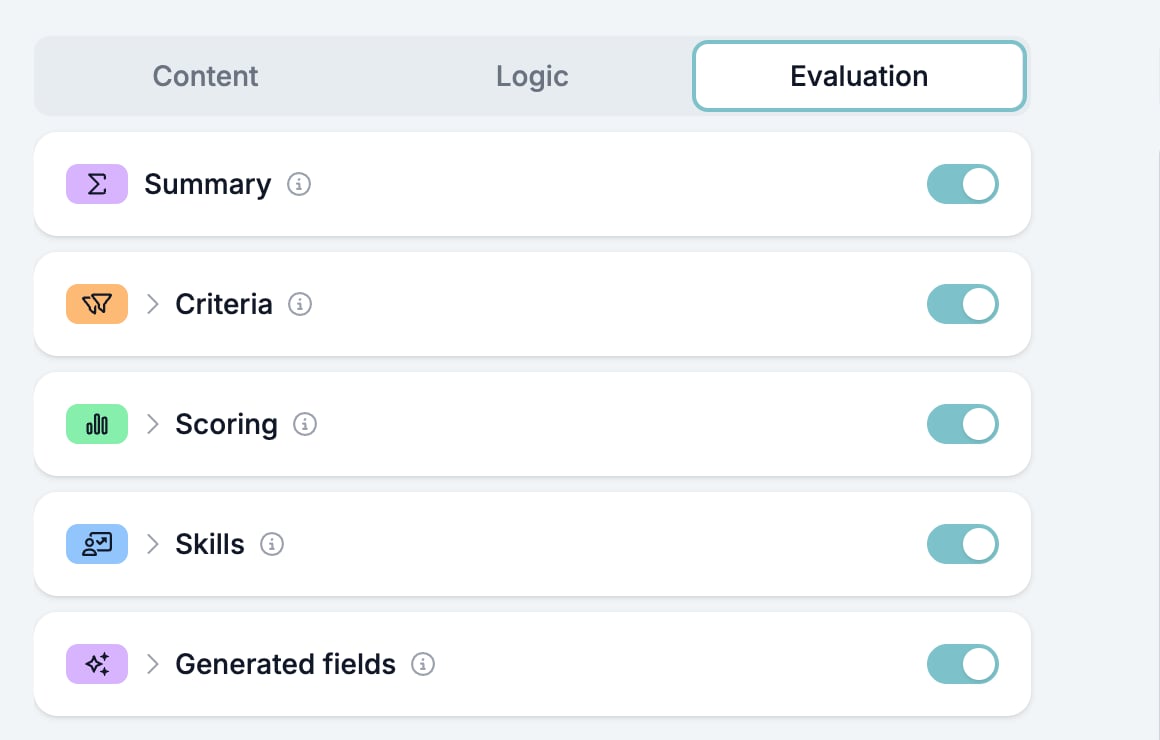
2. Select and configure the questions
For Criteria, Scoring, and Skills, switch on each question you want to evaluate. Configure each selected question:- Criteria: Choose Must-have for a knock-out (or killer) question, where the wrong answer means the candidate does not meet your criteria. Choose Nice-to-have for something that helps you decide who to call first without ruling anyone out. Then define the expected answer or AI instructions.
- Scoring: Set the question’s maximum points, then define when points are awarded. If you use AI, the maximum must be greater than zero.
- Skills: Add the skills you want to assess, then define which answers contribute to each skill and their weights. Add at least one skill before using AI assessment.
3. Choose answer rules or AI
Under How to evaluate?, choose:- Use answer rules for fixed values or comparisons, such as a selected option or a minimum number of years. Rules return the same result for the same answer.
- Evaluate with AI when interpreting the answer matters, such as a free-text explanation. Write specific instructions about the evidence the AI should look for.
Test your results
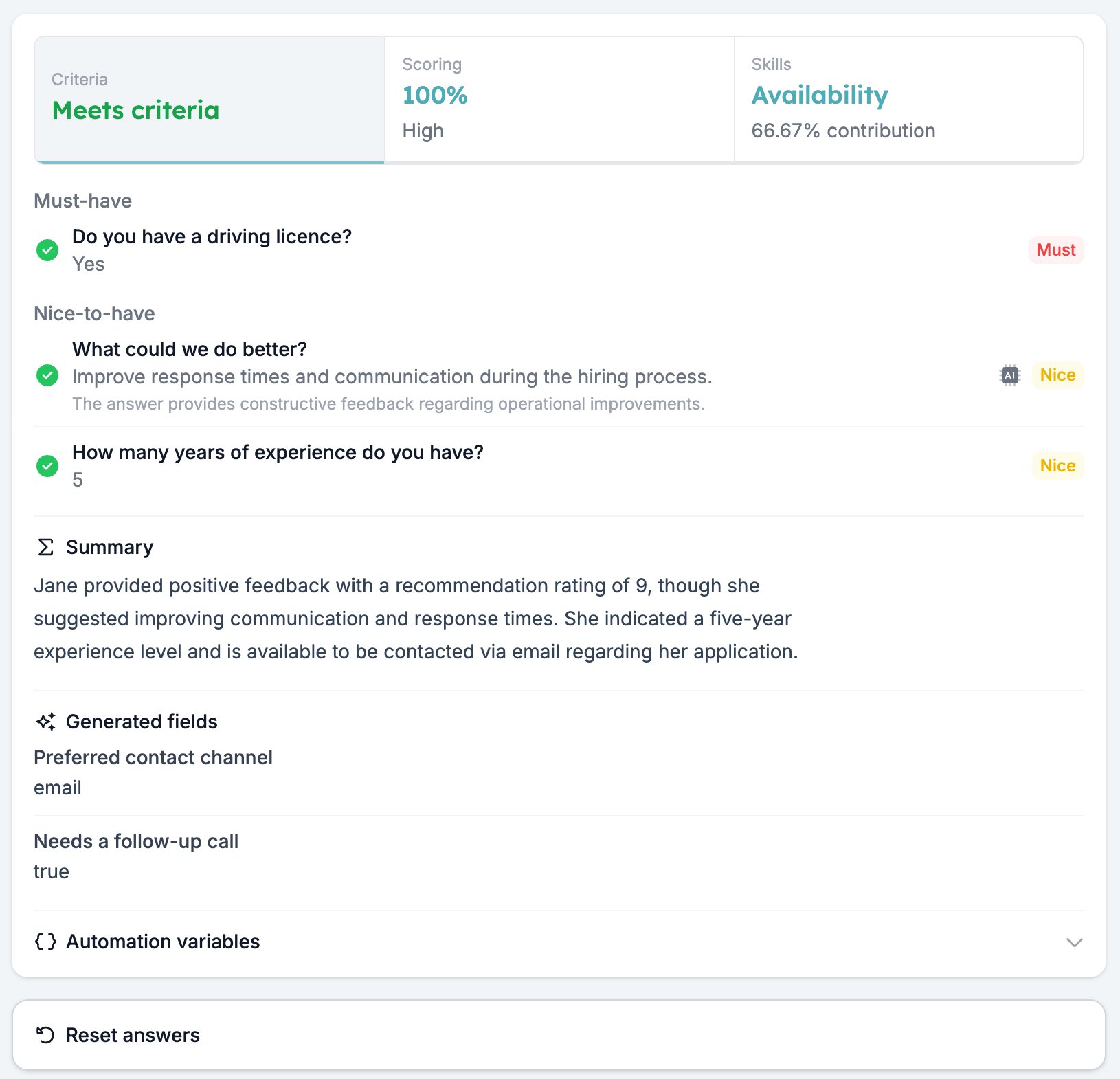
Open Test & Evaluate in the preview panel. Enter answers manually or use Autofill with AI to create a test response. Evaluation runs automatically when you enter or change an answer.Running an evaluation saves the form first, including unsaved changes. It does not create a submitted response, increase the response count, or trigger an automation.
- Criteria: Check which requirements passed or failed and, for AI evaluations, the reasoning.
- Scoring: Check the points awarded per question and the total percentage.
- Skills: Check how each answer contributes to the skill profile.
Understand the results
Criteria uses an ordered verdict. An answered must-have that fails returns Does not meet criteria. Otherwise, a missing answer to an evaluated question returns Incomplete. If all evaluated questions are answered, a failed nice-to-have returns Partially meets criteria; if everything passes, the result is Meets criteria. Check questions skipped by form logic when investigating an incomplete result. Scoring is based on total points. The percentage is earned points divided by the combined maximum points of the configured questions. An unanswered scored question contributes zero points but still counts towards the maximum. Matching rules add together, capped at that question’s maximum. Skills percentages show relative contributions. They describe each skill’s share of the total weight. A skill at 80% does not mean the respondent has achieved an 80% proficiency score. Generated fields run after Criteria, Scoring, and Skills. They can use the answers and those evaluation results to produce the outputs you defined.Troubleshoot an evaluation
Use the evaluation results
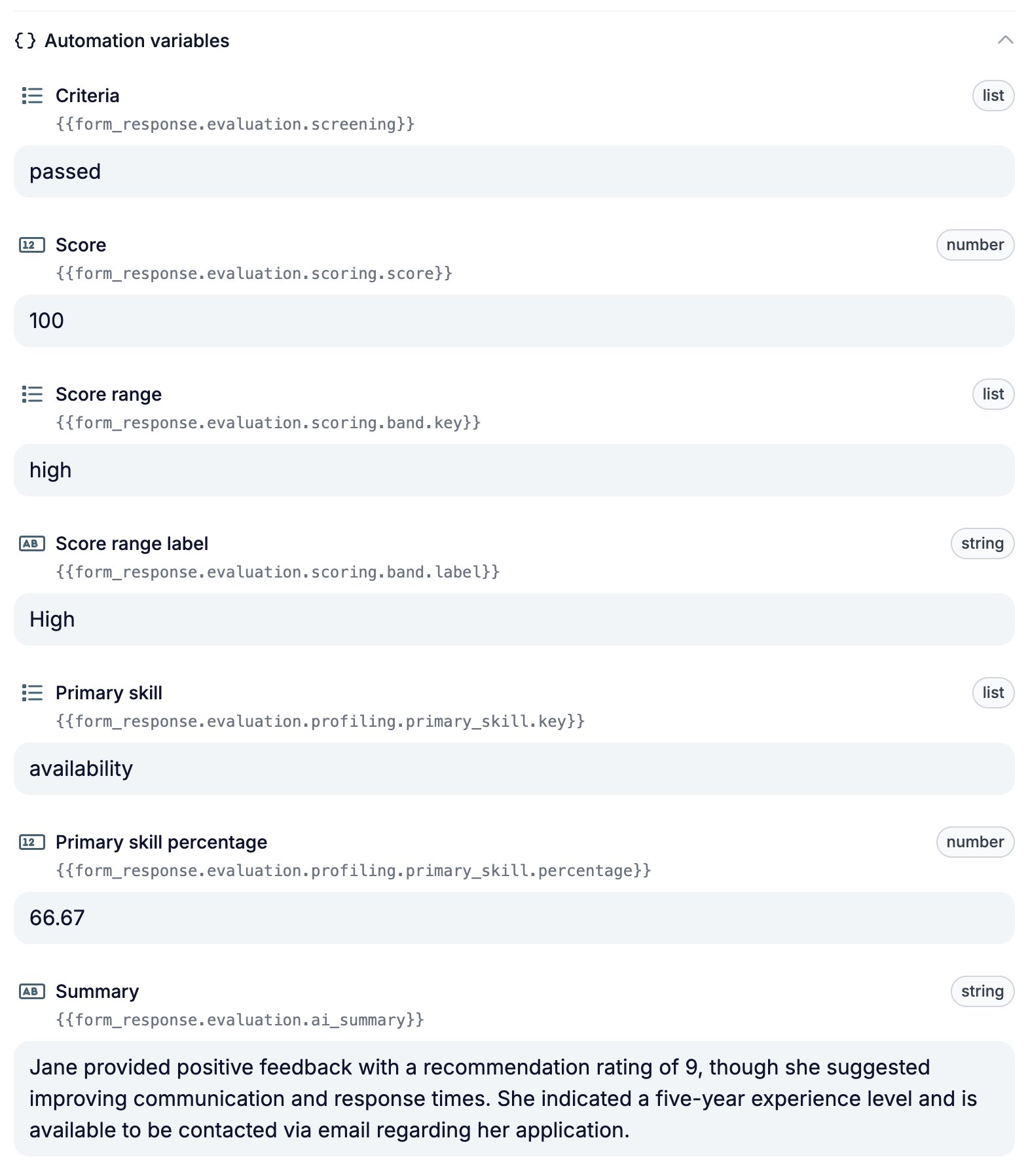
Completed responses are evaluated and the results are stored with them. Use Export CSV or Export Excel in the builder’s three-dot menu to export results, including skill percentages and generated fields. To use a result in an automation, open Automation variables at the bottom of Test & Evaluate and copy the variable shown beside your test value. For example, the Criteria verdict uses{{form_response.evaluation.screening}}, with the values passed, passed_with_restrictions, rejected, or incomplete.