

Add appears in the picker only when a connected app offers a task in this category. Connect an app that creates records and its tasks join the list.
Settings
Each task has its own drawer. The settings are the fields of the record being created, named as the app names them, plus the connection to create it through when the app has more than one. The tasks that fill the category in a workspace with Carerix, Google Sheets, and HireData connected:On the canvas
An Add task shows a Task badge, the task name with the app, and the values it will write, grouped as the app groups them.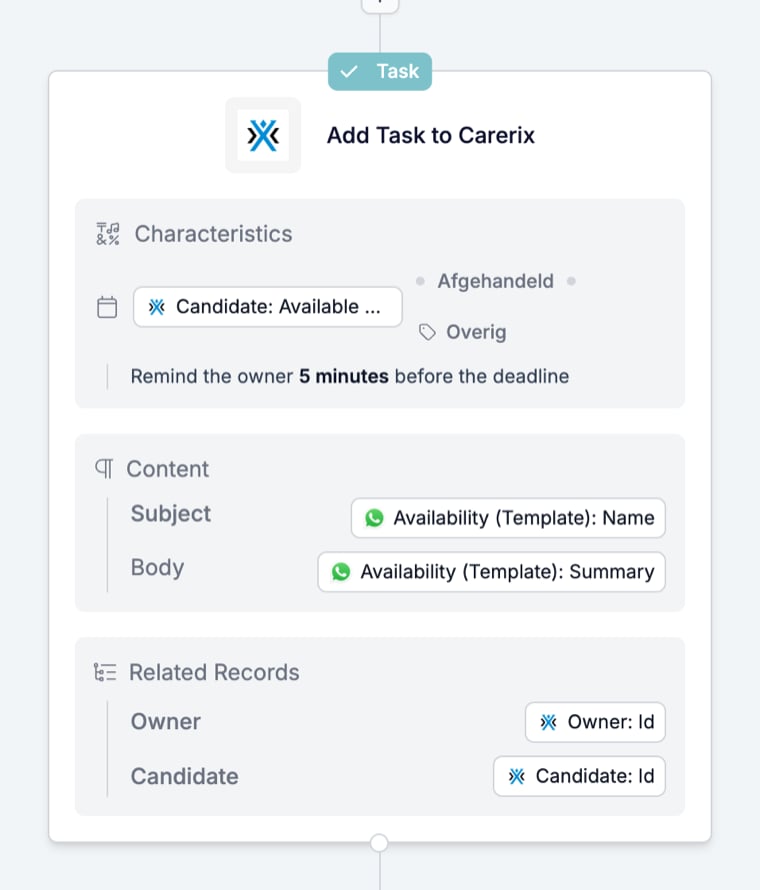
What it outputs
The created record. The run step’s Overview links to the record in the app by its id and repeats the values written, such as a task’s status, due time, and content. Its Fields tab lists the run values the task read, each with the icon of the step that produced it and a type badge. Later steps use the created record under the task’s name. Follow a run shows an Add Task step from a real run.What stops the run
A task that cannot create its record stops the run. The run page shows the task card in red with the line “Cancelled” and the time, and the timeline records the task name with “Cancelled” and the reason the app returned. Open the card to read the fields the task used. An HTTP Request with Continue automation on failure switched on is the exception: it shows as Failed and the run carries on. Reasons are explained in Run cancellation reasons.Related
- Automation Builder: Overview compares Add with the other categories.
- Find looks a record up instead of creating one.
- Update changes a record that already exists.
- HTTP Request task documents the one Add task HireData itself provides.
- Task catalogue lists every task per connected app.