

Settings
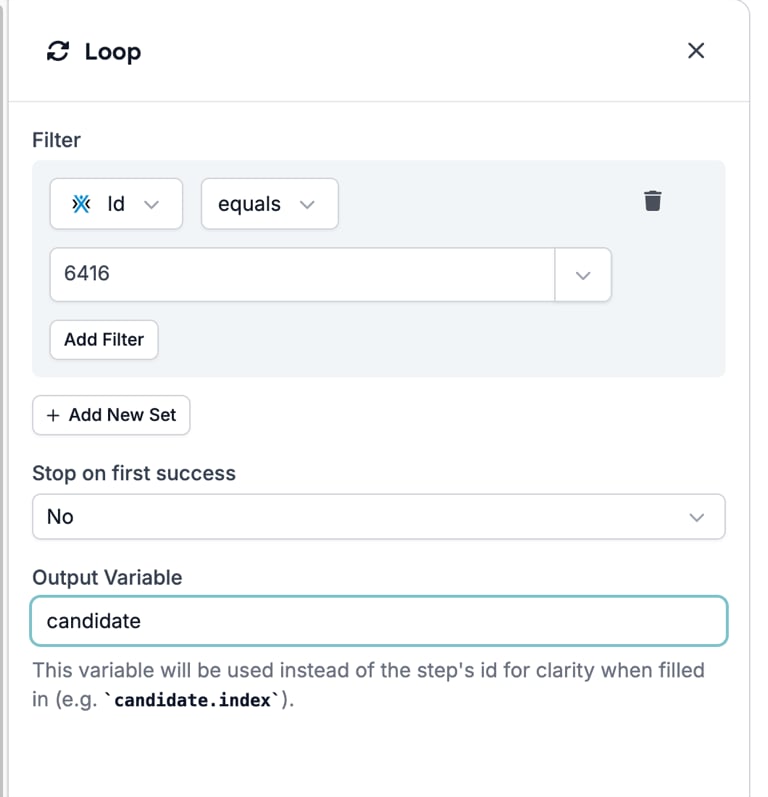
- Select an object. The record type to retrieve, with a Search box. Each entry names its connection underneath. With Carerix connected the list holds Candidates, Companies, Contacts, Emails, Lists, Matches, Meetings, Notes, Offices, Placements, Publications, Talent Pools, Tasks, Users, and Vacancies. HireData’s own objects are not offered.
- Filter. Which records to retrieve, in the same rows and sets as a Filter step. The fields are the object’s fields, each prefixed with the connection’s icon. Leave it empty and the loop retrieves every record of the object.
- Stop on first success. No or Yes, default No. With Yes the loop ends after the first iteration that completes, so the steps inside run for one record at most.
- Output Variable. A name for the current record, placeholder
myLoopItem. The help text reads “This variable will be used instead of the step’s id for clarity when filled in” and its example updates as you type, socandidategivescandidate.index. Leave it empty and the variables are named after the step’s id instead.
On the canvas
The Loop draws a box with a Loop badge. Inside it sits the record card, with a line such as “Retrieve Candidates from Carerix”, the connection name, and the filter, followed by the loop’s own steps and a + to add more.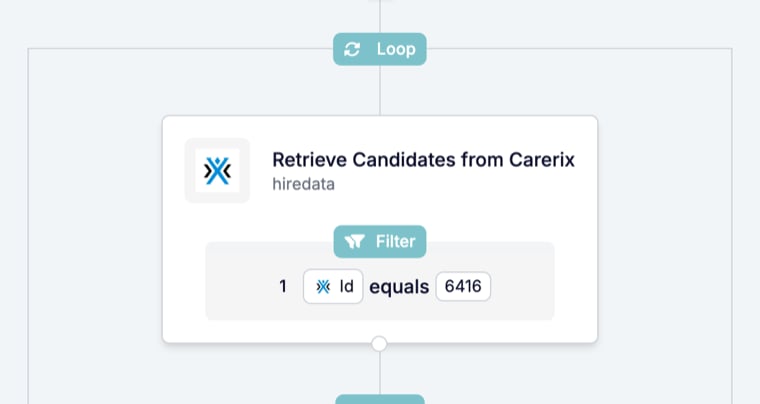
What it outputs
For each iteration, under the output variable:
Steps inside the loop read these alongside the event’s fields. Steps after the loop do not: they see the variables that existed before the loop.
Each iteration is a sub-run. The runs list shows a row per sub-run, so the runs count for an automation with a Loop exceeds its events count. The parent run page folds the iterations into one diagram and its timeline records “Waiting.” while they run.
What stops the run
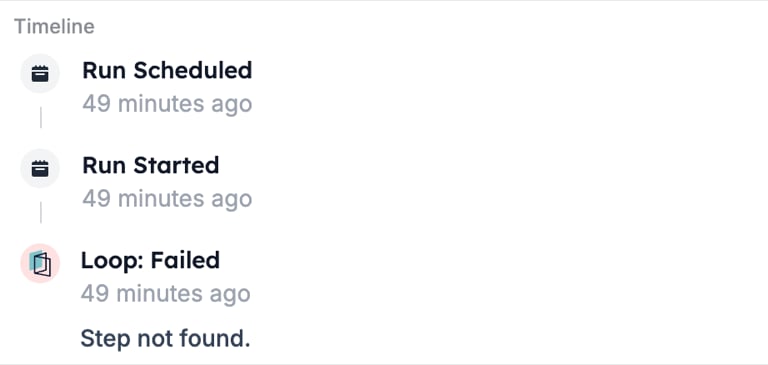
- A loop with no step inside it. The timeline records “Loop: Failed” with the message “Step not found.” and the run ends there. The Loop box itself carries no status line.
- Records that cannot be retrieved. The Loop shows Cancelled with the message “Data lookup failed.” Check the connection and the filter fields.
- A step inside the loop that stops. It stops that iteration’s sub-run only; the other iterations and the steps after the loop continue.
Patterns
- Narrow the filter. Filter on the record you mean, such as the candidate’s id from the event, rather than retrieving every candidate and filtering inside the loop.
- First match only. Set Stop on first success to Yes and put a Filter as the first step inside. The loop ends at the first record that passes.
- Name the variable. An output variable such as
vacancyreads better than a step id in a prompt or an email template, and it survives when the step is rebuilt.
Common mistakes
- No filter. The loop retrieves every record of the object and runs the inner steps for each. Add a filter before activating.
- Reading loop variables after the loop. They exist only inside it. Write what you need into a record with an Update task inside the loop.
- Expecting to loop over text or a range. The drawer offers records from a connected app only. To repeat over the lines of a text field or a fixed count, split the work another way, such as a Prompt with a List output.