

Settings
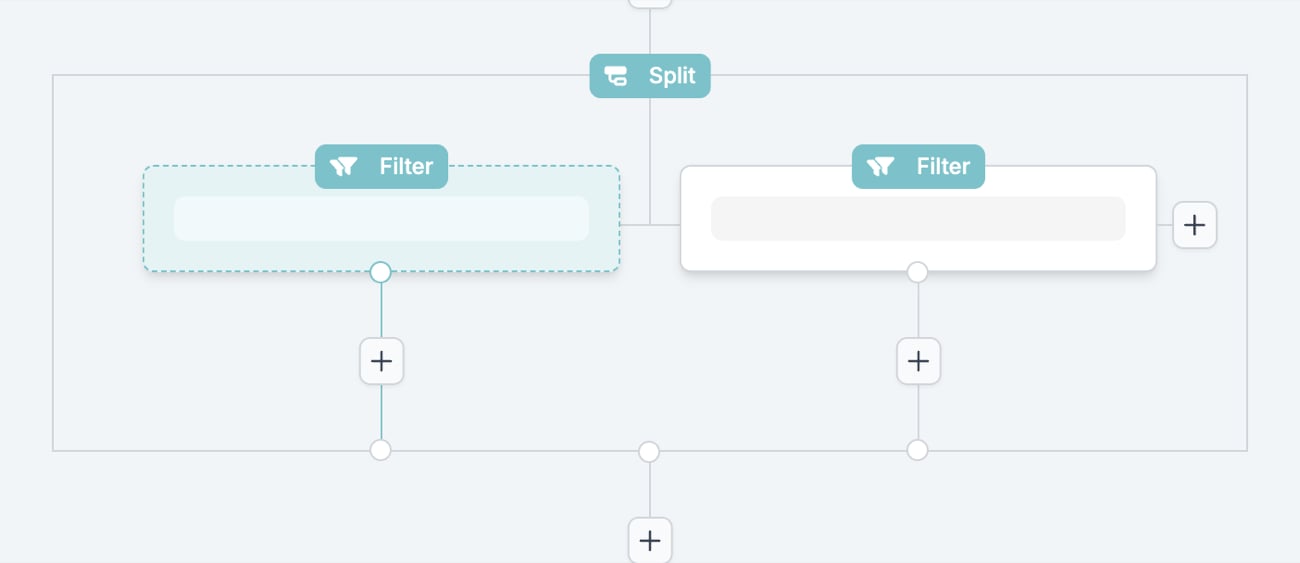
- Branch Filter. Each branch is a Filter step with the settings a Filter has. A branch’s Filter cancels only that branch.
- Add a path. The + at the right edge of the Split box adds a third or later branch and opens its Filter drawer. Cancel in that drawer removes the new path.
- Steps in a branch. The + below each branch’s Filter adds the branch’s own steps.
- Steps after the Split. The + below the Split box adds the step that runs once every branch has finished.
On the canvas
The Split is a box with a Split badge. The branch Filters sit side by side inside it, each with its own + below, and the box’s own + follows underneath.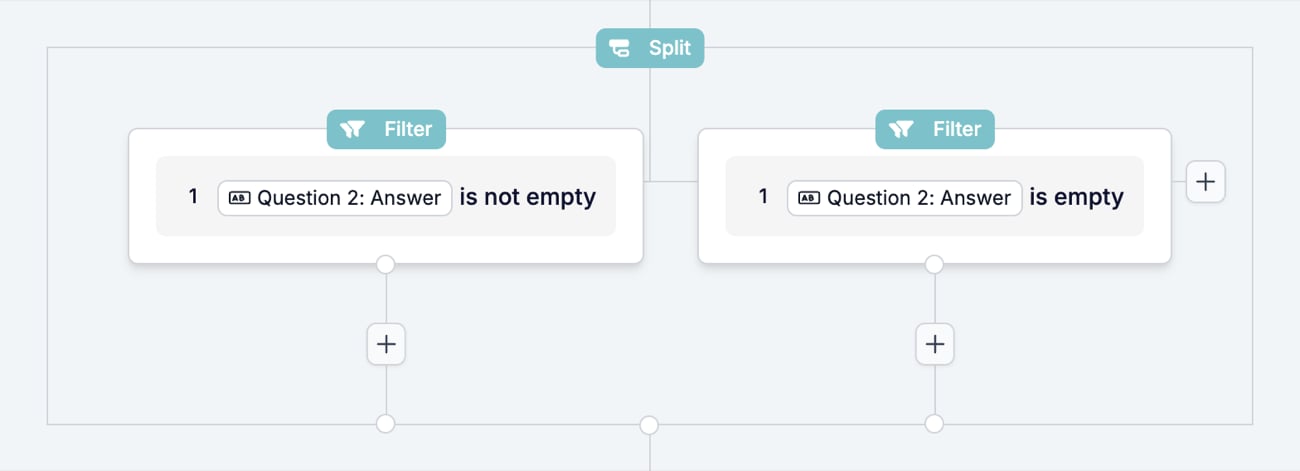
What it outputs
Nothing of its own. Each branch reads the variables that existed before the Split. Steps after the Split see the variables as they were before it plus what the branches produced. Each branch is a sub-run. The runs list shows a row per sub-run, so the runs count exceeds the events count. The parent run page folds them into one diagram: the Split box carries its own status line, each branch Filter carries “Completed” or “Cancelled”, and each branch’s task carries its own. The timeline records “Waiting.” while the branches run and “Split: Completed” with “Sub runs completed.” when they finish.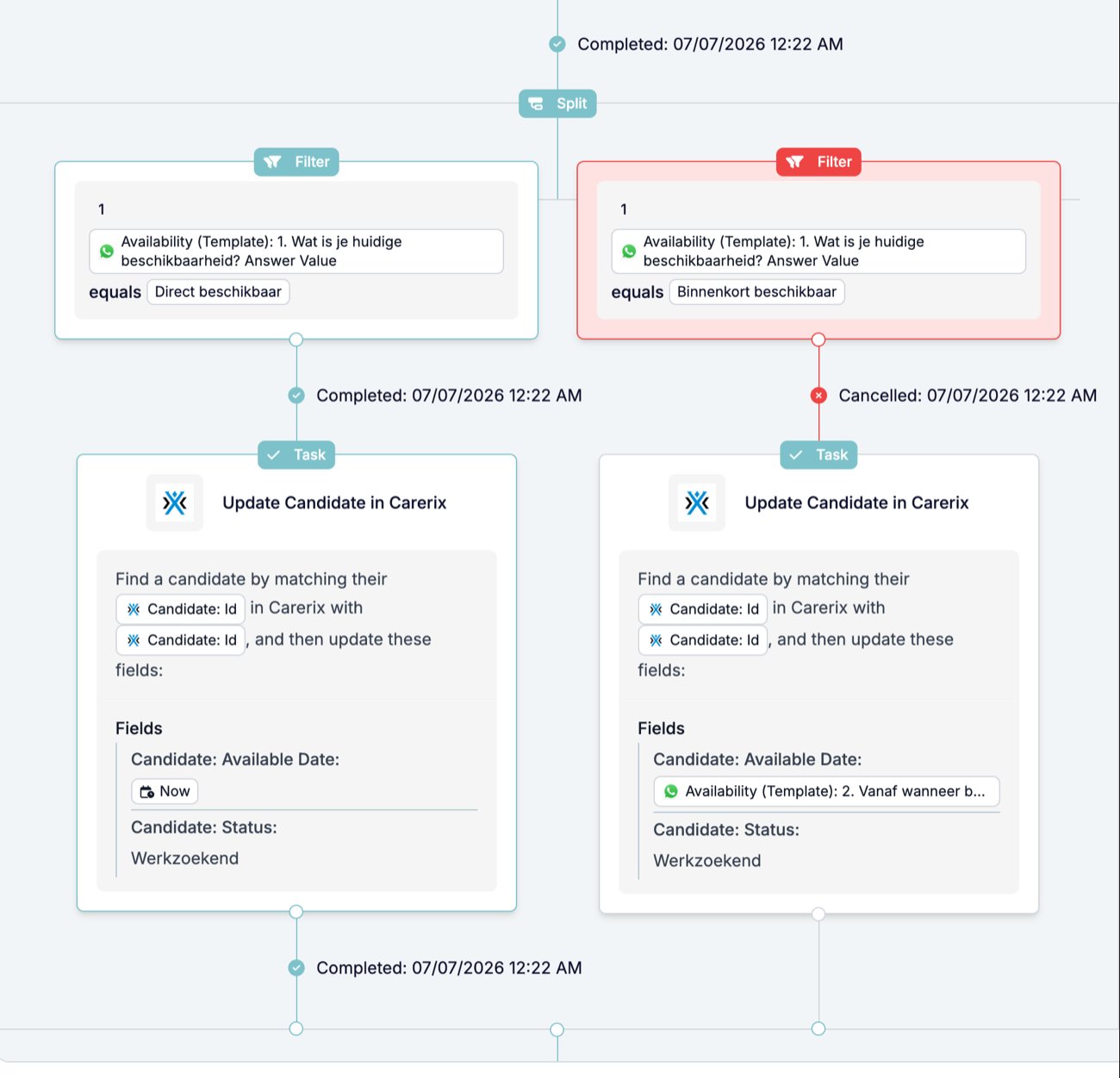
What stops the run
- No branch passes. The Split shows Cancelled with the message “No valid paths found.” and the steps after it never run.
- No branch has a step after its Filter. The Split shows Failed with the same message before any branch is checked.
- A step inside a branch stops. It cancels that branch’s sub-run only. The other branches and the steps after the Split continue.
Patterns
- One branch per answer. After a WhatsApp survey, a branch per answer value, each ending in the Update the answer calls for. The reactivation template does this with “Direct beschikbaar” and “Binnenkort beschikbaar”.
- A catch-all branch. Give the last branch a Filter on the field is not empty so every run with an answer takes at least one path, and the specific branches handle the values you expect.
- Common steps after the Split. Put a step every path needs below the Split box once, rather than in every branch.
Common mistakes
- Overlapping conditions. Branches are not exclusive. A record that passes two Filters runs both branches.
- A branch with no steps. A Filter with nothing after it is not a valid path and the Split fails.
- Expecting a branch to stop the run. A failing branch Filter cancels its own sub-run. The run continues with the other branches and the steps after the Split. For a hard stop, use a Filter before the Split.
Related
- Filter documents the operators, rows, and sets each branch uses.
- Loop also creates sub-runs, one per record rather than one per branch.
- Run cancellation reasons explains where the message of a cancelled branch appears.