

Set the schedule
1
Pick the object
Open the automation and click the Start block. Choose your app and the object the automation runs for, such as Candidate.
2
Choose Schedule
Under Timing, go to AT A SET TIME and click Schedule. You only see this option for objects that can be scheduled.
3
Set when it runs
- Run at is the date and time of the first run.
- Repeat every sets how often it runs again: days, weeks, months, quarters, half a year or a year. Choose Don’t repeat for a single run. For weeks and months, the line below shows the day it repeats on, such as “On day 28”.
- Until stops the repeats on a date. Switch on Enable to set one. Leave it off and the automation keeps repeating until you pause it.
4
Select the audience
Under Audience Selection, add filters so the automation only runs for the records you want.
5
Activate
Click Activate. The automation is now planned for the date in Run at.
The start date must be in the future
You can only activate a scheduled automation while its Run at date is still ahead. If that date has passed, the automation isn’t activated and keeps its previous status. The message reads: “This automation could not be scheduled because the configured start date is in the past.” HireData warns you before you get there:- In the automations list, an orange warning icon appears next to the start date. Hover it to read the warning.
- On the automation’s page, a warning button appears next to Activate. Click it to see the issue Schedule date is in the past.
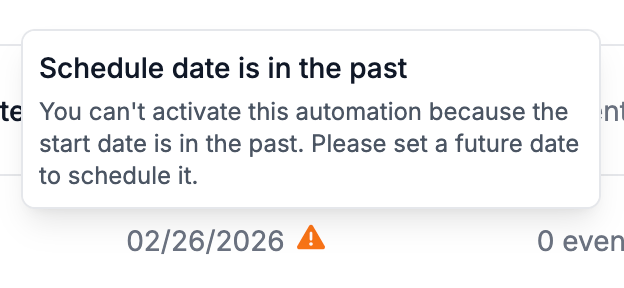
The warning next to a start date in the automations list.
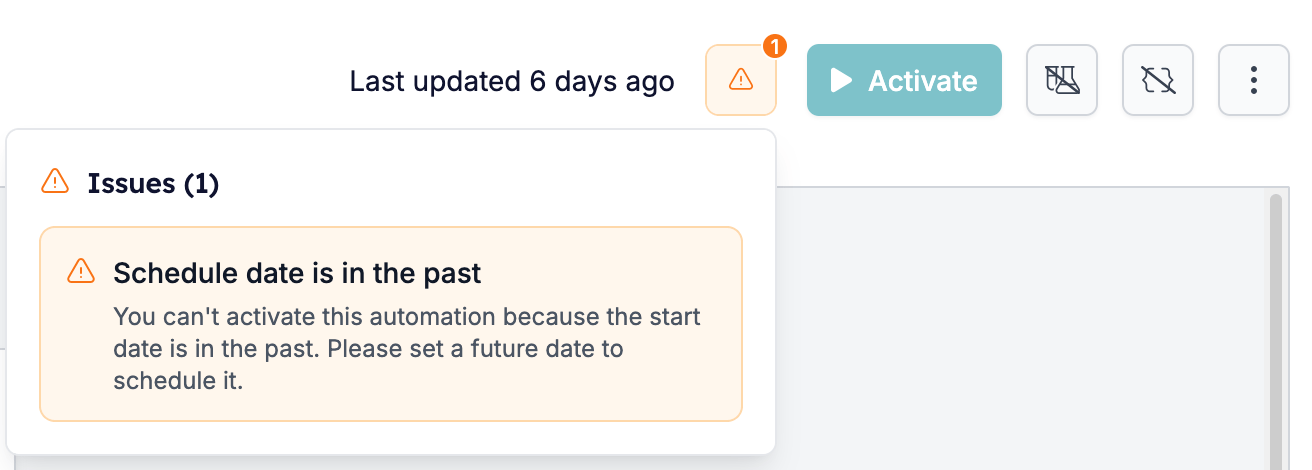
The Issues box next to the Activate button.
What the status icon tells you
Hover the status icon of an automation to see what it means.Good to know
- The start is locked while runs are being scheduled. While the status is Scheduling Runs, you can’t change the trigger, the schedule, the audience filters or the automation type. Wait until it’s done.
- An automation that loses its schedule is paused. If an active scheduled automation loses its schedule, or a new schedule can’t be set while you edit it, HireData pauses it so it can’t run at the wrong time.
- A copy doesn’t take over the schedule. When you duplicate a scheduled automation, the copy isn’t planned to run. Activate the copy to schedule it.
- Activating several automations at once from the list tells you how many worked, for example “2 of 3 automations activated. 1 could not be scheduled.” Check the start date of the ones that failed.