

What is an event
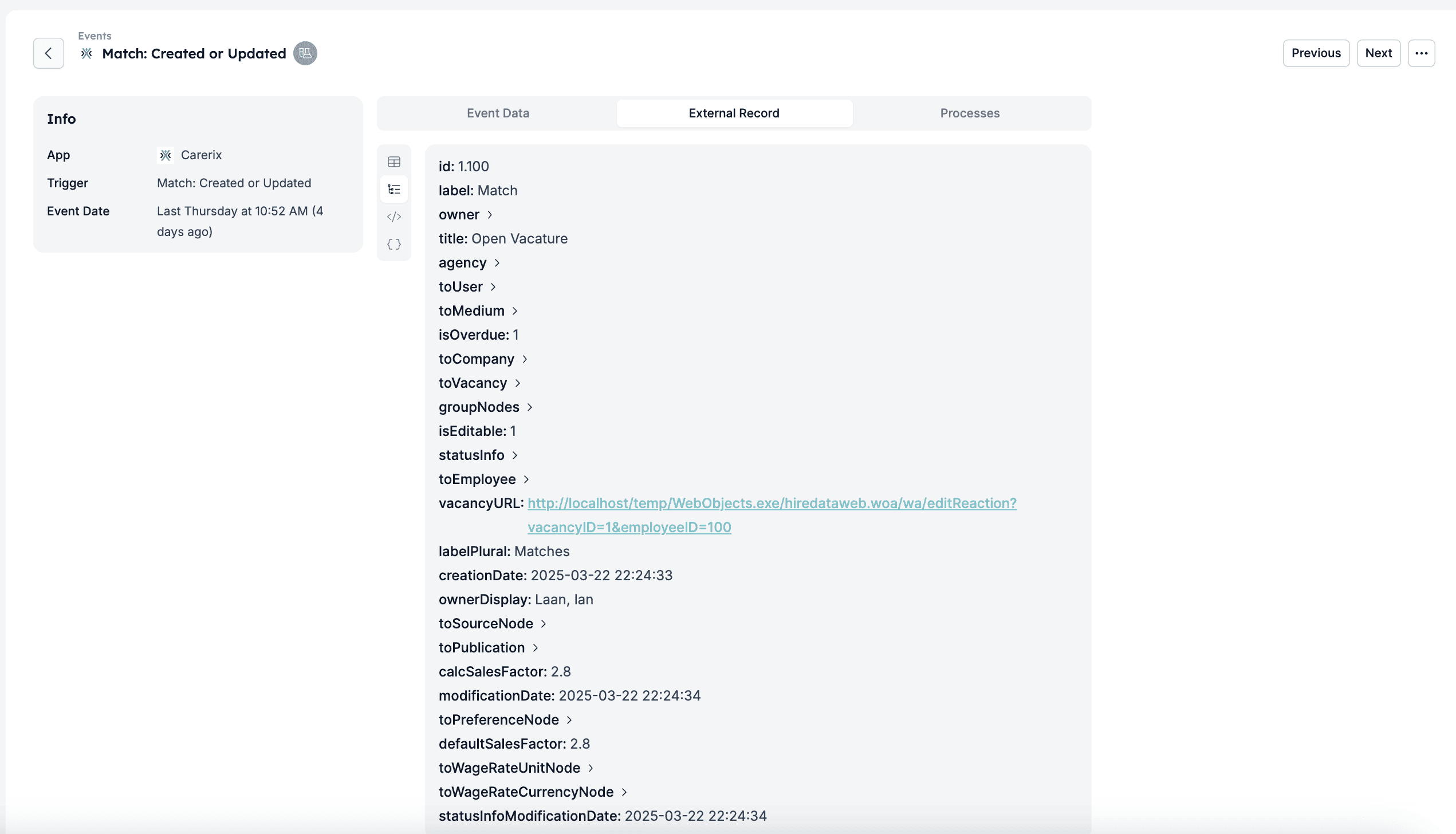
An event is a signal sent from your connected app to HireData. It usually represents a specific action or change, for example, a new candidate being created, a vacancy being updated, a placement being completed, etc. HireData uses these events to trigger the automations you’ve set up. Every event includes Event Data, External Records, and Runs. Event example: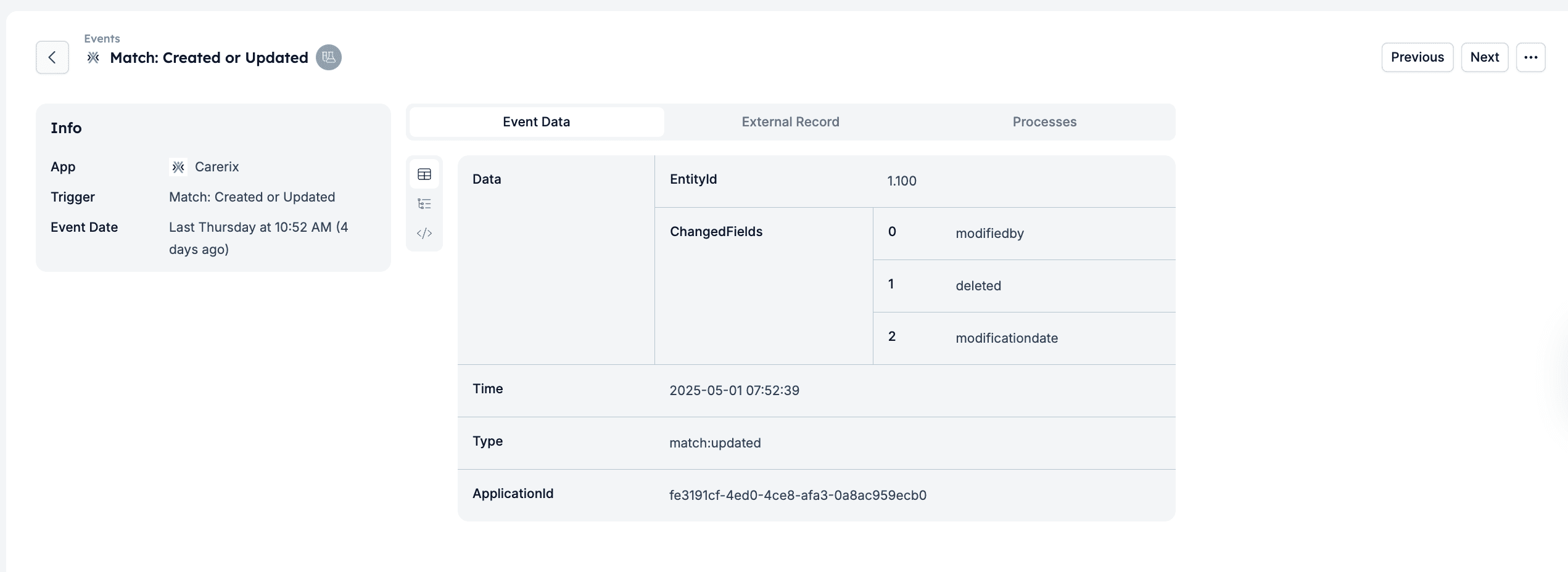
How to view event details
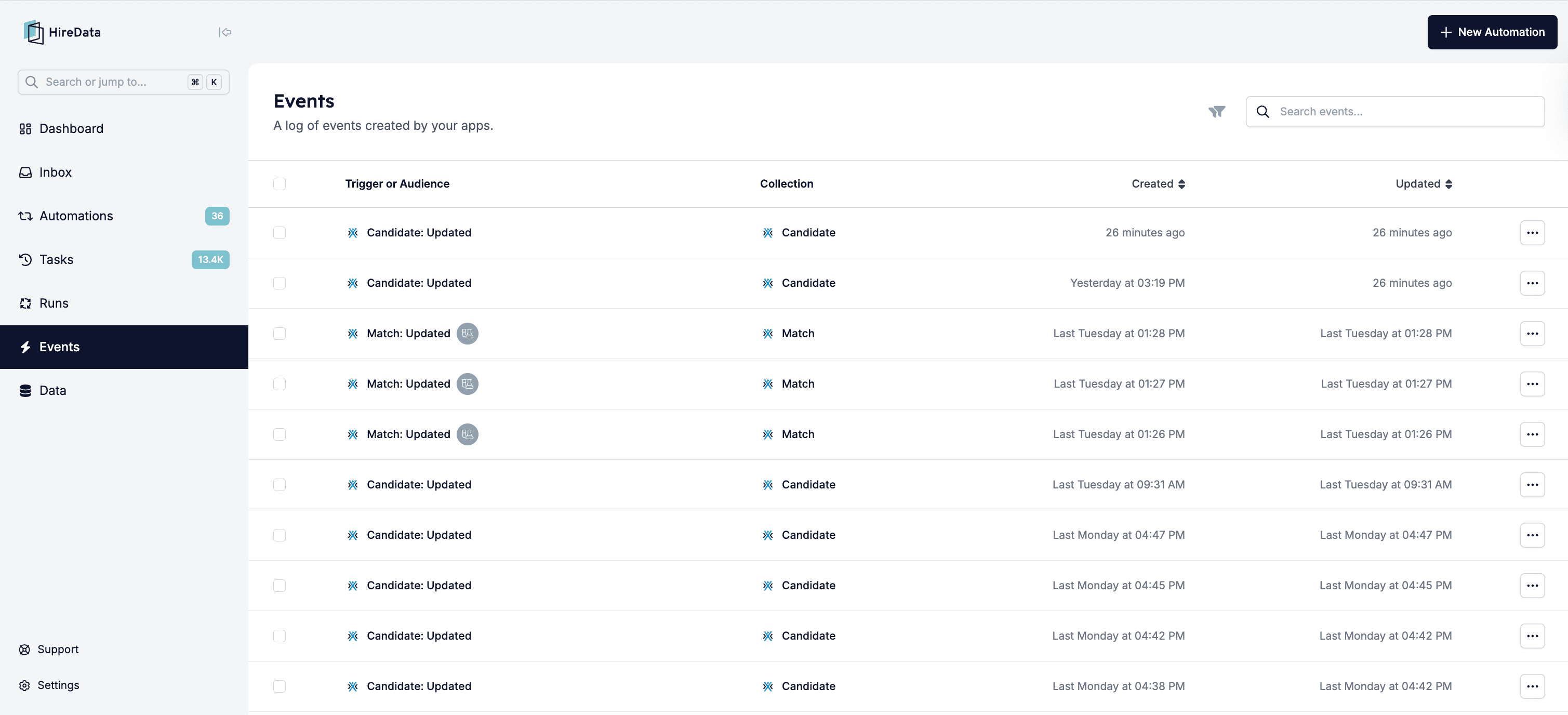
Navigate to the Settings menu and open the Events page to see a list of all events sent from your connected apps: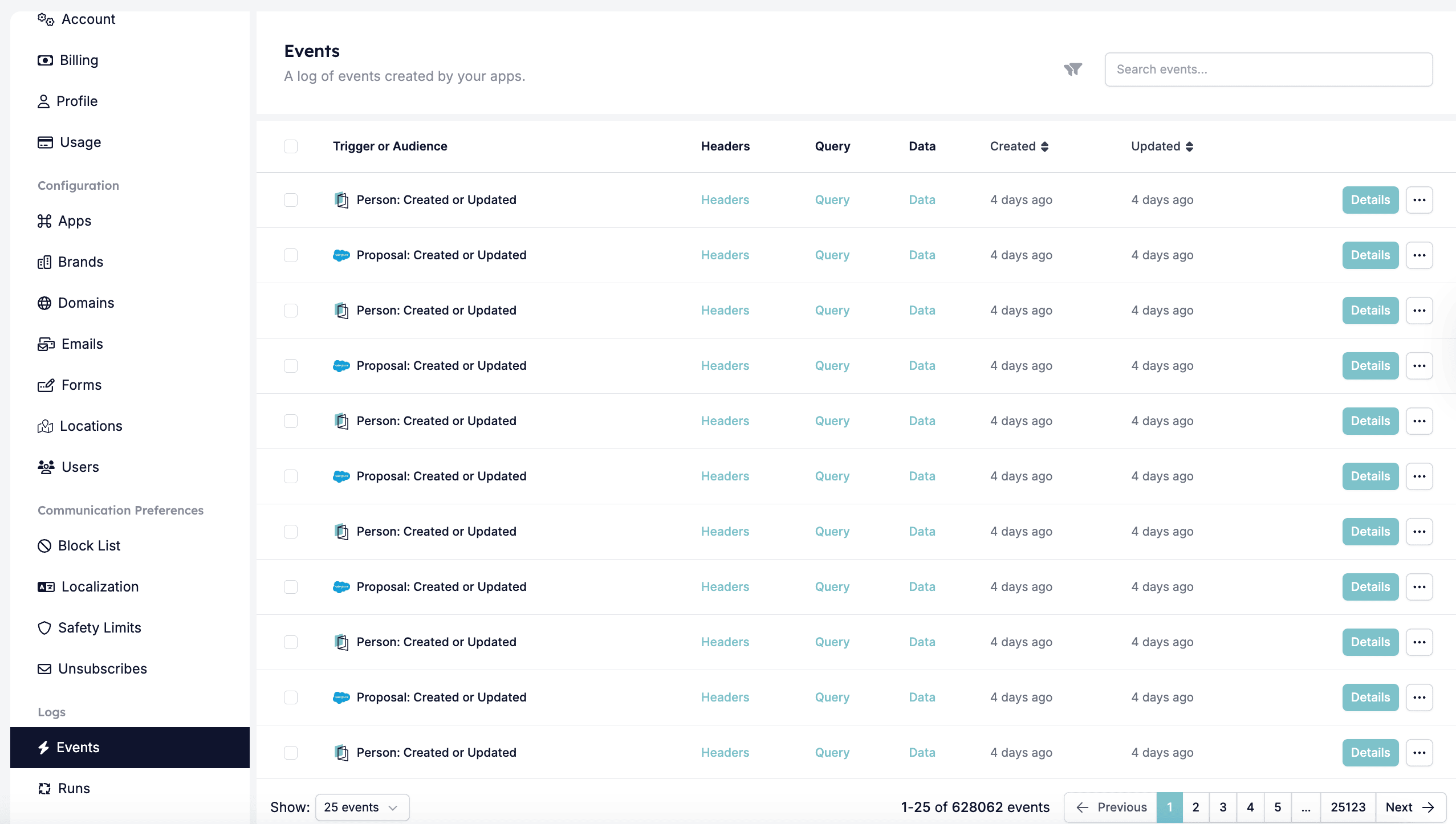
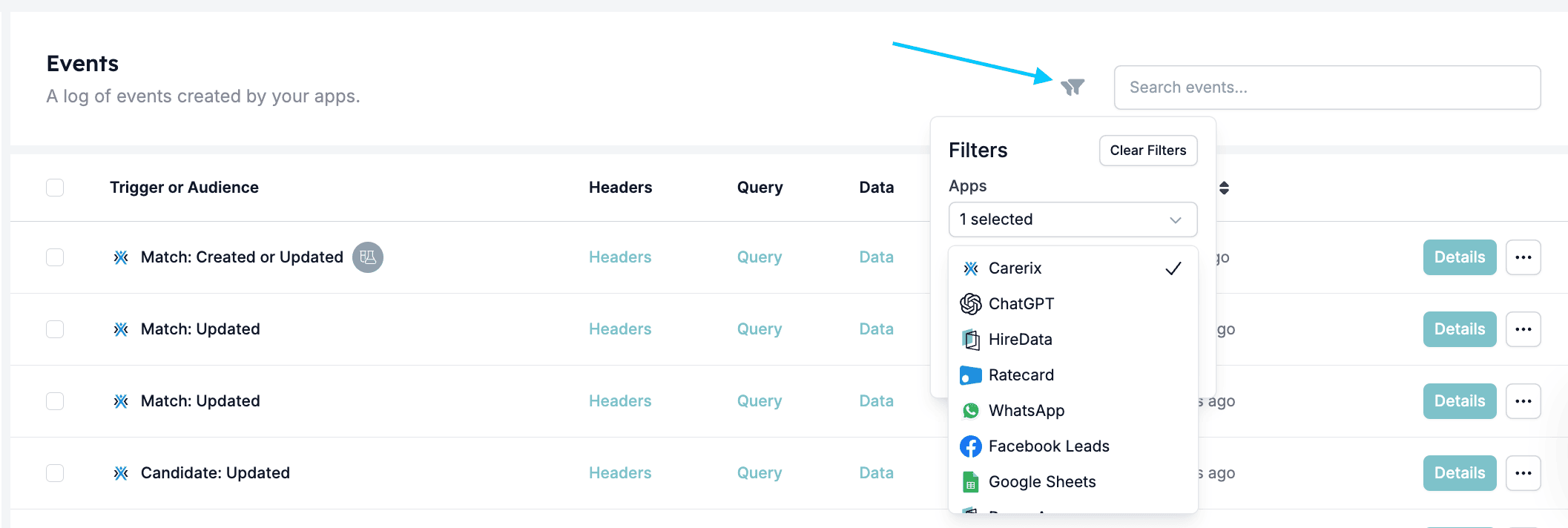

- Event Data – a summarised view of the data received from your app.
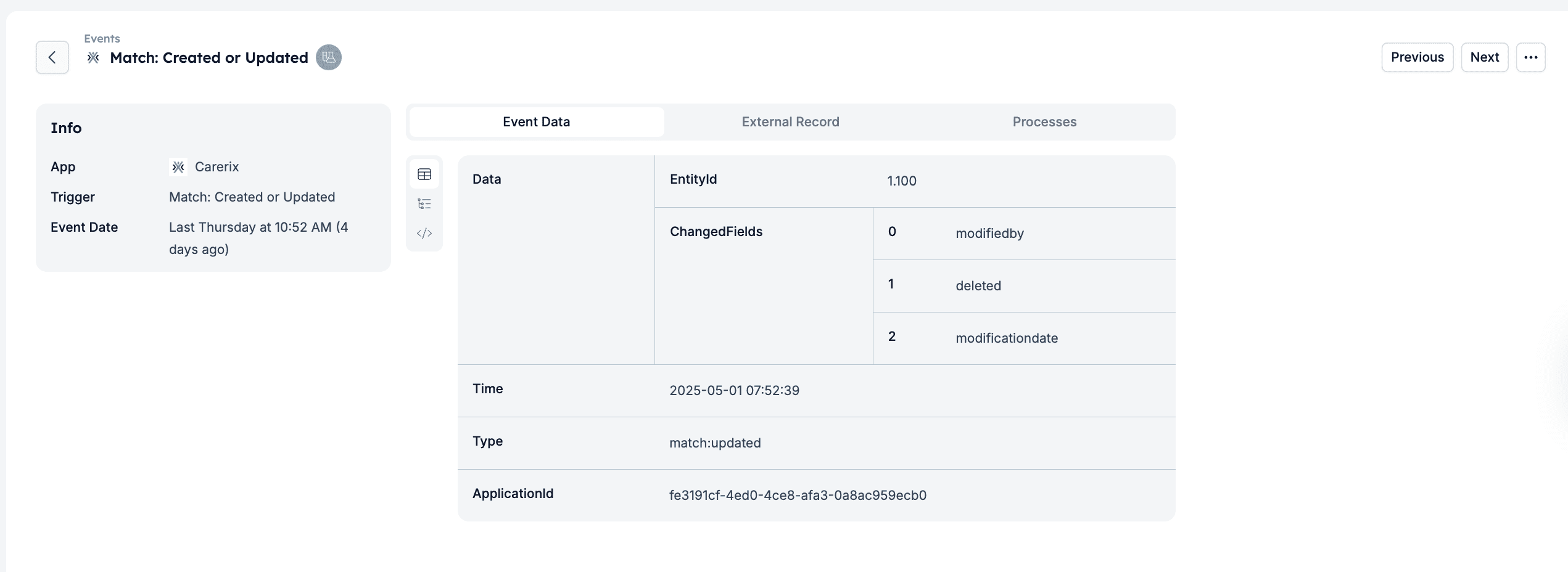
- External Records – additional fields from the source app, even if they aren’t used in the automation.
- Runs – the runs created by this event and the automation associated with each one. You’ll also see each run’s status (e.g. Completed, Delayed, Cancelled).
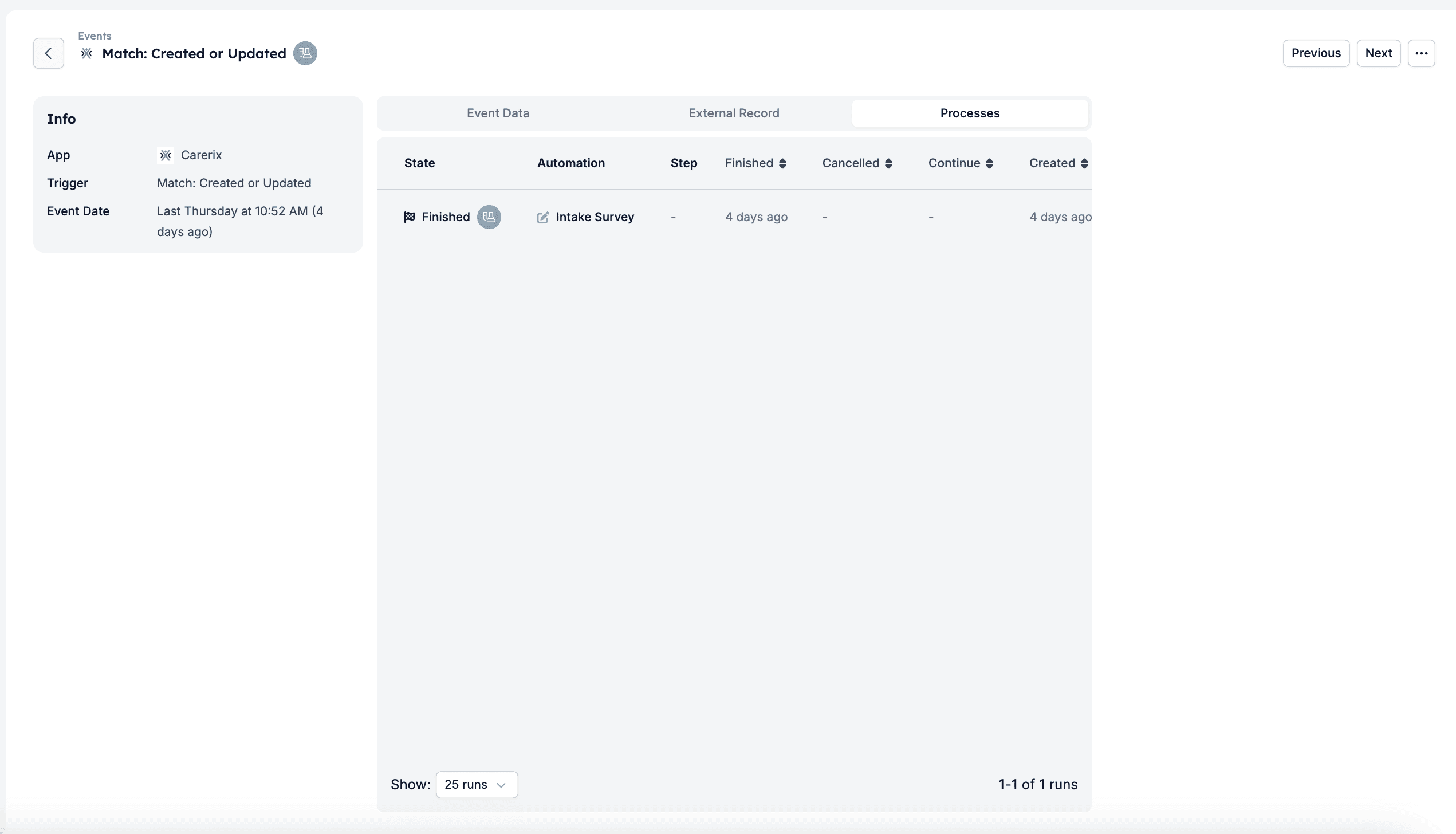
Replaying events
If an event doesn’t trigger an automation as expected, or a run fails before completing its tasks, you can replay it. Replaying one or more events re-triggers the automations and gets things back on track.What happens when an event is replayed?
HireData reprocesses the selected event(s) and triggers the associated automations. HireData executes the affected tasks as if the event had just occurred.- Event-based automations – For automations that are triggered by a specific event (for example, a candidate reaching a certain stage), the replay re-triggers the automation immediately based on the event data. If there was previously a created run, HireData replays it and a Replay label appears.

- Scheduled (one-time) automations – For automations that run on a fixed date or schedule, replaying the event doesn’t change or reschedule the automation’s planned run date. The replay only re-evaluates whether the event matches the automation’s conditions.
How to replay events
1
Find the event you want to replay
There are three ways to get to the replay option, depending on what you need:
-
From the Events page (all events) – Navigate to the Events page from the main menu. This gives you an overview of all events received by HireData.
-
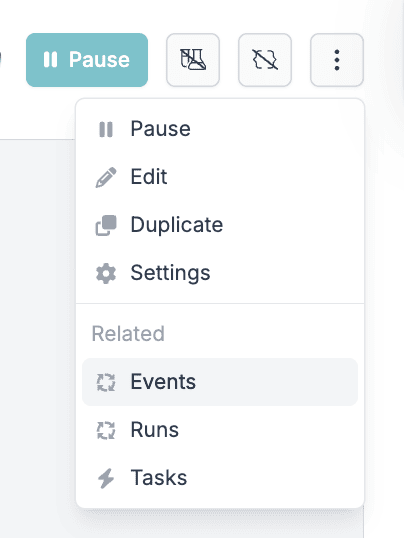
From a specific automation – Open the automation you want to investigate, then go to its Events page. This filters the view to only show events related to that automation.
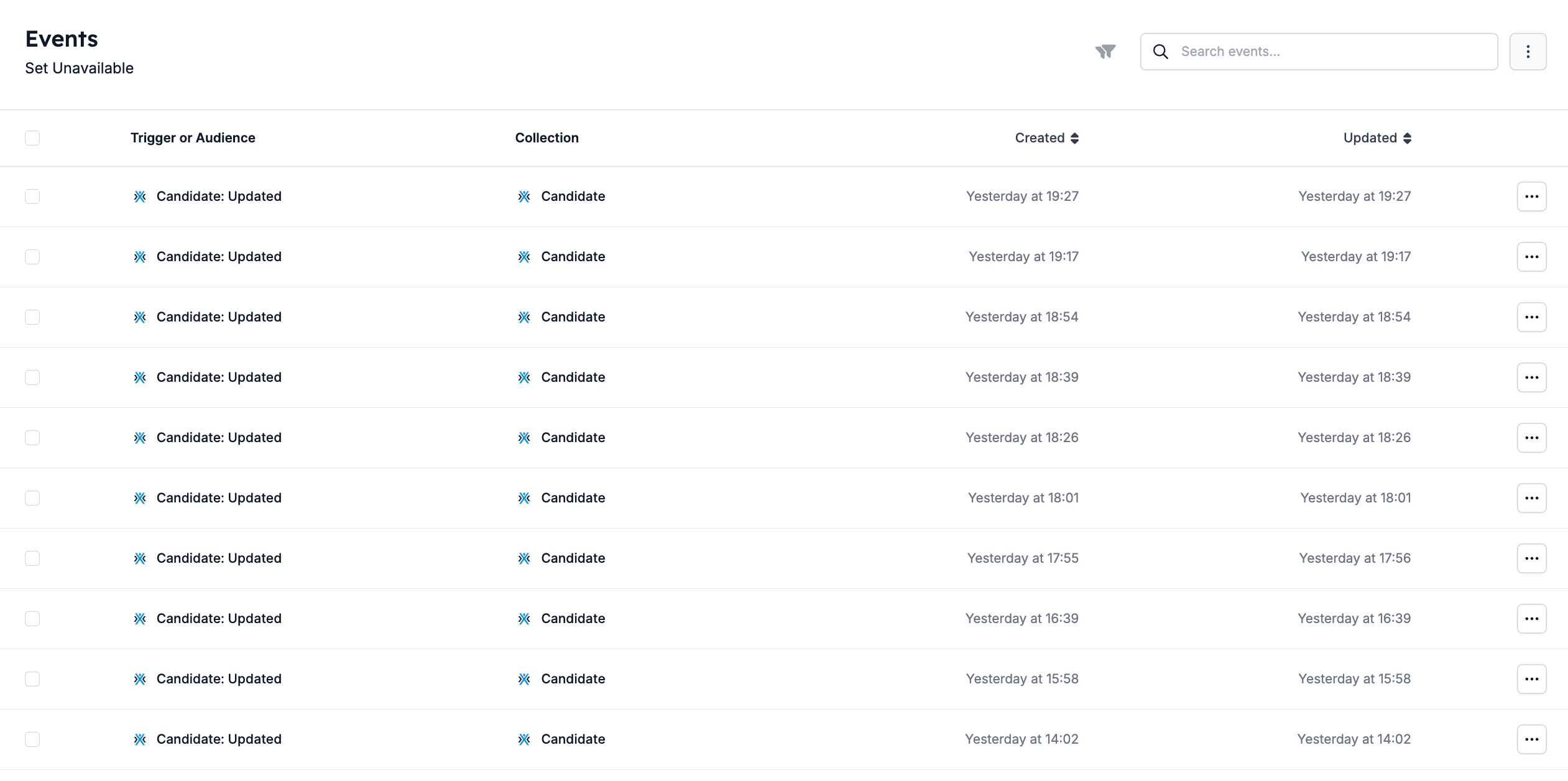
- From a single event – Click directly on the event you want to replay to open its detail view.
2
Select the event(s) to replay
To replay a single event, click the three-dot menu next to the event in the detail view or the Events list, and select Replay from the dropdown.

3
Review and confirm the replay
To see which automations were previously triggered by the event, open the event and go to the Runs tab. This shows you the automations and their status from the last time the event was processed. Use this information to decide whether it’s safe to proceed with the replay.
Troubleshooting events
If an automation didn’t run as expected, or you’re seeing unexpected data:- Go to the Runs tab of the event and check if any runs were created.
- Click into the run to view logs and see if a step failed or was skipped.
- Compare the Event Data with the conditions in your automation to ensure it matches.
- Use the code or JSON data view to check for missing fields, different field names, or unexpected value formats.
Still need help?
If you’re unsure why an event didn’t trigger your automation or want help interpreting the event data, contact the HireData team at support@hiredata.com. If you do, include:- A link or the ID of the event;
- A link or the name of the automation you expected to be triggered;
- Any relevant steps or context that might help the team investigate further.