

What is a run
A run is the result of an automation being triggered. It shows the exact sequence of actions that took place after an event was received, for example, a filter being checked, a delay being completed, or an email being sent/conversation ended. Each run includes a full timeline of the steps taken, an Overview, Fields, and Related tabs. Once a run is successfully completed, HireData adds a new task to the list in the Task History page.How to filter runs
Navigate to the Settings menu and open the Runs page to see a list of all runs: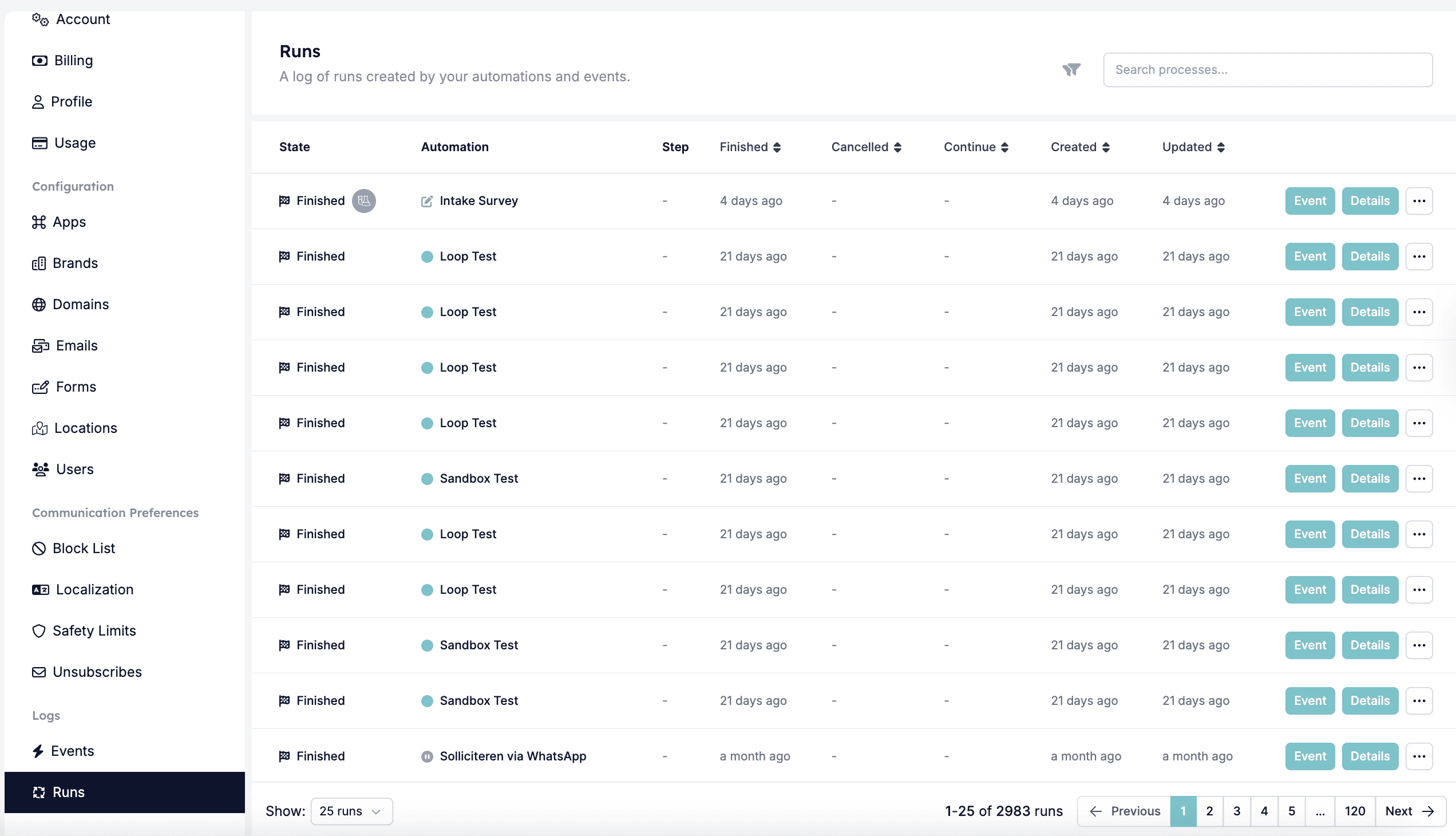
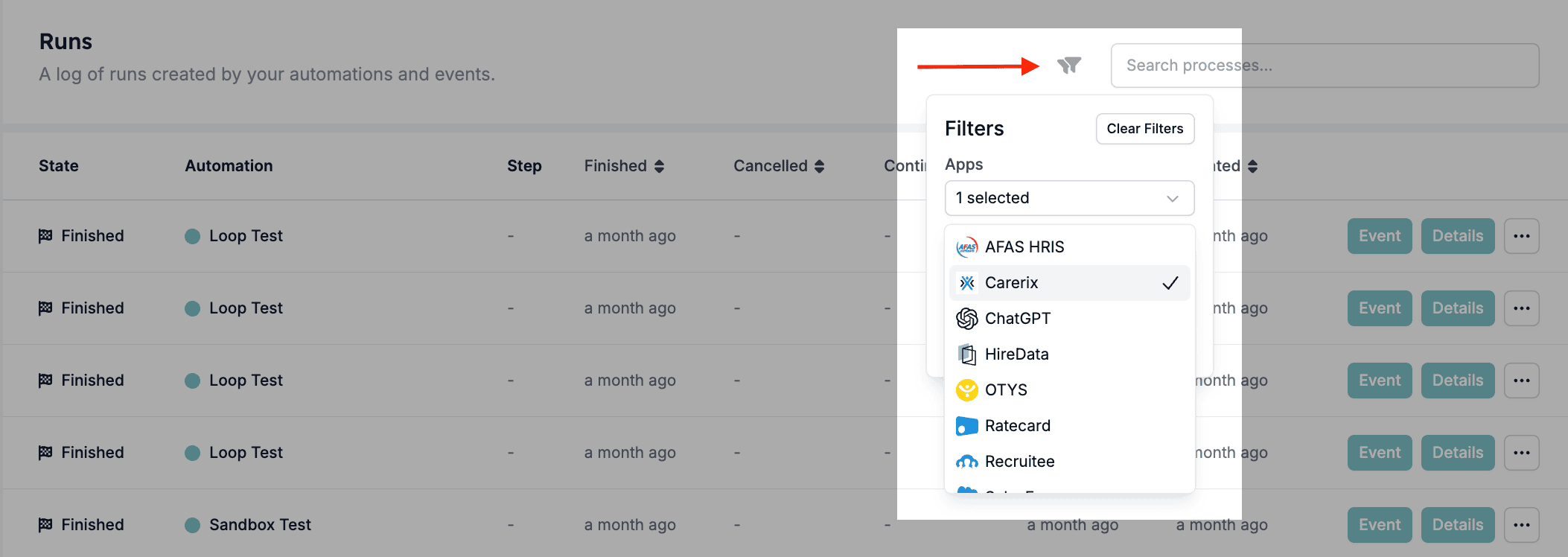
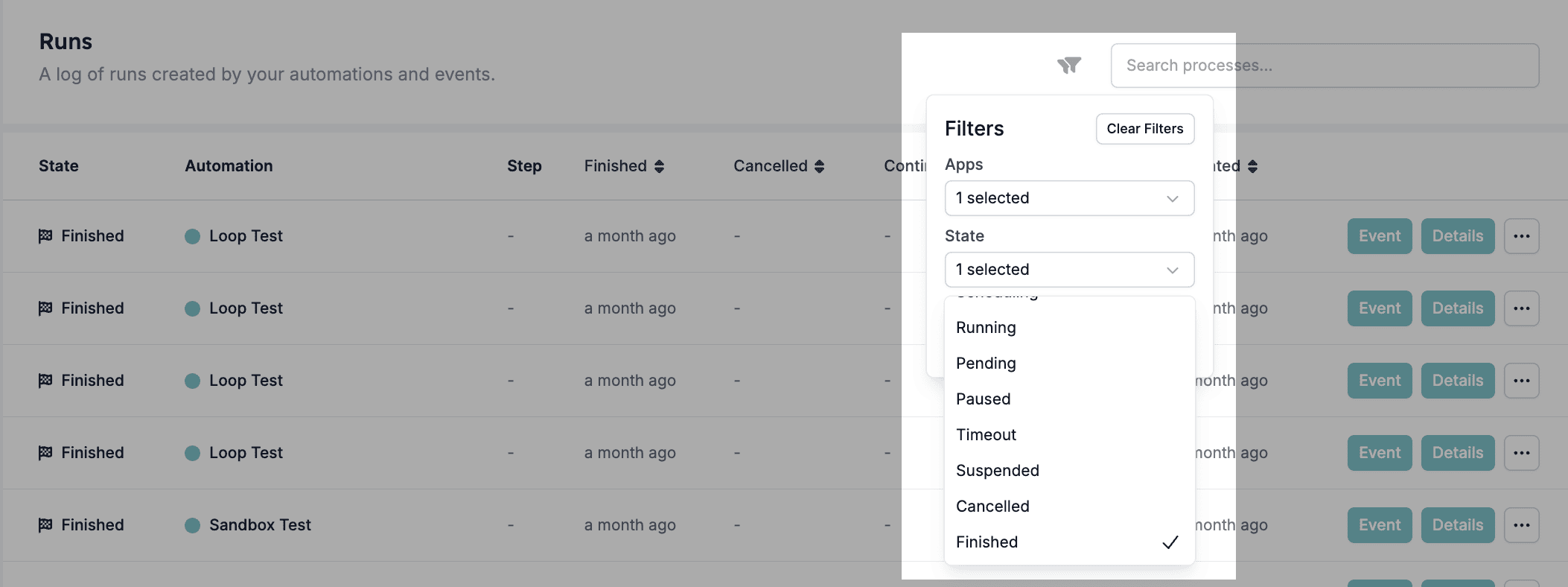
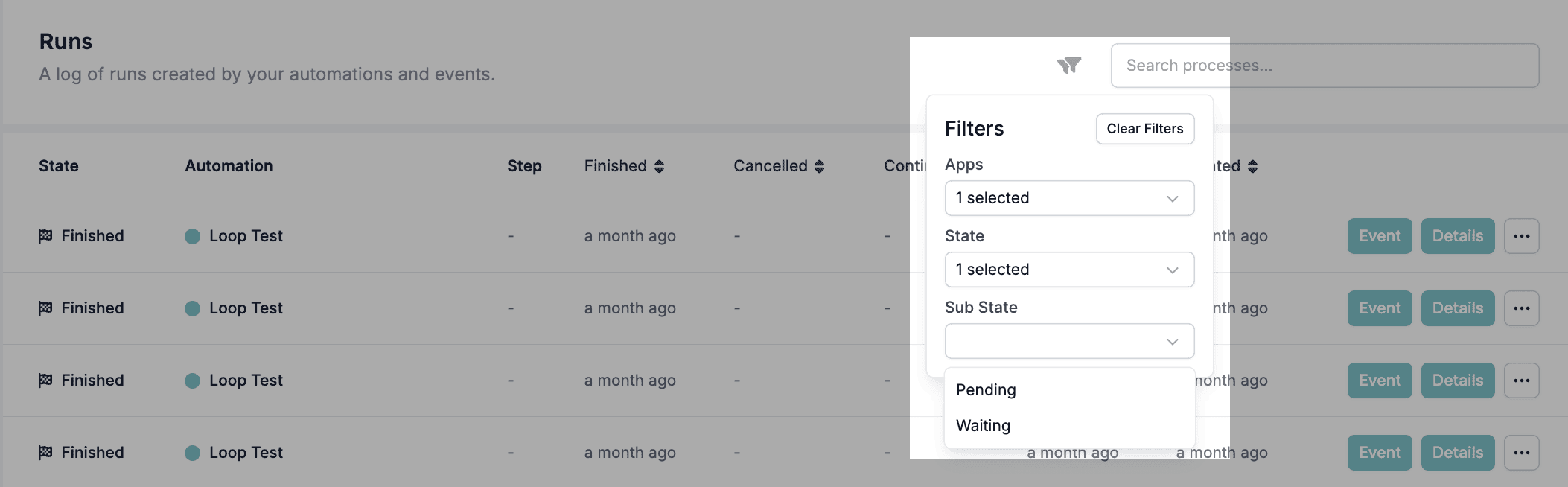
How to view run details
To explore an individual run, click the Details button next to the run for a short overview, or open the dropdown menu and click View Run.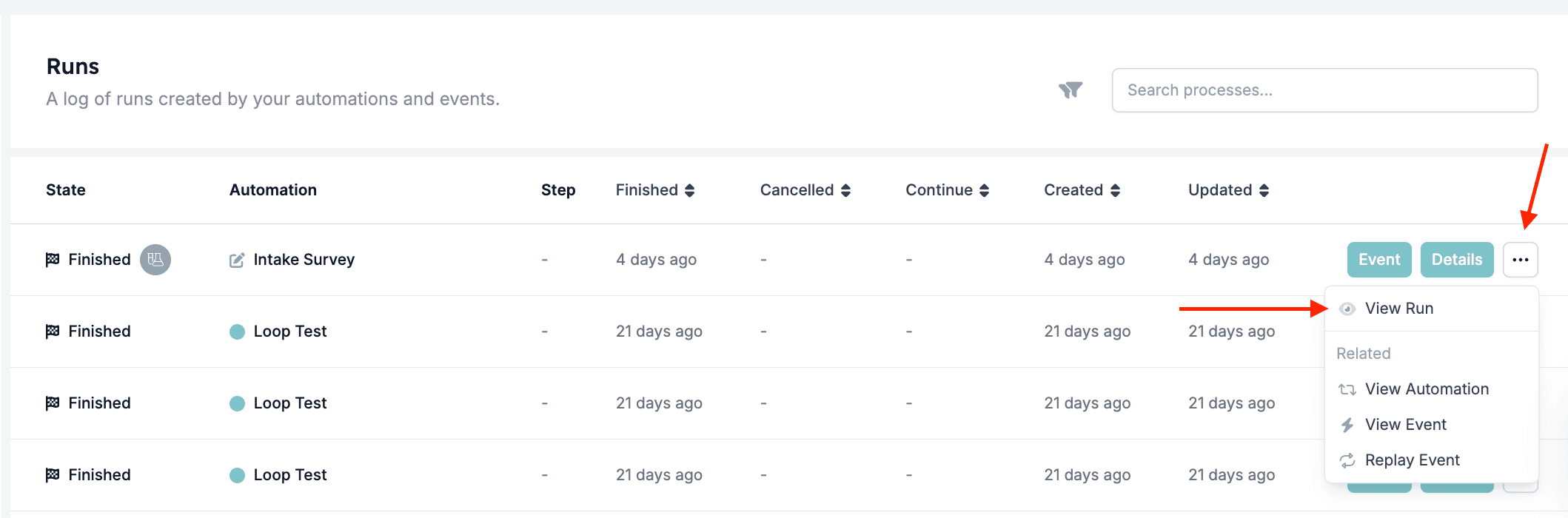
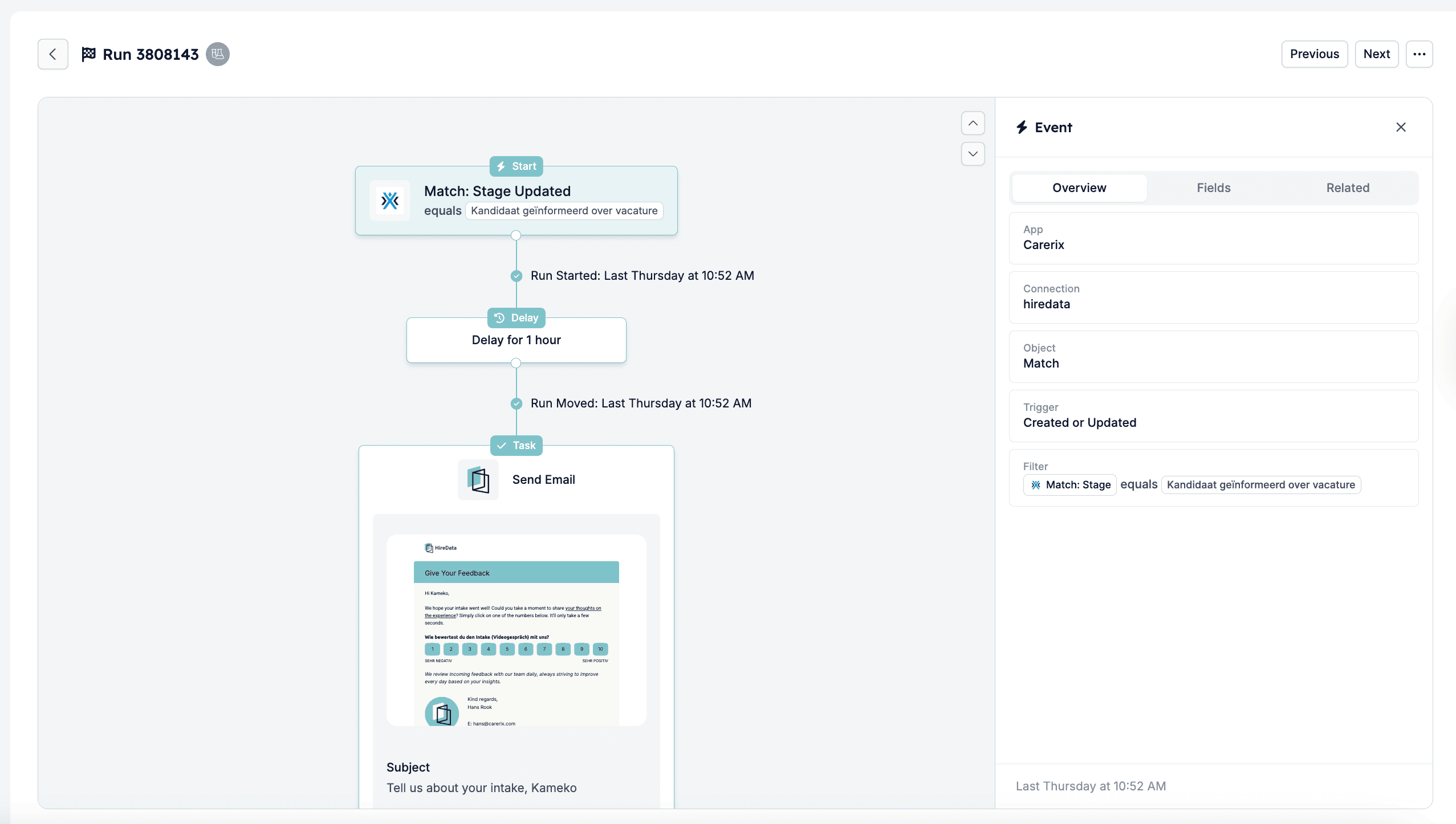
- Overview – a summarised view of the data received from your app.
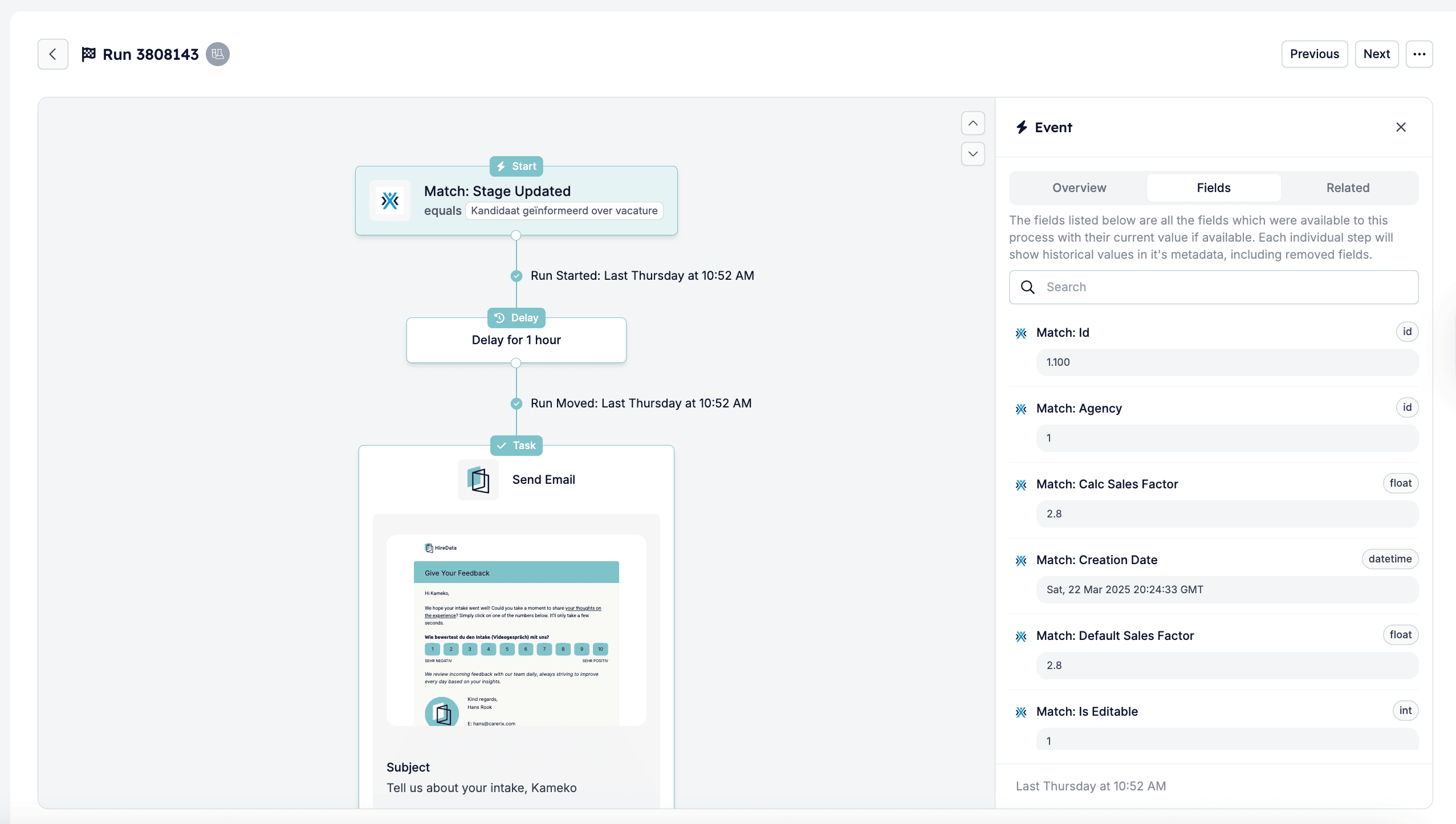
- Fields – fields with the data in the event that triggered the automation and might have been used in the run.
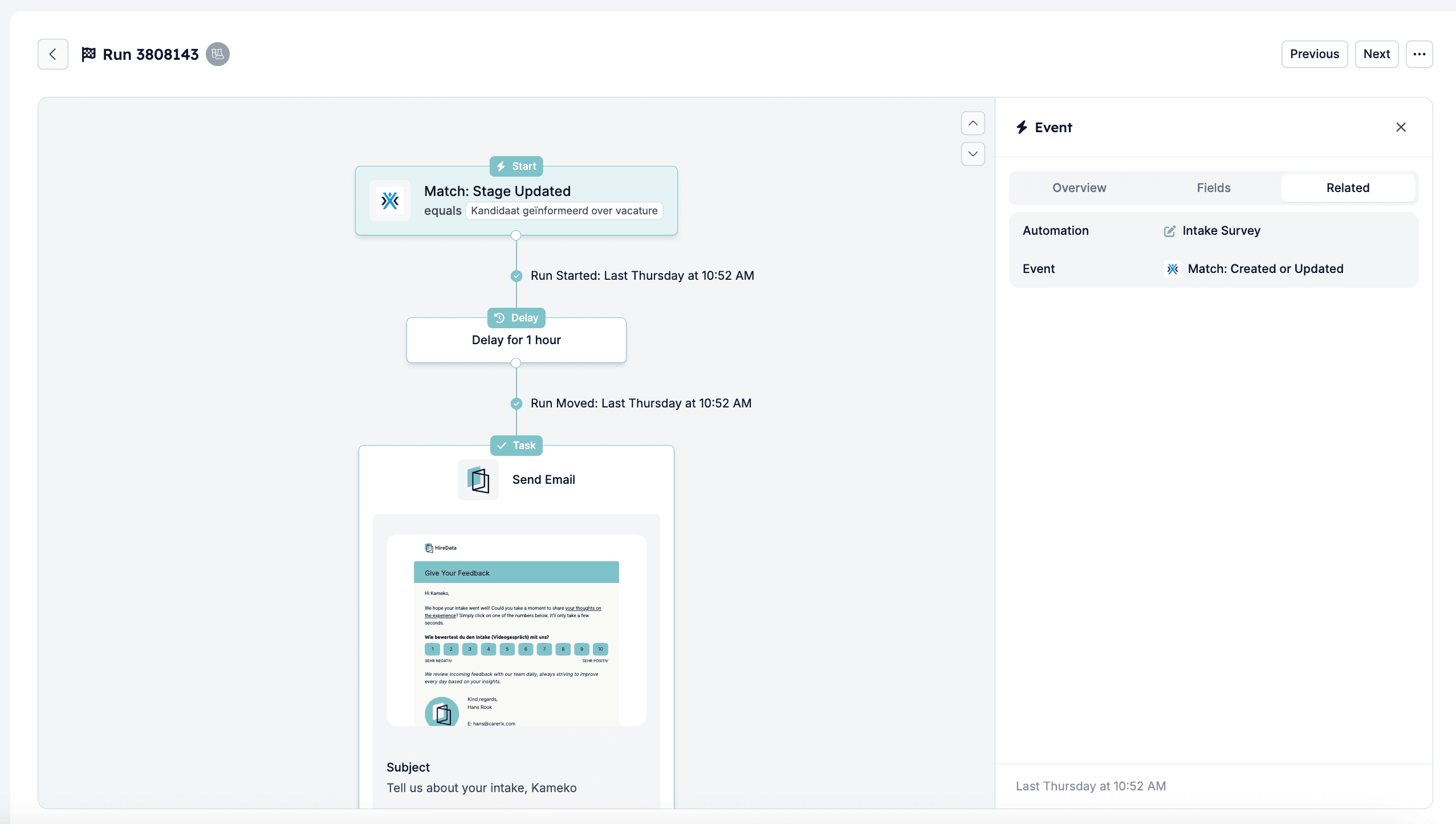
- Related – the automation this run followed and the event that triggered it.
Invalid sender email. See Run cancellation reasons for common cancellation messages and their fixes.
Troubleshooting runs
If something didn’t happen as expected:- Open the detailed view of the run to view logs and see if a step failed or was skipped.
- Open the Fields tab to confirm whether the data used in the run met your conditions. You can also compare the run with the original event (found via the Related tab) to understand what triggered it and confirm if it used the correct data.
Still need help?
If you’re unsure why a run was cancelled or completed, or want help interpreting the run’s steps, contact the HireData team at support@hiredata.com. If you do, include:- A link or the ID of the run;
- Any relevant data or context that might help the team investigate further.