

Step 1: Set up your automation
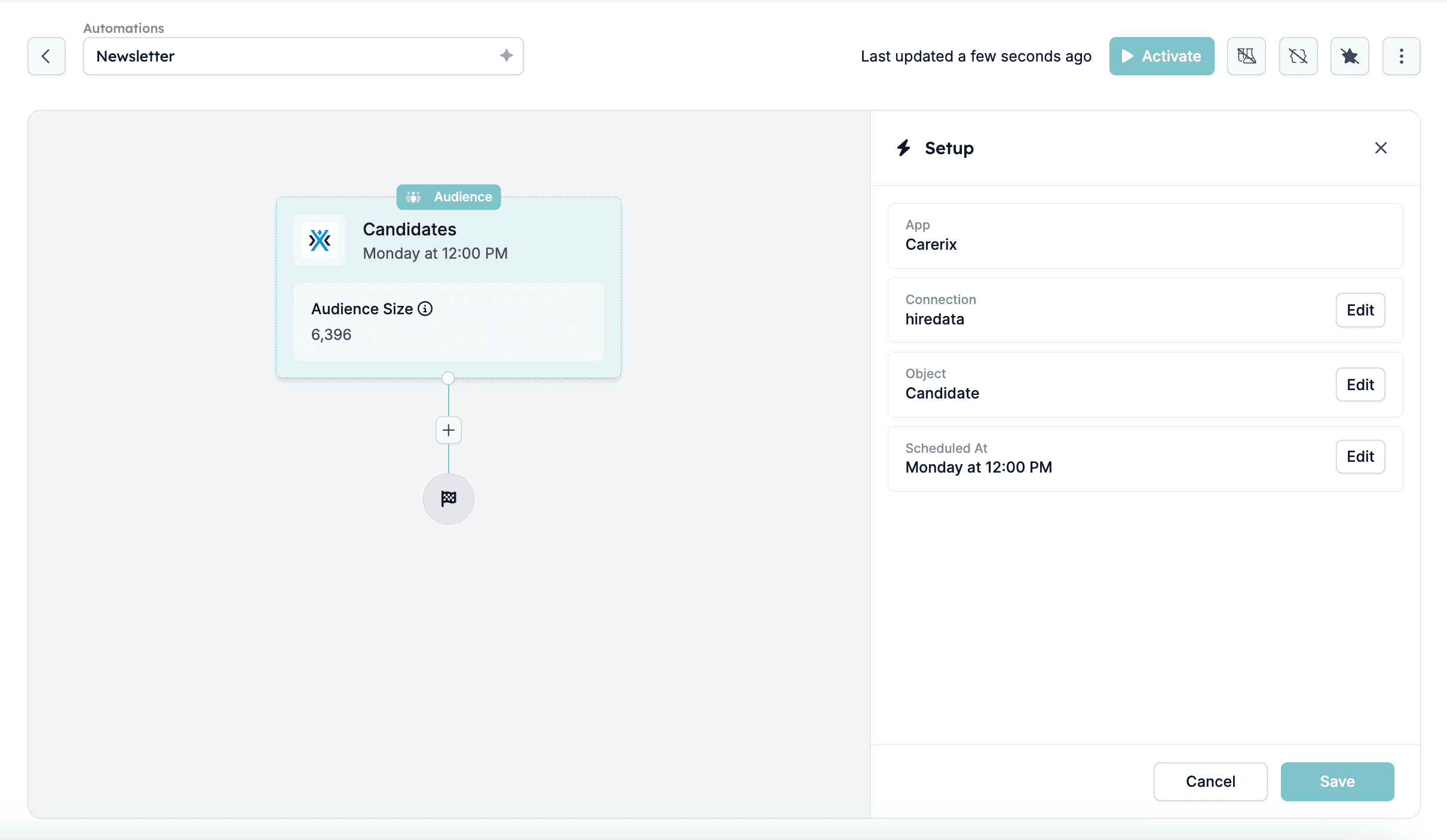
To begin, navigate to the Automations page in HireData and click the + New Automation button at the top right corner.
Step 2: Filter your audience
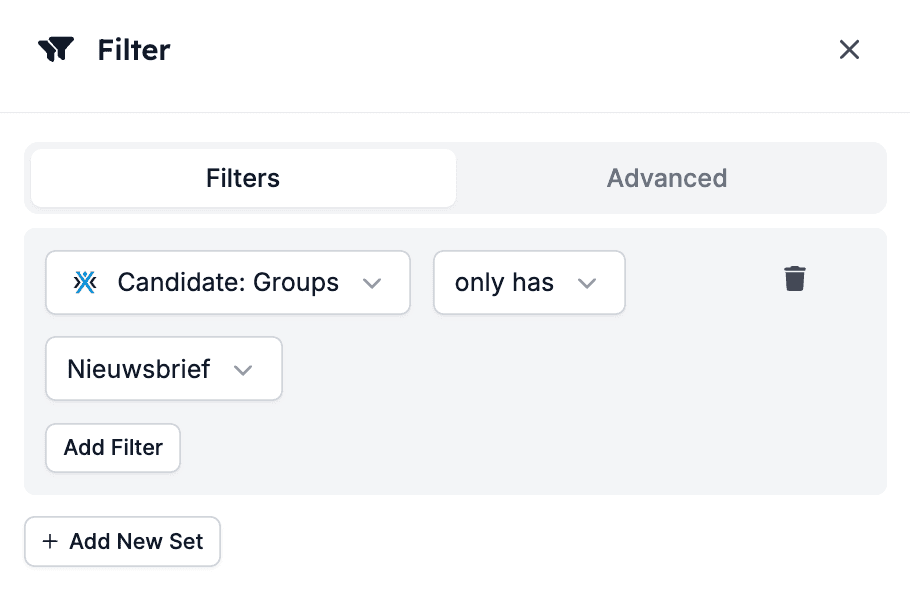
Next, define which candidates should receive the email. Click the + icon and add a filter Candidate: Groups only has Newsletter/Nieuwsbrief. This ensures that the automation only includes candidates assigned exclusively to the “Newsletter” group. It’s a good way to ensure you’re targeting the right audience without overlapping with other groups.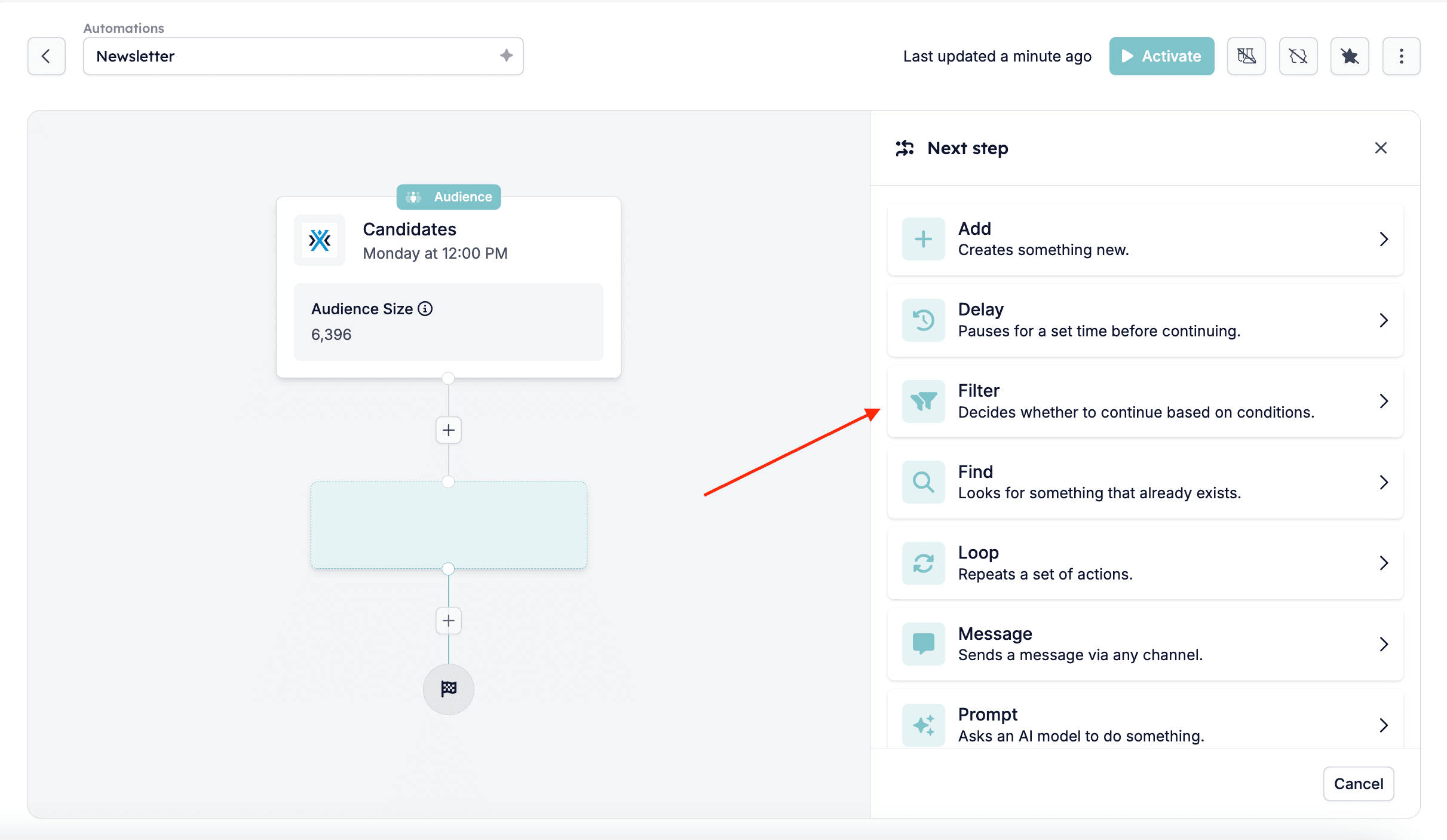
Step 3: Configure the Send Email task
3.1. Add the Send Email task
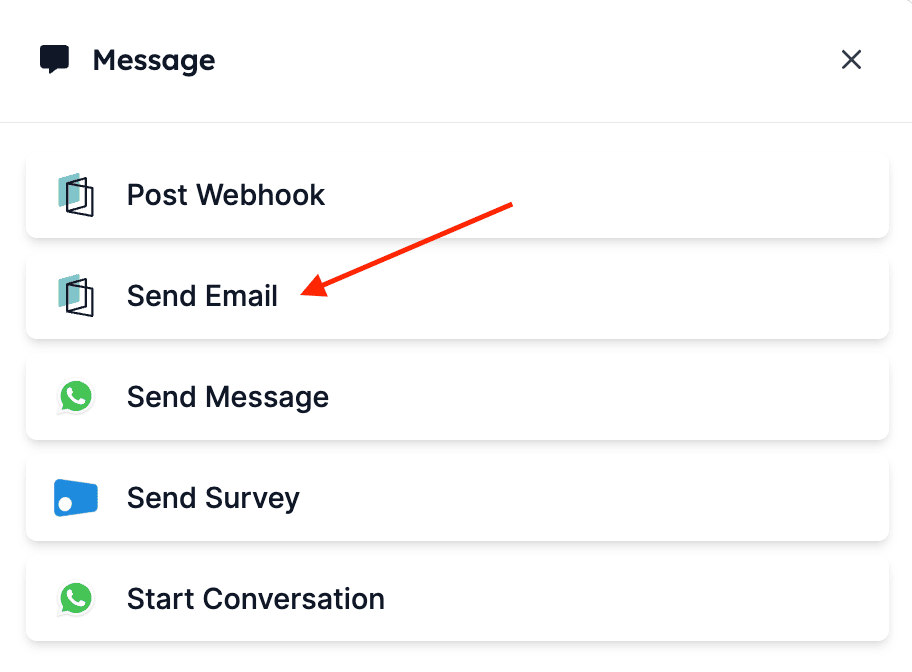
With the audience in place, it’s time to add your action. Click the + icon, then Message, and select the Send Email task via HireData.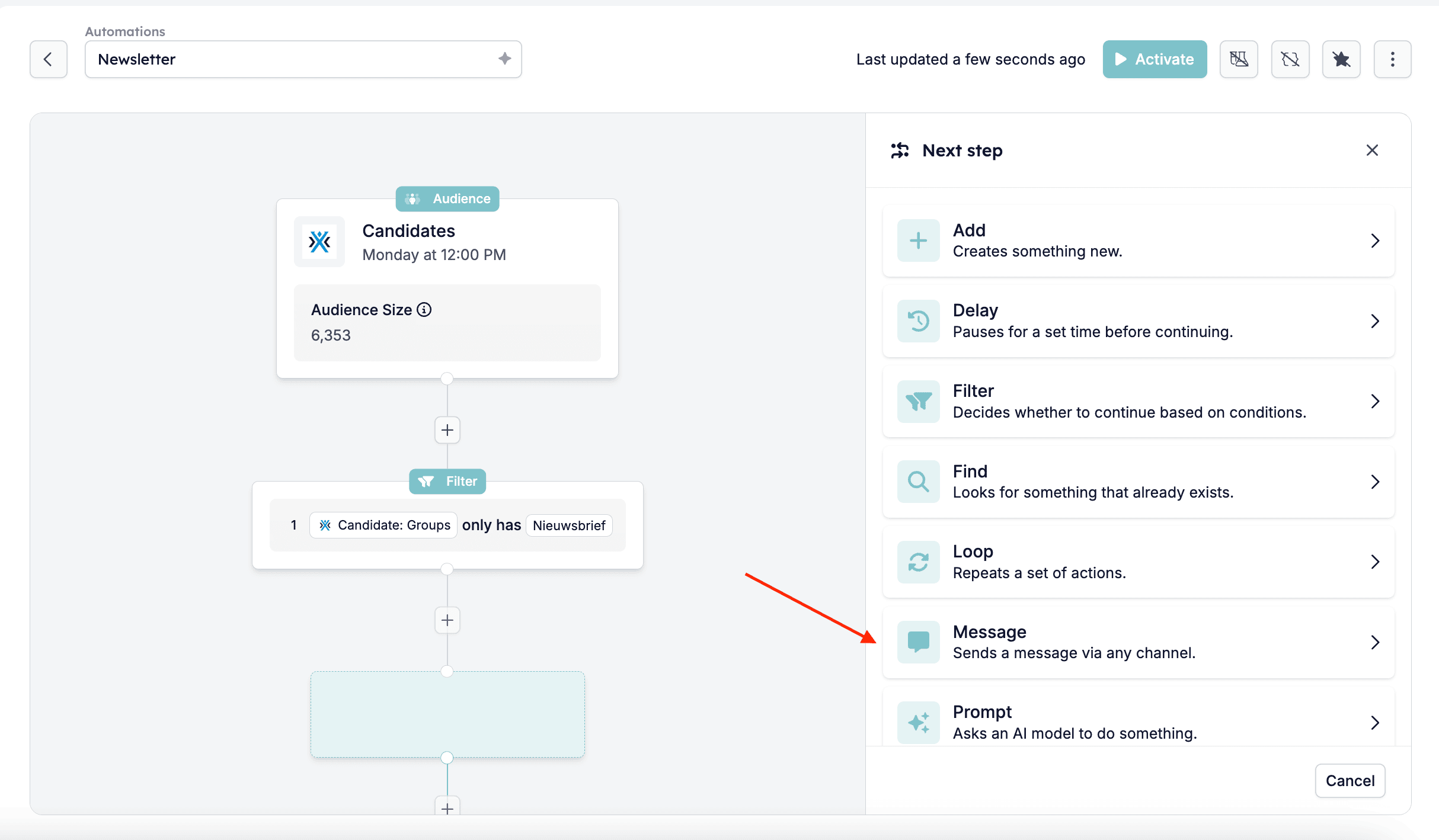
3.2. Select email template
From here, you can select the email template you’d like to send. This might be a formatted newsletter containing product updates, job opportunities, or company news. You can create the email template for your newsletter in HireData and update it with the new editions.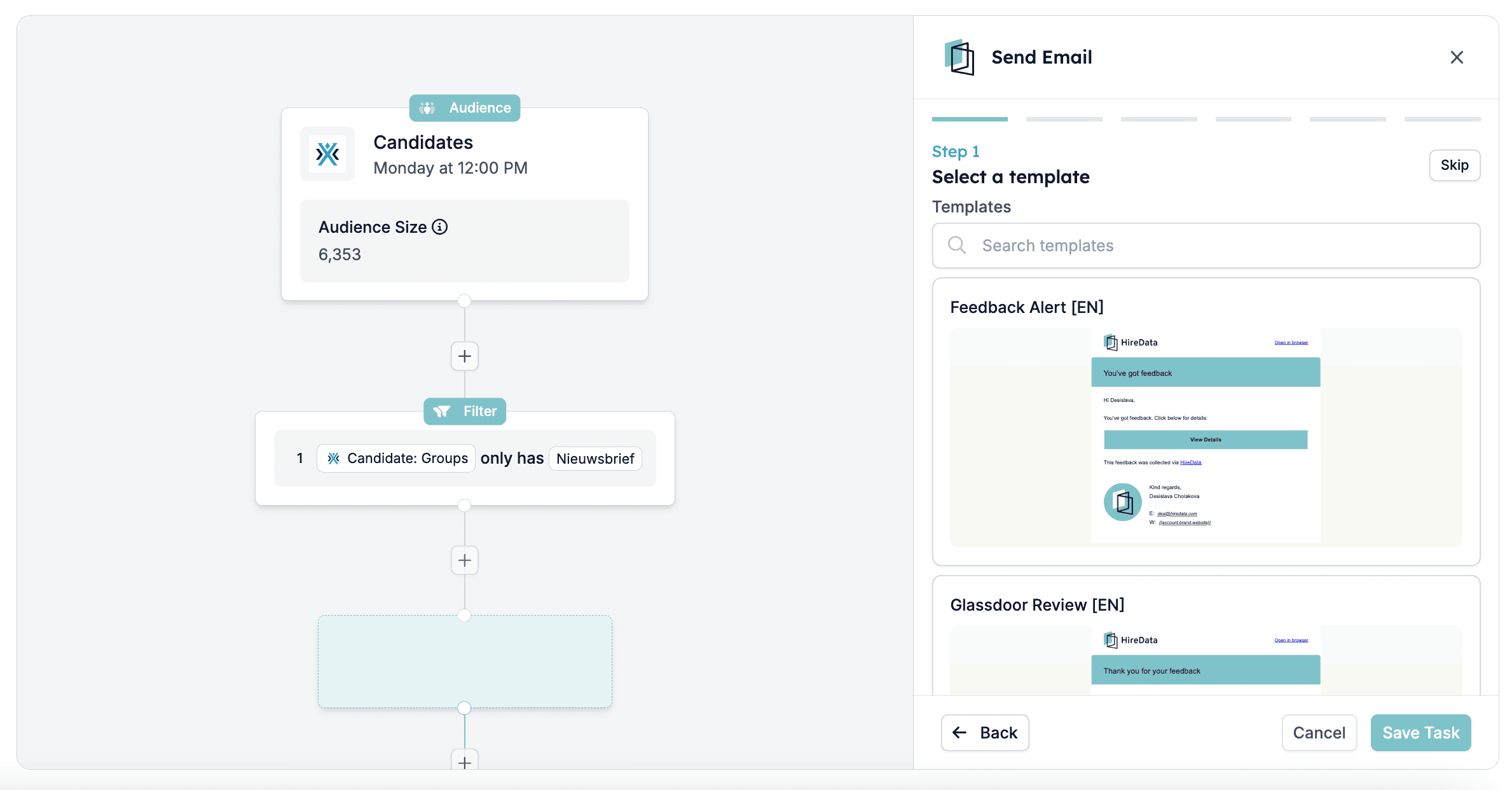
3.3. Select email branding
Select the branding you want to use for your newsletter: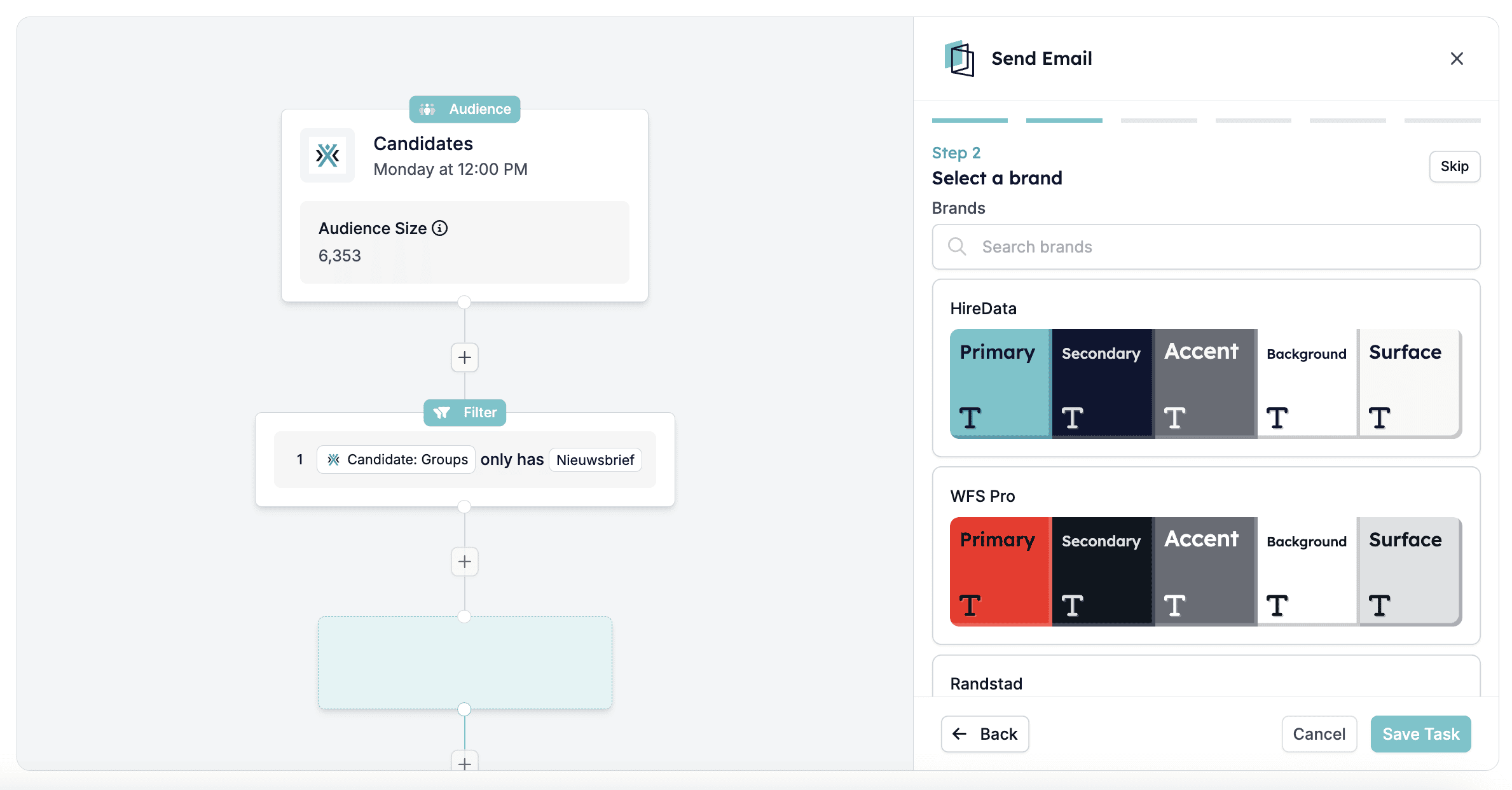
3.4. Select email recipient and sender
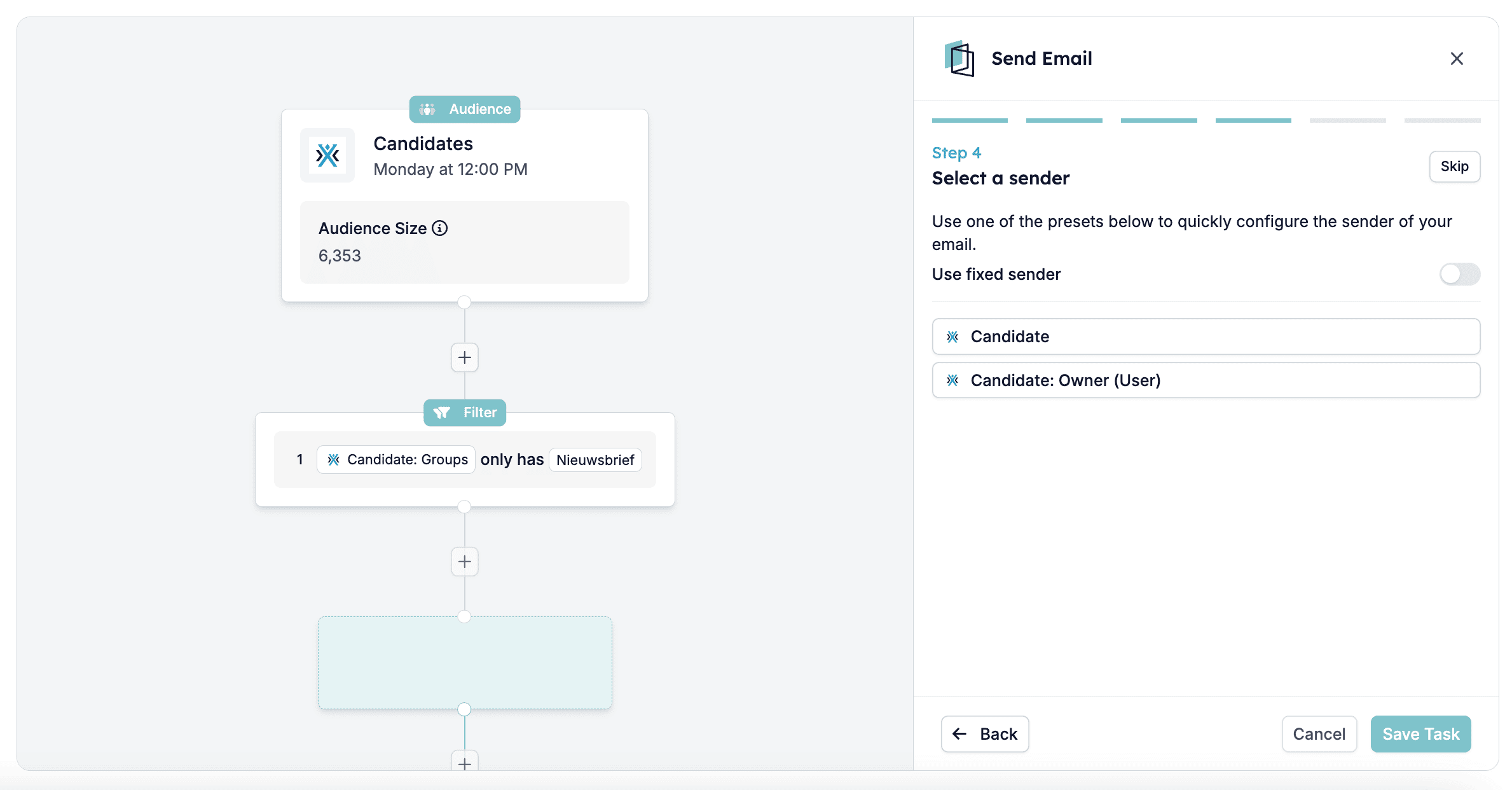
Ensure the recipient is set to Candidate and select the appropriate sender. You can send from a specific user or use a dynamic sender.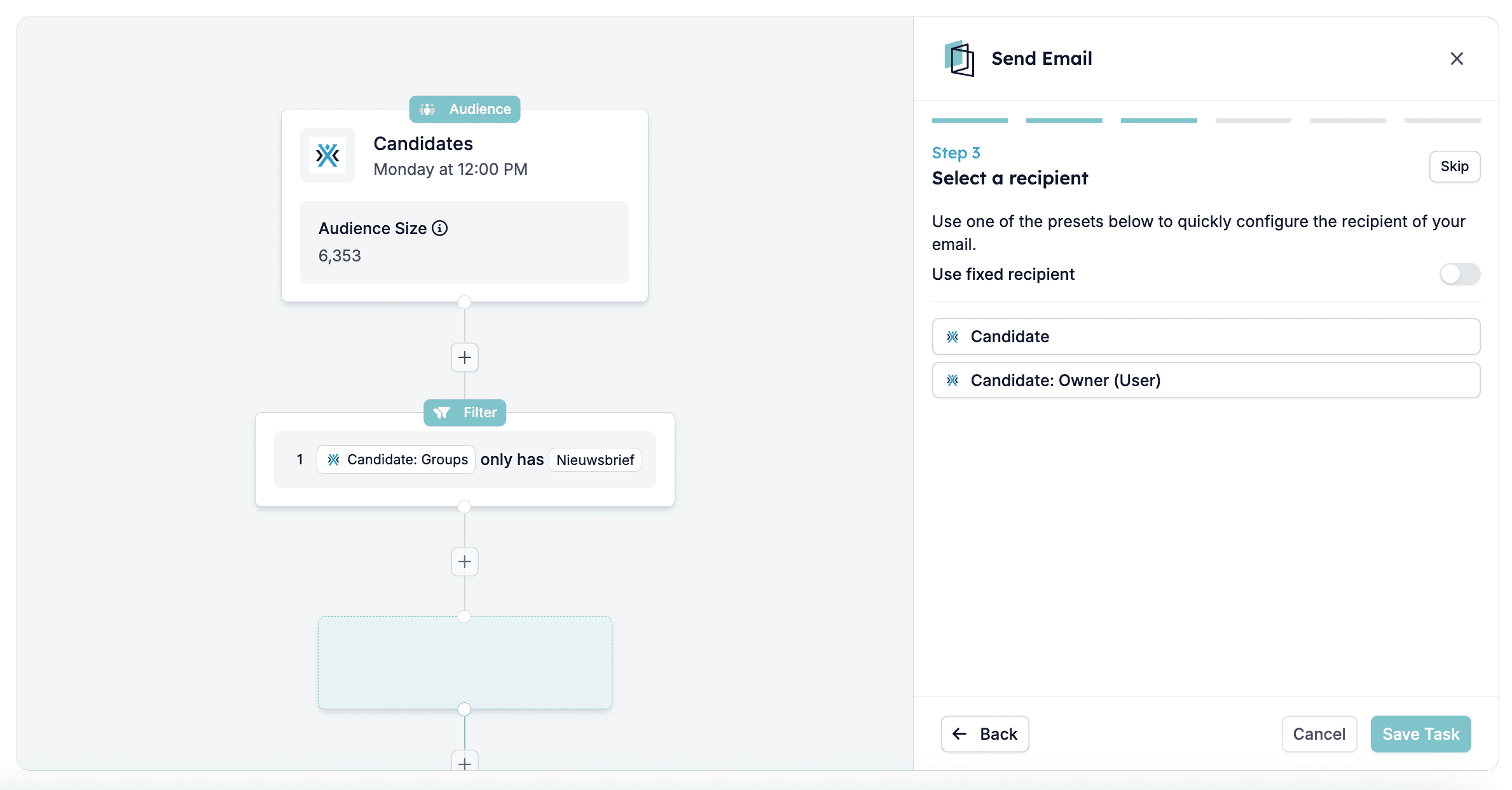
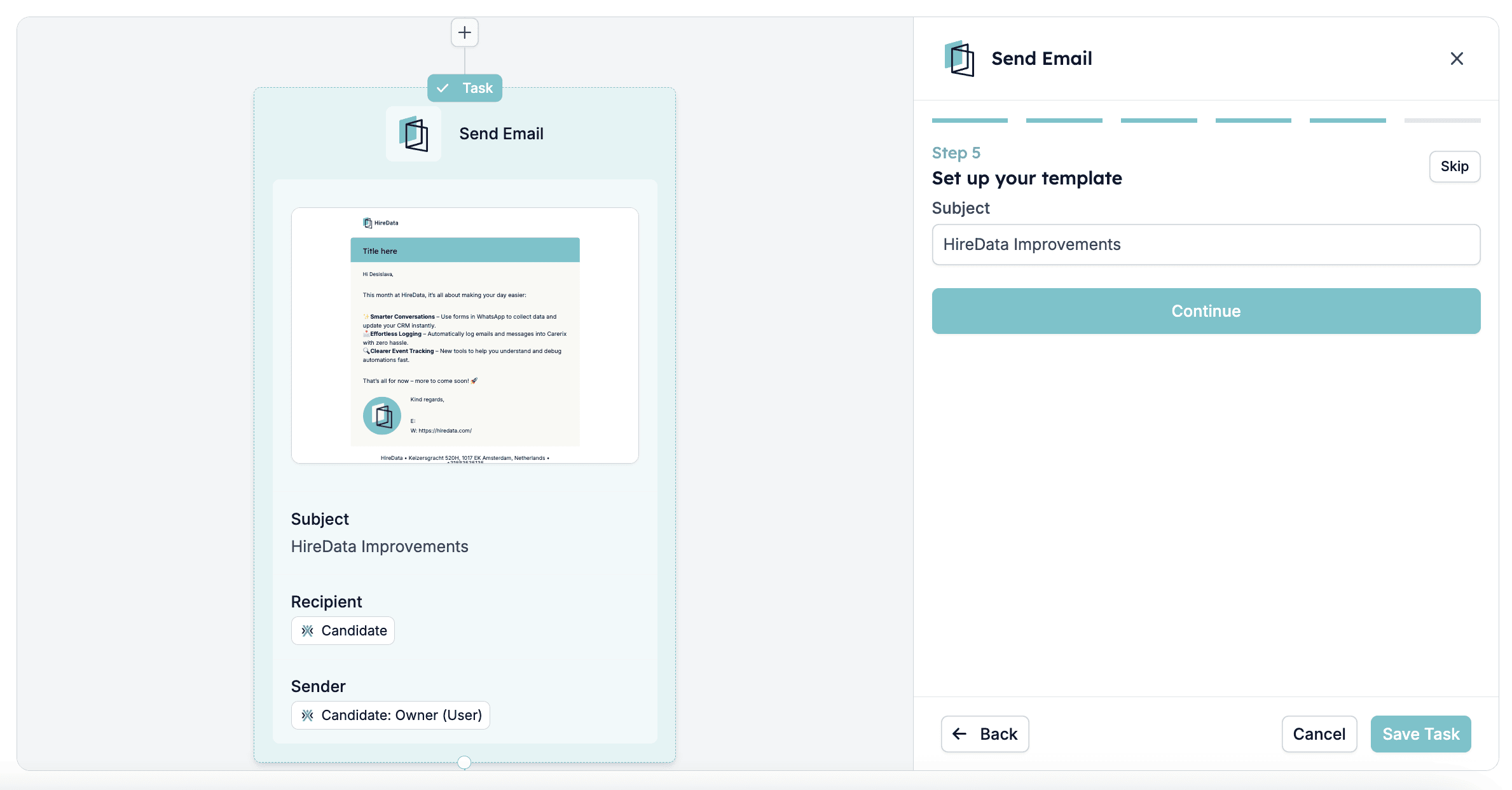
3.5. Add email subject line
3.6. Preview the email
Then, preview the email, ensuring the content appears exactly as you want it to in recipients’ inboxes.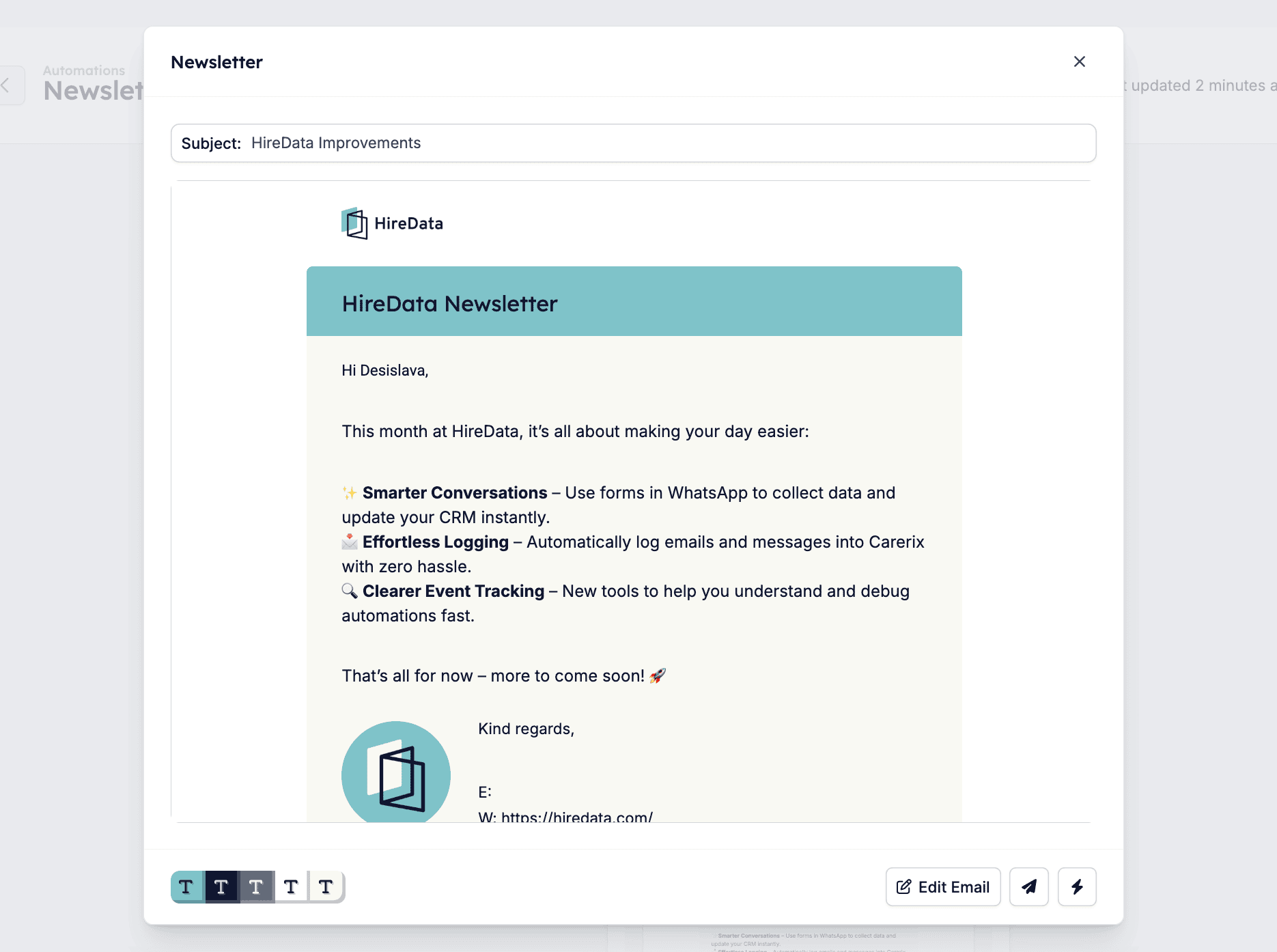
Step 4: Activate your newsletter automation and review results
Once everything looks good, click the Activate button in the top right corner. Your automation is then live and runs on the schedule you’ve set.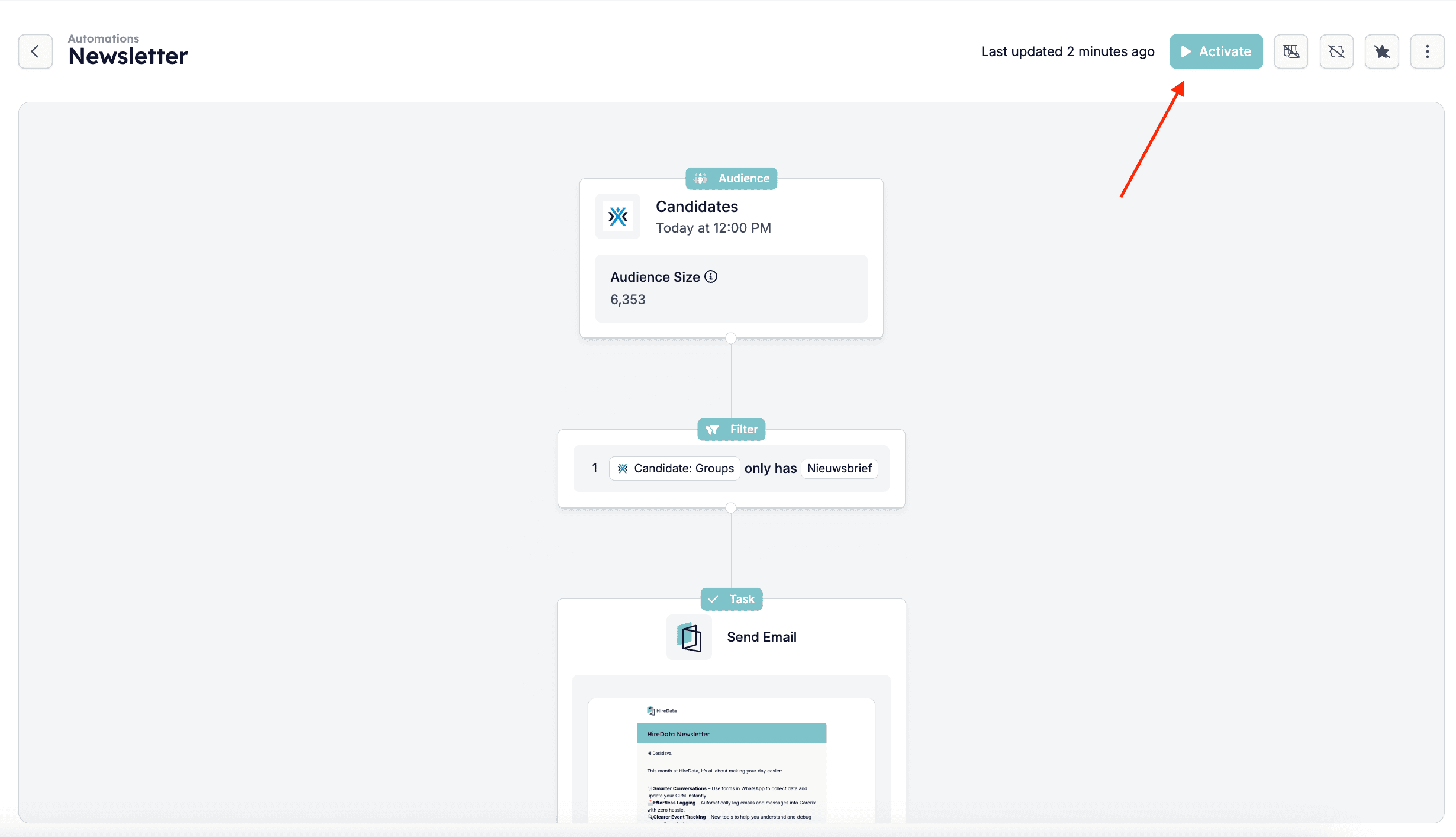
Best practices
- Target the right audience: Use specific filters like “Candidate Group only has Newsletter” to ensure relevance and avoid spamming.
- Keep content clear and concise: Focus on providing valuable updates and use short paragraphs, headings, and bullet points to enhance readability.
- Use a strong subject line: This is key to getting your email opened. Keep it short, specific, and engaging.
- Include a clear call to action: Let readers know what to do next (e.g. “View job openings” or “Register for the event”).
- Test before you send: Always preview your email and send a test version to check formatting, links, and personalization.
- Review performance: After sending, check open and click rates in HireData to learn what works and improve future sends.