

This article explains how to read, filter and assign the chats in your inbox.
This article refers to people as (WhatsApp) contacts.
Inbox layout
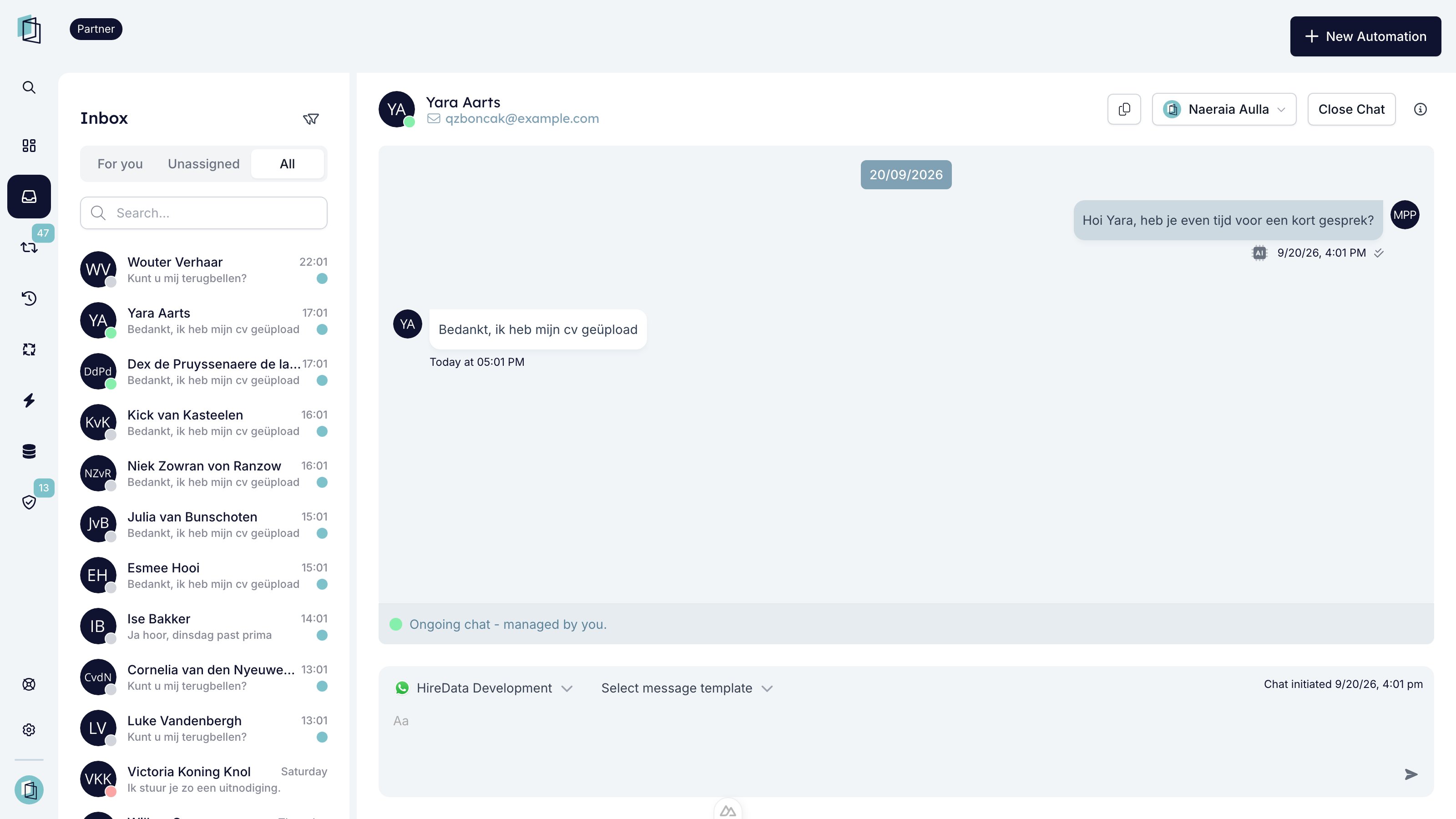
When you open the Inbox, you’ll see three views above the chat list:- For you – People whose latest chat is assigned to you.
- Unassigned – People whose latest chat has no assignee yet.
- All – All WhatsApp chats in your organization that you have access to.
Filtering chats
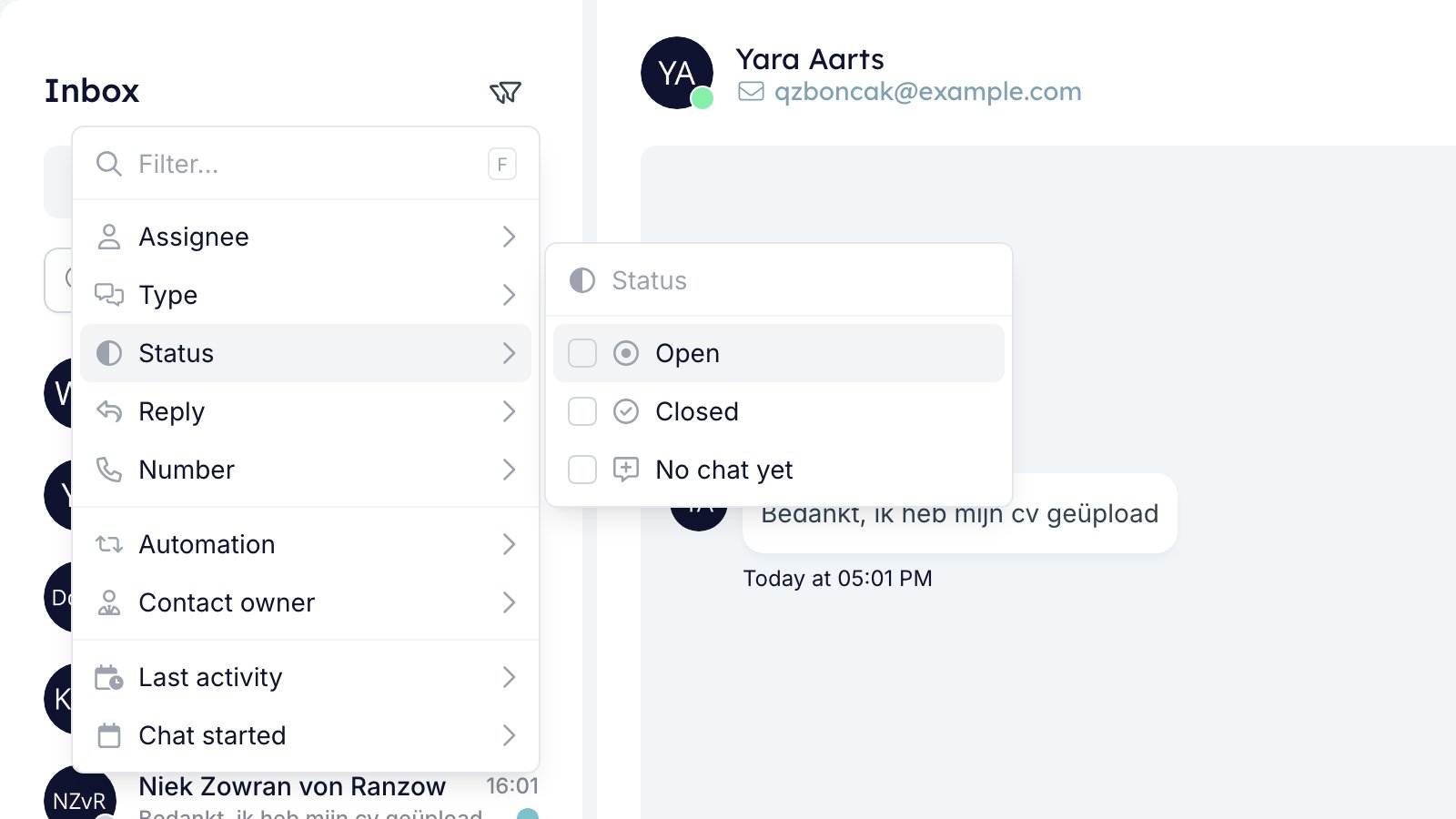
Click the filter icon next to Inbox to narrow the list with the following options:- Assignee – Filter on chats assigned to members in your team.
- Only available in the All view.
- Type – Filter between manual chats or automated chats.
- Status – Open chats or closed chats.
- No chat yet shows people you haven’t messaged yet.
- Reply – Filter on chats that need a reply, or chats you can still reply to.
- Needs reply shows chats where the contact is waiting for you.
- Reply window open shows chats where the 24-hour window is open.
- Number – Filter chats to (a) specific WhatsApp business number(s).
- Automation – Filter chats per automation.
- Contact owner – Filter on people whose record is owned by specific team members.
- Last activity – Filter chats by activity on a date or within a date range.
- Chat started – Filter chats that started on a date or within a date range.
Conversation indicators
Each chat has a colored dot on the contact’s avatar that shows its status.- The screenshot under Inbox layout shows each color.
Green: active chat
The chat is active and handled by its assignee.- “Ongoing chat - managed by you” means you are the assignee.
- If someone else is the assignee, their name shows instead.
Grey: session open, no active chat
The 24-hour window is open, but no chat is active. Any user can send a message during this period.Red: session closed
The 24-hour messaging window has expired. Use an approved WhatsApp template, or wait for the contact to reply first.Teal: unread inbound message
A teal dot on the right of a manual chat means the contact is waiting for you. It shows when their last message is unanswered and less than 24 hours old. It disappears once you reply, or after 24 hours. You see it in every view, so nothing slips through.The 24-hour conversation window
Every WhatsApp chat has a 24-hour window that starts when a contact messages. Each new message from the contact restarts the 24 hours. During this window:- You can freely exchange messages.
- HireData tracks which chats are open.
Only the contact owner or the chat’s assignee can send messages.If a contact has no owner, anyone can message them.
Sending messages
You can message contacts from the inbox, manually or through automations. What you can send depends on the colored dot next to the chat:- Green (active chat) – The assignee can send and receive messages freely.
- Grey (session open) – Any user can send a message until the window closes.
- Red (session closed) – Use an approved template, or wait for a reply.
Using WhatsApp message templates
Message templates are pre-approved WhatsApp messages. You need one to start a chat, or to reopen it after the 24-hour window. Templates can include placeholders that fill in contact or job data. To enable or create a template for manual sending:- Go to Settings → WhatsApp → Message Templates.
- Select an approved template, or create a new one.
- Link it to the right form or workflow.
- The template now shows in the inbox when you message a contact.
Starting and managing conversations
If a contact has a linked WhatsApp number:- Go to their profile.
- Open the Inbox tab.
- Click Send Message.
- If the window is open, send your message directly.
- If it’s closed, select a WhatsApp template to reopen it.
Assigning chats
Each chat can have an assignee: the team member who handles it. The assignee shows in the chat header. To assign or reassign a chat:- Open the chat.
- Click the assignee button in the chat header.
- Select a team member, or Assign to me.
- Type in the search field to find a name quickly.
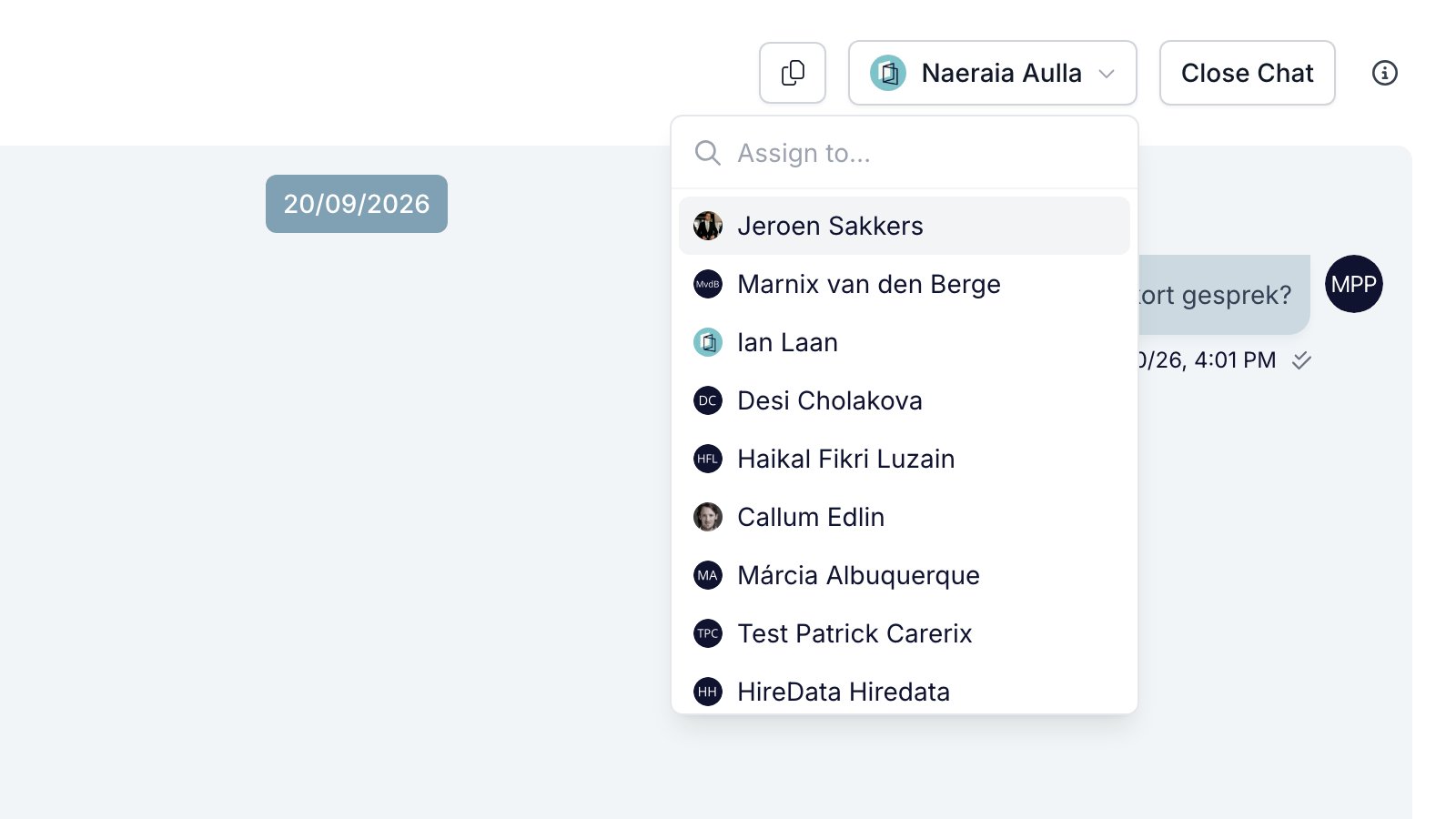
- Admins and owners can assign a chat to anyone, or take it over.
- They can also Unassign a chat.
- Users can assign an unassigned chat to themselves.
- Users can also unassign their own chats.
- When you reply to a chat without an assignee, HireData assigns it to you.
- You can assign closed chats too.
Closing conversations
The assignee can close a chat. Anyone can close a chat without an assignee. Closing a chat:- Marks the chat as closed in the inbox. It isn’t deleted.
- Keeps its assignee, so it stays in For you.
- Filter Status on Open to hide closed chats.
- Stops automations from sending more messages, unless the chat reopens.
Message reactions
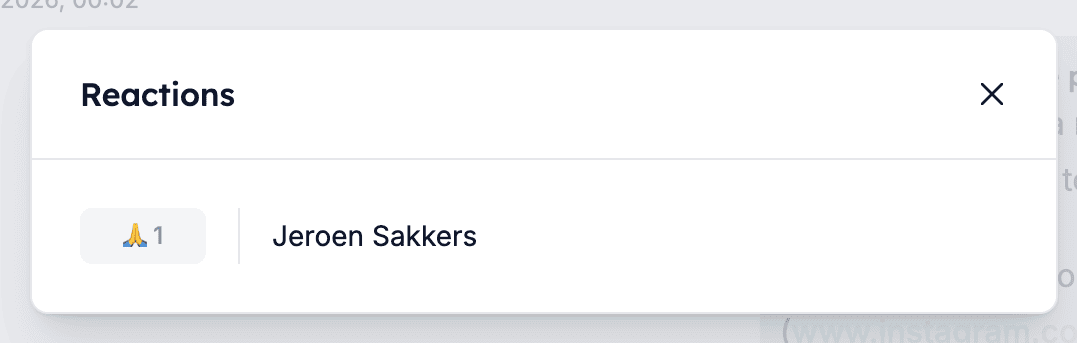
WhatsApp reactions appear in the inbox. Click a reaction to see who reacted and how.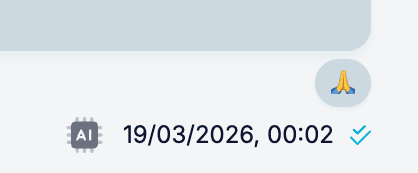
Comments and internal collaboration
Add internal notes to any chat from the inbox with Comments. Use them to share notes with your team without affecting the chat.- Comments are visible to all users.
- Contacts can’t see comments. They are for internal use only.

Automations and message labels
Messages marked “Sent by automation” were sent by a workflow or rule. For example, a reminder, or a follow-up when a contact doesn’t respond. The label tells automated messages apart from messages sent by users.Cost and billing overview
- Replying within 24 hours of a contact’s message is free.
- Starting a chat requires an approved WhatsApp template, which has a fee.
- Meta bills template costs, which vary by message type and country.
- HireData also deducts credits for each message or automated task.
- You can follow these costs in Meta’s billing interface.