

The three settings
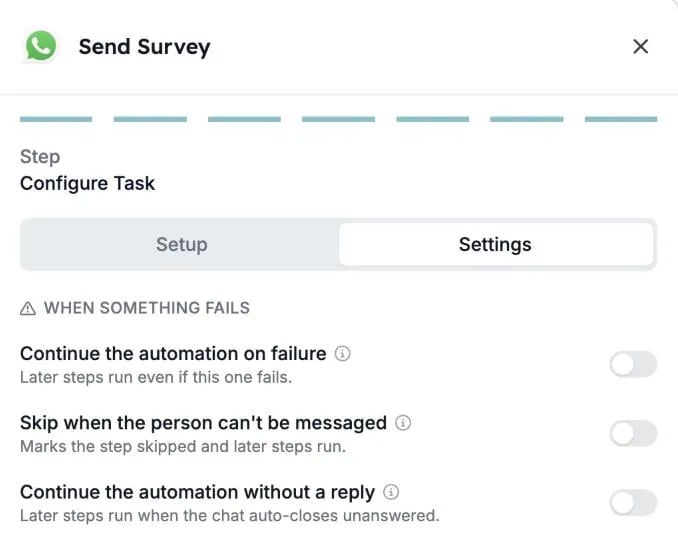
You find them in the WhatsApp step, on the Settings tab, under When something fails.
Continue the automation without a reply is only available for WhatsApp conversations.
Who “can’t be messaged”
Skip when the person can’t be messaged applies to people who:- have no phone number
- opted out
- are blocked
- already have an open chat
- reached the conversation limit of the automation
What happens if you don’t change anything
- New WhatsApp steps stop the run when the step fails and when the candidate doesn’t reply.
- Existing WhatsApp steps keep the behaviour they had before. The new settings stay off until someone turns them on.
Candidates who reply and then go quiet are not affected. Their runs always continue.
Turn on a setting
1
Open the WhatsApp step
Open your automation and click the WhatsApp step, for example Send Survey.
2
Go to the Settings tab
On the last screen of the step, Configure Task, switch from Setup to Settings.
3
Switch on what you need
Under When something fails, switch on one or more settings. Each setting has a short description, and the info icon next to it gives more detail.
4
Check the canvas
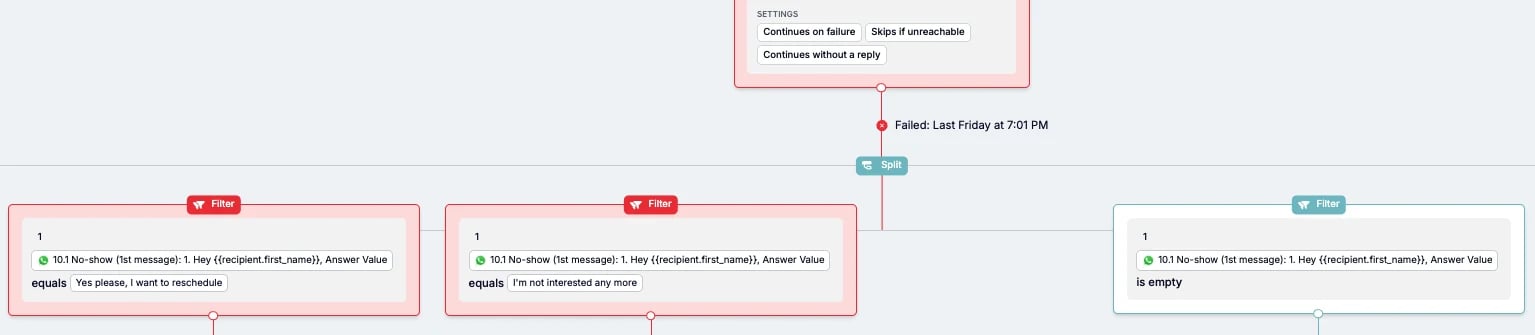
Back on the automation canvas, the step lists the settings that are on, such as Continues without a reply, Continues on failure, and Skips if unreachable.
Example: follow up with candidates who don’t reply
Say you send a WhatsApp survey and want to try again, or update the candidate’s record, when nobody answers.- Turn on Continue the automation without a reply in the WhatsApp step.
- After the step, add a Split with one Filter per outcome.
- Use the candidate’s answer in the filters. For example, one filter for each answer button, and one filter where the answer is empty for candidates who didn’t reply.
- Under the “no reply” filter, add the follow-up: a reminder message, an email, or an update in your ATS.
Good to know
- A message that never arrives counts as a failure, not as no reply. Use Continue the automation on failure if later steps should still run in that case.
- The settings work per step. An automation with several WhatsApp steps needs the settings on each step where you want the run to carry on.
- Stopping is still an option. Flows that should end when the candidate doesn’t reply can keep the settings off.
Troubleshooting
See Run cancellation reasons for other reasons a run can stop.